Overview
Start, track, and end support sessions. Every interaction with a customer account happens inside a session, which tracks elapsed time, logs all actions to the audit trail, and persists across page reloads.
:::tip At a Glance
Who is this for?
All support agents — sessions are mandatory for working with customer accounts.
When do I use this?
A session starts automatically when you open a customer from search. You end the session manually when the support interaction is complete.
What will happen?
A timer tracks session duration, all actions are logged, and an optional summary email can be sent when the session ends.
:::
How Sessions Work
Session Lifecycle

Session Start
When you click a customer from the search results:
- A session is created automatically
- Your progress is saved and persists across page reloads
- The session timer begins counting
- An audit log entry is recorded
- You are navigated to the customer detail view
During a Session
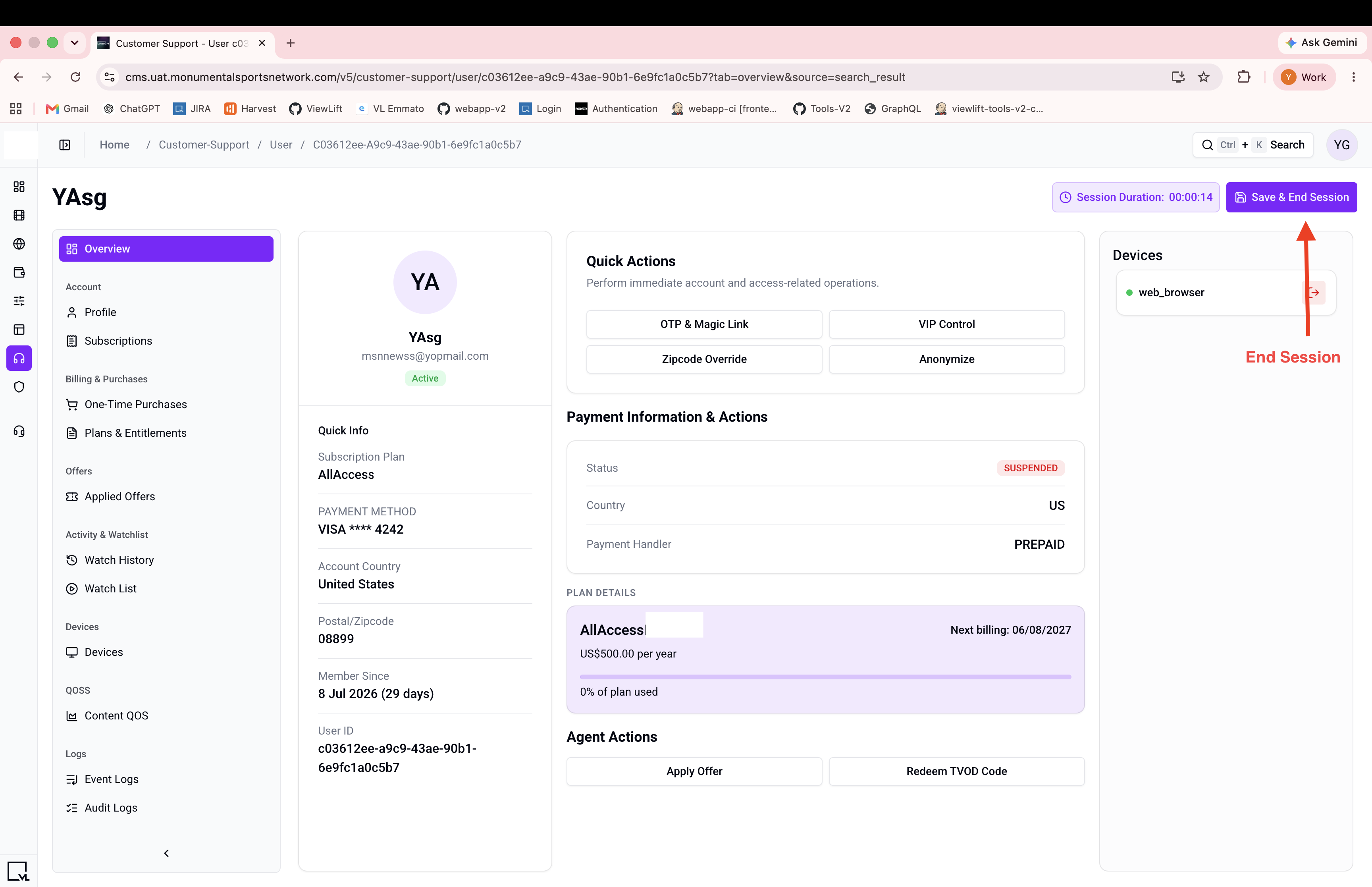
- A session timer (HH:MM:SS) is visible on the customer detail page
- All actions you take (edits, cancellations, refunds, etc.) are logged to the audit trail with your username
- The session persists across page reloads — refreshing the page or navigating away does not lose the session
- Only one active session per site is allowed
Session End
- Click the Save & End Session button
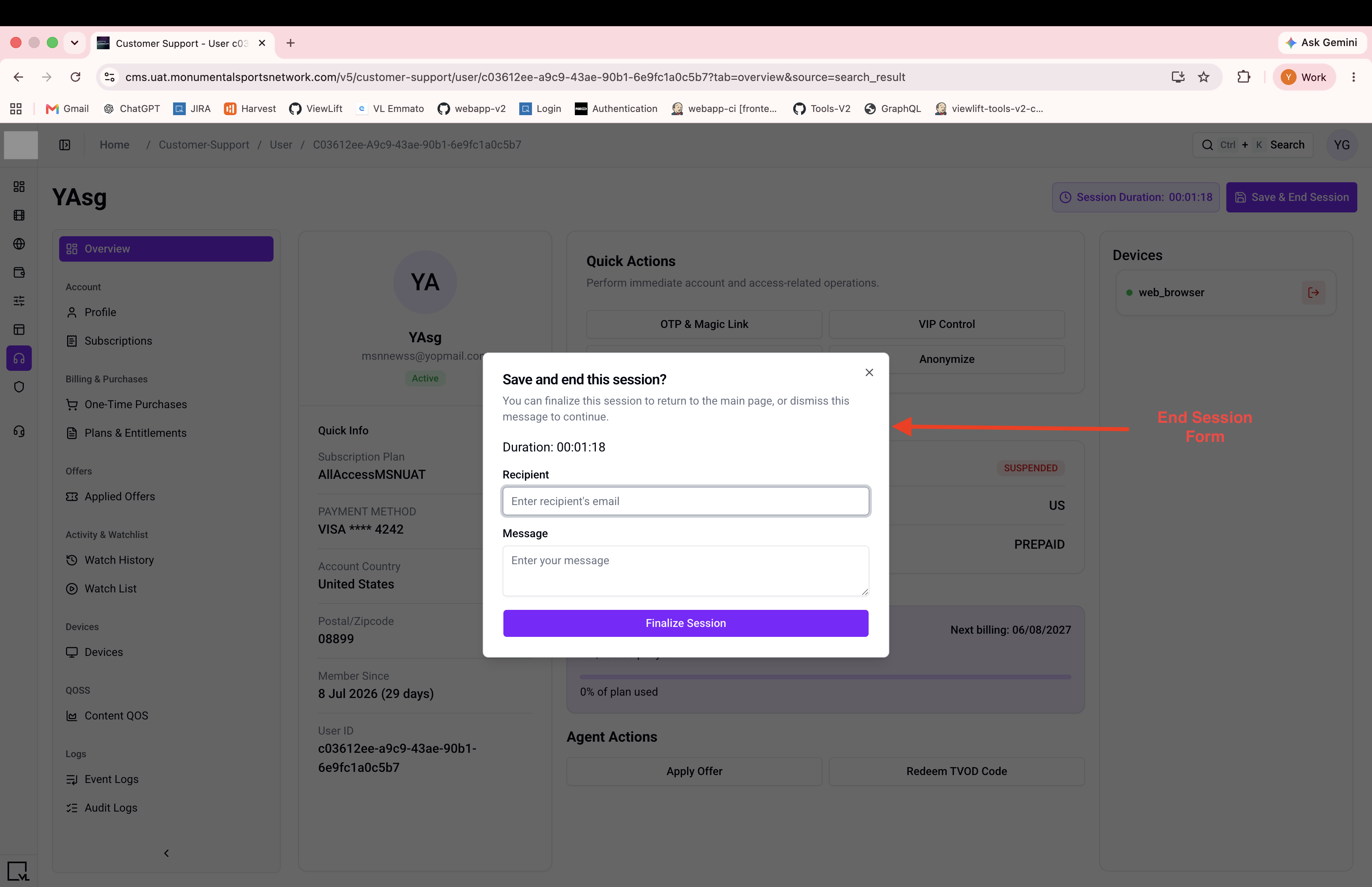
- A dialog opens with an option to send an email summary
- Optionally enter additional email recipients and a message
- Click Confirm to end the session
- The elapsed duration is recorded
- The session is cleared
- An audit log entry is recorded
- You are redirected back to the Customer Support search page
Steps
Step 1: Start a session
Search for a customer and click their row. The session starts automatically — no manual action needed.
Step 2: Work on the account
Use any of the available tabs and actions. Everything is tracked.
Step 3: End the session
Click Save & End Session in the session summary area.
Step 4: (Optional) Send an email summary
In the end-session dialog, enter email addresses and a summary message if you want to send a recap.
Step 5: Confirm
Click Confirm. The session ends and you're taken back to the search page.
Expected Behavior
- Session timer runs from the moment you open the customer detail view.
- The session survives page reloads.
- Ending the session logs the total duration.
- All actions during the session appear in the audit logs.
Edge Cases / Notes
- One session per site: If you already have an active session for the current site, opening another customer will continue within that context. You cannot run two simultaneous sessions for the same site.
- Session restoration: If you close the browser and reopen the page, the session is restored and the timer resumes.
If Something Goes Wrong
- Timer not showing? → The session may not have started properly. Go back to search and re-open the customer.
- Session didn't end? → Try refreshing the page, or clear your browser's local storage for this site.
- "Save & End" not working? → Ensure the end-session dialog is fully loaded before clicking Confirm.