Overview
Find a customer by email, phone number, name, last four card digits, or transaction ID. The search bar auto-detects the filter type as you type, and shows live suggestions before you hit enter.
:::tip At a Glance
Who is this for?
Support agents looking up a customer account.
When do I use this?
At the start of every support interaction — before you can view or change anything on an account, you need to find the customer first.
What will happen?
You'll get a list of matching customers. Click one to open their detail view and start a support session.
:::
Prerequisites
- You must be signed in with a support-level role or higher
Steps
Step 1: Navigate to Customer Support
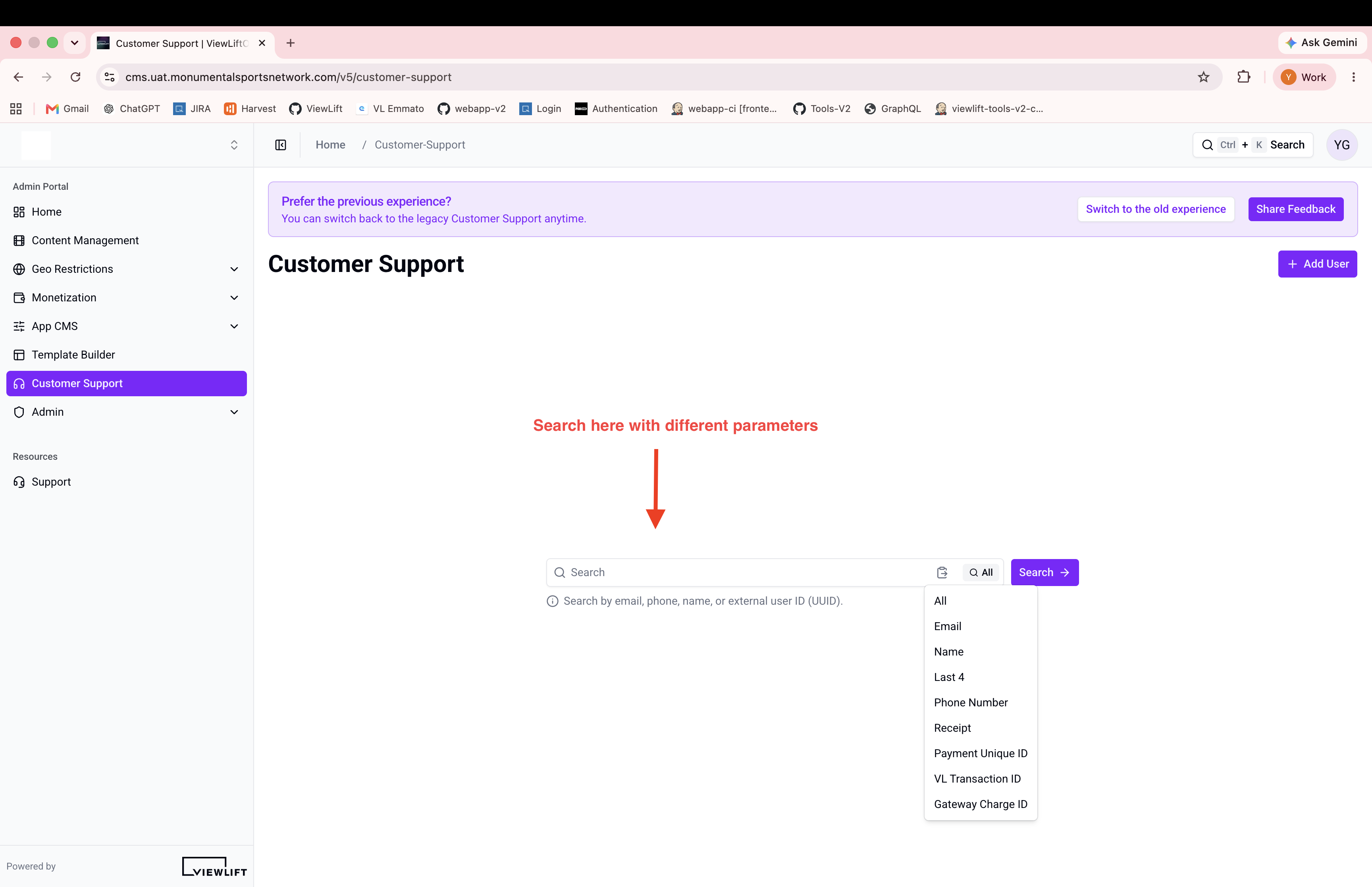
Go to the Customer Support page from the sidebar navigation.
Step 2: Type a search term
Start typing in the search bar. The system auto-detects the filter type based on what you enter:
| You type… | Detected filter |
|---|---|
jane@example.com |
|
+1 555-1234 |
Phone Number |
4242 |
Last 4 (card) |
Jane Doe |
Name |
| A UUID string | External ID |
As you type, live suggestions appear in a dropdown (up to 5 results). You can click a suggestion to jump straight to that customer.
Step 3: Select a filter (optional)
If auto-detection picks the wrong filter, open the filter dropdown and choose the correct one manually. Available filters: All, Email, Name, Last 4, Phone Number, Receipt, Payment Unique ID, VL Transaction ID, Gateway Charge ID.
Step 4: Submit the search
Press Enter or click the search button. The full results appear in a paginated table below.
Step 5: Open a customer
Click a row to open that customer's detail view. This also starts a support session automatically.
Expected Behavior
- Results appear in a table with pagination controls.
- If no customers match, a "No data" message is shown.
- Clicking a result navigates to the customer detail page with the Profile tab selected.
Edge Cases / Notes
- Paste detection: If you paste a value into the search bar, the filter is auto-applied and the search fires immediately — no need to press Enter.
- Clipboard button: A clipboard icon appears if your clipboard contains a searchable value. Click it to paste and search in one step.
- Phone format: Phone numbers should start with
+. The system normalizes the value before searching. - Email normalization: Emails are lowercased automatically.
- UUID detection: If the system detects a UUID, it switches to external ID search mode.
Flow

If Something Goes Wrong
- No results for a known customer? → Try a different filter. Email is the most reliable.
- Suggestions not appearing? → They only show after 300 ms of inactivity and require at least a partial match.
- "No data" on a valid search? → Confirm the search term is correct and try the All filter.
Related
- Add a new user
- View customer profile
- Session management