Introduction
VL Subscription 01 is a System Screen module in Template Builder. It powers the legacy subscription payment page on your website and connected apps — where signed-in customers complete payment for a plan they already selected.
On the website, this experience typically lives at /subscription. Customers enter card details, review the purchase, and confirm payment. A success or failure popup appears before they are sent to the next step in your site’s onboarding flow.
Many newer sites use VL Checkout 01 at /checkout instead, which combines account creation, plan selection, and payment in one flow. Use VL Subscription 01 when your onboarding flow still includes a separate Subscription step after View Plans or when customers update a saved payment card from account billing.
This article explains how to create the Subscription page in Template Builder, configure VL Subscription 01, publish it, and verify the experience on the web.
Purpose
The purpose of this article is to help you:
- Create a Subscription Flow (or System Screen) page for payment in Template Builder
- Add and configure the VL Subscription 01 module
- Control payment copy, consent, branding, and optional promotional images
- Understand what customers see during payment on the website
- Publish and verify the live Subscription page
Scope
This article covers:
- Creating a Subscription page in Template Builder
- Adding VL Subscription 01 to the page layout
- Module settings: payment options, Items (Images), Brand, Localization (Labels), and optional JusPay settings
- How the subscription payment page appears on the website
- An overview of the payment flow on web (flowchart)
Prerequisites
Before you begin, ensure you have:
- Access to Template Builder for your site
- Access to ViewLift Tools / AppCMS to confirm SVOD and/or TVOD services and payment providers are configured
- At least one active subscription or purchase plan customers can pay for
- Stripe (or your configured payment provider) set up at the site level for web payments
- Brand colors and payment copy ready: billing agreement text, consent links, and popup success/failure messages
Example used in this article
Throughout the steps below we use a Subscription page named Subscription at path/subscription. Replace the sample values with your own.
Subscription payment flow overview (website)
The flowchart below shows the typical customer journey on the website when VL Subscription 01 is published at /subscription.
(1).png)
Notes
- Customers usually arrive with a plan already selected from View Plans, a plan banner, a detail-page paywall, or a deep link that includes a plan identifier.
- The page shows Back and Skip controls in the onboarding flow wrapper when your site uses flow navigation.
- Optional Images from module settings can appear as a left-side carousel or single banner on supported layouts.
- When JusPay is the active payment provider for the customer’s region, the payment UI follows your JusPay module settings instead of the standard card form described here.
- Hide Billing Consent removes the billing agreement line at the bottom of the payment area (except where regional rules require it).
Step 1: Open Template Builder
- Log into ViewLift Tools.
- Open AppCMS → Edit Template Builder (or open Template Builder for your site from your usual entry point).
- Confirm you are on the correct site and language (if localization is enabled, use the language selector on the Template Builder home screen before editing page copy).
.png)
Figure 1. Template Builder home. From here you create pages and open System Screens.
Step 2: Create the Subscription page
The Subscription page must use a system page type so that VL Subscription 01 is available in the module picker.
- In Template Builder, go to Pages.
- Select + ADD NEW (or Create a New Page).
- Enter New Page Name:
Subscription(or your preferred name). - In New Page Type * Developers Only, select Subscription Flow (recommended) or System Screen.
- Optionally set Target Language (If localized Page) if you are creating a language-specific Subscription page.
- Select CREATE.
Set the page path
- On Page Settings, set the page path to
/subscription(recommended) unless your site already uses a different subscription path. - Confirm the page type is Subscription Flow or System Screen.
- Save page settings if prompted.
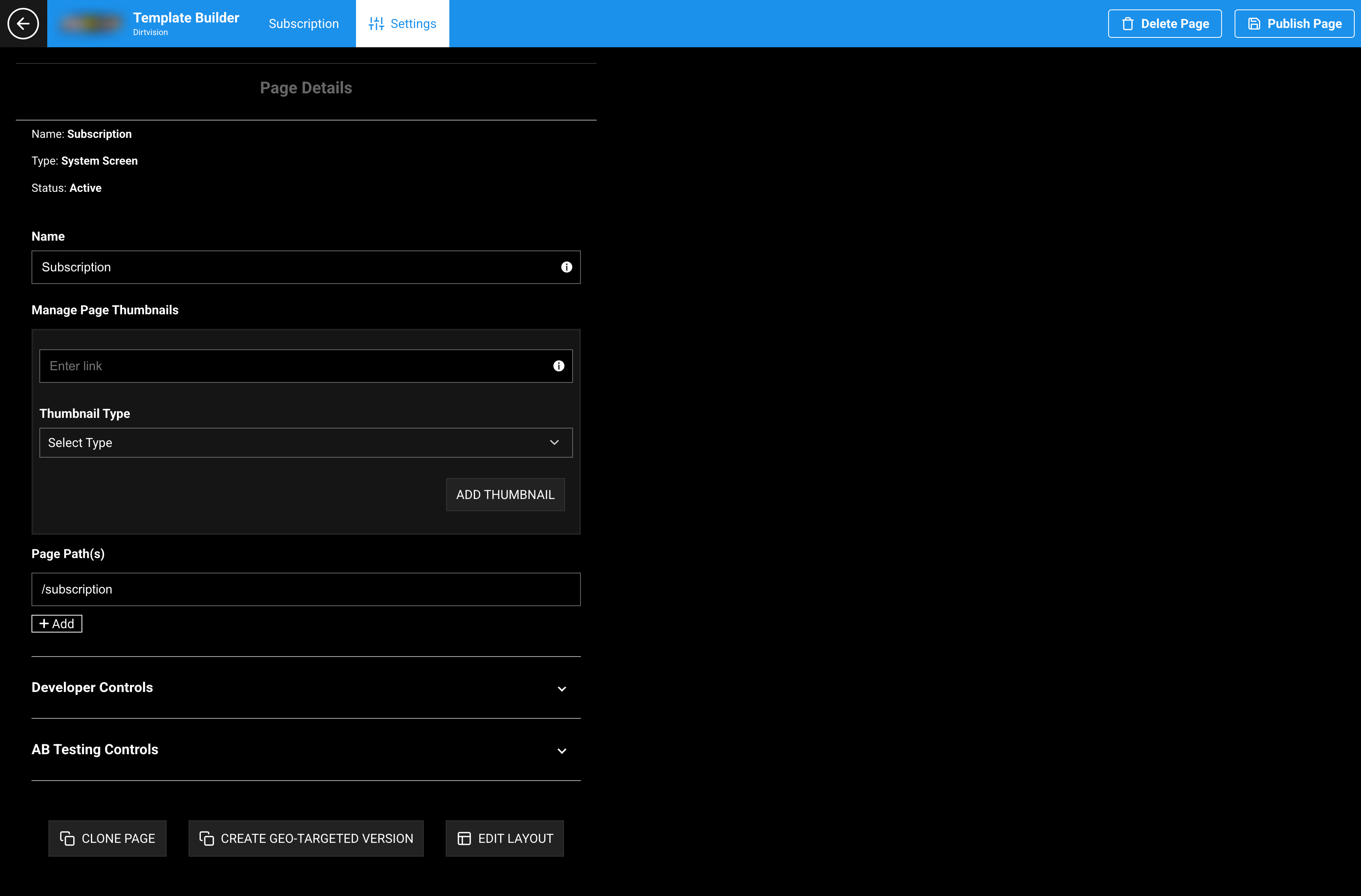
Figure 2. Page Settings. Set the path to /subscription so View Plans, paywalls, and billing actions resolve correctly.
Tip: Keep
/subscriptionconsistent across environments. Onboarding flows, View Plans CTAs, and billing Update card actions expect this path.
Step 3: Add VL Subscription 01 to the layout
- Open the Subscription page.
- Select Edit Layout (or the equivalent layout editor for your Template Builder version).
- Select Add a New Module (or insert module).
- Because the page is a system page type, the picker shows system modules under Subscription Plans.
- Search for or select VL Subscription 01.
- Insert the module into the page layout.
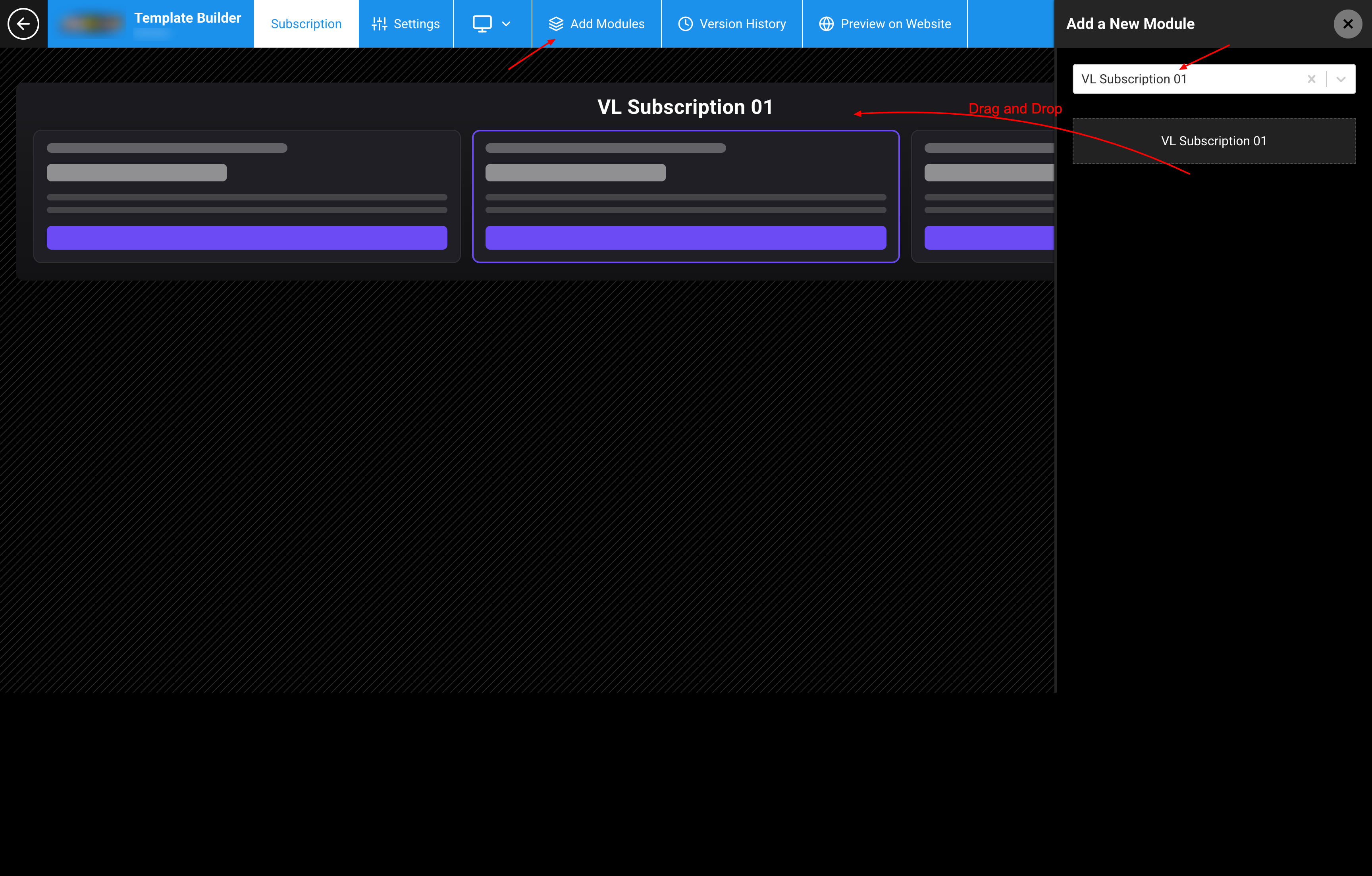
Figure 3. Edit Layout → Add a New Module. Search for and insert VL Subscription 01.
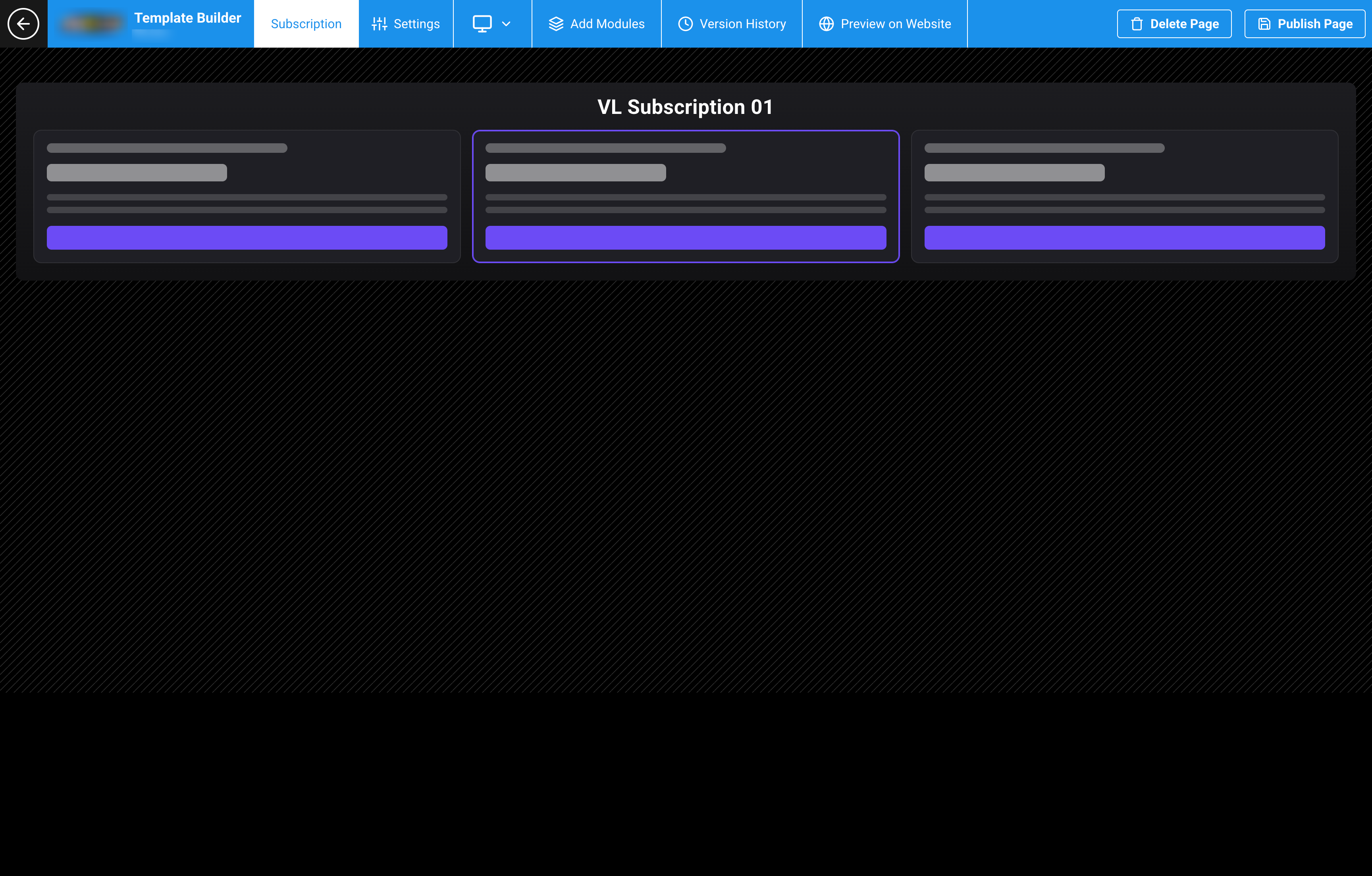
Figure 4. Subscription page layout with VL Subscription 01 placed on the page.
System subscription pages typically use a single primary system module. Avoid stacking unrelated content trays on this page unless your product design requires them.
Step 4: Configure payment and consent settings
Open the VL Subscription 01 module settings.
| Setting | Description |
|---|---|
| Payment Card Image | Optional image URL shown in payment-related UI when configured. |
| Hide Billing Consent | When enabled, hides the Billing Agreement Text line below the payment form on supported experiences. |
| Subscription Consent | When enabled, shows an additional subscription consent checkbox and link before purchase. |
| Subscription Consent Link | URL opened when the customer selects the subscription consent link text. |
| Update Payment Consent Delimiter Text ($$$) | Delimiter text used in update-payment consent copy when customers change a saved card. |
| Update Payment Consent Delimiter Hyperlink | Hyperlink target paired with the delimiter text above. |
| Update Payment Consent Text | Consent copy shown during card update flows. |

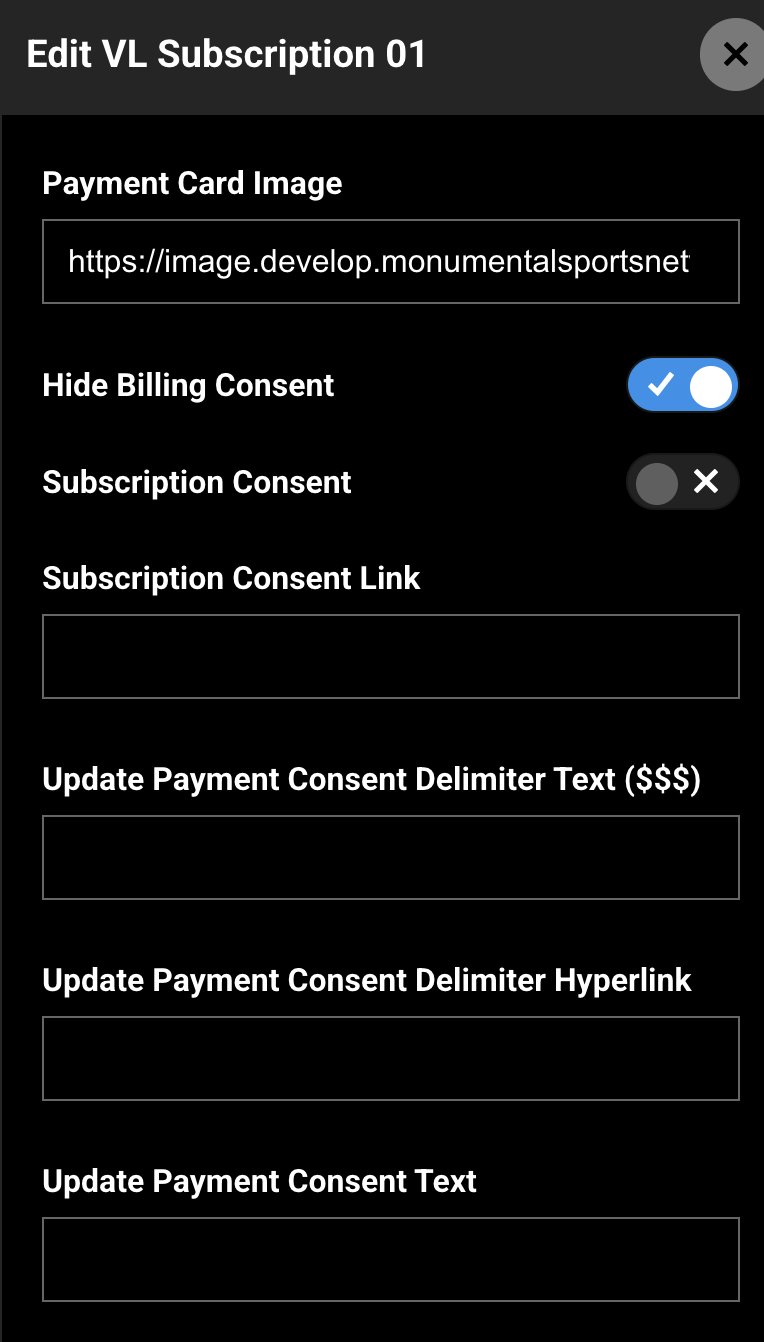
Figure 5. Top-level payment, consent, and card-update copy settings on VL Subscription 01.
When Subscription Consent is on, review Subscription Consent Text, Subscription Consent Agreement Text, and Purchase Consent Agreement Text under Localization → Labels. Those strings support placeholders such as $DURATION, $PRICE, and CLIENT_NAME where your legal copy requires them.
Step 5: Configure Items — Images
Under Items, expand Images to add one or more promotional slides for the left side of the subscription layout on supported experiences.
Each row includes:
| Field | Description |
|---|---|
| Title | Headline for the slide. |
| Sub Title | Supporting headline. |
| Description | Body copy for the slide. |
| Image URL | Image shown in the carousel or banner area. |
Add multiple rows to create a carousel. A single row shows one static image.
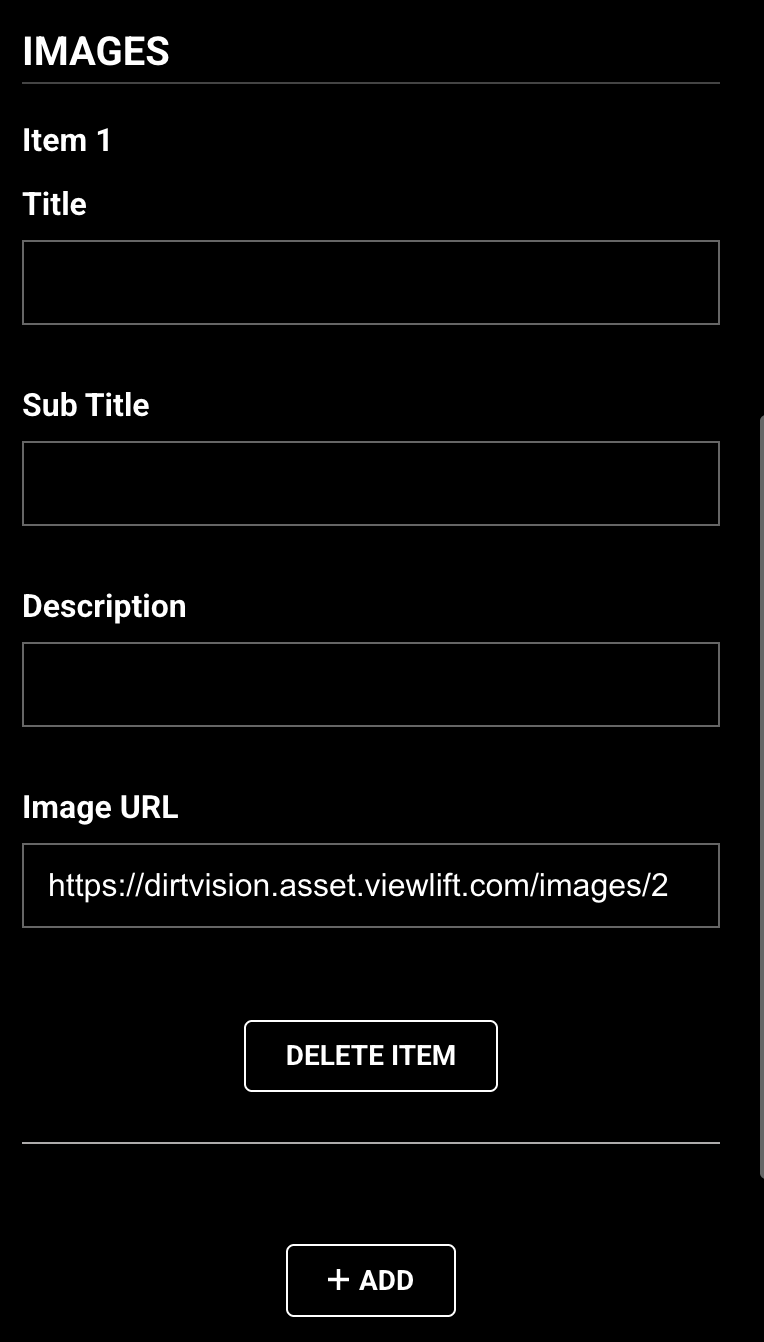
Figure 6. Items → Images. Add Title, Sub Title, Description, and Image URL for promotional slides.
Step 6: Configure JusPay (optional)
Expand JusPay only when JusPay is the active web payment provider for your site. If customers pay through Stripe, leave these settings at their defaults.
| Setting | Description |
|---|---|
| Offer Carousel Section (16:9) | Shows a 16:9 offer image carousel when enabled. |
| Netbanking Section | Enables net banking payment options. |
| Bank Dropdown List | Shows a bank dropdown when net banking is enabled. |
| NetBanking Generic Message | Message above net banking options. |
| Title / Image URL | Repeatable bank rows when net banking is enabled. |
| Card Section | Enables card payment within JusPay. |
| Card Generic Message | Message above card options. |
| UPI Section | Enables UPI payment options. |
| UPI Generic Message | Message above UPI options. |
| Wallet Section | Enables wallet payment options. |
| Title, Description, Wallet Name(Without Space), Image URL, Associated Offer | Repeatable wallet rows. |
| Retry Payment Image Icon | Icon shown on retry payment UI. |
JusPay → Localisation → Labels contains additional copy for wallets, cards, net banking, UPI, promo entry, and billing. Edit only the labels that apply to your live JusPay configuration.
Step 7: Configure Brand
Expand Brand to set subscription page colors.
| Setting | Default (example) | Purpose |
|---|---|---|
| Module Background Color | #0D2148 |
Background behind the payment panel. |
| Module Text Color | #FFFFFF |
Primary text on the module. |
| Active CTA Color | #D2393B |
Primary button background. |
| Active CTA Text Color | #FFFFFF |
Primary button text. |
| Input Color | #2B426E |
Input field background. |
| Input Text Color | #FFFFFF |
Input field text. |
| Disabled CTA Color | #FFF |
Disabled button background. |
| Disabled CTA Text Color | #000000 |
Disabled button text. |
| Consent Color | — | Subscription consent text color. |
| Input Box Border Color | — | Input border color. |
| Input Box Disabled Background Color | — | Disabled input background. |
| Input Box Disabled Color | — | Disabled input text. |
| Input Box Active Color | — | Active input text. |
| Input Box Active Background Color | — | Active input background. |
Match these colors to your site brand so the payment step feels consistent with Authentication and View Plans.
Step 8: Configure Localization — Labels
Expand Localisation → Labels to edit customer-facing payment copy. All strings can be localized per language when site localization is enabled.
Payment steps and review
| Label | What it controls | Default example |
|---|---|---|
| Payment Method | Payment step heading | Select a Payment Method |
| Billing | Billing address step heading | Billing |
| Edit Billing | Billing step heading in card-update mode | Edit Billing |
| Review Purchase Text | Review step heading | Review Purchase |
| Payment Method Text | Review row label | Payment Method |
| Plan Type Text | Review row label | Plan |
| Purchase Type Text | Review row label | Purchase Type |
| Charge Text | Review row label | Charge |
| Confirm Text | Confirm purchase button | Confirm Purchase |
| Processing Text | Processing state copy | Processing |
Card form and promo
| Label | What it controls | Default example |
|---|---|---|
| Add Card Text | Add-card action | Add Card |
| Apply Code Text | Apply promo action | Apply Code |
| Add Promo Text | Promo field placeholder | Add Promo |
| Offer Code Label Text | Offer code field label | Offer Code |
| Card Number Text / Card Number Label Text | Card number field | Card Number |
| Expiry Text / Expiration Label Text | Expiry field | Expiry / Expiration |
| Name Text / Name Label Text | Cardholder name | Name |
| CVC Text / Verification Label Text | Security code | CVC |
| Card Text | Payment method label on review | Card |
Totals, billing period, and legal
| Label | What it controls | Default example |
|---|---|---|
| Tax Disclaimer | Tax note beside price | + Applicable taxes |
| Tax Text | Tax row on review | Tax |
| Total Text | Total row on review | Total |
| Recurring Text | Recurring purchase label | Recurring |
| One Time Text | One-time purchase label | One-Time |
| Rent | Rent purchase label | Rent |
| Yearly Text / Monthly Text | Billing period labels | Yearly / Monthly |
| Billing Agreement Text | Legal line below payment form | By continuing, you agree to these Terms and Conditions… |
| Subscription Consent Text | Consent link label | Subscription Terms |
| Subscription Consent Agreement Text | Checkbox agreement when Subscription Consent is on | By clicking here, I agree that my subscription will renew… |
| Purchase Consent Agreement Text | Purchase agreement copy | By purchasing, you agree that your subscription will renew… |
| Privacy Policy Text / Terms Of Use Text / Terms Of Service Text | Legal link labels | Privacy Policy / Terms of use / Terms Of Service |
| Privacy Policy Permalink / Terms and Conditions Permalink / Terms Apply Permalink | Legal link destinations | /privacy / /tos / /terms |
Payment result popups
| Label | What it controls | Default example |
|---|---|---|
| Payment Received Text | Success popup title | Payment Received |
| Payment Received Description | Success popup body | Your payment has been processed. You will be redirected in a moment. |
| Payment Failed Text | Failure popup title | Payment Failed |
| Payment Failed Description | Failure popup body | Payment failed. Please contact our customer support |
| Subscripton Failed Text | Generic failure message | Not able to complete the request |
| Invalid Promo Code Text | Promo validation error | Invalid Promo Code |
| Close Button CTA | Close popup | Close |
| Retry Payment Button CTA | Retry after failure | Retry Payment |
| Cancel Button CTA | Cancel after failure | Cancel |
Edit the legal and consent strings with your counsel before launch. Replace example regional language in the default consent agreements with copy approved for your service territory.
Step 9: Save and publish the Subscription page
- Save the module settings.
- Review the page layout once more.
- Publish the Subscription page.
Until the page is published, apps and web will not show your latest Subscription configuration.
Changes can take several minutes to appear because of caching. To verify sooner, use a private window, another browser, or clear cookies and cache.
Step 10: How it looks on the website
After publish, open your site’s Subscription URL, for example:
https://www.example.com/subscription
Typical website layout
Customers who are not signed in are redirected to your Authentication page (for example /authentication) before Subscription loads.
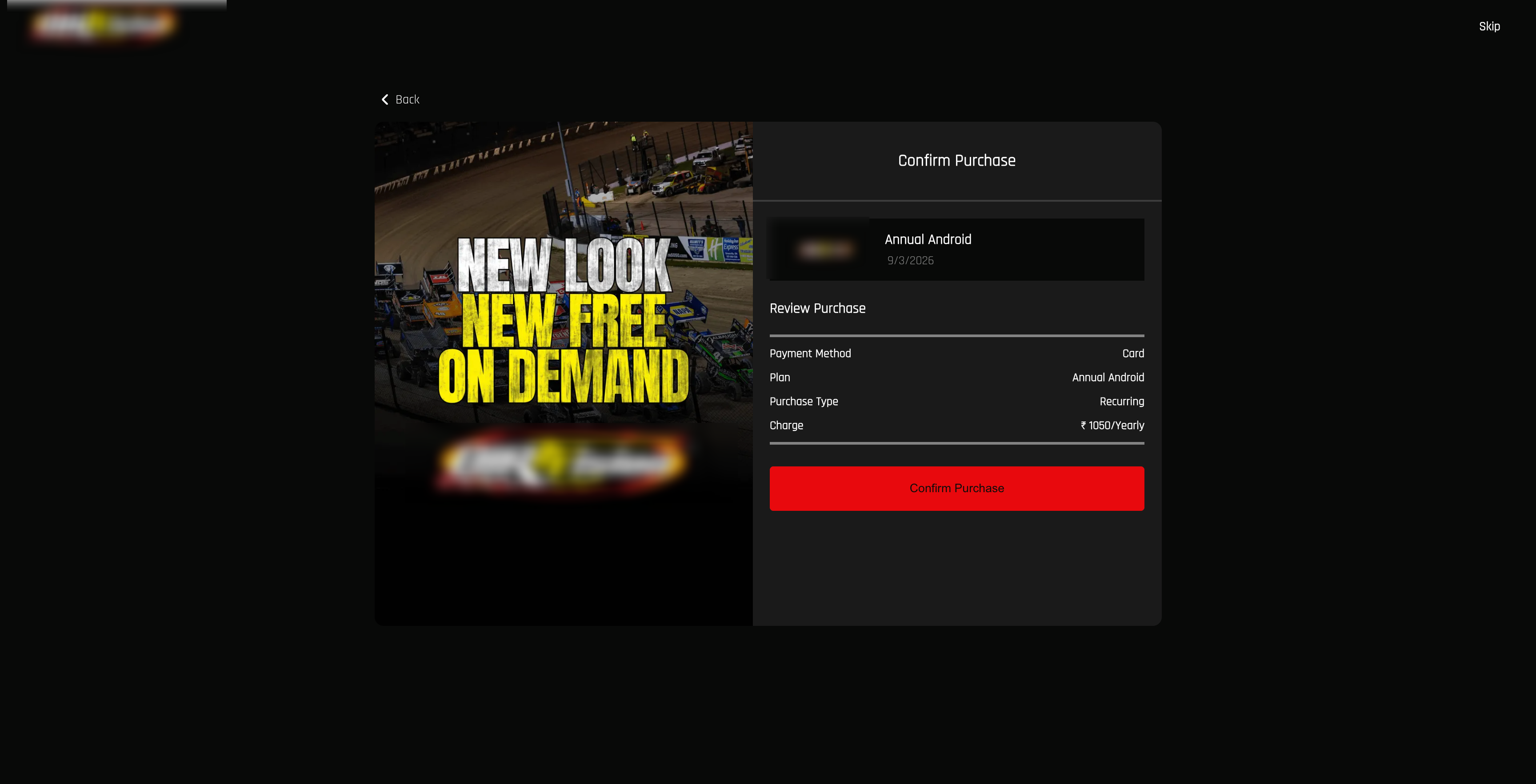
Customers who open /subscription while signed in usually see:
Flow chrome
- Site logo (links home)
- Back and Skip when your onboarding flow enables them
- Optional left-side Images carousel or banner from module settings
Payment column
- Billing (only when billing address collection is enabled for Stripe on your site) — or Edit Billing in card-update mode
- Payment or Select a Payment Method — card number, expiry, name, CVC, and optional promo code
- Review Purchase — summary rows for payment method, plan, purchase type, charge, tax (when applicable), and total, then Confirm Purchase
Below the form
- Billing Agreement Text (hidden when Hide Billing Consent is on, except where regional rules require it)
- Optional Subscription Consent checkbox when that switch is enabled
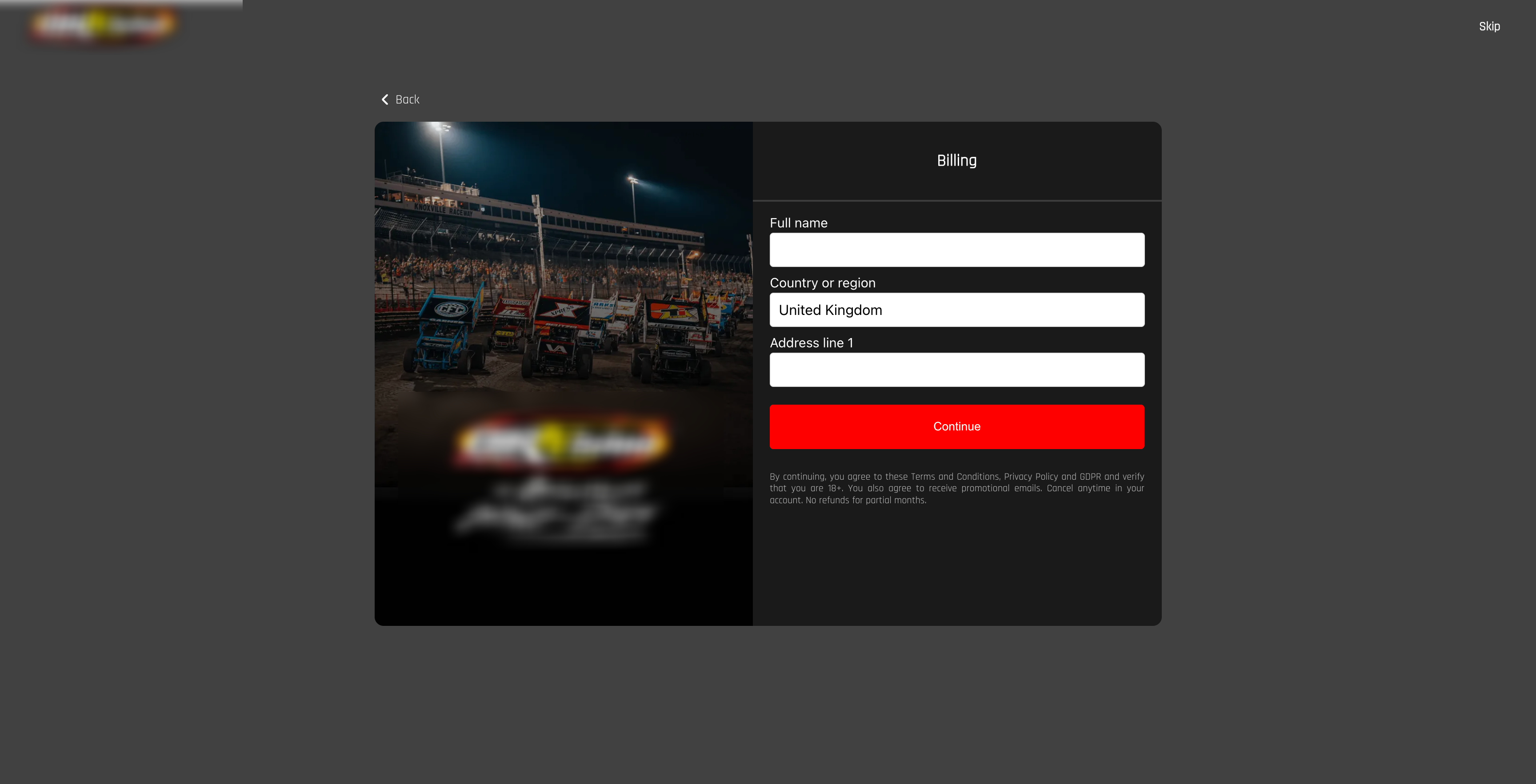
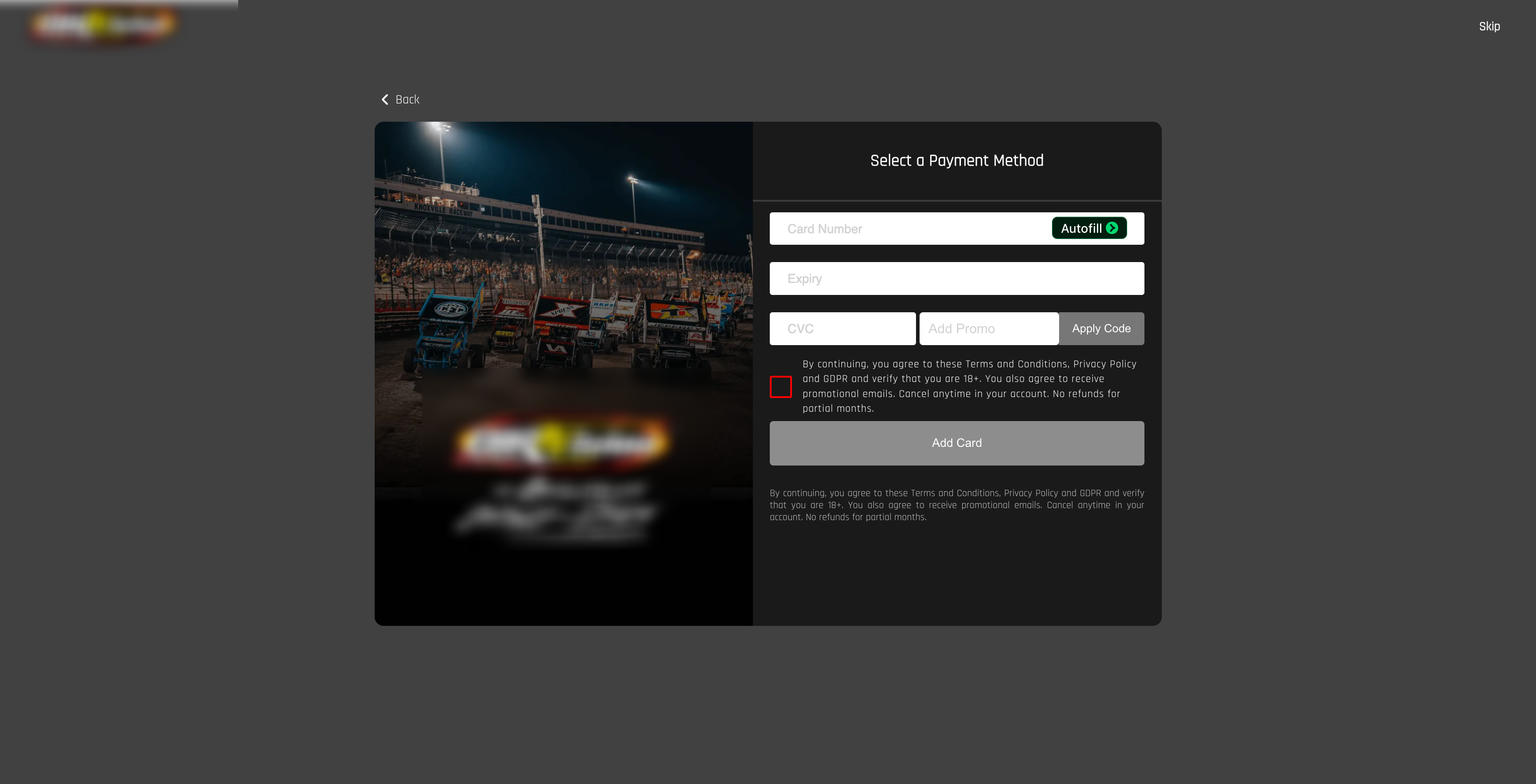
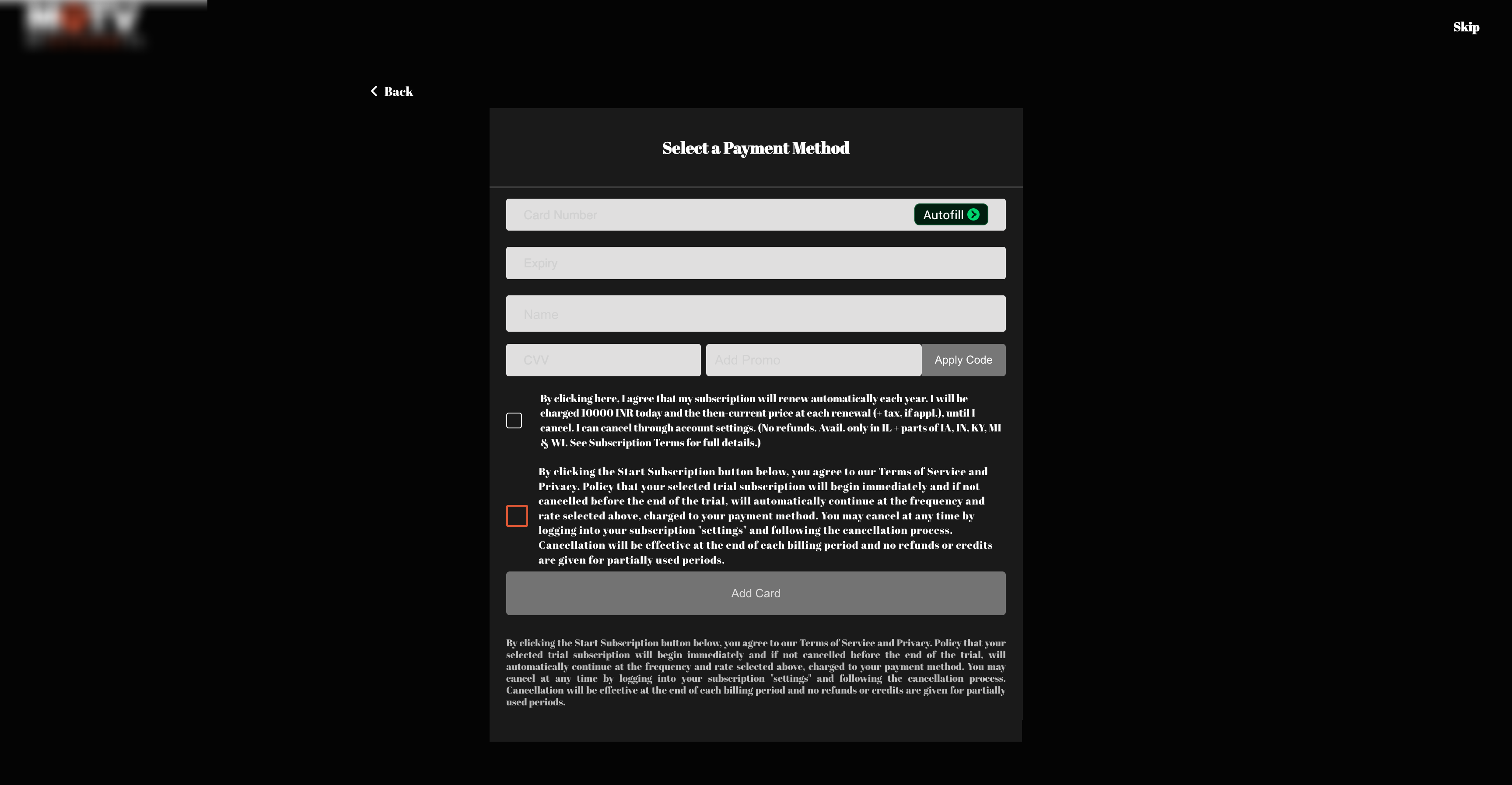
After Confirm Purchase
| Outcome | What the customer sees |
|---|---|
| Success | Popup: Payment Received and the configured success description, then auto-redirect after several seconds |
| Failure | Popup: Payment Failed with Retry Payment and Cancel |
| Card update success | Success messaging for card update (site-level copy may also apply) |
Card update mode
When a signed-in customer opens Subscription from Billing to update a saved card, the page can load in card update mode (for example /subscription?managecard). In that mode:
- The plan picker is hidden
- The billing step heading uses Edit Billing
- The customer updates card details and confirms without choosing a new plan
Where customers go next
After a successful payment, the site sends the customer to the next step in your onboarding flow (for example profile update or homepage) or back to the content they started from, depending on how they arrived.
Verification checklist
- Subscription page exists as Subscription Flow or System Screen
- Page path is
/subscription(or the path your onboarding flow expects) - VL Subscription 01 is on the layout
- Payment provider (Stripe or JusPay) is configured in AppCMS
- Billing Agreement Text and consent links are reviewed for your territory
- Subscription Consent and Hide Billing Consent are set as intended
- Brand colors match the site
- Labels are reviewed for launch language(s)
- Optional Images carousel is configured when used
- Page is published
- Signed-out customers are redirected to Authentication
- Signed-in customers can complete payment and see the success popup
- Card update from Billing opens payment in update mode when applicable
Troubleshooting
| Problem | What to check |
|---|---|
| VL Subscription 01 is not in the module list | Confirm the page type is Subscription Flow or System Screen (Developers Only page type). |
| Customer is sent to Authentication | Subscription requires a signed-in session. Complete sign-in first. |
| Customer is sent to homepage immediately | Confirm SVOD and/or TVOD is enabled for the site. |
| Page path is wrong | Open Page Settings and set path to /subscription. |
| Payment form does not appear | Confirm Stripe (or JusPay) is active in AppCMS and the customer’s region is supported. |
| Billing step is missing | Billing address collection is controlled in Stripe payment settings at the site level, not only in this module. |
| Billing agreement still shows after Hide Billing Consent | Some regions always show required legal copy. Review regional compliance settings. |
| JusPay options have no effect | JusPay settings apply only when JusPay is the active provider. Stripe sites use the card form instead. |
| Labels do not change on the site | Save module settings, publish the page, and allow cache to clear. For localization, edit labels in the correct language. |
| Success popup appears but redirect fails | Review onboarding flow order and whether the customer started from content with a return URL. |
| Plan is wrong or missing | Confirm the customer selected a plan on View Plans or arrived with a valid plan identifier before opening Subscription. |
Best Practices
- Use one Subscription page at a stable path (
/subscription) when your onboarding flow includes this step. - Prefer VL Checkout 01 for new sites that want account creation, plan selection, and payment on one page.
- Keep legal copy current — Billing Agreement, Subscription Consent, and policy permalinks should point to published pages.
- Localize Labels when the site has multiple live languages.
- Test signed-in and signed-out paths before launch.
- Test card update from Billing if your site offers saved-card management.
- Publish after every meaningful change — draft system pages do not update production.
FAQs
Q. What page type should I use for VL Subscription 01?
Subscription Flow (recommended) or System Screen. Both expose system modules including VL Subscription 01.
Q. How is this different from VL Checkout 01?
VL Subscription 01 is payment only at /subscription. Customers must already be signed in and usually already chose a plan. VL Checkout 01 combines account creation, plan selection, and payment at /checkout.
Q. Do customers pick a plan on this page?
Usually no. They select a plan on View Plans, a plan banner, or a paywall first. The subscription page completes payment for the selected plan.
Q. Can unsigned customers pay here?
No. Unsigned customers are redirected to Authentication.
Q. When do JusPay settings apply?
Only when JusPay is the active payment provider for the customer. Stripe sites use the standard card and review steps described in this article.
Q. What is card update mode?
A signed-in customer can open Subscription from Billing to change a saved card. The plan picker is hidden and headings use Edit Billing.
Q. Where do Back and Skip labels come from?
Back and Skip in the flow chrome use site generic messages unless overridden by your flow configuration.
Important Information
- VL Subscription 01 must be placed on a Subscription Flow or System Screen page at
/subscription(or your site’s configured subscription path). - Customers must be signed in before the payment page loads.
- The site must have SVOD and/or TVOD enabled or customers are redirected away.
- Create the page, add the module, configure options, then publish.
- Many sites route new purchases through VL Checkout 01 instead of this legacy subscription step.
- Cache can delay frontend updates by several minutes.
Glossary
| Term | Definition |
|---|---|
| Subscription Flow | Template Builder page type used for the /subscription payment step. |
| System Screen | Template Builder page type that also supports system modules such as VL Subscription 01. |
| Review Purchase | Summary step before the customer confirms payment. |
| Billing Agreement Text | Legal copy shown below the payment form. |
| Subscription Consent | Optional extra consent checkbox controlled by a module switch. |
| Card update mode | Payment-only flow for updating a saved card, often from Billing. |
| Onboarding flow | Ordered sequence of system pages (Authentication, View Plans, Subscription, and so on) configured for your site. |
Contact Support
If you need help beyond this article, contact the ViewLift support team.
- Email: techsupport@viewlift.com
- Phone (US): +1-800-859-0420
- Phone (UK): +44-203-014-8921
Support hours: B2C requests are handled Monday to Friday. B2B support is available 24/7.