Introduction
VL StandaloneSearch is a System Screen module in Template Builder. It powers the site search results page — recent searches, top results, and trays of matching videos, series, games, and other content types you enable.
On the website this experience typically lives at /search. Customers type a term in the masthead search box (or on the page if Show Search Bar is on), then land on this page with recent history and results.
This article explains how to create the Search page in Template Builder, configure VL StandaloneSearch, publish it, and verify the experience on the web.
Purpose
The purpose of this article is to help you:
- Create a Search System Screen (or Search Screen) in Template Builder
- Add and configure VL StandaloneSearch
- Choose content types, layout, badges, and labels
- Understand what customers see on
/search - Publish and verify the live search page
Scope
This article covers:
- Creating a search page in Template Builder
- Adding VL StandaloneSearch to the page layout
- Module settings: content types, thumbnails, columns, search bar, Localization, Font Settings, and Search Tray Settings
- How search appears on the website
It does not cover:
- VL Standalone AI Search (conversational / AI search)
- Building the masthead search icon (see the Masthead module)
- Search indexing or AppCMS search configuration
- VL Search Tray as a tray on a modular page
Prerequisites
Before you begin, ensure you have:
- Access to Template Builder for your site
- A Sports site template (this module is in the picker on Sports templates)
- Copy ready: recent-search title, clear label, top results title, no-results text
- A published Masthead if customers will open search from the header
Example used in this article
Throughout the steps below we use a Search page named Search at path/search. Replace the sample values with your own.
Step 1: Open Template Builder
- Log into ViewLift Tools.
- Open AppCMS → Edit Template Builder (or open Template Builder for your site from your usual entry point).
- Confirm you are on the correct site and language (if localization is enabled, use the language selector on the Template Builder home screen before editing page copy).
.png)
Template Builder home. From here you create pages and open System Screens.
Step 2: Create the Search page
The Search page must be a System Screen or Search Screen so that VL StandaloneSearch is available in the module picker.
- In Template Builder, go to Pages.
- Select + ADD NEW (or Create a New Page).
- Enter New Page Name:
Search(or your preferred name). - In New Page Type * Developers Only, select System Screen or Search Screen.
- Optionally set Target Language (If localized Page) if you are creating a language-specific Search page.
- Select CREATE.
Set the page path
- On Page Settings, set the page path to
/search. - Confirm the page type is System Screen or Search Screen.
- Save page settings if prompted.
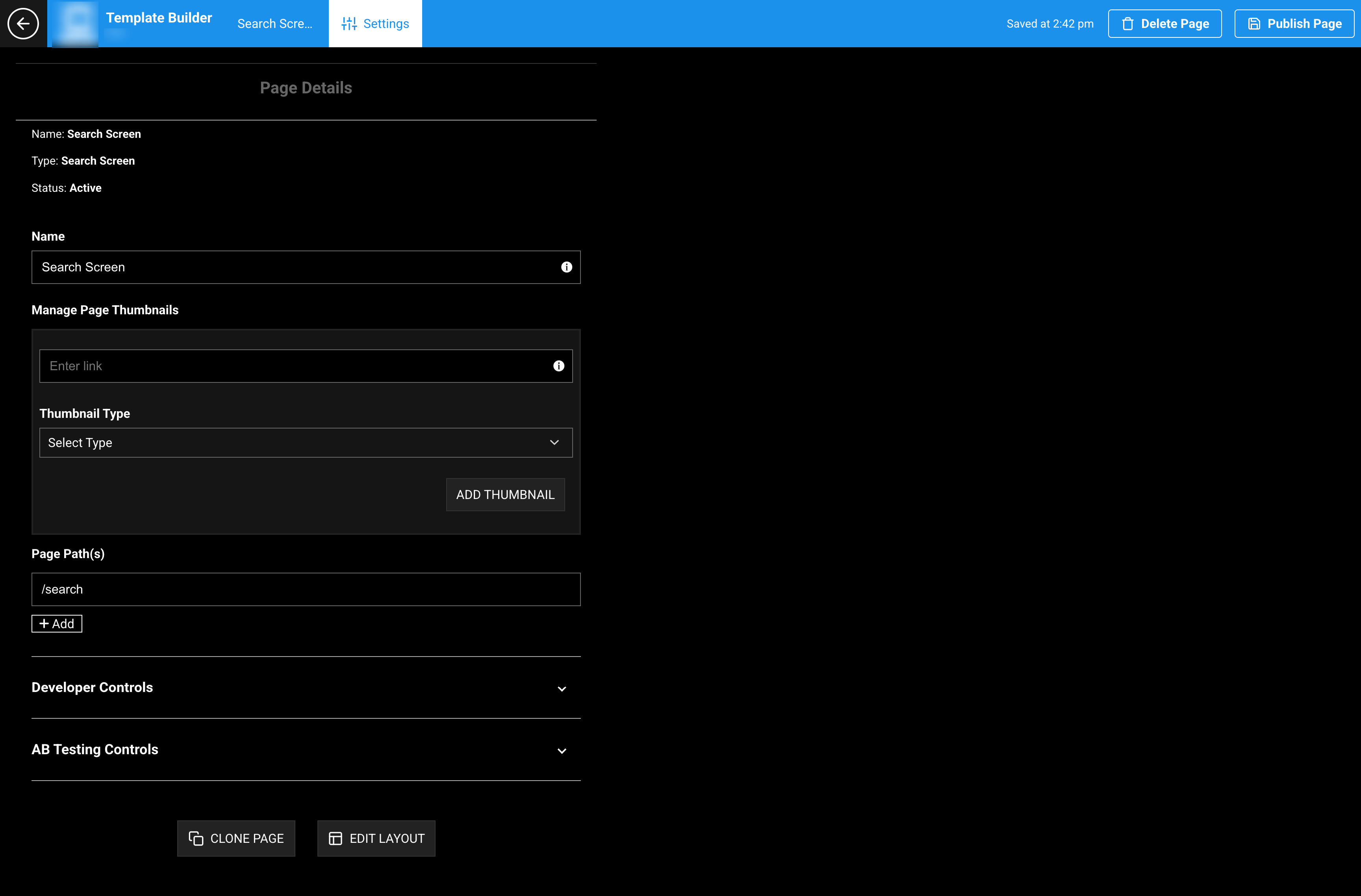
Page Settings. Set the path to /search so masthead search and in-page search resolve correctly.
Tip: Keep
/searchconsistent. VL Standalone AI Search is a different module if your site uses conversational search.
Step 3: Add VL StandaloneSearch to the layout
- Open the Search page.
- Select Edit Layout.
- Select Add a New Module.
- Search for or select VL StandaloneSearch.
- Insert the module into the page layout.
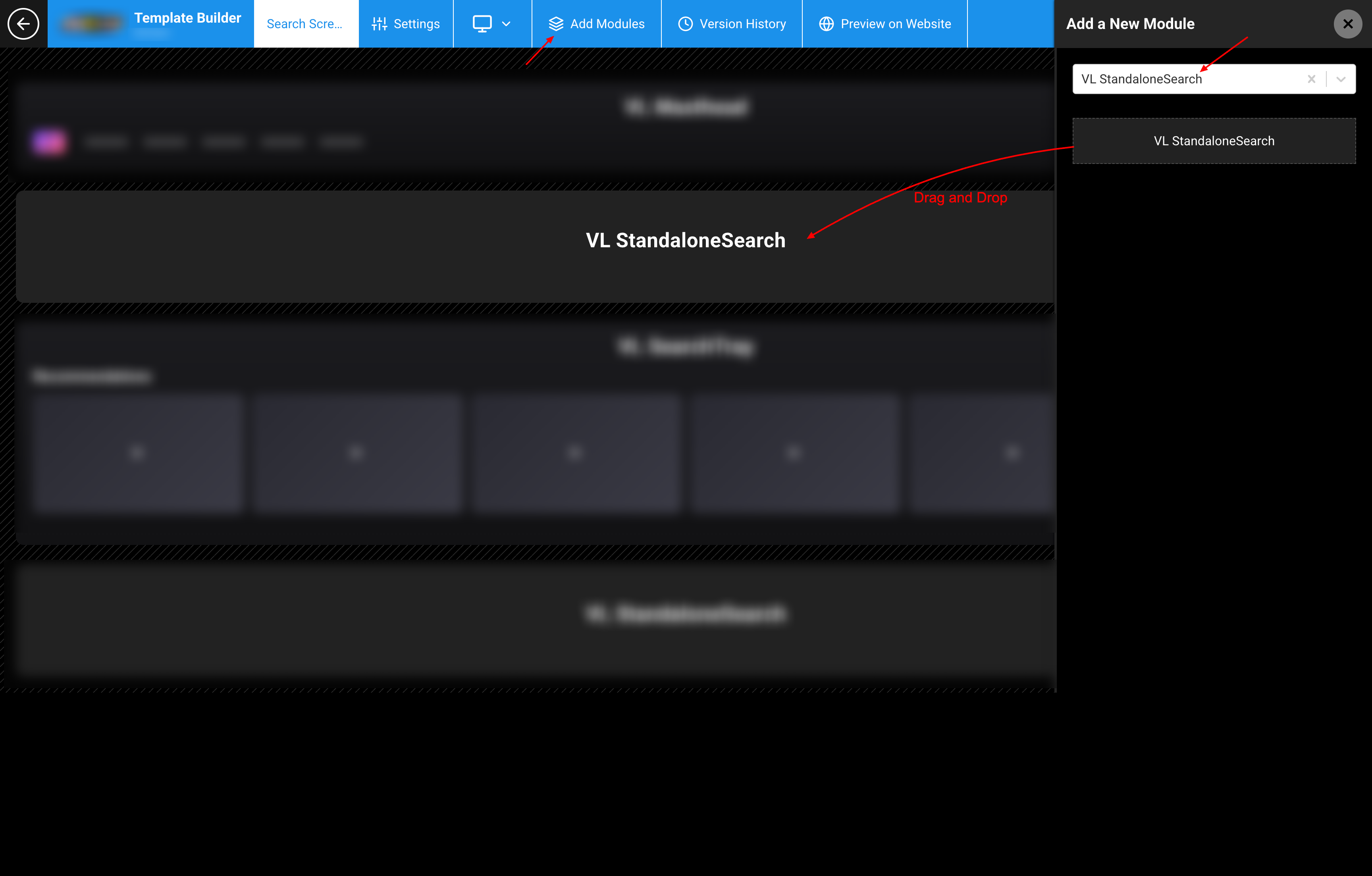
Edit Layout → Add a New Module. Search for and insert VL StandaloneSearch.
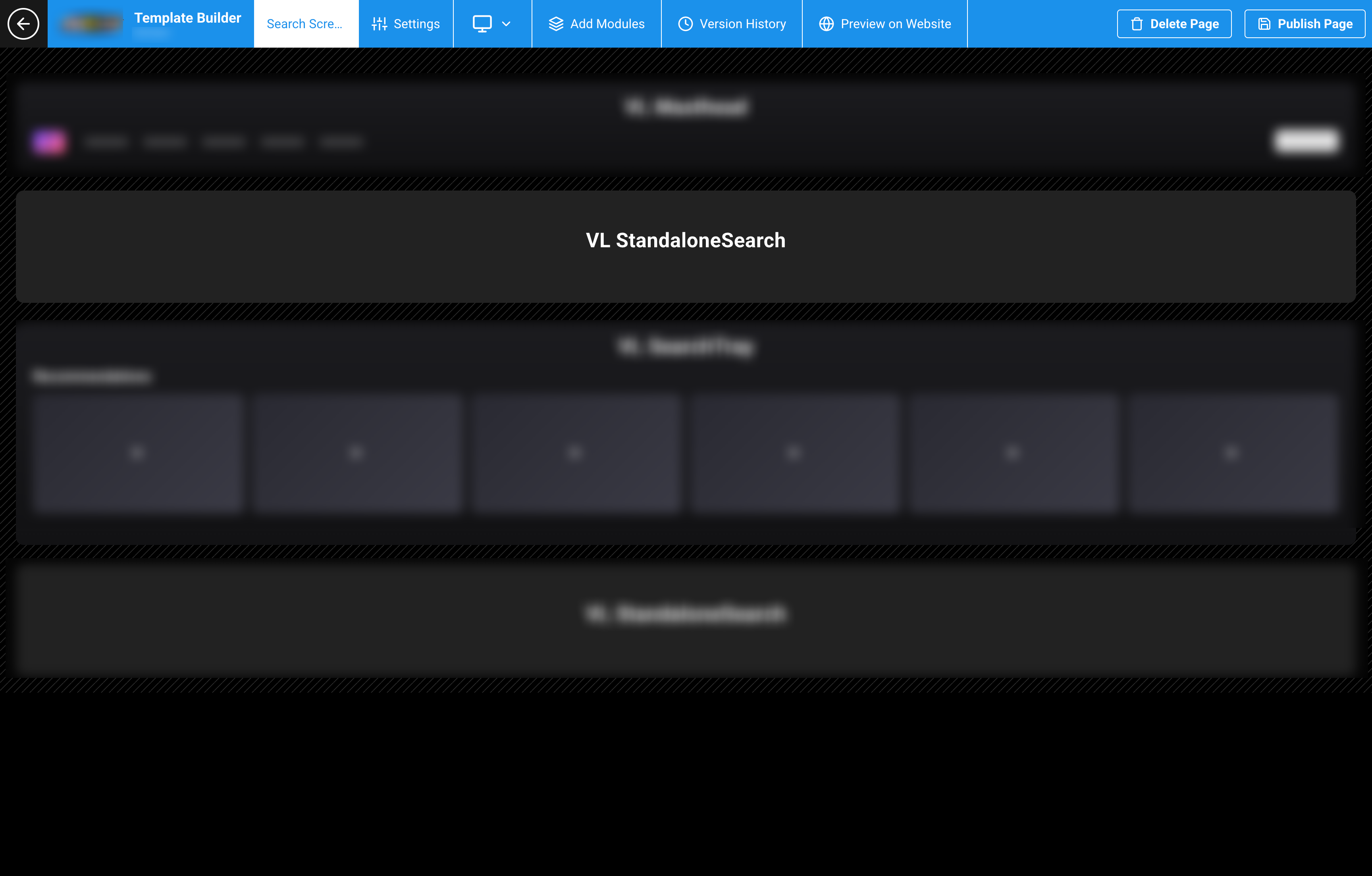
Search page layout with VL StandaloneSearch placed on the page.
If VL StandaloneSearch is not in the list, confirm the site template is Sports and the page type is System Screen or Search Screen. Other templates use VL Standalone AI Search in the default system list.
System Screens typically use a single primary system module.
Step 4: Configure search layout
Open the VL StandaloneSearch module settings.
| Field | Description | Default example |
|---|---|---|
| Supported Content Types | Types included in search (Video, Episode, Live Video, Series, Game, Bundle, Audio, Article, Collection, Videoplaylist, Linear Channel, Person). | (none selected until you choose) |
| Thumbnail Placement | Thumbnail position on result cards: Top, Left, or Right. | Top |
| Thumbnail Type | Aspect ratio. Options use an asterisk (for example 16*9). |
16*9 |
| Number of columns (mobile) | Columns on phones. | 3 |
| Number of columns (tablet) | Columns on tablets. | 4 |
| Number of columns (desktop) | Columns on desktop. | 6 |
| Number of columns (ott) | Columns on TV / OTT. | 6 |
| Show Monetization Badge | Show a paid / free badge on results. When on, Monetization Badge Placement appears. | Off |
| Enable Sharing | Allow sharing from result items. | On |
| Group Top Results | Show top results grouped by content type. | Off |
| Display Badge on Thumbnail | Place the badge on the thumbnail. | Off |
| Show Search Bar | Show a search field on the /search page. |
Off |
Select the content types your catalog actually uses. Extra types with no matching items stay empty.

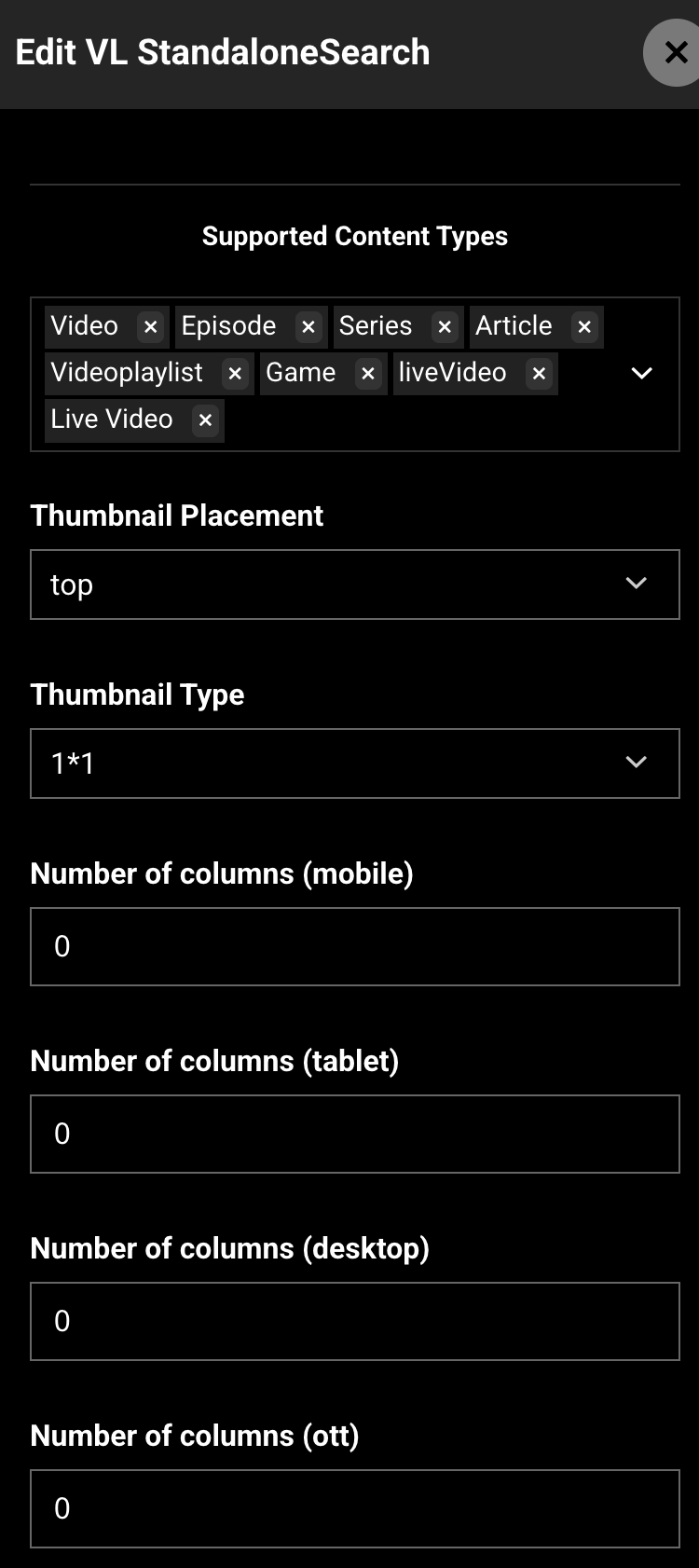
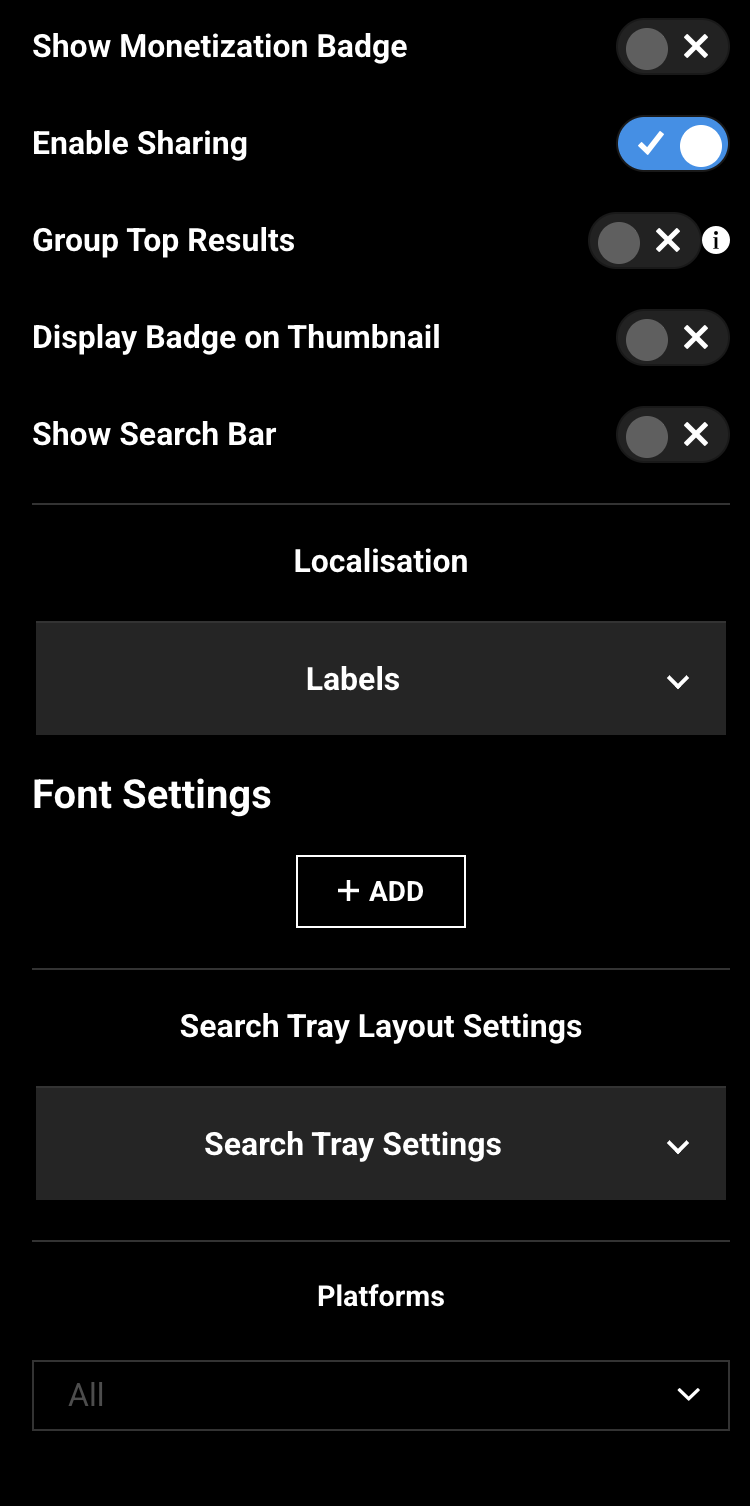
Supported Content Types, thumbnail, columns, badges, Group Top Results, and Show Search Bar.
Step 5: Configure Localization — Labels
Expand Localisation → Labels.
| Label | What it controls | Default example |
|---|---|---|
| Video Title | Video result heading. | (empty) |
| Game Title | Game result heading. | (empty) |
| Event Title | Event result heading. | (empty) |
| Series Title | Series result heading. | (empty) |
| No Result Found Text | Message when nothing matches. The website can append the search term. | There are no results for your search. |
| My Recent Search Title | Recent-search row heading. | My recent Searches |
| Clear All Search Text | Clear recent searches. | Clear All Recent Search |
| Top Results Tray Title | Top results heading. | Top Results |
| kVideoContent Text | Videos group label. | Videos |
| kSeriesContent Text | Shows group label. | Shows |
| kVideoPlaylistContent Text | Playlists group label. | Playlists |
| kGameContent Text | Games group label. | Games |
| kBundleContent Text | Bundles group label. | Bundles |
| kEpisodicContent Text | Episodic group label. | Episodic |
| kPersonContent Text | Person group label. | Bundles |
| kSearchTitlesRelated Text | Related-titles line. | Search title related to |
| searchHeaderLabel Text | Search header. | Search |
The k… Text names are the field titles in Template Builder. On the website, My Recent Search Title, Clear All Search Text, Top Results Tray Title, and No Result Found Text are the labels you will see most often.
Step 6: Configure Font Settings
Font Settings on the module include Title, Subtitle, Tray Item Title, Badge, and Tabs.
Under Search Tray Layout Settings → Font Settings, you can also set Title, Tray Item Title, and Badge for the results tray.
Step 7: Configure Search Tray Settings
Expand Search Tray Layout Settings → Search Tray Settings. These control the results tray under Top Results.
| Field | Description | Default example |
|---|---|---|
| Thumbnail Type | Tray thumbnail ratio (16*9, and the other asterisk ratios). |
16*9 |
| Thumbnail Placement | Top, Left, or Right. | Top |
| Text Background Color | Background behind tray text. | #000000 |
| Mobile / Tablet / Desktop / OTT (TV) | Number of display items per breakpoint. | 3 / 4 / 6 / 6 |
| Show Monetization Badge | Badge on tray items. | Off |
| Display Badge on Thumbnail | Badge on the tray thumbnail. | Off |
Brand (inside Search Tray Settings)
| Setting | Default (example) | Purpose |
|---|---|---|
| Tray Title Color | #FFFFFF |
Tray heading color. |
| Watch Time Completed Color | #CF082D |
Progress / watched color. |
| Watch Time Background Color | #000 |
Progress track. |
| Item Background Color | #000 |
Result card background. |
| Timer Background Color | #3A4765 |
Countdown / timer background. |
| SignUp Banner Title Color | #000 |
Sign-up banner title. |
| SignUp Banner Sub Title Color | #000 |
Sign-up banner subtitle. |
| SignUp Banner Background Color | #FFFFFF |
Sign-up banner background. |
| Feature Tag BackgroundColor | #fff |
Feature tag background. |
| Feature Tag Text Colorr | #000 |
Feature tag text (this is the field name in Template Builder). |
Step 8: Save and publish the Search page
- Save the module settings.
- Review the page layout once more.
- Publish the Search page.
Until the page is published, masthead search will not show your latest labels and layout.
Changes can take several minutes to appear because of caching. To verify sooner, use a private window, another browser, or clear cookies and cache.
Step 9: How it looks on the website
After publish, open:
https://www.example.com/search
Or type a term in the masthead search box.
Search field
- Shown on
/searchonly when Show Search Bar is on. - Placeholder is the site generic search placeholder (default
Search...).
Recent searches
When the customer has searched before:
- My Recent Search Title
- Recent titles
- Clear All Search Text
Results
When a term matches:
- Top Results Tray Title and matching items
- Content trays using Search Tray Settings (thumbnails, columns, badges)
When nothing matches:
- No Result Found Text, with the search term appended when one was entered
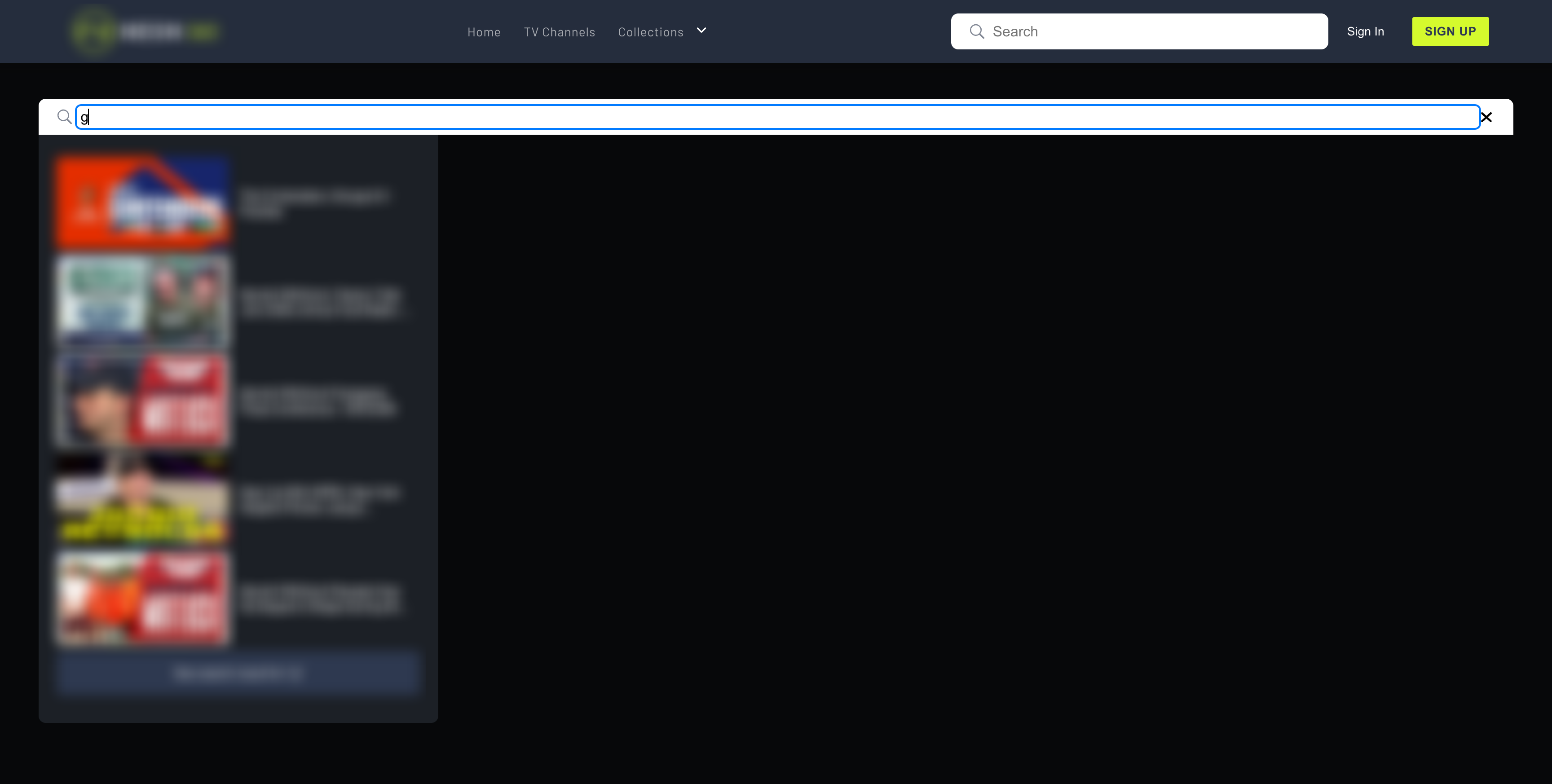
Website /search with recent searches and Top Results.
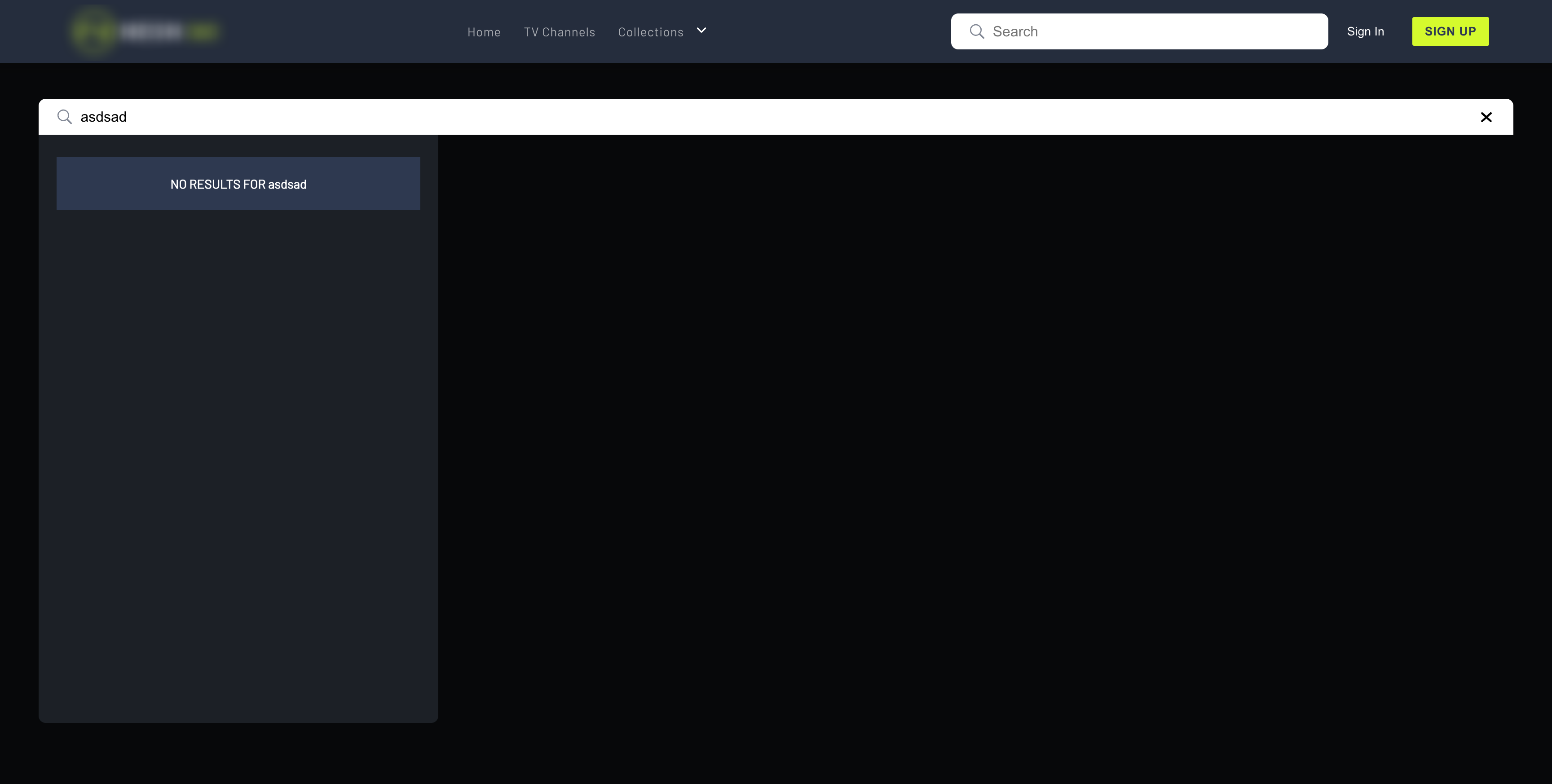
Website no-results message after a term with no matches.
Verification checklist
- Search page exists as a System Screen or Search Screen
- Page path is
/search - VL StandaloneSearch is on the layout
- Supported content types match the catalog
- Show Search Bar is on if the page should have its own field
- Recent, clear, top results, and no-results copy are reviewed
- Thumbnail type and columns look correct on desktop and mobile
- Page is published
- Masthead search opens
/searchwith results - Recent searches appear and can be cleared
- An unknown term shows No Result Found Text
Troubleshooting
| Problem | What to check |
|---|---|
| VL StandaloneSearch is not in the picker | Use a Sports template. Other templates list VL Standalone AI Search instead. Page type must be System Screen or Search Screen. |
| Page path is wrong | Set path to /search. Masthead search uses that path. |
| No search field on the page | Turn on Show Search Bar, or search from the masthead. |
| No results for known titles | Select the matching types under Supported Content Types. Confirm the titles are published. |
| Labels do not change on the site | Save, publish, and allow cache to clear. For localization, edit labels in the correct language. |
| Customer expected a chat / ask-me search | That is VL Standalone AI Search. |
| Columns look wrong on TV | Set Number of columns (ott) and the Search Tray OTT (TV) count. |
Best Practices
- Use one Search page at
/search. - Select only the content types you publish.
- Turn on Show Search Bar if
/searchshould work without the masthead. - Keep no-results copy short — the site can add the typed term after it.
- Match tray colors to the rest of the site.
- Localize recent, clear, top results, and no-results labels.
- Publish after every meaningful change.
FAQs
Q. What page type should I use?
System Screen or Search Screen. Set the path to /search.
Q. What is the module name in the picker?
VL StandaloneSearch (this is the Template Builder caption for VL Standalone Search 01).
Q. Why don’t I see this module?
It is listed on Sports templates. Other templates include VL Standalone AI Search in the default system list.
Q. How is this different from VL Standalone AI Search?
This module is keyword search with recent history and result trays. AI Search is a conversational / ask-me experience.
Q. Must Show Search Bar be on?
Only if you want a field on /search. Masthead search can still send customers here when it is off.
Q. Where is the search-box placeholder edited?
In site generic messages (empty search field). Default on the website is Search....
Important Information
- Search the picker for VL StandaloneSearch.
- Place the module on a System Screen or Search Screen at
/search. - The module is available in the picker on Sports templates.
- Create the page, add the module, configure types and labels, then publish.
- Cache can delay frontend updates by several minutes.
Glossary
| Term | Definition |
|---|---|
| VL StandaloneSearch | System module for the /search results page. |
| Top Results | Primary matches for the current term. |
| Recent searches | Titles the customer searched before, stored in the browser session. |
| Supported Content Types | Catalog types included in search. |
| VL Standalone AI Search | Separate conversational search module. |
Contact Support
If you need help beyond this article, contact the ViewLift support team.
- Email: techsupport@viewlift.com
- Phone (US): +1-800-859-0420
- Phone (UK): +44-203-014-8921
Support hours: B2C requests are handled Monday to Friday. B2B support is available 24/7.