Introduction
VL Redeem is a System Screen module in Template Builder. It powers the gift-card and offer-code page where customers enter a code to apply prepaid access.
On the website, this experience typically lives at /redeem. Signed-in customers submit a code, see success or error messaging, and are sent to the homepage after a successful redeem. Signed-out customers can enter a code, then are sent to sign in before the code is applied.
This article explains how to create the Redeem page in Template Builder, configure VL Redeem, publish it, and verify the experience on the web.
Purpose
The purpose of this article is to help you:
- Create a Redeem System Screen in Template Builder
- Add and configure the VL Redeem module
- Edit labels and error messages
- Understand what customers see when they redeem a code on the website
- Publish and verify the live Redeem page
Scope
This article covers:
- Creating a System Screen page for redeem in Template Builder
- Adding VL Redeem to the page layout
- Module settings: Localization (Labels and Errors)
- How redeem appears on the website, including sign-in and success/error states
Prerequisites
Before you begin, ensure you have:
- Access to Template Builder for your site
- Access to ViewLift Tools / AppCMS to confirm offer / gift-card redeem is configured for the site
- At least one valid test code (unused, unexpired) for verification
- Copy ready: title, subtitle, button label, success and error messages
Example used in this article
Throughout the steps below we use a Redeem page named Redeem at path/redeem. Replace the sample values with your own.
Redeem flow overview (website)
The flowchart below shows the typical customer journey on the website when VL Redeem is published at /redeem.
.png)
Notes
- The Activate button stays unavailable until the customer types a code.
- A tooltip next to the code field shows Case Sensitive Tooltip Text on hover.
- After a successful redeem, the customer is sent to the homepage (
/). - Unsigned customers who submit a code are sent to
/redeem-authenticationto sign in, then return to/redeem(with the code in the URL when it was stored).
Step 1: Open Template Builder
- Log into ViewLift Tools.
- Open AppCMS → Edit Template Builder (or open Template Builder for your site from your usual entry point).
- Confirm you are on the correct site and language (if localization is enabled, use the language selector on the Template Builder home screen before editing page copy).
.png)
Template Builder home. From here you create pages and open System Screens.
Step 2: Create the Redeem System Screen
The Redeem page must be a System Screen so that VL Redeem is available in the module picker.
- In Template Builder, go to Pages.
- Select + ADD NEW (or Create a New Page).
- Enter New Page Name:
Redeem(or your preferred name). - In New Page Type * Developers Only, select System Screen.
- Optionally set Target Language (If localized Page) if you are creating a language-specific Redeem page.
- Select CREATE.
Set the page path
- On Page Settings, set the page path to
/redeem(recommended). - Confirm the page type is System Screen.
- Save page settings if prompted.
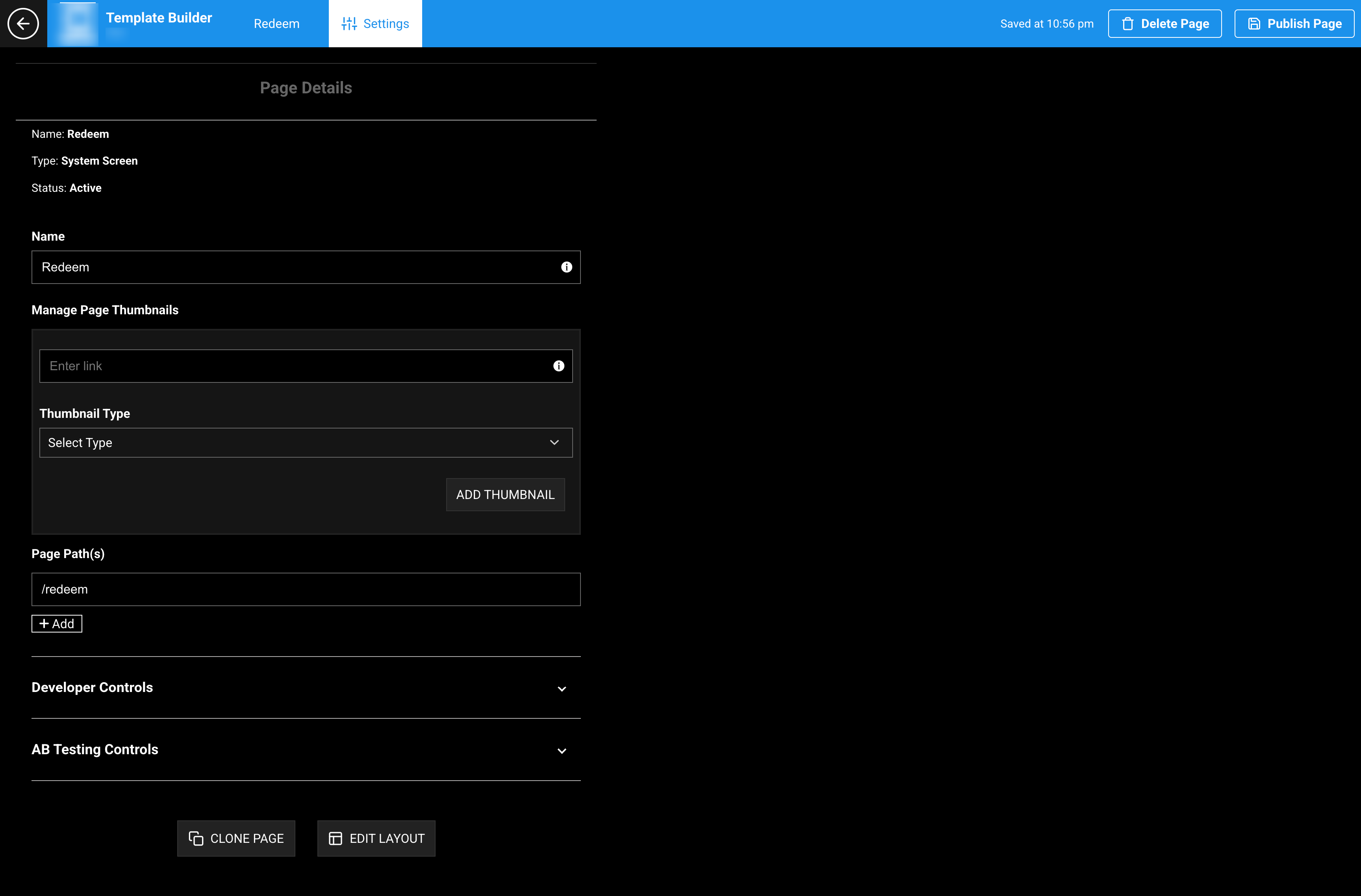
Page Settings. Set the path to /redeem so gift-card links and post-login return URLs resolve correctly.
Step 3: Add VL Redeem to the layout
- Open the Redeem page.
- Select Edit Layout.
- Select Add a New Module.
- Because the page is a System Screen, the picker shows system modules.
- Search for or select VL Redeem.
- Insert the module into the page layout.
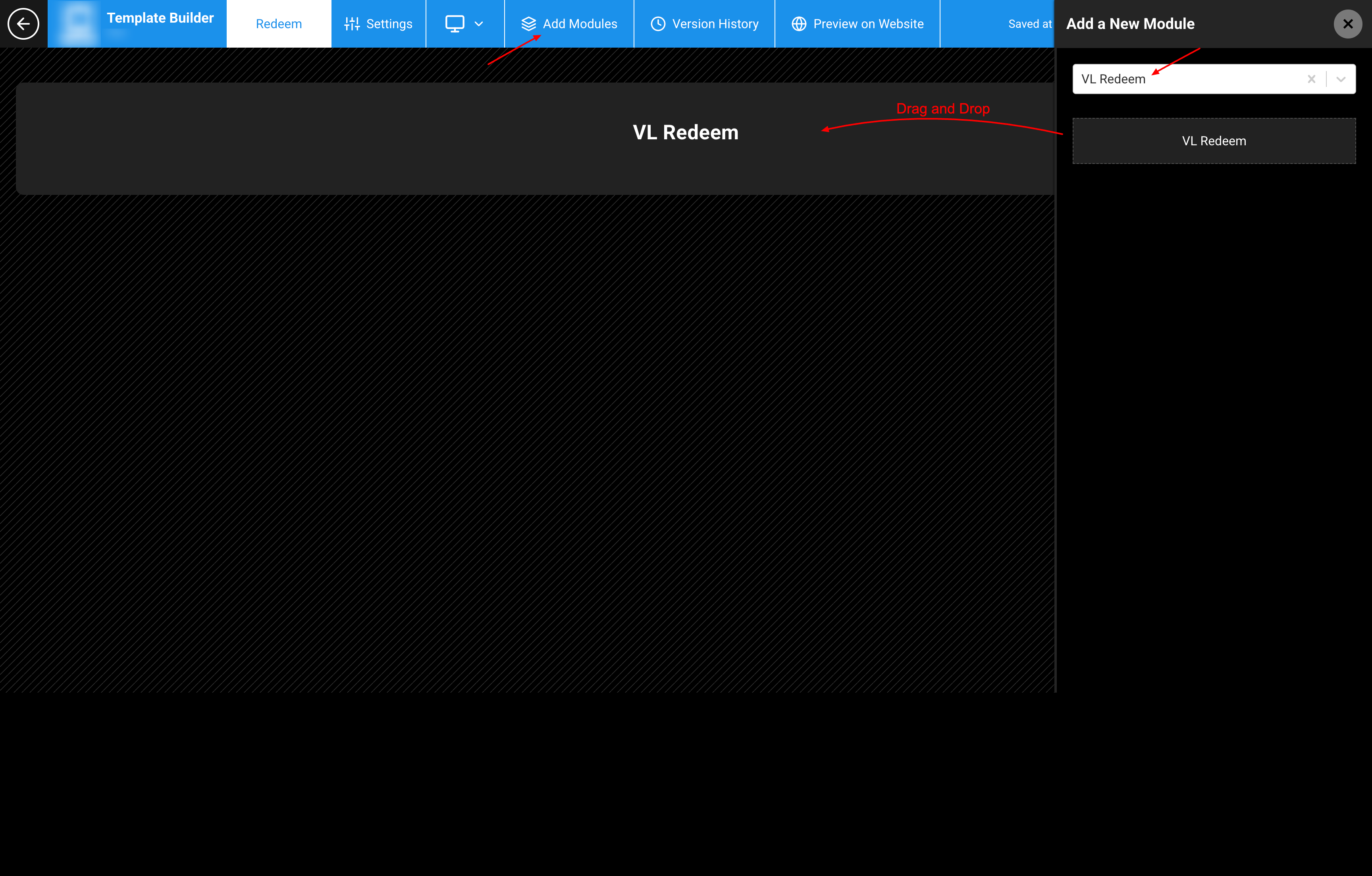
Edit Layout → Add a New Module. Search for and insert VL Redeem.
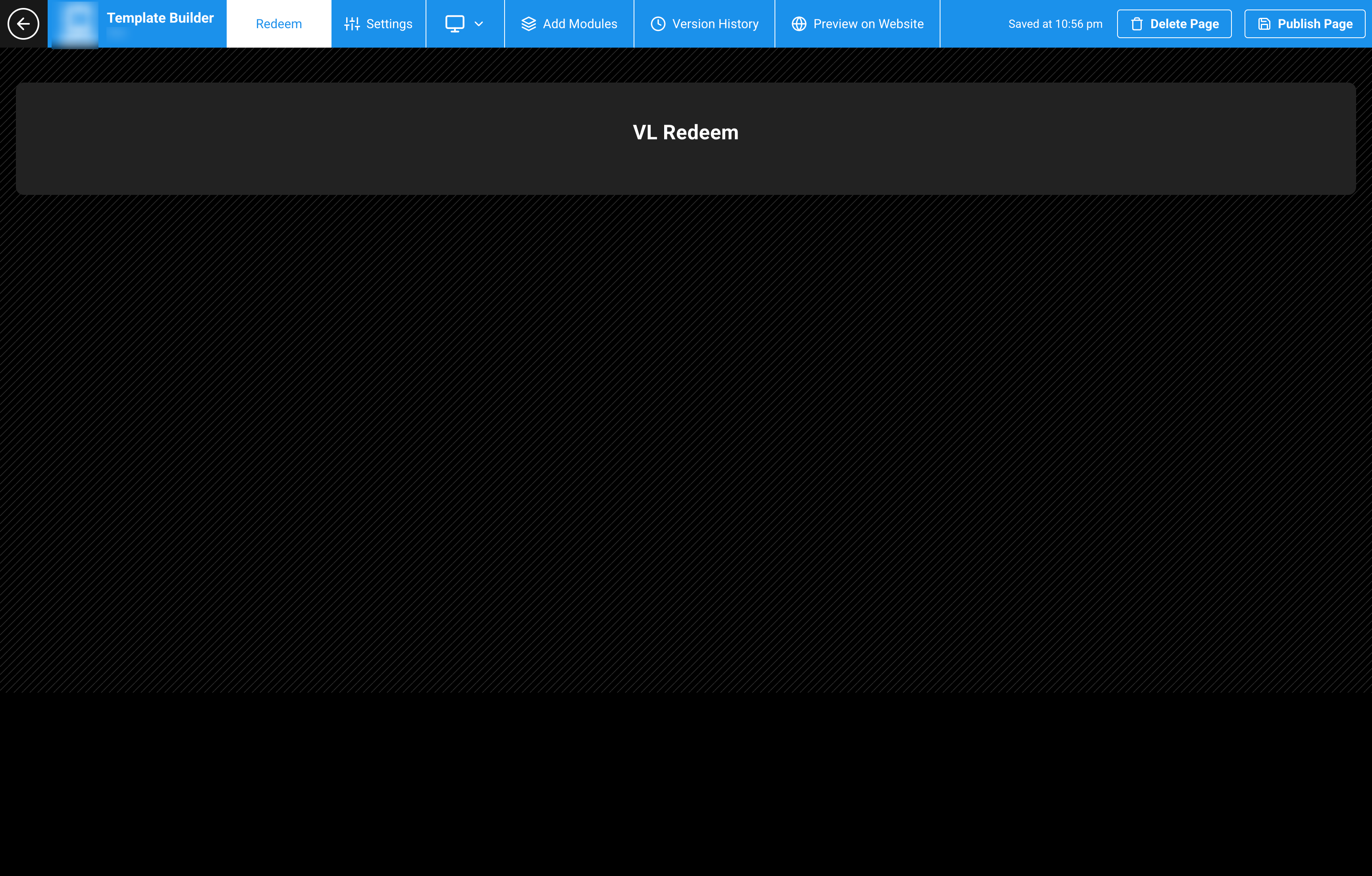
Redeem System Screen layout with VL Redeem placed on the page.
System Screens typically use a single primary system module. Avoid stacking unrelated content trays on this page.
Step 4: Configure Localization — Labels
Open the VL Redeem module settings. Expand Localisation → Labels.
| Label | What it controls | Default example |
|---|---|---|
| Title | Page headline | Redeem your code |
| Subitle | Supporting line under the title (this is the field name in Template Builder) | Have an activation code? Enter it below to enjoy content today! |
| Placeholder Text | Code field placeholder | Enter Code |
| Activate Button CTA | Submit button | Activate |
| Success Text | Message after a successful redeem | Coupon successfully redeemed |
| Failure Text | Message when apply/subscribe fails | There seeems to be an issue while processing your request |
| Processing Text | Shown while the request is in progress | Processing your request |
| Case Sensitive Tooltip Text | Tooltip next to the code field | This code is case sensitive |
The Activate button is unavailable until the customer enters a value in the code field.
Step 5: Configure Localization — Errors
Expand Errors.
| Label | When it appears | Default example |
|---|---|---|
| OFFER ALREADY USED | The code was already redeemed | Coupon already redeemed |
| REDEEM CODE NOT FOUND | The code is not found, or another validation error has no matching label | Cannot find coupon code |
If the site returns another error key that matches a label on this module, that label is shown. Otherwise the page uses REDEEM CODE NOT FOUND.
Failure Text is used when the code validates but applying the prepaid offer fails (including after sign-in, when that failure is returned as a subscription error).
Step 6: Save and publish the Redeem page
- Save the module settings.
- Review the page layout once more.
- Publish the Redeem System Screen.
Until the page is published, apps and web will not show your latest Redeem configuration.
Changes can take several minutes to appear because of caching. To verify sooner, use a private window, another browser, or clear cookies and cache.
If unsigned customers must sign in during redeem, also publish an Authentication page at /redeem-authentication (or confirm that path is already live).
Step 7: How it looks on the website
After publish, open your site’s Redeem URL, for example:
https://www.example.com/redeem
Redeem form
Customers usually see:
- Title
- Subitle (description)
- Code field with Placeholder Text
- Tooltip icon with Case Sensitive Tooltip Text
- Activate (unavailable until a code is entered)
- Inline success or error text above the form when a redeem attempt finishes
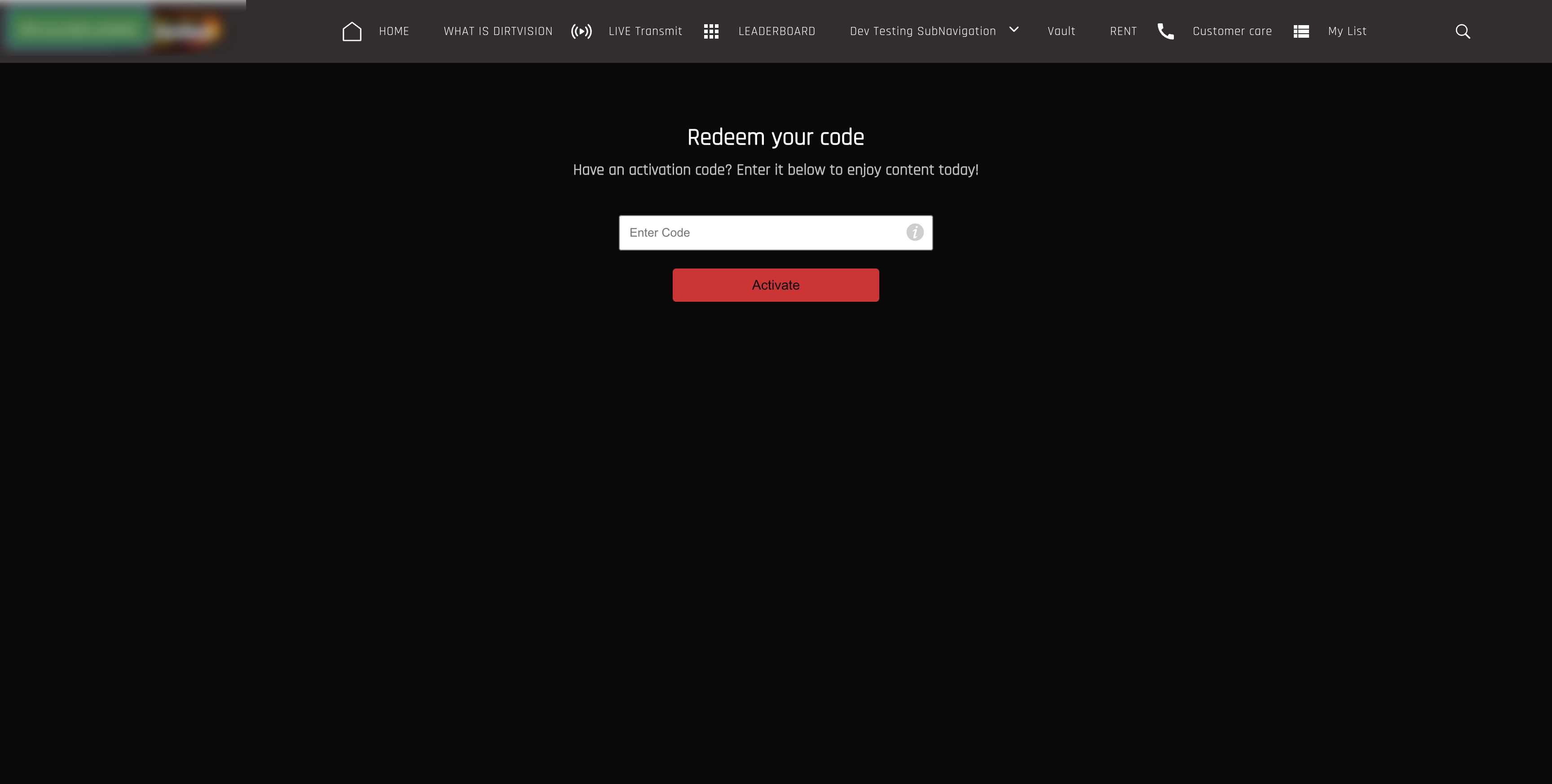
Website /redeem form with title, code field, tooltip, and Activate.
Signed-out customer
- The customer can open
/redeemand type a code. - Selecting Activate sends them to
/redeem-authenticationto sign in. - After sign-in they return to
/redeem(with?code=when the code was stored). - If they opened
/redeem?code=YOURCODEwhile signed out, the code is stored for that return trip.
Signed-in customer
- Enter a code and select Activate, or open
/redeem?code=YOURCODEto apply automatically. - The page shows Processing Text while the code is checked and applied.
- Success Text appears for a valid unused code, then the customer is sent to the homepage.
- Invalid, missing, or already-used codes show the matching Errors label (or REDEEM CODE NOT FOUND).
- A failure to apply the offer after a valid code shows Failure Text.
Verification checklist
- Redeem page exists as a System Screen
- Page path is
/redeem - VL Redeem is on the layout
- Labels and Errors are reviewed for launch language(s)
- Offer / gift-card redeem is configured in AppCMS
- Page is published
- A signed-in customer can redeem a valid unused code and reach home
- An already-used code shows OFFER ALREADY USED (or your custom copy)
- An unknown code shows REDEEM CODE NOT FOUND (or your custom copy)
- A signed-out customer who submits a code is sent to sign in, then returns to redeem
/redeem-authenticationis published if your site uses that path- Tooltip copy is correct
Troubleshooting
| Problem | What to check |
|---|---|
| VL Redeem is not in the module list | Confirm the page type is System Screen. |
| Page path is wrong | Open Page Settings and set path to /redeem. |
| Activate stays unavailable | The code field is empty. Enter a code. |
| Signed-out customer never finishes redeem | Publish Authentication at /redeem-authentication (or the path your site uses after Activate). |
| Valid code still fails | Confirm the offer is active, unused, and configured for the site. Check Failure Text vs Errors. |
| Wrong error message | Map OFFER ALREADY USED and REDEEM CODE NOT FOUND. Unknown error keys use REDEEM CODE NOT FOUND. |
| Labels do not change on the site | Save module settings, publish the page, and allow cache to clear. For localization, edit labels in the correct language. |
Success shows then customer stays on /redeem |
After success the site sends the customer to the homepage. Allow a few seconds and confirm / is published. |
Deep link /redeem?code= does nothing |
Signed-in customers auto-submit that code. Signed-out customers must sign in first; the code is stored for return. |
Best Practices
- Use one Redeem System Screen at
/redeem. - Publish Authentication at
/redeem-authenticationif unsigned customers will redeem codes. - Keep error copy specific — already used vs not found vs general failure.
- Test with a real unused code and an already-used code before launch.
- Localize Labels and Errors when the site has multiple live languages.
- Publish after every meaningful change — draft System Screens do not update production.
FAQs
Q. What page type should I use for VL Redeem?
System Screen. Set the path to /redeem.
Q. What is the module name in the picker?
VL Redeem (this is the Template Builder caption for VL Redeem 01).
Q. Must the customer be signed in to open /redeem?
No. They can open the form signed out. They must sign in before the code is applied.
Q. Where do they sign in during redeem?
On the website they are sent to /redeem-authentication, then back to /redeem.
Q. Can I pass the code in the URL?
Yes. /redeem?code=YOURCODE fills and applies the code for a signed-in customer, or stores it for after sign-in.
Q. Does this page take card payment?
No. It applies a prepaid offer / gift code. Paid plans use Checkout or Subscription.
Q. Why is the subtitle field spelled Subitle?
That is the field name in Template Builder. It controls the description under the title.
Important Information
- VL Redeem must be placed on a System Screen at
/redeem. - Applying a code requires a signed-in customer. Sign-in during redeem uses
/redeem-authentication. - Success sends the customer to the homepage.
- Codes are case sensitive (tooltip copy is configurable).
- Create the page, add the module, configure labels and errors, then publish.
- Cache can delay frontend updates by several minutes.
Glossary
| Term | Definition |
|---|---|
| VL Redeem | System Screen module for entering a gift card or offer code. |
| System Screen | Template Builder page type used for redeem, sign-in, checkout, and other system flows. |
| Activate | Submit button that validates and applies the code. |
| Redeem authentication | Sign-in step at /redeem-authentication during redeem. |
| Prepaid offer | Gift / coupon access applied when a valid unused code is redeemed. |
Contact Support
If you need help beyond this article, contact the ViewLift support team.
- Email: techsupport@viewlift.com
- Phone (US): +1-800-859-0420
- Phone (UK): +44-203-014-8921
Support hours: B2C requests are handled Monday to Friday. B2B support is available 24/7.