Introduction
VL Article Detail is a Template Builder module that presents a published article on the website. It displays the article title, description, author, body, optional image carousel, sharing, and an optional recommended-articles tray.
Use this module primarily on an Article Template Page so published articles have a consistent detail layout. The module is also available for a Modular Page and a Marketing Page.
This article explains how to create the page, add and configure VL Article Detail, publish it, and verify the customer experience on the website.
Purpose
The purpose of this article is to help you:
- Create an Article Template Page
- Add the VL Article Detail module
- Configure layout, colors, sharing, and recommended articles
- Set customer-facing labels for the recommended tray and access walls
- Publish and verify the article experience on the website
Scope
This article covers:
- Creating an Article Template Page in Template Builder
- Adding VL Article Detail
- Layout settings for recommended articles, sharing, backgrounds, and wall buttons
- Content labels for the tray and access walls
- Publishing the page
- What customers see on the website
It does not cover:
- Creating or editing an article content object
- Writing article body HTML or embedding galleries in the article editor
- Full subscription, TVE, or authentication setup beyond the labels and colors this module uses
Prerequisites
Before you begin, ensure you have:
- Access to Template Builder with permission to create, edit, and publish pages
- A published article in ViewLift Tools, with a title, permalink, and body
- An author if attribution should appear on the website
- Brand colors ready for article backgrounds and wall buttons
- A published Authentication page if articles can require sign-in
- A published plans or checkout path if articles can require a subscription
Example used in this article
The steps use a page named Article Detail and an article named Championship Recap. Replace these examples with values that match your site.
Article detail flow overview (website)
.png)
Notes
- Title, description, author, images, and body come from the published article, not from this module’s form.
- Recommended articles appear only when Show Recommended is on and the website has articles to show.
- Access walls depend on the article’s monetization setup.
Step 1: Prepare the article content
Before configuring the page, confirm that the article is ready:
- Open Content Management in ViewLift Tools.
- Select Article.
- Open the article you want to test.
- Confirm the Title, Permalink, Description, and Author.
- Confirm the article body and any images.
- Save and publish the article.
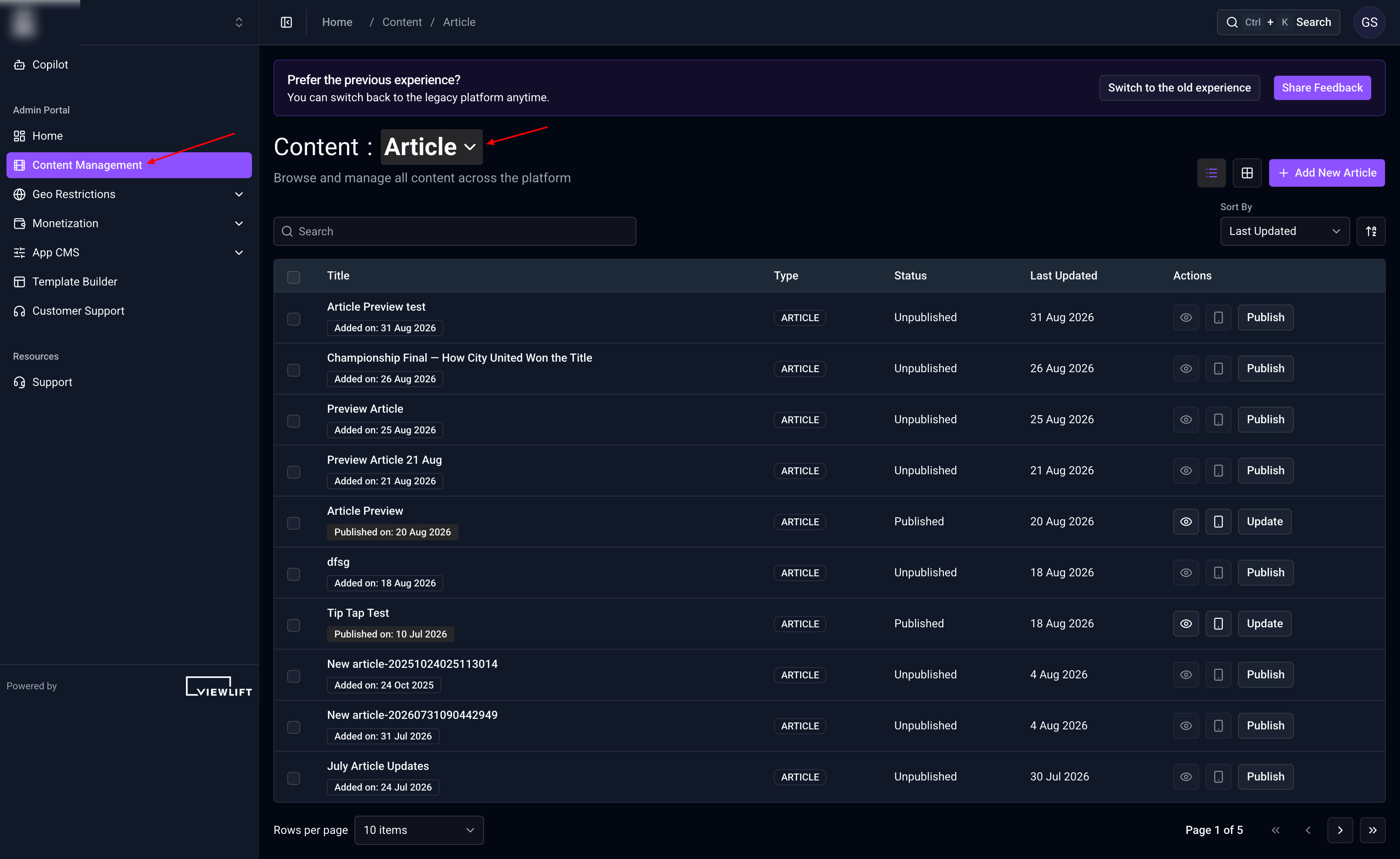
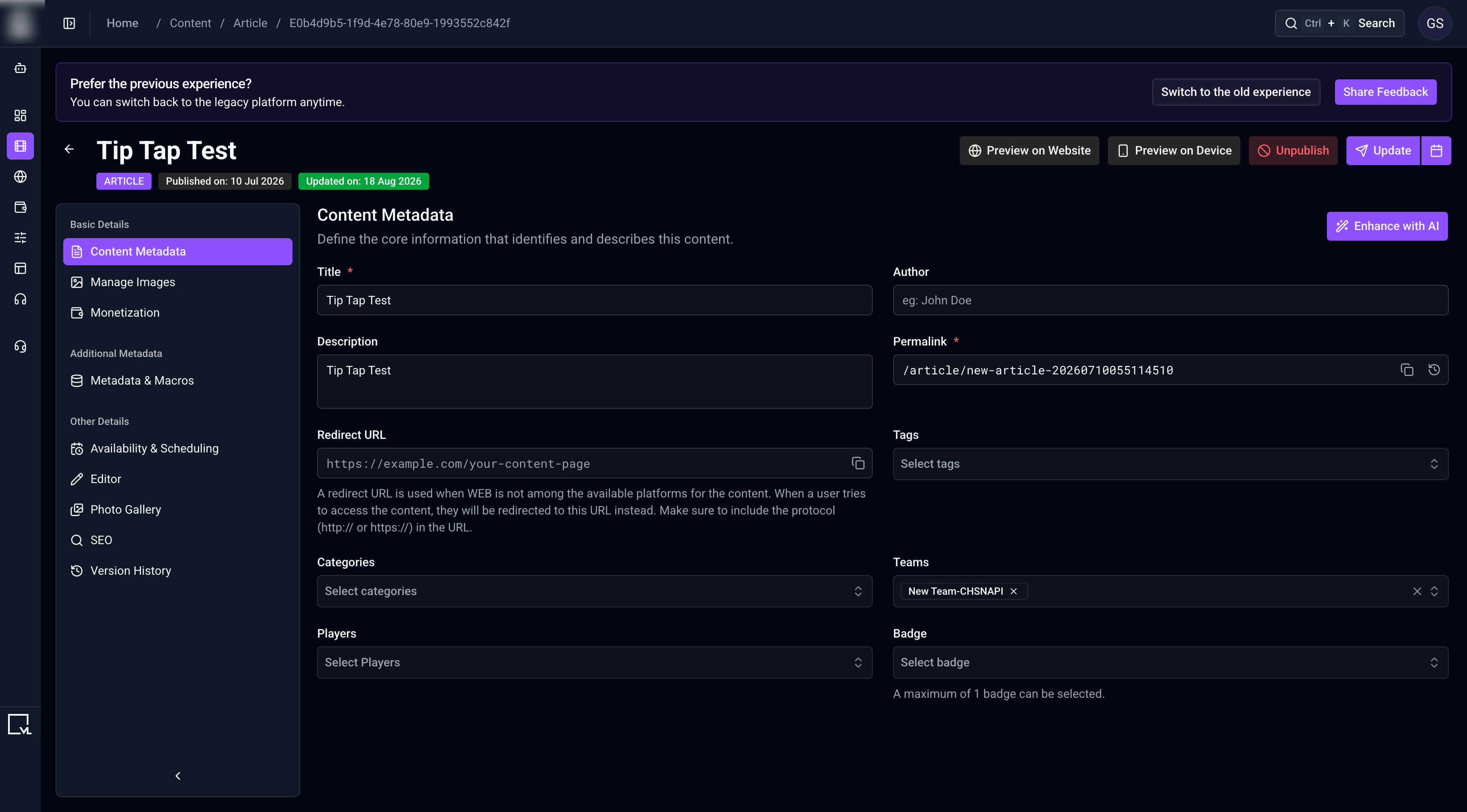
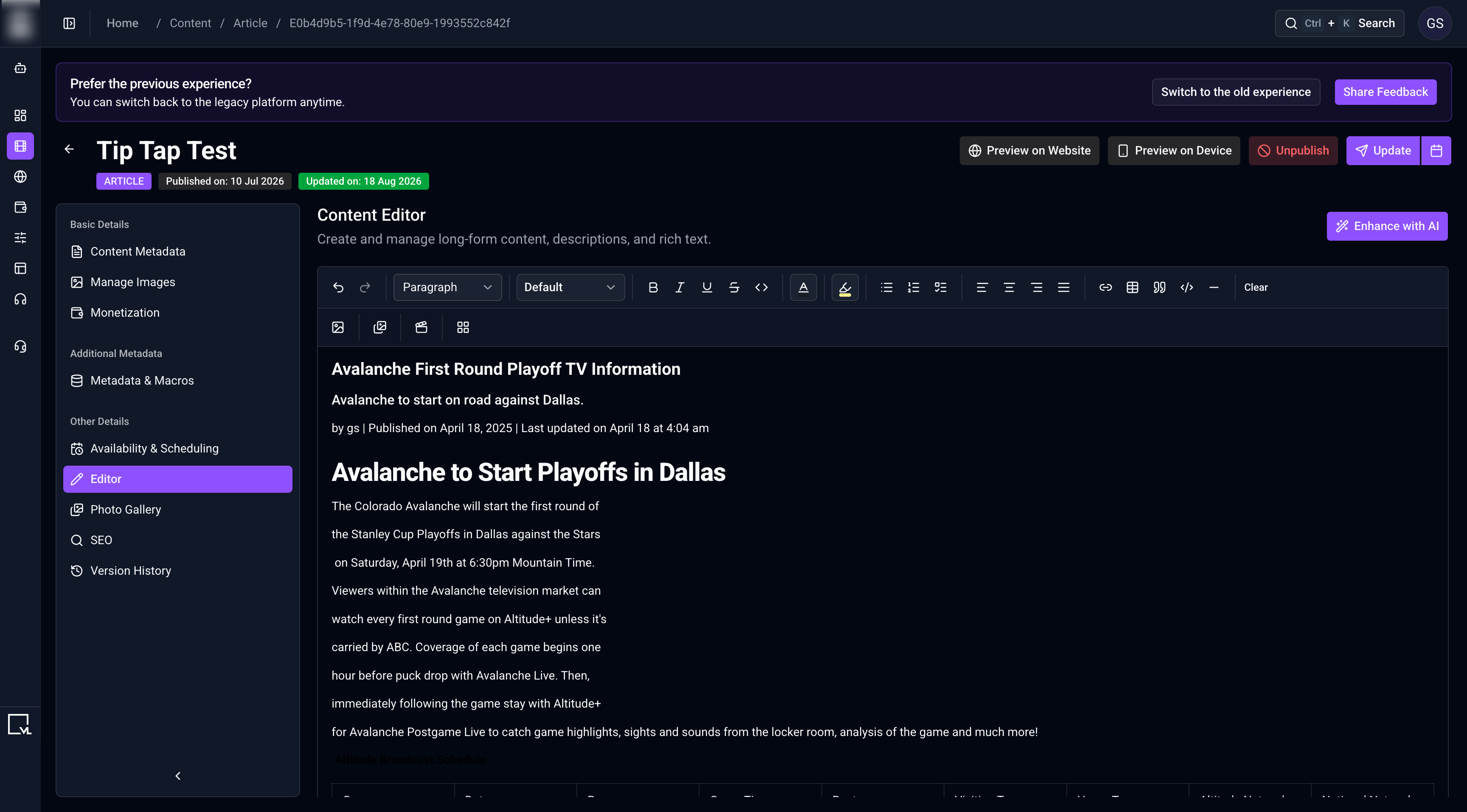
A published article with its title, description, author, permalink, and body ready for the detail page.
Step 2: Create an Article Template Page
You can start a new page in either of these ways:
- Open Template Builder.
- Start Create New Page from one of these locations:
- On the Template Builder home screen, select + New Page.
- On the home Page Overview, select View All Pages, then select New Page.
- Enter a Page Name, such as
Article Detail. - Under Page Type, select Article Template Page.
- Enter a Page Path required by your site.
- If localization is enabled, choose the Target Language.
- Select Create Page.
The page type cannot be changed after the page is created.
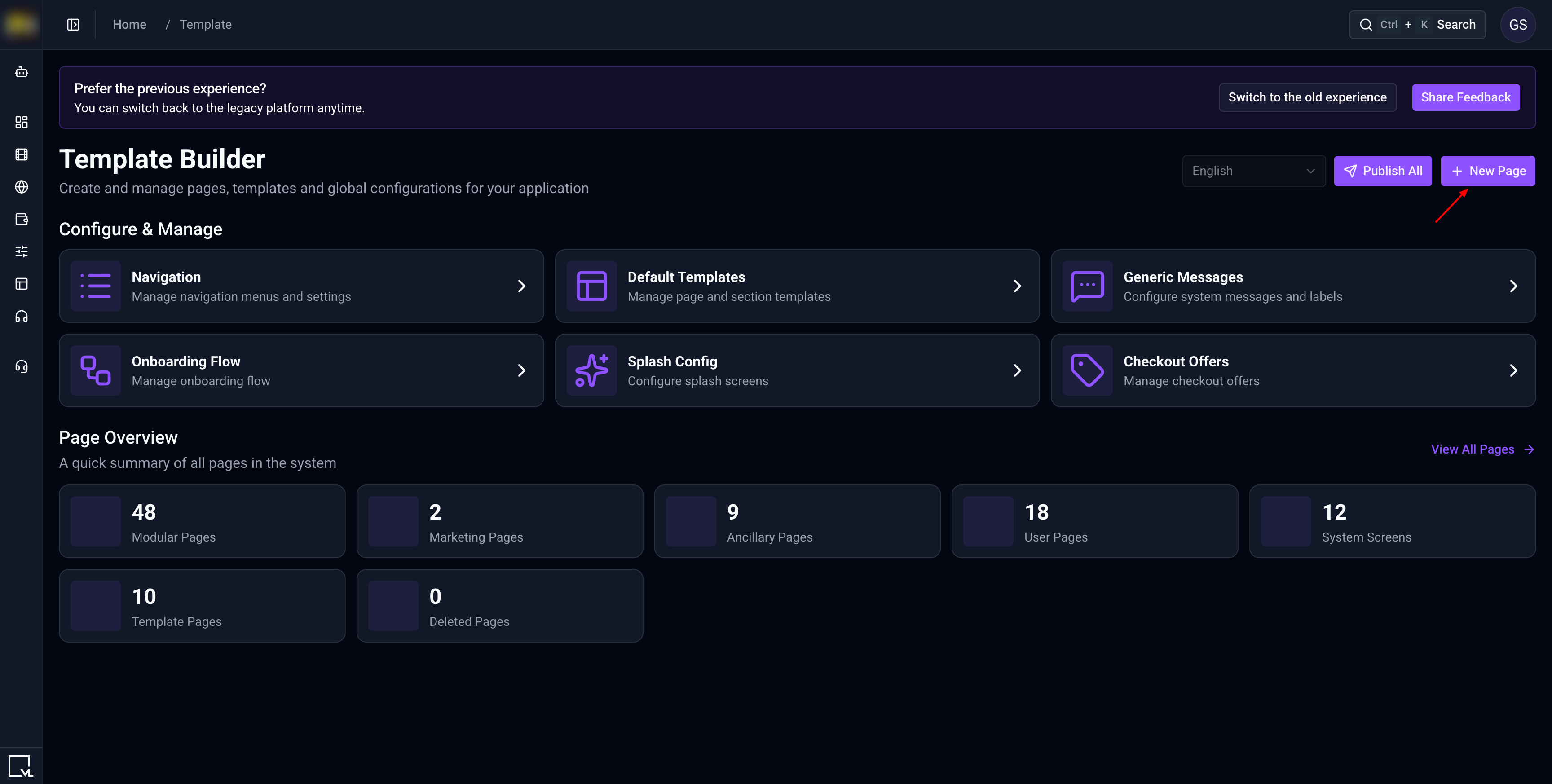
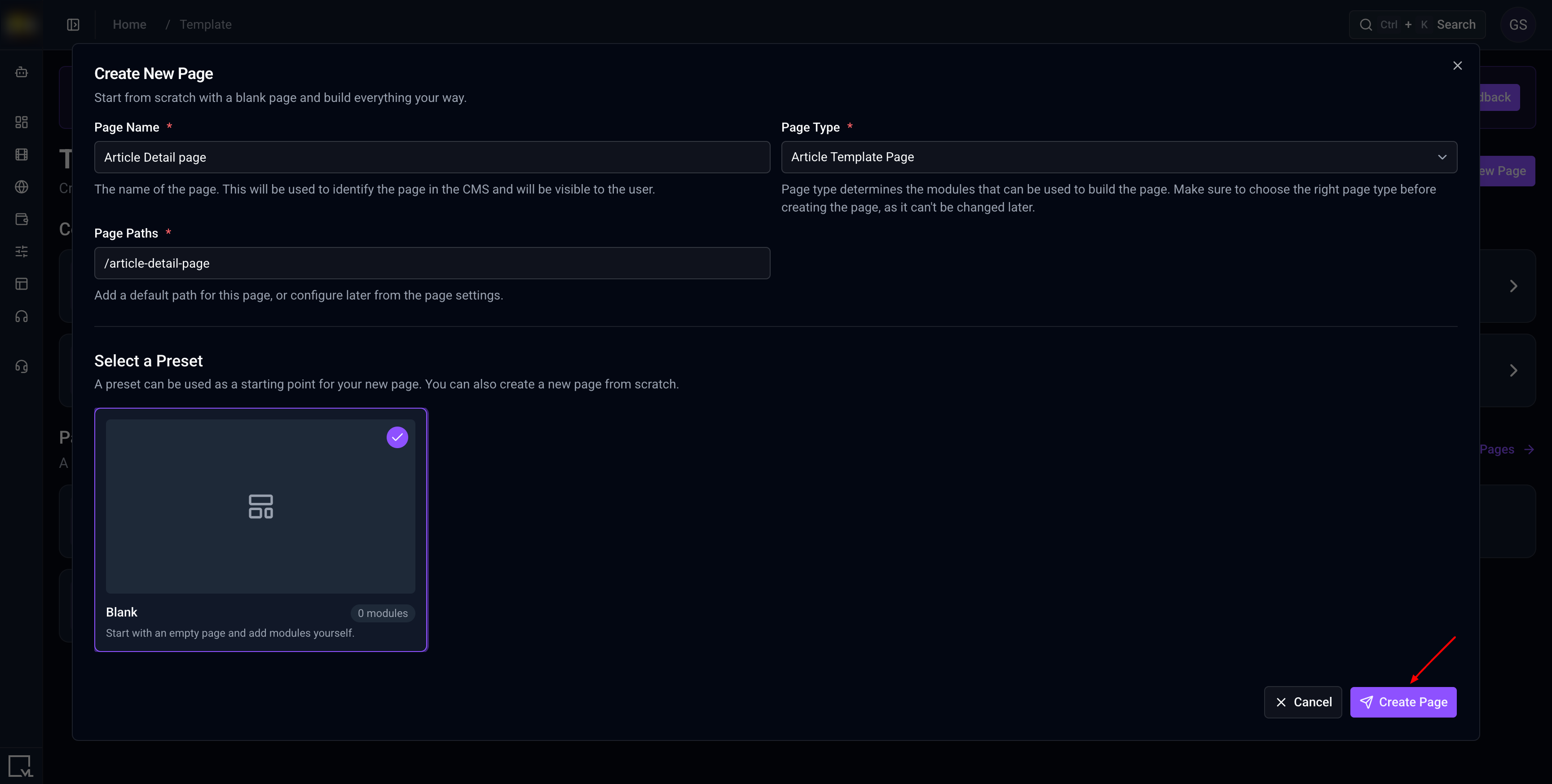
Create New Page with Article Template Page selected as the Page Type. Start from + New Page on the Template Builder home screen, or from New Page on View All Pages.
Also available on: Modular Page and Marketing Page. For the standard article detail experience, use an Article Template Page.
Step 3: Add the VL Article Detail module
- Open the new page in the Template Builder editor.
- Select Add Modules.
- Open the Article group, or search for
VL Article Detail. - Select VL Article Detail to add it to the page.
- Select the module on the page to open its settings.
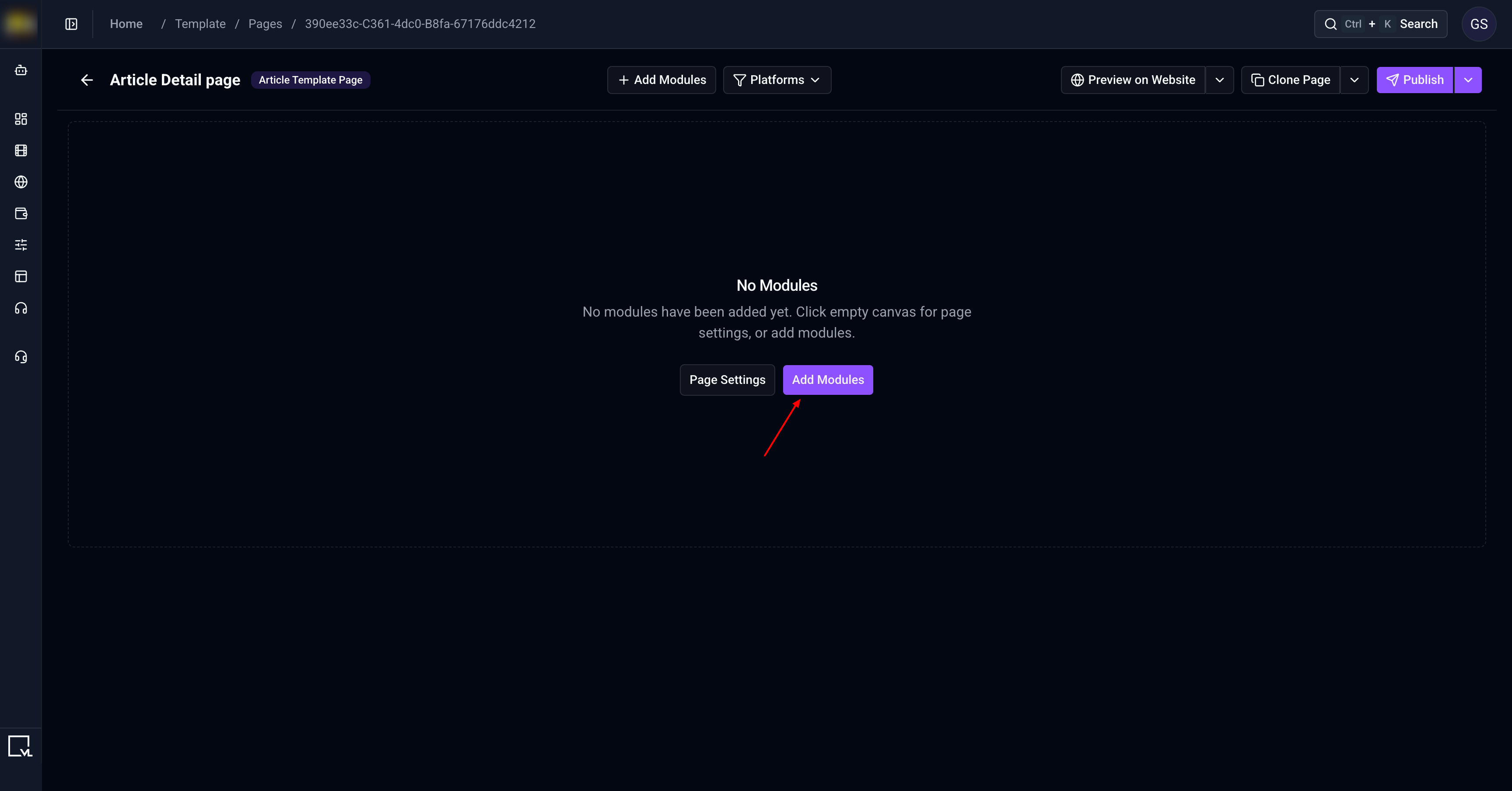
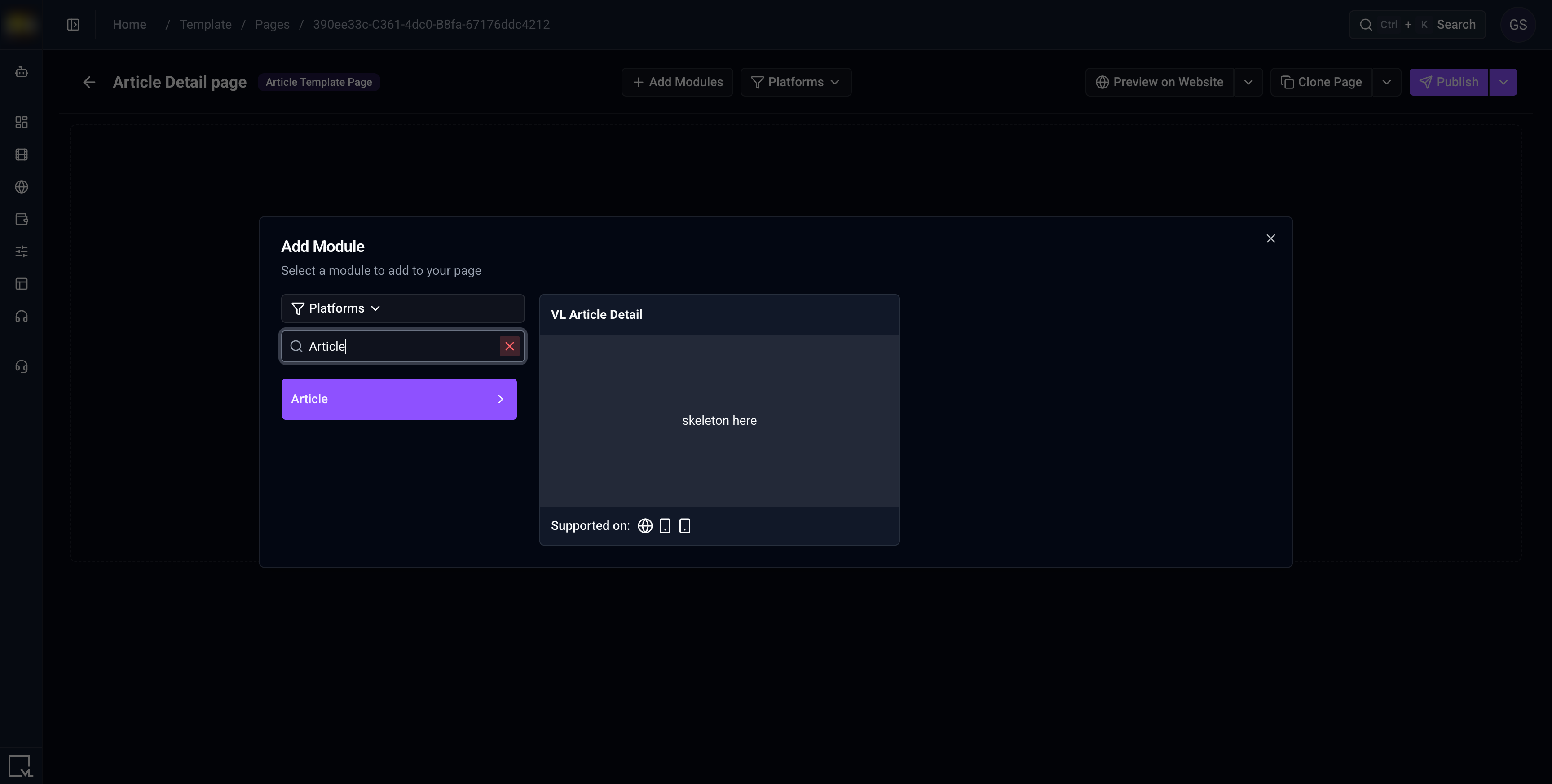
Add Modules → Article. Search for and insert VL Article Detail.
Step 4: Configure Layout
Open Layout and configure:
| Setting | Description | Default |
|---|---|---|
| Show Recommended | When on, a recommended-articles tray can appear beside the article on the website. | Off |
| Enable Sharing | When on, share controls appear on the article. | On |
| Left Background | Background color of the article column. | #FFFFFF |
| Right Background | Background color of the recommended tray column. | #EDF0F2 |
| Continue Button | Background color of the Continue control on an access wall. | #CF0A2C |
| Login Button | Background color of the Login control on an access wall. | #CF0A2C |
| Subscription Primary | Background color of the first subscription option on an access wall. | #CF0A2C |
| Subscription Secondary | Background color of the second subscription option on an access wall. | #DCE2E5 |
Turn Show Recommended on only if you want a Keep Reading tray. The tray still needs recommended articles from the website to appear.
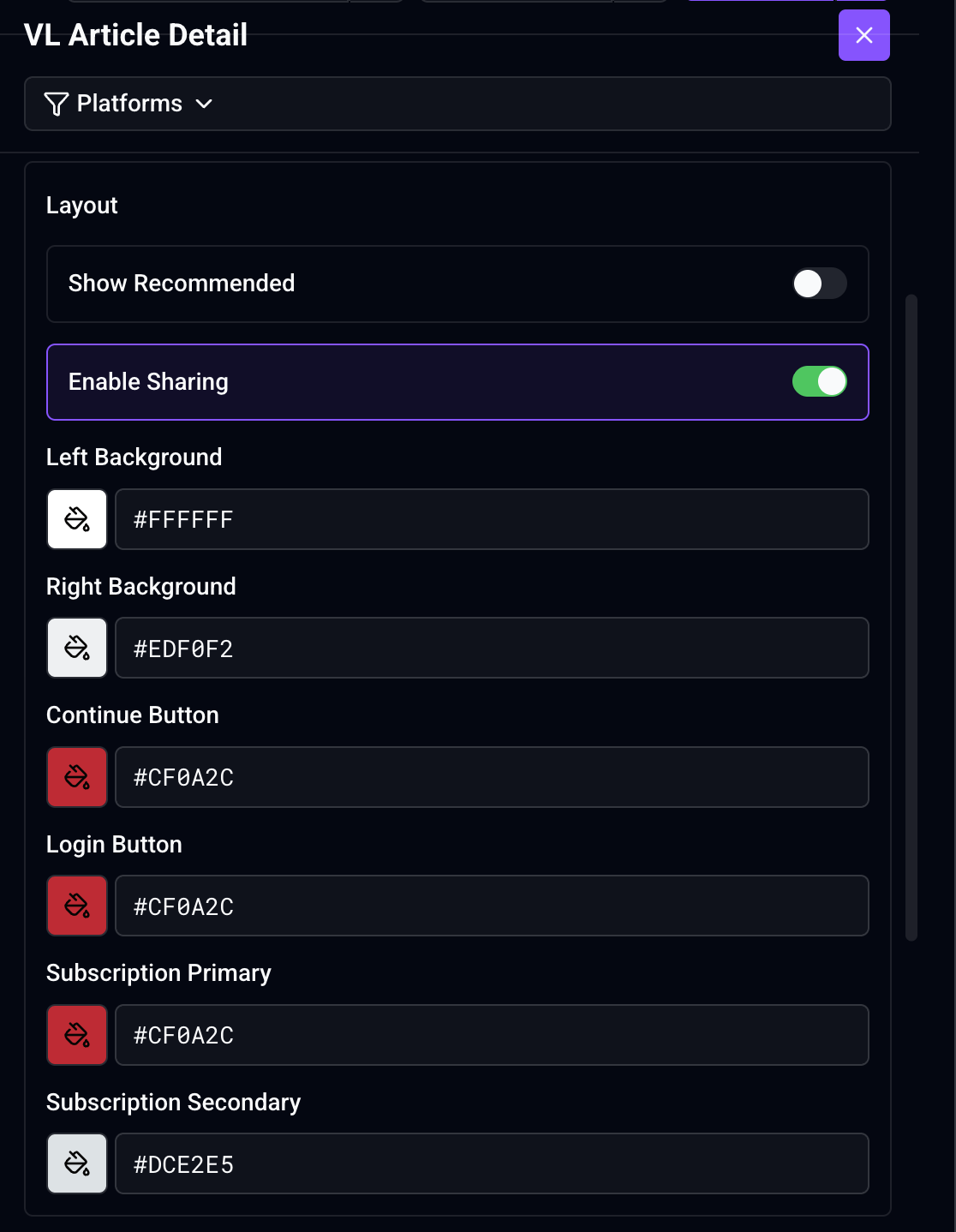
VL Article Detail → Layout. Set recommended articles, sharing, backgrounds, and wall button colors.
Step 5: Configure Content labels
Open Content and review these localizable labels:
| Setting | Description | Default |
|---|---|---|
| Tray Title | Heading of the recommended-articles tray. | Keep Reading |
| Continue Button | Label on the Continue control when email is required to keep reading. | Continue |
| Login Button | Label on the Login control when sign-in is required to keep reading. | Login Now |
| Subscription Title | Heading on the subscription access wall. | Gain access to live games, exclusive content and more. |
If your site supports multiple languages, review these values in every published language.
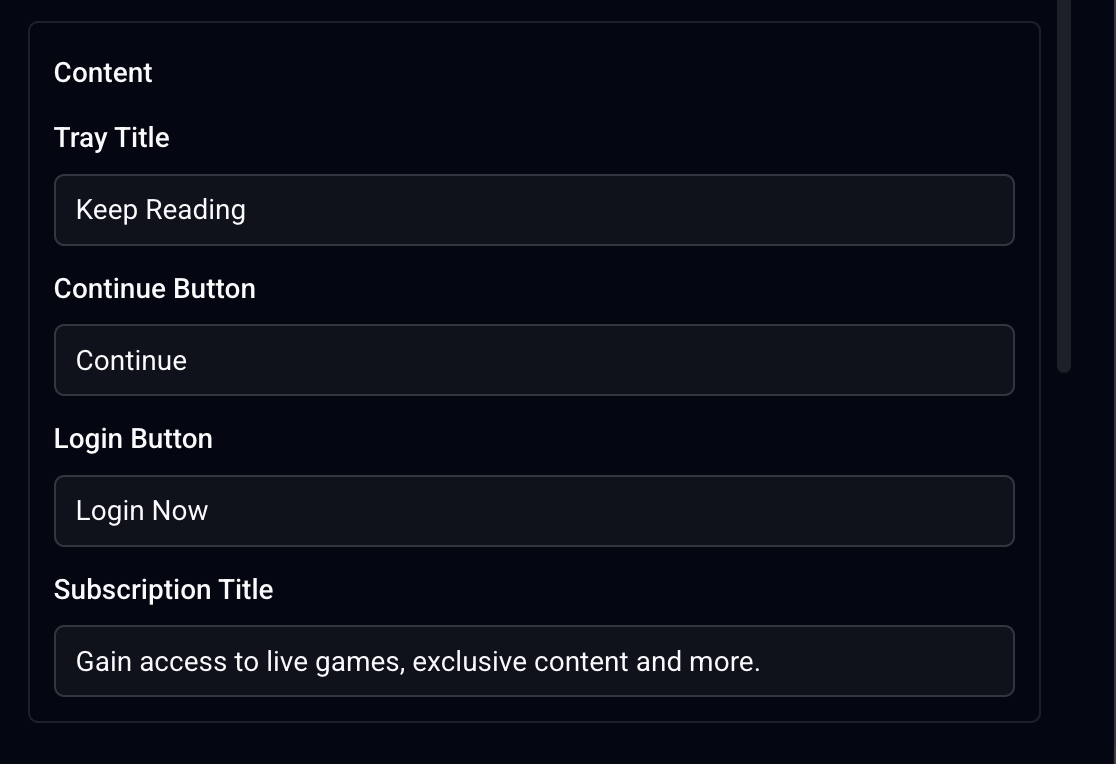
VL Article Detail → Content. Edit Tray Title, Continue Button, Login Button, and Subscription Title.
Step 6: Review delivery settings
The inspector can also show these common settings:
| Setting | Description | Default |
|---|---|---|
| Platforms | Limits where this instance of the module is delivered. | No explicit restriction |
| Enable Personalization | Appears only when personalization is enabled for the site. | Off |
VL Article Detail is enabled for the website, Android, and iOS. It is not enabled for Roku, Fire TV, Smart TV, or Apple TV.
Leave Enable Personalization off unless your site’s personalization setup requires this module to participate.
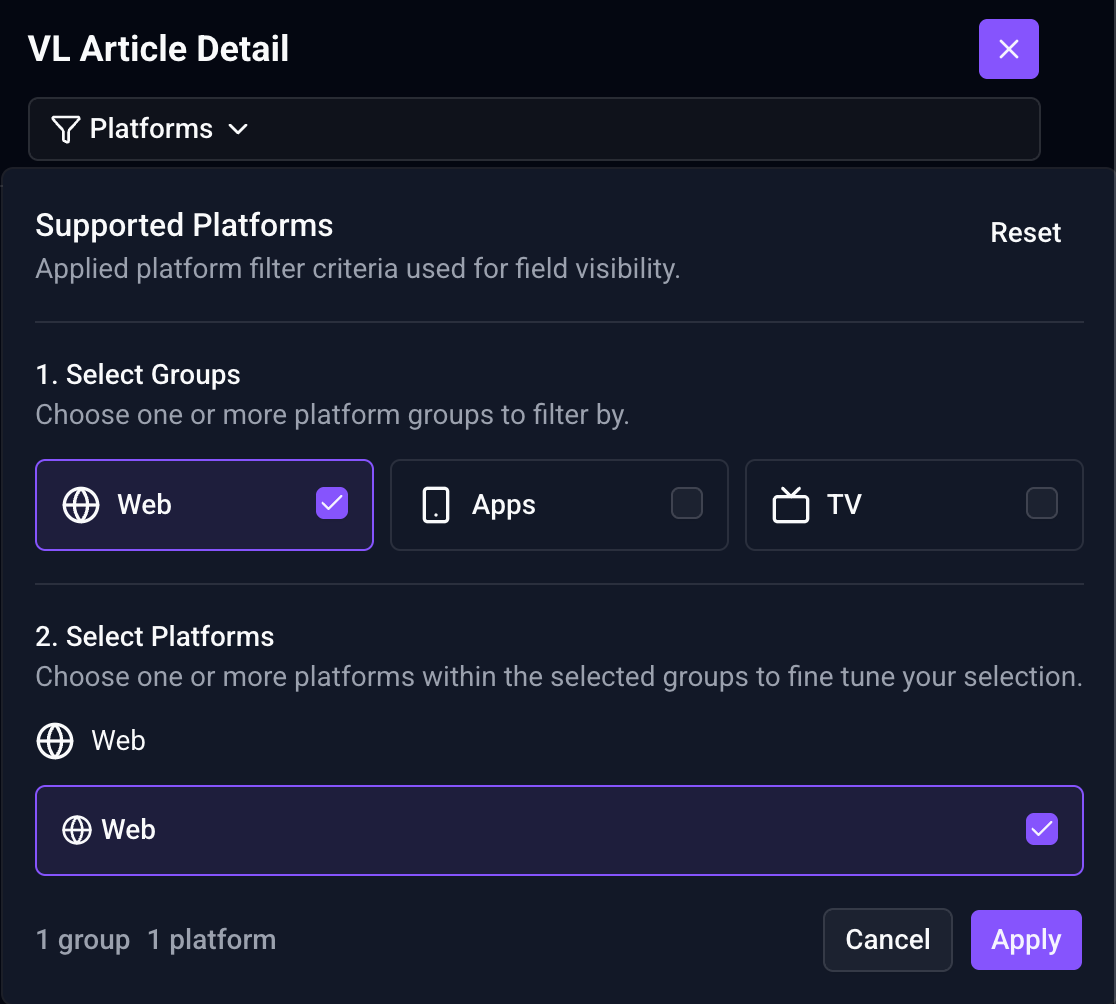
Supported Platforms with Web selected while configuring VL Article Detail.
Step 7: Publish the page
- Review the page layout and module settings.
- Select Publish in the page toolbar.
- In the confirmation dialog, select Publish Page.
- Wait for the publish action to complete.
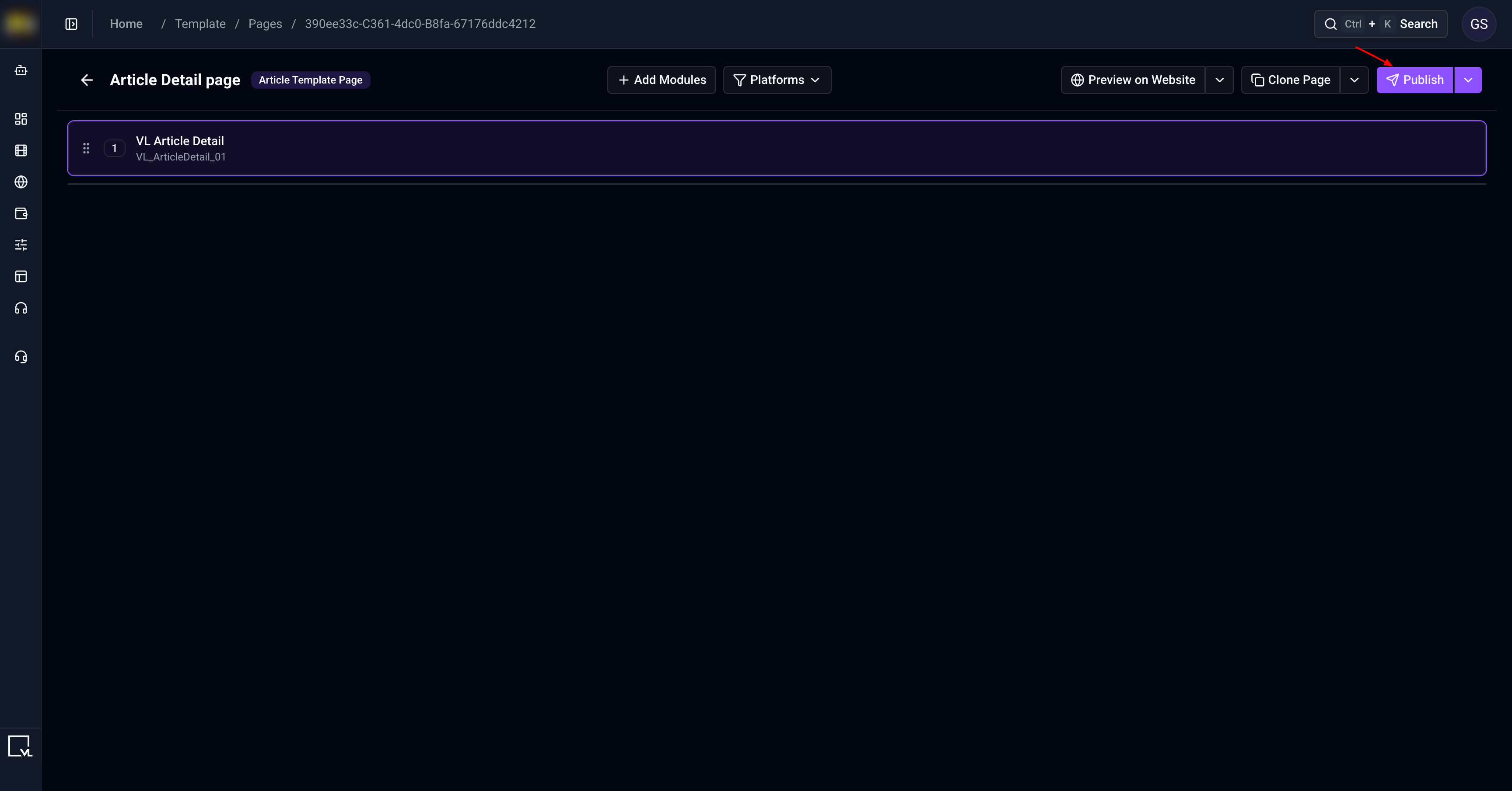
Publishing the page makes the latest Template Builder configuration available to the website. The article content must also be published.
Step 8: How it looks on the website
Open a published article URL on your website.
Customers typically see:
- Article title
- Description
- Author
- Image carousel, when the article has images
- Article body
- Share controls, when Enable Sharing is on
- Keep Reading tray, when Show Recommended is on and recommended articles are available
On wide screens, the article uses the Left Background. If the recommended tray is shown, it uses the Right Background and the article column arrows.
If the article requires sign-in, email, or a subscription, customers may see a preview of the body plus a wall:
- Login using Login Button and Login Button color
- Continue using Continue Button and Continue Button color
- Subscription options using Subscription Title and the subscription colors
Which wall appears depends on the article’s monetization setup.
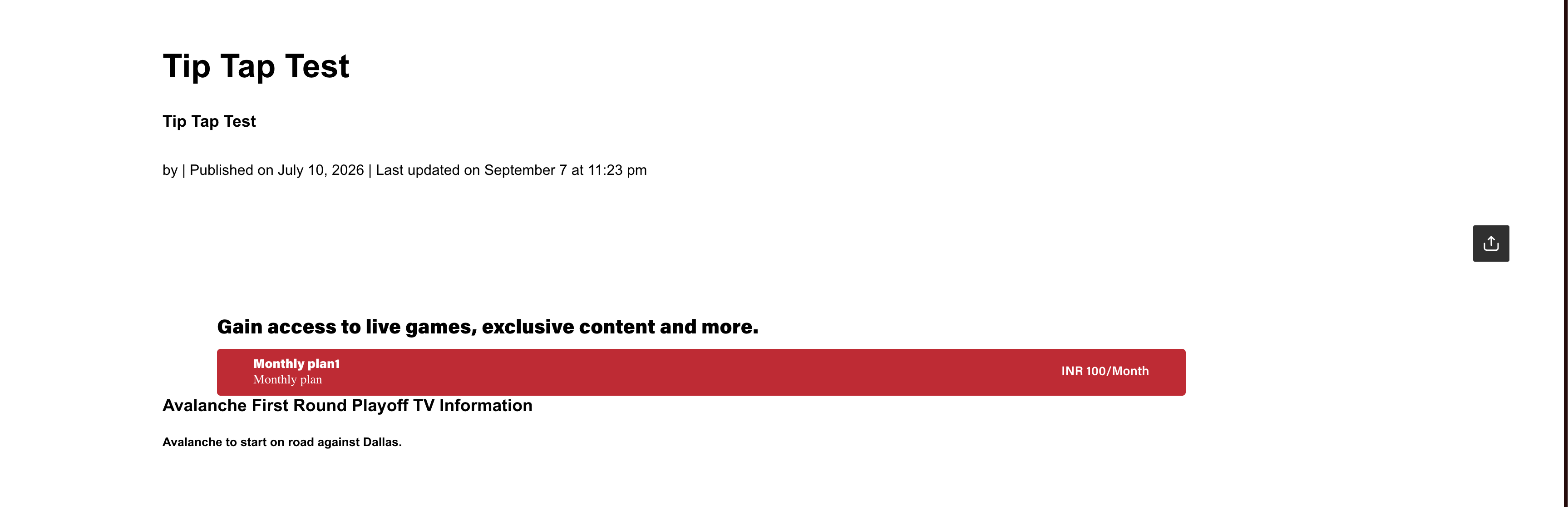
A published article showing title, author, body, optional share controls, and an optional Keep Reading tray.
Verification checklist
- A published article exists with a valid permalink
- The article has a title, description, author, and body
- The page type is Article Template Page
- VL Article Detail is added to the page
- Show Recommended and Enable Sharing match the intended experience
- Background and wall colors match the site design
- Tray Title, Continue Button, Login Button, and Subscription Title are reviewed for launch language(s)
- The page is published
- The article content is published
- The live website shows the article
- Sharing appears only when Enable Sharing is on
- The recommended tray appears only when Show Recommended is on and articles are available
- Access walls appear correctly for restricted articles, if used
Troubleshooting
| Problem | What to check |
|---|---|
| VL Article Detail does not appear in the module list | Confirm the page is an Article Template Page, Modular Page, or Marketing Page. Clear unsupported platform filters (Roku, Fire TV, Smart TV, Apple TV). |
| The page is blank | Confirm you opened a published article permalink and that both the article and Template Builder page are published. |
| Title, author, or body is missing | Complete those fields on the article content object, save, and republish it. |
| Keep Reading tray does not appear | Turn Show Recommended on, publish the page, and sign in. The tray appears only when recommended articles are available. |
| Share controls are missing | Turn Enable Sharing on and publish the page. |
| Background colors do not change | Reopen Layout, commit Left Background or Right Background, and publish the page again. |
| Login or Continue wall does not match your labels | Confirm the article requires sign-in or email, then republish the page after editing Login Button or Continue Button. |
| Subscription wall does not appear | Confirm the article requires a subscription or TV provider plan. |
| Changes do not appear immediately | Confirm both the content and page are published, then retry in a private window after allowing time for cache updates. |
Best Practices
- Use an Article Template Page for the standard article detail experience.
- Publish the article body before testing the page.
- Keep Enable Sharing on unless the site should not offer sharing.
- Turn Show Recommended on only when you want a Keep Reading tray.
- Match wall button colors to the rest of the site.
- Localize tray and wall labels when the site has more than one live language.
- Test a free article and a restricted article before launch.
- Point article trays and search results to published article permalinks.
FAQs
Q. What page type should I use for VL Article Detail?
Use Article Template Page for a standard article detail layout.
Q. How do I create the page?
Select + New Page on the Template Builder home screen, or open View All Pages and select New Page. Then choose Article Template Page, enter the name and path, and select Create Page.
Q. Can I add this module to a Modular Page?
Yes. It is also available on a Modular Page and a Marketing Page.
Q. Which platforms support this module?
The website, Android, and iOS. It is not enabled for Roku, Fire TV, Smart TV, or Apple TV.
Q. Where do the title, author, and body come from?
They come from the published article content object.
Q. What does Show Recommended do?
It can show a Keep Reading tray of related articles. The tray appears only when recommended articles are available.
Q. What does Enable Sharing do?
It shows share controls on the article. The default is on.
Q. When do Login, Continue, and subscription walls appear?
When the article’s monetization requires sign-in, email, or a paid plan. The module supplies the labels and colors; the article’s plans control whether a wall is shown.
Important Information
- VL Article Detail belongs on an Article Template Page.
- The module presents the article associated with the page request; it does not select an article in the form.
- Title, description, author, images, and body are controlled by the article content.
- Show Recommended defaults to off. Enable Sharing defaults to on.
- VL Article Detail is not enabled for Roku, Fire TV, Smart TV, or Apple TV.
- Both the page and article content must be published for customers to see the complete experience.
Glossary
| Term | Definition |
|---|---|
| Article Template Page | Template Builder page type used to define the detail layout for articles. |
| VL Article Detail | The module that displays article content on a page. |
| Show Recommended | Layout setting that can show a Keep Reading tray. |
| Enable Sharing | Layout setting that shows share controls on the article. |
| Access wall | Overlay that asks the customer to sign in, continue, or subscribe before the full article is shown. |
| Permalink | The customer-facing URL path assigned to a content object. |
Contact Support
If you need help beyond this article, contact the ViewLift support team.
- Email: techsupport@viewlift.com
- Phone (US): +1-800-859-0420
- Phone (UK): +44-203-014-8921
Support hours: B2C requests are handled Monday to Friday. B2B support is available 24/7.