Overview
Browse system-generated events for a customer's account — sign-ins, subscription changes, device registrations, and other platform events.
:::tip At a Glance
Who is this for?
Support agents investigating account activity or troubleshooting issues.
When do I use this?
When you need to understand what happened on an account — for example, verifying when a customer last signed in, or tracking down the timeline of an issue.
What will happen?
A paginated table shows all system-generated events for the customer, ordered by timestamp.
:::
Prerequisites
- A support session must be active for the customer
Steps
Step 1: Navigate to the Event Logs tab
Open the customer detail view and select the Event Logs tab from the sidebar.
Step 2: Review event log entries
The table shows events with details including:
| Column | Description |
|---|---|
| Event Name | The type of event (sign-in, update, etc) |
| Timestamp | When the event occurred |
| Device Info | User agent / device details |
| IP Address | Origin IP of the event |
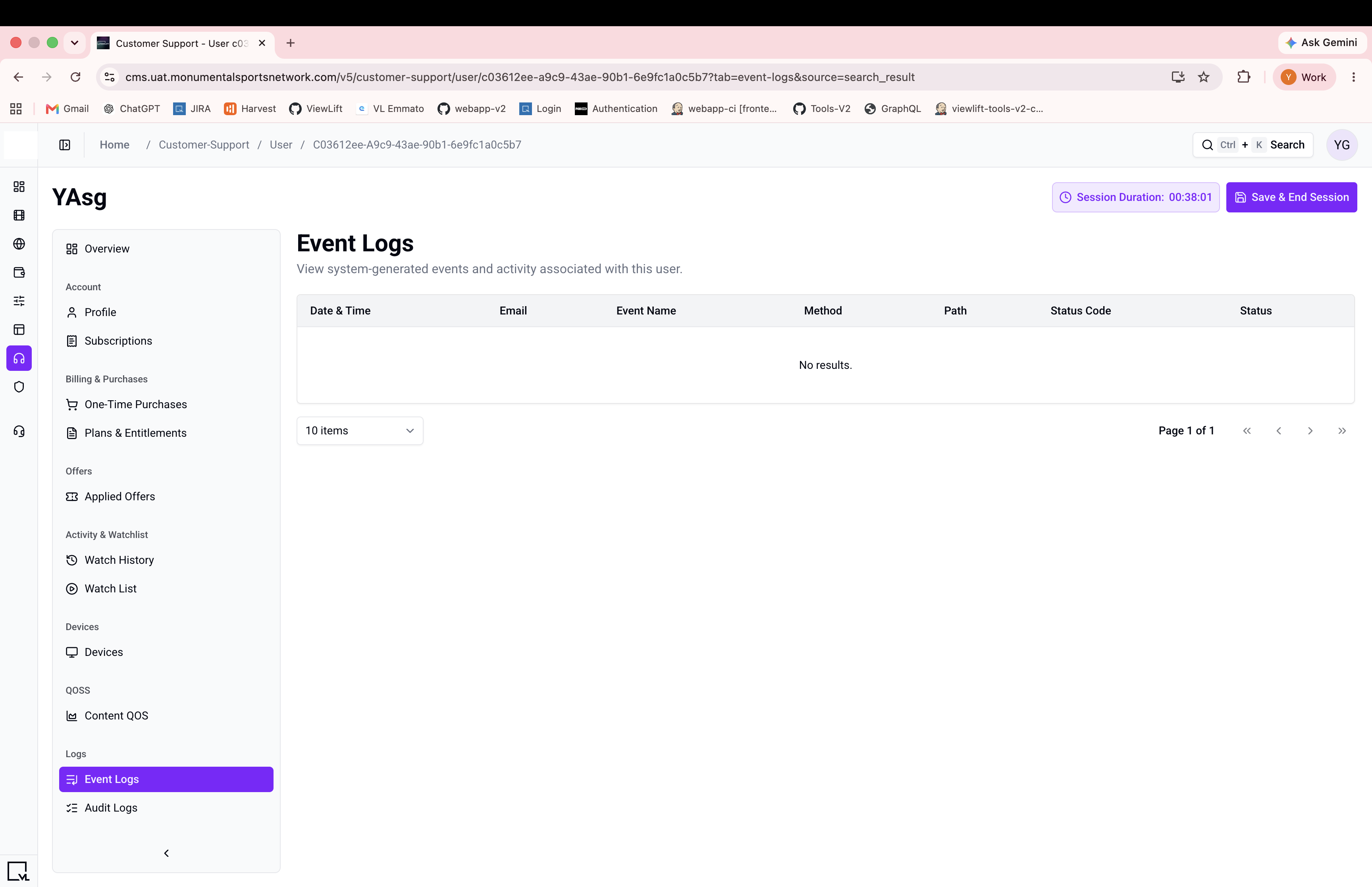
Step 3: Paginate through events
Use the Next and Previous buttons to navigate through pages of events.
Expected Behavior
- Events load automatically with the configured page size.
- Navigation is forward/backward only (no jump-to-page).
- This is a read-only view.
Edge Cases / Notes
- Event logs support forward/backward navigation only. You cannot jump to a specific page number.
- Request tracking: The system ensures that navigating quickly between pages does not cause stale data to appear.
If Something Goes Wrong
- Events not loading? → Refresh the page.
- Pagination stuck? → If next/previous tokens are null, you've reached the beginning or end of the log.
Related
- View audit logs
- View Chromecast logs
- View customer profile