Overview
See all devices registered to a customer's account and remove (desync) devices when needed.
:::tip At a Glance
Who is this for?
Support agents managing device limits or troubleshooting playback access.
When do I use this?
When a customer is hitting their concurrent stream limit, reports an unknown device, or needs a device removed to free up a slot.
What will happen?
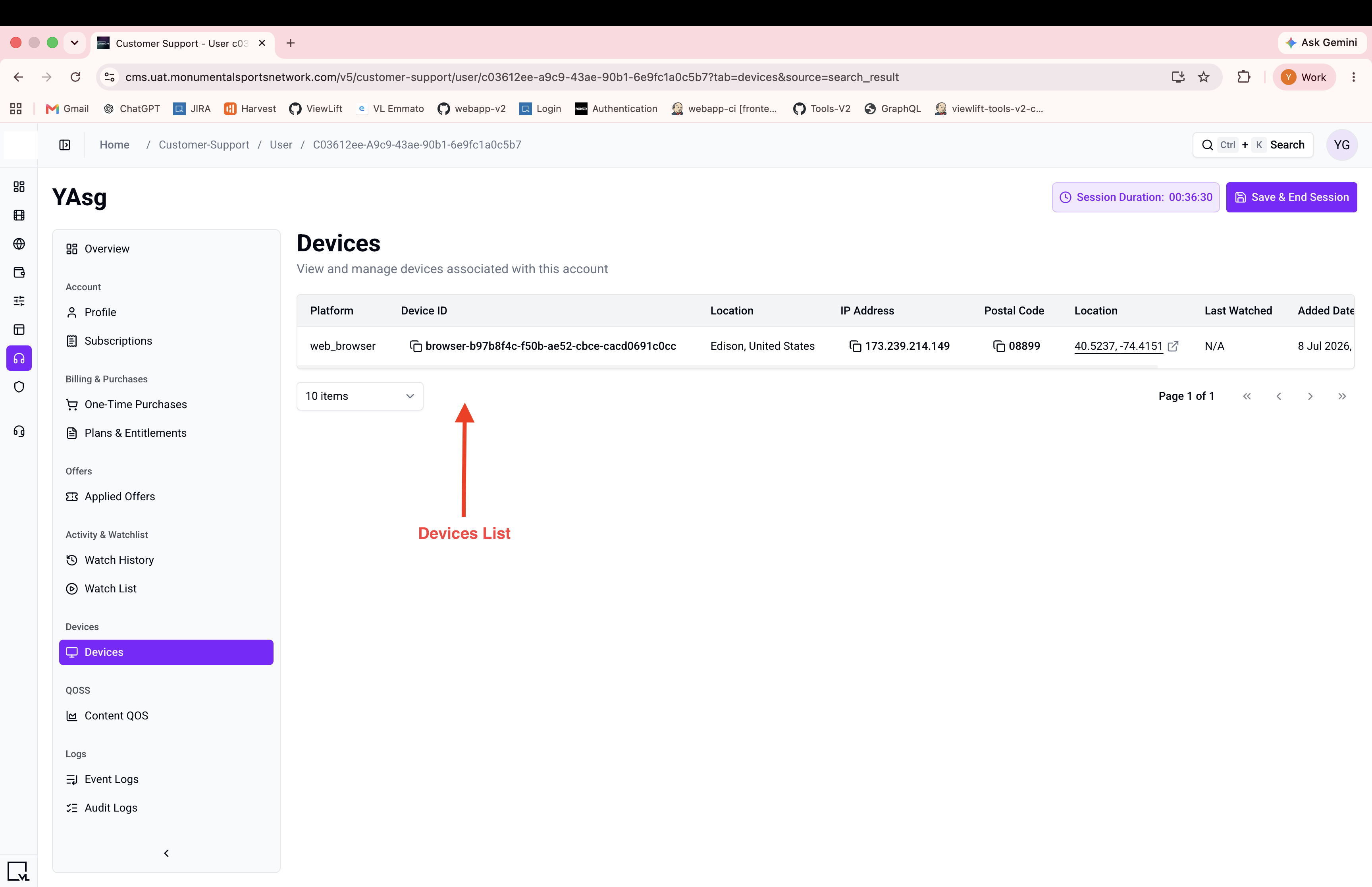
A table shows all registered devices with platform, location, and last activity. You can delete any device from the list.
:::
Prerequisites
- A support session must be active for the customer
Steps
Step 1: Navigate to the Devices tab
Open the customer detail view and select the Devices tab from the sidebar.
Step 2: Review registered devices
The table shows:
| Column | Description |
|---|---|
| Device Name | Name of the registered device |
| Platform | iOS, Android, Web, etc. |
| Location | City, country (from IP geolocation) |
| Last Watched | Timestamp of last activity |
| Added Date | When the device was registered |
Step 3: Delete a device (optional)
- Click the Delete action on the device row
- A confirmation dialog appears: "Are you sure you want to delete device with ID {deviceId}? This action cannot be undone."
- Click Delete to confirm, or Cancel to abort
Expected Behavior
- On successful deletion: the device is removed from the list, a success message appears, and an audit log entry (
USER_DEVICE_DELETED) is created. - The customer will need to re-register the device the next time they sign in from it.
Edge Cases / Notes
- Device location data is derived from IP geolocation and may not be precise.
- Deletion is permanent — the device must re-register by signing in again.
If Something Goes Wrong
- Delete failed? → The device may have already been removed. Refresh the page.
- Customer still hitting device limit after deletion? → The customer may need to sign out and back in to refresh their device list.
Related
- View customer profile
- View audit logs