Overview
Review Chromecast session logs to troubleshoot casting and playback issues reported by a customer.
:::tip At a Glance
Who is this for?
Support agents investigating Chromecast or casting-related issues.
When do I use this?
When a customer reports casting failures, playback interruptions during casting, or inconsistent Chromecast behavior.
What will happen?
A read-only table shows recent Chromecast log entries, with options to open detailed session context data and export results as CSV.
:::
Prerequisites
- A support session must be active for the customer
Steps
Step 1: Navigate to the Chromecast Logs tab
Open the customer detail view and select Chromecast Logs in the Logs section of the sidebar.
Step 2: Review Chromecast log entries
The table shows session logs with details including:
| Column | Description |
|---|---|
| Timestamp | When the log entry was recorded |
| Load Request ID | Chromecast load request ID |
| Session | Chromecast receiver session ID |
| App Version | Version of the app that generated the log |
| Level | Severity of the entry (LOG, INFO, ERROR) |
| Kind | Category of log event |
| Player State | Playback state at the time of the log |
| Player Time | Playback position captured in the log |
| Stream Type | Stream type when available |
| Message | Log message details |
| Content | Related content reference — rendered as a clickable link only when it is a valid http(s) URL |
Step 3: Filter the visible records
- Search: type in the search field to filter across message, kind, session, content, player state, load request id, and the raw session data. Filtering happens locally against the currently loaded batch — no refetch.
- Level: use the level dropdown to keep only
LOG,INFO, orERRORentries. All-levels is the default. - Date: pick a date to refetch entries around that time. The date filter triggers a new request; search and level filters do not.
Step 4: Inspect the details of a single record
- Click any row to open the Chromecast Log Detail dialog. It shows every column value plus the parsed
dataJSON in one place. - The
contentvalue in the dialog is a clickable link only when it is a validhttp(s)URL. Any other value (relative paths,javascript:,ftp:, bare domains, etc.) is shown as text and can be copied but not clicked.
Step 5: Adjust the visible data
- Use Columns to show or hide table columns.
- Use the item limit control to change how many records are shown per page. It does not refetch — it only changes the local page size. The default is
10 items per page.
Step 6: Paginate and export
- The API always fetches the most recent
30records for the selected date, which is then paginated locally. - Use pagination controls to move through the fetched (and filtered) records.
- Use the CSV download action to export the full fetched batch (not the filtered or paginated subset), so agents can share the raw session with engineering.
Expected Behavior
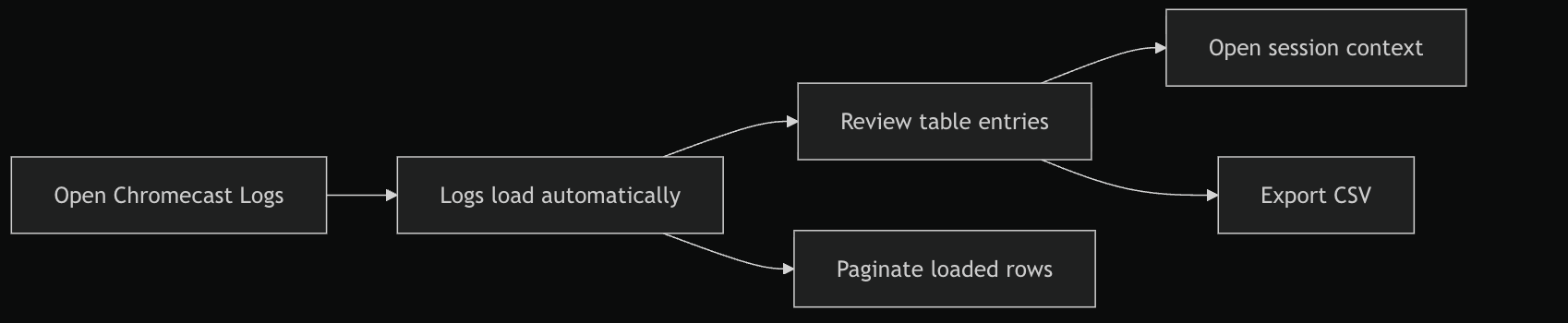
- Logs load automatically when the tab opens; the API fetches the latest
30records for the requested date. - Entries are shown newest first.
- Search, level, and item-limit filters are local to the loaded batch. The date filter refetches from the API.
- Content links open in a new tab and always carry
rel="noopener noreferrer". - The table is read-only.
- This section is currently marked as Beta.
Flow
Edge Cases / Notes
- If no logs appear, the customer may not have used Chromecast recently.
- Pagination works within the currently loaded records; it does not fetch older pages automatically.
- Only the date filter refetches; search and level filter the loaded batch locally.
- CSV export writes the full fetched batch, not the filtered subset.
- Use this view together with View content QoS and View watch activity for fuller playback troubleshooting context.
Manual QA + Security Checklist
Run before release when this section changes.
Functional
- Open the tab for a user with recent casting activity — logs load automatically; the request uses
numRecords=30. - Change the date — a new request is issued and results replace the batch.
- Change the level or type in the search — no refetch; the table narrows locally, pagination resets, and CSV export still contains the full fetched batch.
- Open a row — the detail dialog shows every column value and the parsed
dataJSON. - Change the item limit dropdown (or
?limit=in the URL) — no refetch; only the local page size changes and pagination re-slices the same batch. - Click Next / Previous in the pagination footer — the visible page changes and the current-page indicator updates.
Security (CL-SEC-001 / CL-SEC-002)
7. In the Content column and in the row detail dialog:
- A valid
https://…m3u8URL is a clickable link that opens in a new tab. - A
javascript:alert(1)value is text-only, has no<a>, and cannot be clicked. - A relative path like
/admin/usersis text-only. - A bare domain like
example.comis text-only. - An
ftp://…value is text-only. - Copy-to-clipboard still works for every case above.
8. ThedataJSON block in the detail dialog never turns URL-like strings into clickable links (CL-SEC-003 — accepted, verify no regression).
If Something Goes Wrong
- No logs showing? → Confirm the customer used casting recently, then increase the item limit and retry.
- Logs fail to load? → Refresh the page and verify the support session is still active.
- Expected entry missing? → Check again after retrying with a larger item limit.
Related
- View content QoS
- View event logs
- View audit logs
- View watch activity
- View devices
- Chromecast Logs Parity Checklist