Live & Upcoming Module Configuration Guide
Overview
The Live & Upcoming Module allows you to showcase currently live and scheduled upcoming events on any page within the platform. This document outlines all required CMS and Template Builder configurations needed to enable and customize the module.
Step 1: Add the Module to a Page
To display Live & Upcoming content on a page:
- Open Template Builder.
- Navigate to the desired page.
- Add the module "VL Thumbnail Schedule Tray".
- Save and publish the page.

The module will automatically render live and upcoming events based on the configured schedule data.
Module Preview
The module displays:
- Tray Title
- Live & Upcoming events
- Event thumbnails
- Live badge
- Schedule date/time tags
- Optional monetization badge (lock icon)
Configuration
Feature Toggles
Show Monetization Badge
When enabled, a lock icon is displayed on monetized content within the tray.
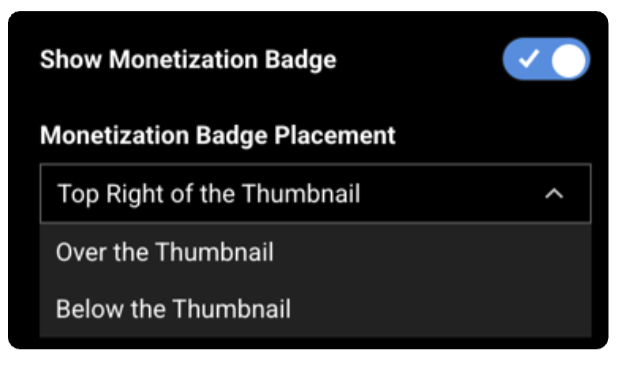
Supported Placement Options
| Option | Description |
|---|---|
| Top Right of Thumbnail | Displays the lock icon in the top-right corner of the thumbnail |
| Over the Thumbnail | Displays the lock icon as a centered overlay on the thumbnail |
Example Use Case
Enable this option when subscription-only or authenticated content needs to be visually differentiated.
Use ICU Date Pattern Format
When enabled, the module uses ICU date formatting patterns to render event schedule times.
This allows clients to control how dates and times appear throughout the tray.
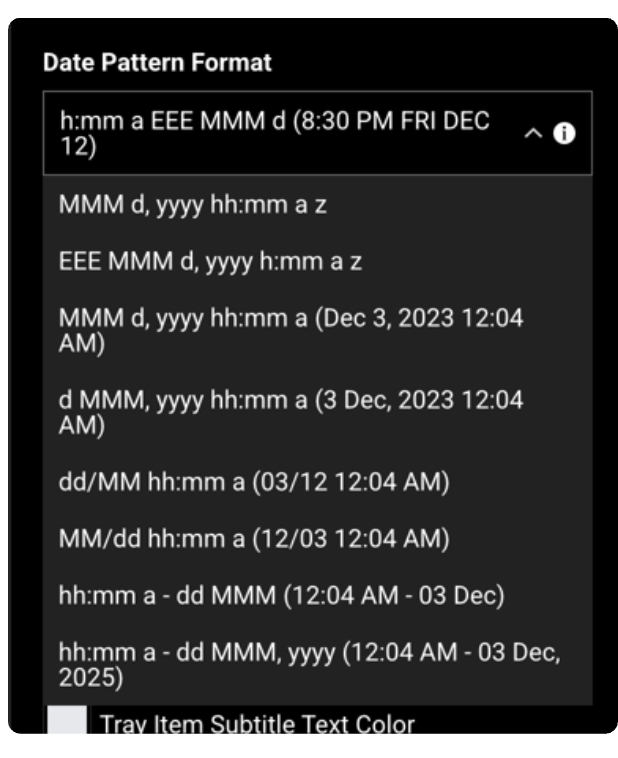
Available Date Format Examples
| ICU Pattern | Example Output |
|---|---|
MMM d, yyyy hh:mm a |
Dec 3, 2025 12:04 AM |
EEE MMM d, yyyy h:mm a z |
Fri Dec 3, 2025 12:04 AM EST |
d MMM, yyyy hh:mm a |
3 Dec, 2025 12:04 AM |
dd/MM hh:mm a |
03/12 12:04 AM |
MM/dd hh:mm a |
12/03 12:04 AM |
hh:mm a - dd MMM |
12:04 AM - 03 Dec |
hh:mm a - dd MMM, yyyy |
12:04 AM - 03 Dec, 2025 |
h:mm a EEE MMM d |
8:30 PM FRI DEC 12 |
Schedule Data Configuration
Number of Days to Fetch Schedule
Configuration Key
noOfDaysToFetchSchedule
Description
Determines how many future days of schedule data will be requested and displayed.
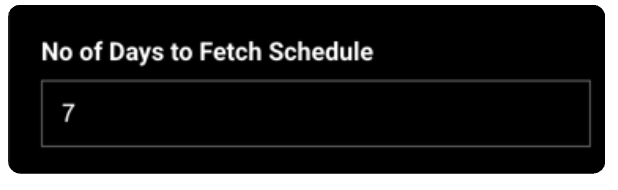
Example
| Value | Result |
|---|---|
| 1 | Current day + next 1 day |
| 3 | Current day + next 3 days |
| 6 | Current day + next 6 days |
| 7 | Current day + next 7 days |
Example: A value of 6 will fetch events starting from the current day's midnight through the end of the next 6 days.
Localization Configuration
The following text labels can be customized through the Localization section.
| Label | Purpose |
|---|---|
| Badge Text | Text displayed within the Live badge |
| Versus Text | Separator text displayed between competing teams (e.g., "vs.") |
| Event Started Text | Prefix text shown when an event has already started |
Examples
| Configuration | Output |
|---|---|
| Badge Text = Live | LIVE |
| Versus Text = vs. | Team A vs. Team B |
| Event Started Text = Event started at | Event started at 8:30 PM |
Branding Configuration
The Live & Upcoming module supports extensive branding customization.
The following UI elements can be configured independently:
| Configuration | Description |
|---|---|
| Lock Icon Background Color | Background color of monetization badge |
| Time Tag Text Color | Text color of schedule time tag |
| Time Tag Background Color | Background color of schedule time tag |
| Tray Title Color | Color of module title |
| Tray Item Title Text Color | Event title text color |
| Tray Item Subtitle Text Color | Event subtitle text color |
| Live Badge Text Color | Text color inside Live badge |
| Live Badge Background Color | Background color of Live badge |
| Content Duration Text Color | Color of duration metadata text |
Network Images Configuration
The Live & Upcoming module supports displaying network/broadcast logos associated with scheduled events.
CMS Setup
To configure network logos:
- Navigate to AppCMS → Brand → Network Images.
- Locate the network you want to configure.
- Select or upload the appropriate logo from the Badge (Library) dropdown.
- Click Save for the individual network.
- Click Save Changes to publish the updates.