Introduction
A game is a match or fixture between two teams. You create the game object in ViewLift Tools, complete match metadata, schedule, and images, then place it on site pages and the Game Template Page in Template Builder.
This article explains how to create a game, complete its metadata, publish it, and place it on the site.
Event is a separate content type. This article is for Game. For Event, see Create an Event Object.
Purpose
The purpose of this article is to help you:
- Create a new game object in ViewLift Tools
- Complete the metadata, images, Game Info, Game States, schedule, and other settings required for publication
- Link livestreams, highlights, teams, venue, and related videos
- Know how to place the game on trays and which Template Page renders it
Scope
This article covers:
- Creating a game in ViewLift Tools → Content Management → Game
- Completing the game object (metadata, images, monetization, Game Info, Game States, Schedule, Players, Broadcaster, Related Videos, SEO)
- Publishing or scheduling the game
- The required Template Builder points for trays and the Game Template Page
It does not cover creating teams, people, venues, or lives. For those, see Create a Team Object, Create a Person Object, and Create a Live Object. Full Template Builder configuration is a separate documentation set.
Prerequisites
Before you begin, ensure you have:
- Access to ViewLift Tools with permission to create and publish game content
- Access to Template Builder
- A 16:9 thumbnail image (recommended 1920 × 1080 px), already cut to size — Tools does not crop images for you
- Team objects already created if you want to set Home Team and Away Team now (you can also link later)
- Venue objects already created if you want to set a venue on the schedule
- Live objects if you want to attach livestreams, and VOD objects if you want highlights, preview video, or related videos
- Your metadata ready: title, description, tags, and categories
Example used in this article
Throughout the steps below we use one running example — a game called Championship Final — City United vs Riverside FC. Replace the sample values with your own.
Step 1: Open Game in ViewLift Tools
- Log into ViewLift Tools.
- From the main menu, open Content Management.
- In the content type selector at the top of the list, choose Game.
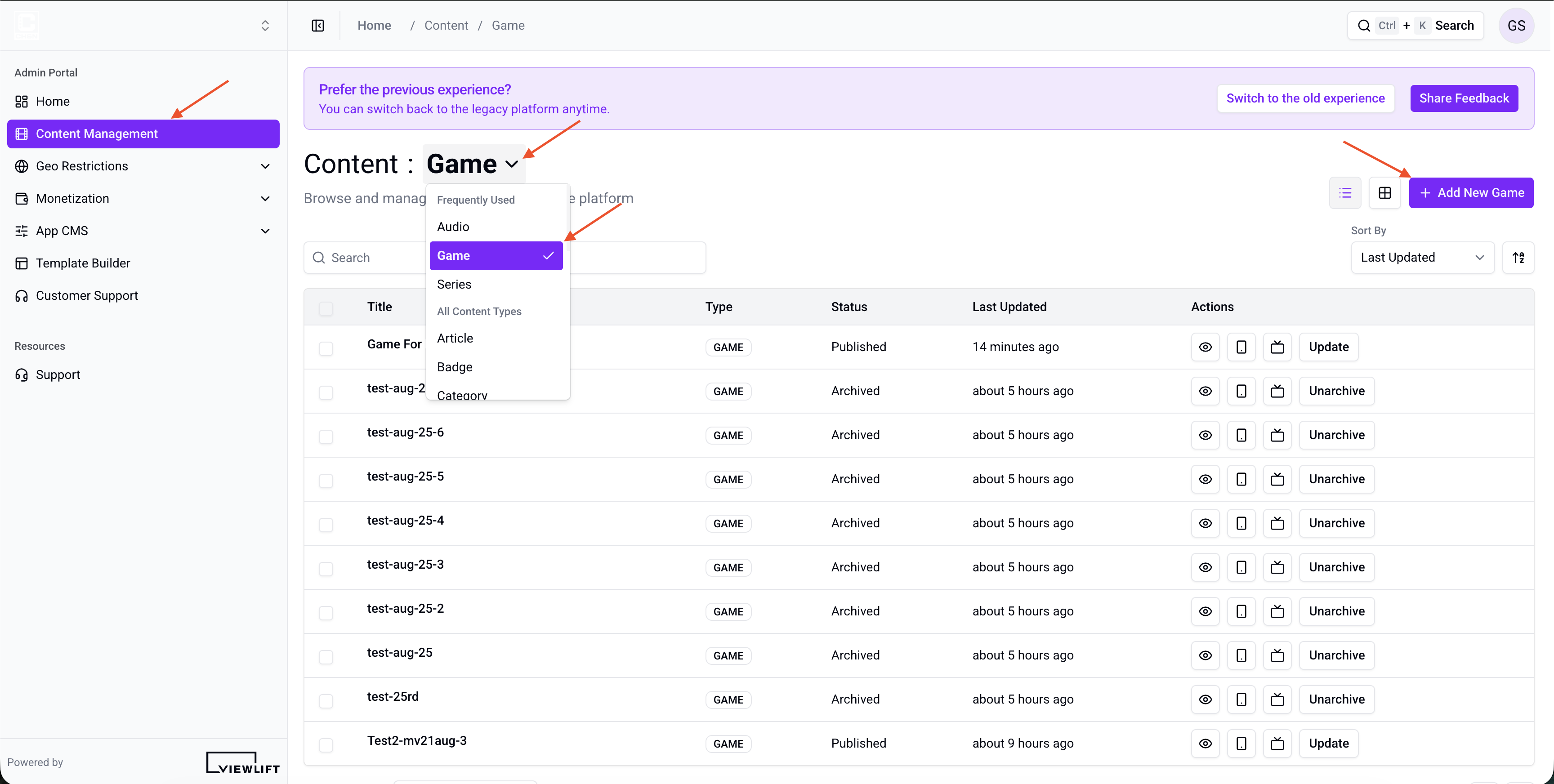
Figure 1. ViewLift Tools → Content Management → Game. Use the content-type dropdown to select Game, then click + Add New Game.
The Game list shows existing game objects. You can search by title, tag, or category.
Do not use Event in the content-type selector if you are creating a match page. Event is a different object with a different set of tabs.
Step 2: Create a Game Object
- On the Game list, select + Add New Game. The button is labelled with the content type you selected, so it reads Add New Game while Game is active.
- The Create New Game dialog opens.
- Enter a Title (required). Example:
Championship Final — City United vs Riverside FC. - Select Create.
Tools creates the game as a draft and opens the game editor.
Permalink is not set in this dialog. It is generated on the detail page — editorialize it before you publish.
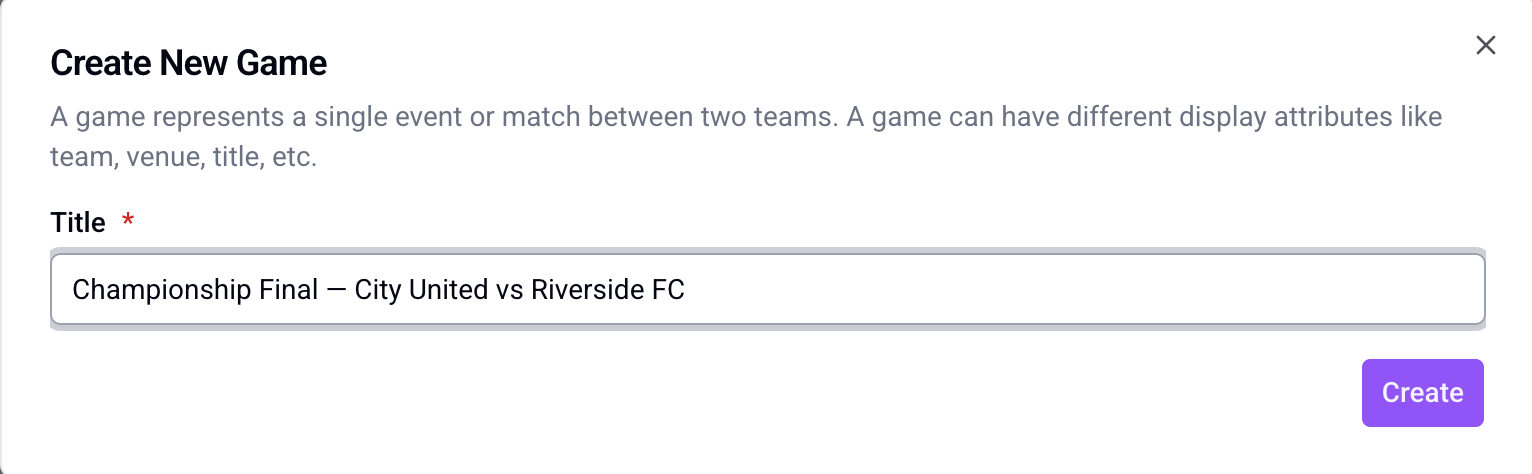
Figure 2. Create New Game dialog. Enter a Title (required), then select Create.
Step 3: Complete Content Metadata
Open the game. The detail page sidebar groups the tabs as follows:
- Basic Details — Content Metadata, Manage Images, Monetization
- Additional Metadata — Metadata & Macros
- Other Details — Game Info, Game States, Schedule, Players, Broadcaster, Related Videos, SEO, Version History
Start with Content Metadata.
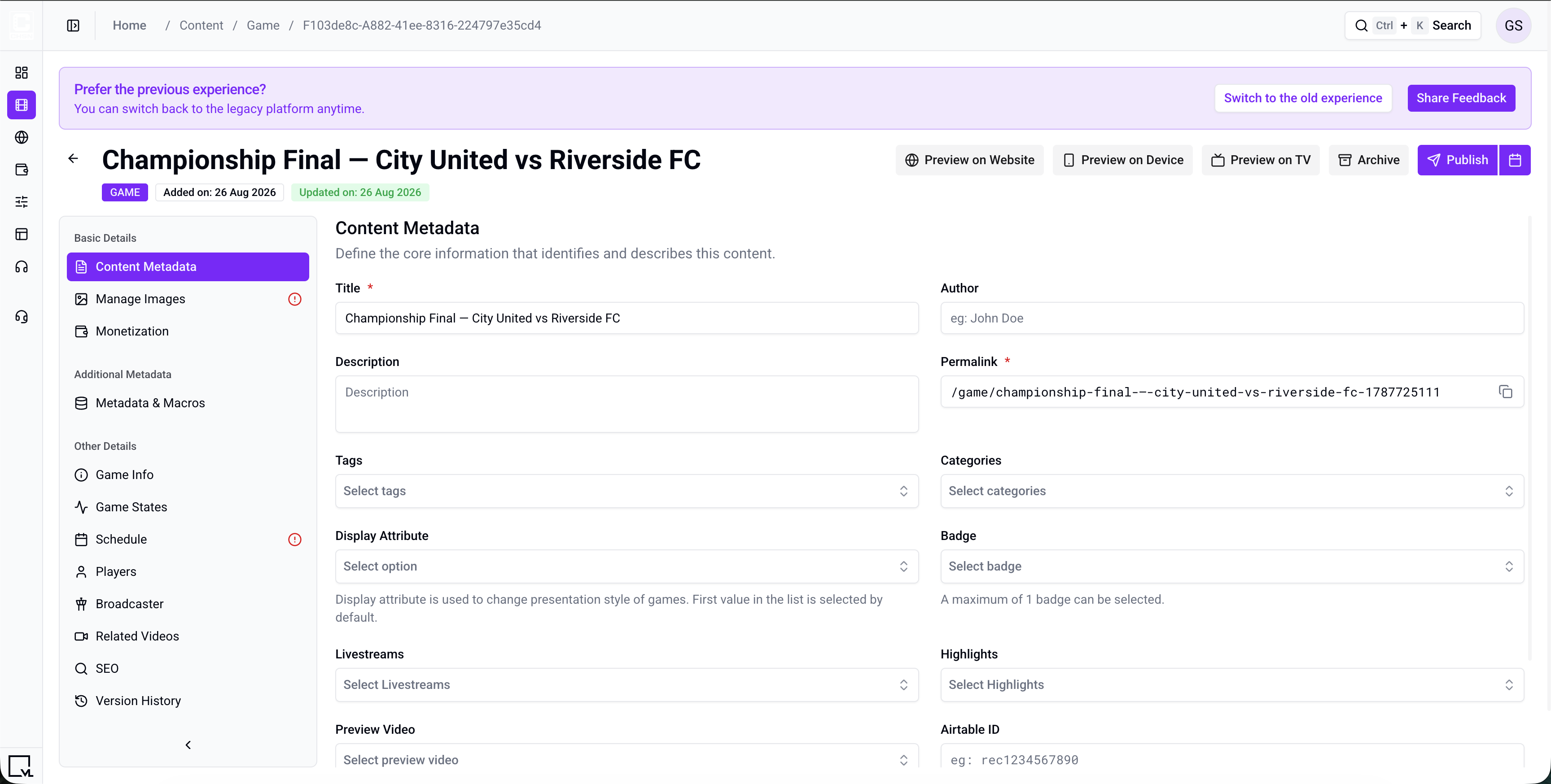
Figure 3. Game detail page, Content Metadata. Required fields are Title and Permalink.
| Field | Required | Description | Example |
|---|---|---|---|
| Title | Yes | Customer-facing name shown on the game and in discovery. | Championship Final — City United vs Riverside FC |
| Permalink | Yes | URL path for the game. See the permalink guidelines below. | /championship-final-city-united-riverside |
| Description | No | Short summary for discovery and supported game layouts. | City United host Riverside FC in the championship final at United Park. |
| Author | No | Customer-facing attribution. | Sports Desk |
| Tags | No | Detailed keywords used for search and programmatic trays. | championship, city-united, final |
| Categories | No | Higher-level editorial grouping used for trays and landing pages. | Matchdays |
| Display Attribute | No | Presentation style for the game. The first value in the list is used by default. Options: Person, Team, Title, Venue. | Team |
| Badge | No | Visual badge that can appear on the game thumbnail. | Final |
| Livestreams | No | Links existing Live objects to this game. | Championship Final — Live |
| Highlights | No | Links existing VOD objects used as highlights. | Championship Final — Recap |
| Preview Video | No | Links an existing VOD used as a preview. | Championship Final — Preview |
| Airtable ID | No | Optional Airtable record ID used to link this game to Airtable. | rec1234567890 |
A Network field can also appear when networks are configured for the site.
Game does not have Parental Rating, Redirect URL, Teams on Content Metadata, or an editable External ID field. Home and Away teams are set on Game Info. Players are set on the Players tab.
Quick Settings
| Setting | Description |
|---|---|
| Hide Content (Search & Trays) | When enabled, the game is not visible in search results or content trays. |
| Exclude From Schedule | When enabled, the game is excluded from the schedule list. |
Permalink guidelines
Use the same rules as other content types:
-
Start with a slash (
/) -
Use lower-case letters
-
Do not use spaces or special characters except dash (
-) or underscore (_); dashes are preferred -
Do not leave whitespace before or after the path
-
Keep the URL concise and descriptive (about 59 characters is a useful target)
-
Remove auto-generated numeric identifiers when you editorialize the path
-
Good:
/championship-final-city-united-riverside -
Avoid:
/Championship Final_Game_12345
You can change the permalink later. After you change it, save, then use Update if the game is already published.
Step 4: Upload Images
Open Manage Images.
The required image for a game is 16:9 Landscape (recommended 1920 × 1080 px). Upload the file at the correct ratio. Tools does not crop images for you.
Optional slots such as 1:1 Square, 3:4, 32:9, and 4:3 can be added when your trays or detail layout use those ratios.
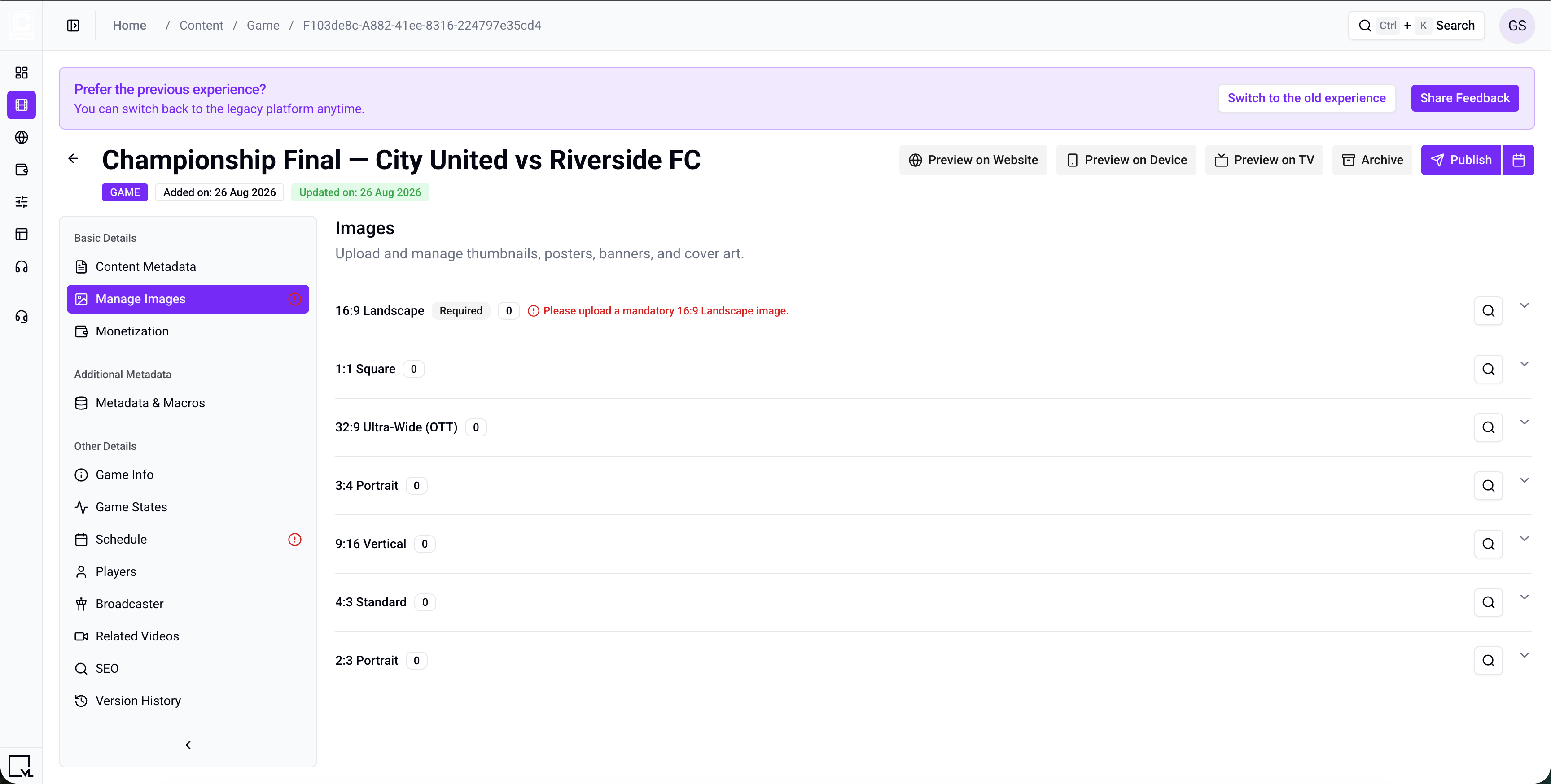
Figure 4. Manage Images. Upload a 16:9 Landscape image before you publish. Optional ratios can be added for trays that use them.
Step 5: Complete Game Info and Game States
Game Info
Open Game Info. These fields identify the match and optional ticketing IDs. They are not required by the common publish validator, but Home Team, Away Team, and League are needed for most game layouts.
| Field | Required | Description | Example |
|---|---|---|---|
| Sport Radar ID | No | Sportradar event identifier, if your site uses it. | sr:sport_event:12345678 |
| Season ID | No | Sportradar or internal season identifier. | sr:season:2026 |
| Widget Type | No | Free-text widget type used by supported game widgets. | match |
| League | No | Search and select an existing League object. | Championship League |
| Home Team | No | Search and select an existing Team object. | City United |
| Away Team | No | Search and select an existing Team object. | Riverside FC |
| Ticketmaster URL | No | Ticket purchase URL. | https://www.ticketmaster.com/example |
| Ticketmaster ID | No | Ticketmaster event identifier. | 123456789 |
Create teams under Content Management → Team, not from a Sport tab on this object. Create leagues under Content Management → League.
The current Game Info tab does not include a Champions ID field. Champions ID is on Team Information for team objects.
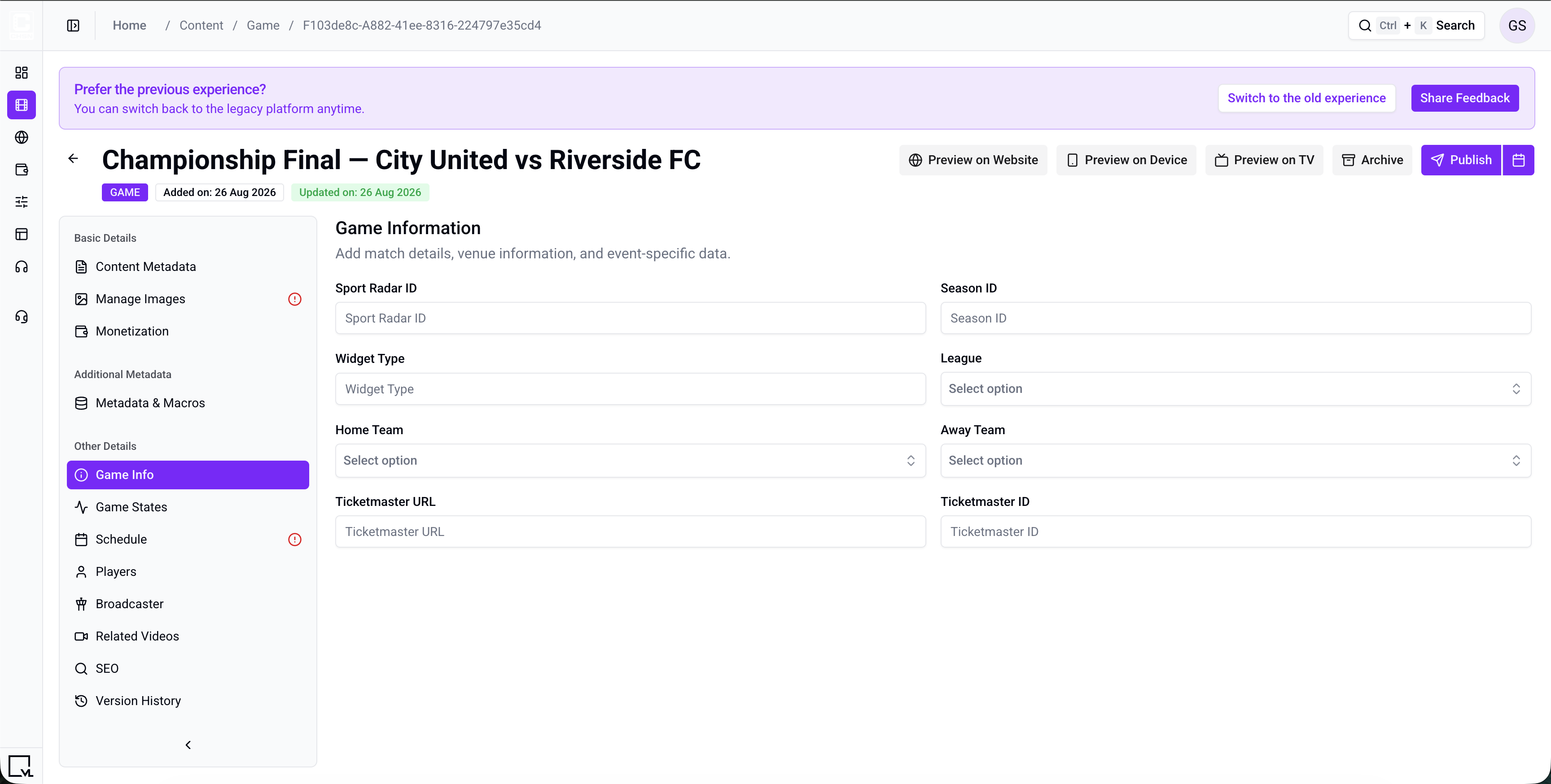
Figure 5. Game Info. Set League, Home Team, Away Team, and optional Sportradar and Ticketmaster values.
Game States
Open Game States. Use this tab to set the current state and the timestamps associated with each state.
| Field | Description | Example |
|---|---|---|
| Current Game State | Dropdown: Default, Pre, Live, Post, End, Delayed, Cancelled. | Pre |
| Default | Timestamp for the default state. | 20 Sep 2026, 12:00 |
| Pre | Timestamp for the pre-game state. | 20 Sep 2026, 14:00 |
| Live | Timestamp for the live state. | 20 Sep 2026, 15:00 |
| Post | Timestamp for the post-game state. | 20 Sep 2026, 17:00 |
| Game End | Timestamp for the end state. | 20 Sep 2026, 17:15 |
These fields are stored on the game object. The current Tools UI does not show an automatic Sportradar state-sync control. If states are updated from an integration, confirm the values on this tab after ingest.
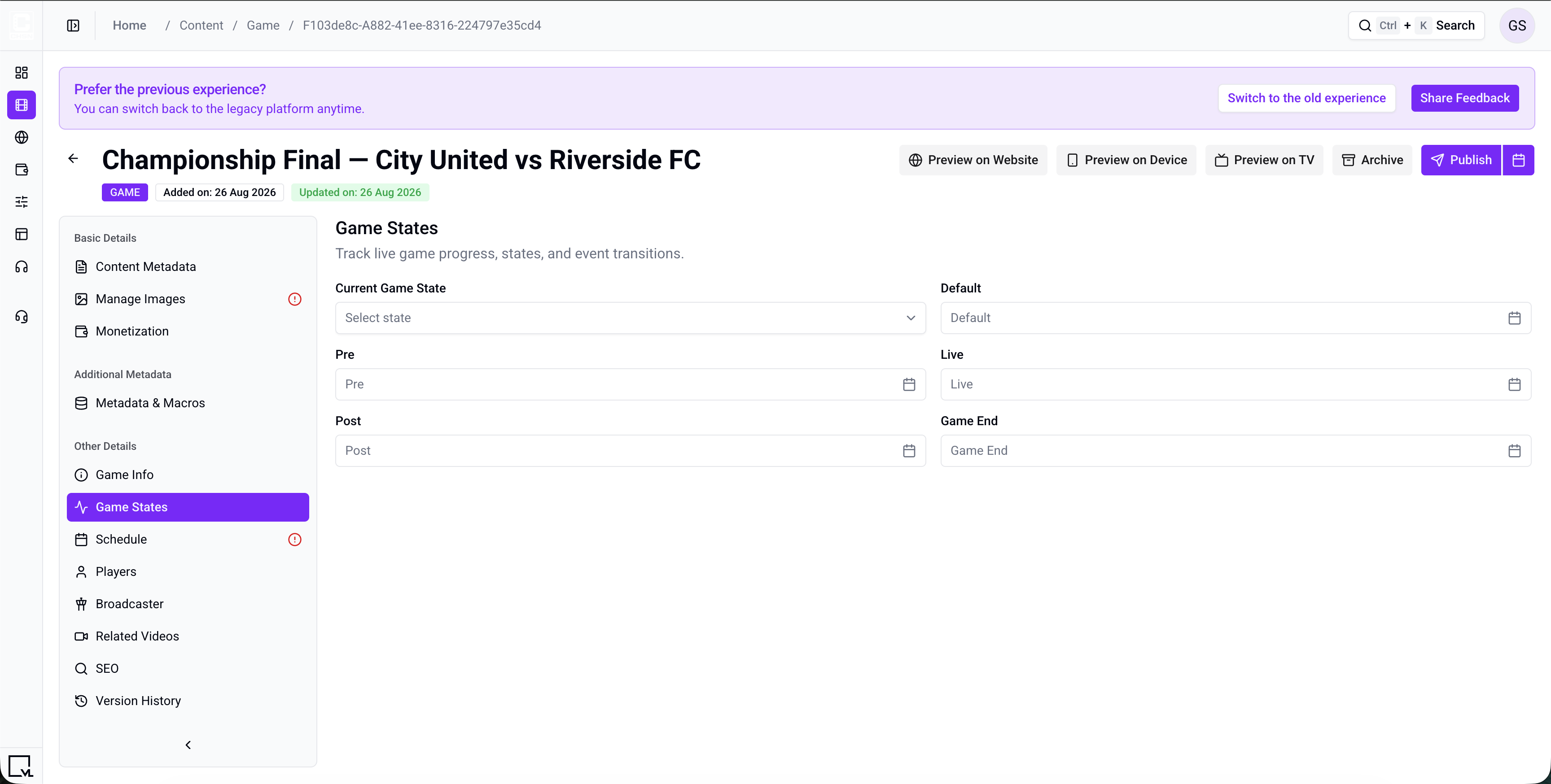
Figure 6. Game States. Set Current Game State and the Default, Pre, Live, Post, and Game End timestamps.
Step 6: Complete Schedule, Players, Broadcaster, and Related Videos
Schedule
Open Schedule. Game publish validation includes this tab. Fill it before you publish.
| Field | Required | Description | Example |
|---|---|---|---|
| Title | Yes | Schedule title. | Championship Final |
| Event Type | — | Read-only. For a game object this is GAME. |
GAME |
| Event Name | — | Read-only. Uses the game title. | Championship Final — City United vs Riverside FC |
| Start Date & Time | Yes | When the scheduled window starts. | 20 Sep 2026, 15:00 |
| End Date & Time | Yes | Must be later than Start Date & Time. | 20 Sep 2026, 17:15 |
| Venue | No | Search and select an existing Venue object. | United Park |
Select Save Schedule after you set the dates. Tools stores the browser timezone on save.
Create venues under Content Management → Venue. The current Game editor does not include an Admin Venue create path.
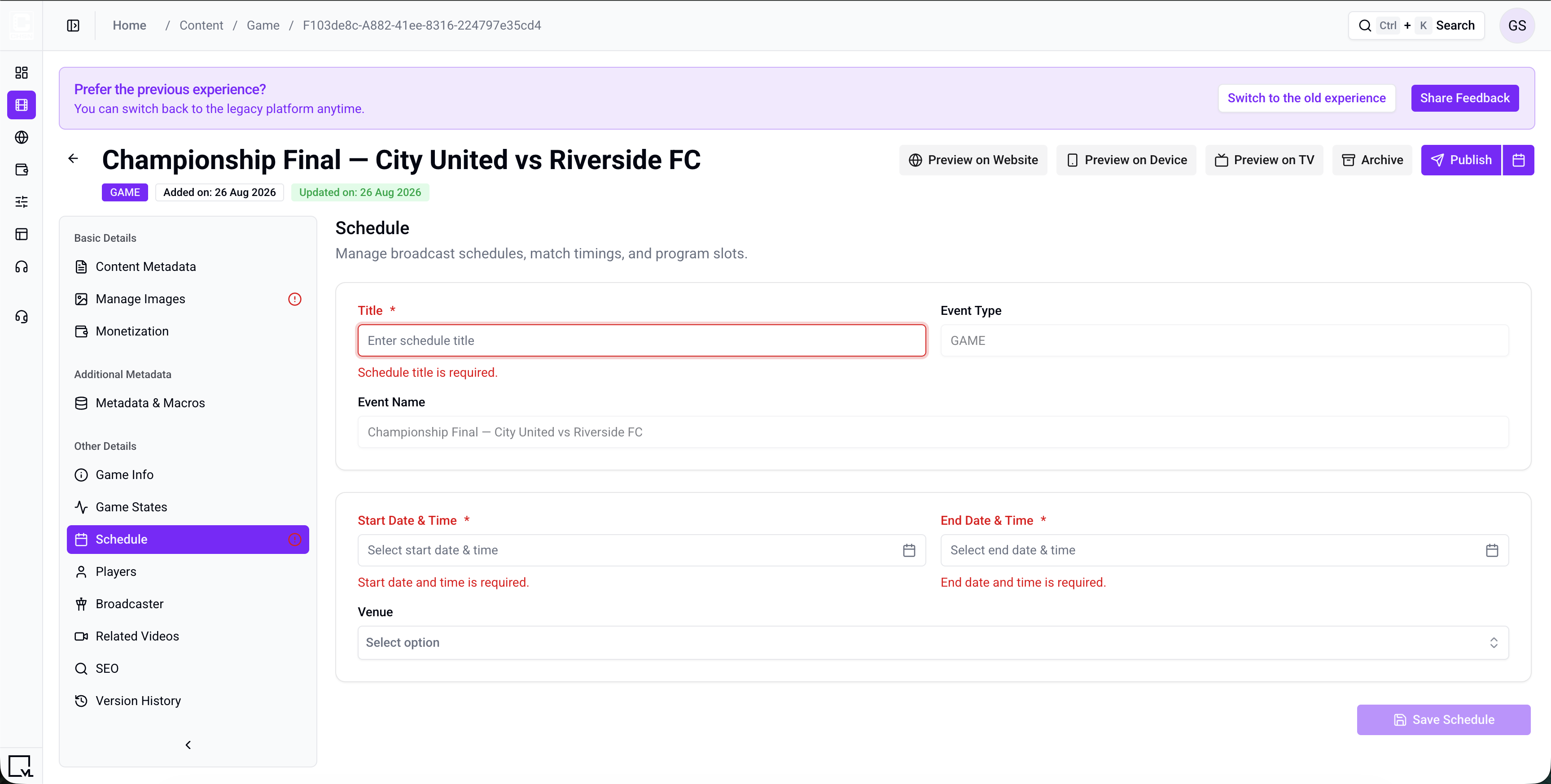
Figure 7. Schedule. Enter a schedule Title, Start Date & Time, and End Date & Time, optionally select a Venue, then select Save Schedule.
Players
Open Players. Search existing Person objects and select the players associated with this game. The search placeholder is Select Players.
Create people under Content Management → Person. See Create a Person Object.
Broadcaster
Open Broadcaster. If none are set, the empty state is No Broadcasters Added. Select Add Broadcaster, then choose a country and enter the broadcaster name. You can add more than one country row. A country can be used only once on the same game.
Related Videos
Open Related Videos. Search existing VOD objects and attach them. The search placeholder is Select Related Videos.
For on-demand videos, see Create a VOD Object.
Step 7: Configure Additional Game Settings
Complete the sections your service uses before you publish.
Monetization
Attach the subscription model, plans, or plan groups that should unlock the game.
- Select Add Model.
- Choose the monetization model.
- Select the plans or plan groups that can access the game.
- Save the selection.
If the game is intended to be free, follow your site’s normal entitlement configuration.
Game does not have an Availability & Scheduling tab. Use Schedule for kickoff and window times, and Game States for pre / live / post timestamps.
Metadata & Macros
Use Metadata & Macros for additional key/value metadata required by your site. Select Add Metadata to add a row.
SEO (Search & Discovery)
These fields are optional:
| Field | Description | Example |
|---|---|---|
| Title | SEO title shown in search results and browser tabs | Championship Final — City United vs Riverside FC |
| H1 Title | Main on-page heading | City United vs Riverside FC |
| H2 Title | Supporting heading | Championship Final at United Park |
| Description | Meta description; aim for 150–160 characters | Watch City United host Riverside FC in the championship final, including livestream, highlights, and match details. |
| Keywords | Search terms associated with the game | championship final, City United, Riverside FC |
| Redirect URL | Optional SEO redirect destination; include http:// or https:// |
https://example.com/championship-final |
| Redirect Code | HTTP redirect status, commonly 301 or 302 |
301 |
Version History
Open Version History to review game versions. The table shows publication and update times, user, and status.
Select two versions to use Compare Versions. The current Tools interface does not provide a gear-menu Revert action.
Step 8: Publish the Game
Required before publish:
- Title
- Permalink
- 16:9 Landscape image
- Schedule Title, Start Date & Time, and End Date & Time (end must be later than start)
Author, Description, Game Info, and Game States are strongly recommended, but they are not part of the current common publish validator.
- Select Publish to publish immediately.
- Or use the calendar control to schedule publication for a later date and time.
- After publication, use Update for changes, Unpublish to take the game down, or Archive to retire it.
Preview becomes available for a published game.
Duplicate is not available for Game. Duplicate is limited to article, linear channel, VOD, and live.
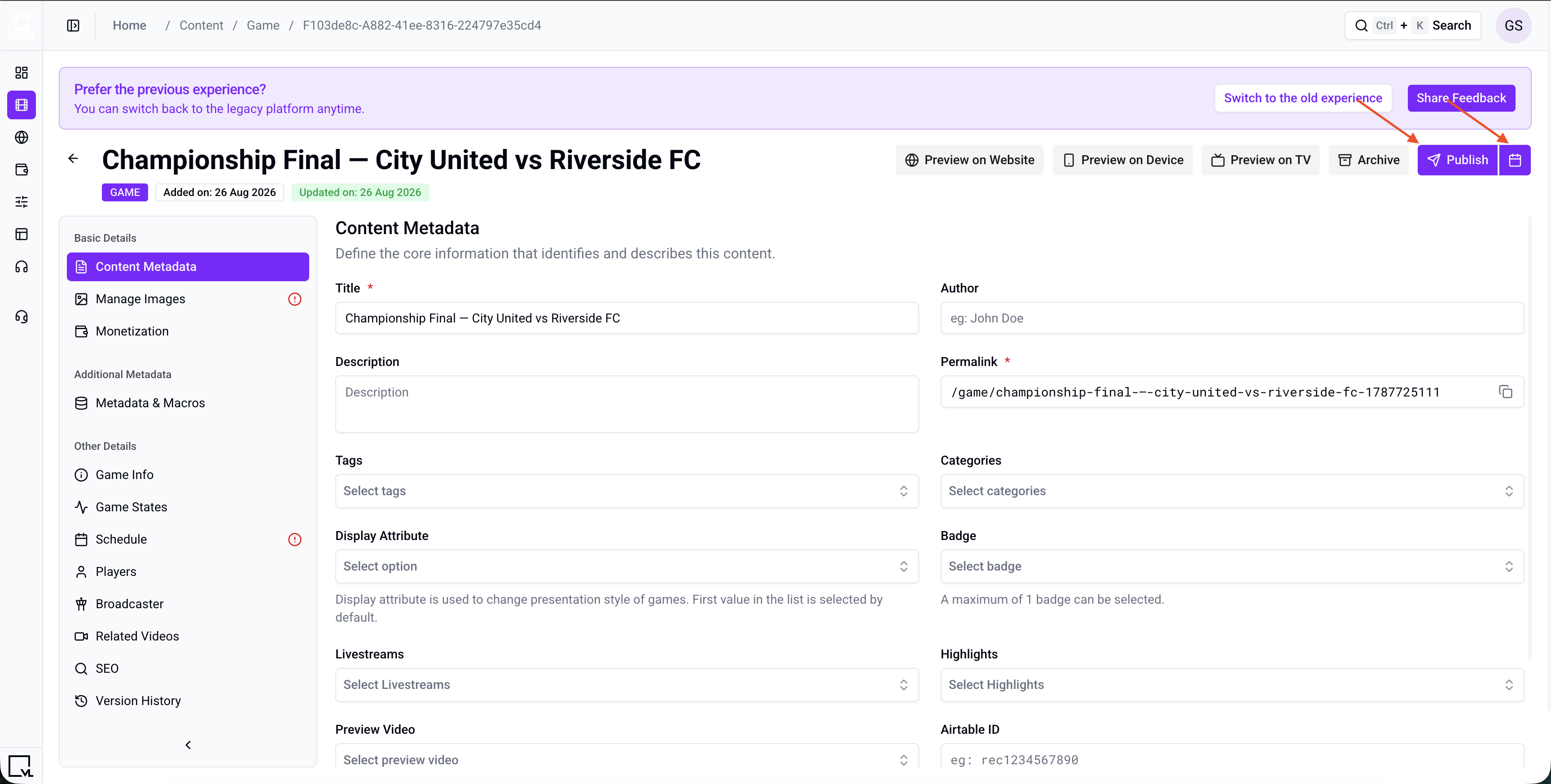
Figure 8. Game detail header. Use Publish to publish now or the calendar control to schedule publication.
Publishing adds the game to the CMS library. It appears on a site page after you curate it in Template Builder, or when a user opens its permalink.
Step 9: Curate the Game on a Template Builder Page
To show the game on Home or another Modular Page:
- Open AppCMS → Edit Template Builder.
- Open Modular Pages and select the page.
- Add or select a tray module. Common options include:
- VL HighlightTray
- VL LandscapeTray
- VL Vertical Tray
- Open the module settings and enter a tray title, for example
Championship Final. - Choose Content Selection:
- Manually Curate — search for the game. The search chips include Game. Arrange items in the order you want.
- Programmatically Generate — populate the tray from tags or categories. When Content Type is Game, Fetch Strategy also includes Game Start Date and Game End Date.
- Set Content Type to Game (or Any) if the tray provides a content-type filter.
- In Thumbnail Type, choose a ratio that matches an image uploaded in Manage Images. Template Builder writes ratios with an asterisk, such as
16*9,3*4,32*9,1*1, and4*3. - Publish the Template Builder page.
Changes can take about 5–10 minutes to appear because of caching. To verify sooner, use a private window, another browser, or clear cookies and cache.
Clicking the game thumbnail takes the user to the game detail page. That layout is the Game Template Page.
Step 10: Configure the Game Template Page
The layout for an individual game is defined by the Game Template Page.
- In Template Builder, open Template Pages.
- Open Game Template Page.
- If it is available for your site template, select VL Game Detail or VL Game Detail 02. The current Template Builder registers these modules for the Sports template; other template configurations may not show them.
- Configure the game experience as needed. Available settings include:
- Primary CTA and Secondary CTA (
SVOD,Buy,Rent,TVE,FREE; secondary also hasNot Applicable) - Show Highlights Tray
- Enable Sharing
- Hide Scores
- Show Game Timer
- Hide Set Alerts / Hide Buy Tickets
- Show Monetization Badge
- Show Sticky Widget
- Show Title / Show Description
- Show Add Event to Calendar Button
- Localized labels such as Game Start In Text, Buy Tickets Text, and Set Alerts Text
- Countdown, tab, and team colors
- Primary CTA and Secondary CTA (
- Publish the template.
Keep one default Game Template Page unless a specific game is assigned a custom template.
Event objects (related type)
Use Content Management → Event when you need an Event object, not a Game. Full steps: Create an Event Object.
| Topic | Game | Event |
|---|---|---|
| List | Content Management → Game | Content Management → Event |
| Create button | Add New Event is not used here; Game uses Add New Game | Add New Event |
| Create dialog | Create New Game — Title only | Create New Event — Title only |
| Tabs | Game Info, Game States, Monetization, Related Videos, SEO | No Game Info, Game States, Monetization, Related Videos, or SEO. Event has Editor |
| Schedule | Required to publish | Required to publish |
| Duplicate | Not available | Not available |
| Preview | Available when published | Available when published |
| Detail template | Game Template Page — VL Game Detail / VL Game Detail 02 | Event Template Page is listed in Template Builder. The current Template Builder package in this repo does not register matching Event / Fight detail modules |
Event create subtitle: An event represents a single event. An event can have different display attributes like team, venue, title, etc.
Event Editor uses the details field. Select Save on that tab after you edit the body.
Manual tray search chips include Game. They do not include an Event chip in the current curated search options. Programmatic trays can still set Content Type to Event.
Troubleshooting
| Problem | What to check |
|---|---|
| Publish is greyed out or shows an error | Confirm Title, Permalink, a 16:9 Landscape image, and Schedule Title, Start Date & Time, and End Date & Time. End must be later than start. |
| Schedule will not save | Fix the Schedule tab errors, then select Save Schedule. |
| Home or Away team is missing | Create the team first under Content Management → Team, then search it on Game Info. |
| Venue search is empty | Create the venue under Content Management → Venue, then search it on Schedule. |
| Livestream or highlights are missing | Attach published Live objects on Livestreams and VOD objects on Highlights. |
| Duplicate is missing | Duplicate is not available for Game or Event. |
| The game is published but viewers cannot find it | Check Hide Content (Search & Trays) is off, Exclude From Schedule if you expected it on a schedule list, and confirm the game is curated onto a tray on a published page. |
| The thumbnail is missing or stretched on a tray | The tray’s Thumbnail Type must match a ratio you actually uploaded in Manage Images. Template Builder uses 16*9, not 16:9. |
| VL Game Detail is missing | The module is registered for the Sports template. Other site templates may not show it. |
Best Practices
- Write titles for viewers.
Championship Final — City United vs Riverside FCworks far better thangame_final_v3. - Create teams, venue, and livestream first, then link them on the game.
- Fill Schedule before you try to publish. Title, start, and end are part of the current validator.
- Set Current Game State so trays and the Game Template Page can show the correct pre / live / post treatment.
- Tag consistently. Programmatic trays depend on exact tag and category values.
- Complete SEO fields for games intended to receive search-engine traffic.
- Set monetization before publishing when the game must be restricted to subscribers.
FAQs
Q. Which fields are required to publish?
Title, Permalink, a 16:9 Landscape image, and Schedule Title, Start Date & Time, and End Date & Time.
Q. Where do I add Home Team and Away Team?
On Game Info, not on Content Metadata.
Q. Does Description appear for users?
Description is stored on the game. Whether a layout shows it depends on the Game Template Page (for example Show Description) and tray configuration. Do not assume it is hidden from users.
Q. Can I duplicate a game?
No. Duplicate is not available for Game.
Q. Can I edit a game after publishing?
Yes. Make the changes and select Update. Remember to use Save Schedule after schedule edits.
Q. I published the game but do not see it on Home.
Publishing adds it to the CMS library. You must also curate it onto a tray and publish that Template Builder page.
Q. Can I have more than one Game Template Page?
Yes, but only one is selected as the default.
Q. Should I use Event or Game?
Use Game for a match between teams with Game Info and Game States. Use Event when you need the Event object (including Editor) rather than the Game object. See Create an Event Object.
Important Information
- Create the game in Tools. Template Builder places the published object on pages and defines its detail layout.
- Title, Permalink, a 16:9 Landscape image, and a complete Schedule are the current publish requirements.
- Game has no Geo-Restrictions or Availability & Scheduling tab.
- Duplicate is not available for Game.
- Use
/lowercase-path-with-dashesfor the permalink. - Template Builder thumbnail ratios use an asterisk, such as
16*9. - Cache can delay frontend updates by 5–10 minutes.
Glossary
| Term | Definition |
|---|---|
| Game | A match or fixture object managed in ViewLift Tools. |
| Event | A separate content type; not the same as Game. |
| Game Info | Match fields such as league, home team, away team, and ticketing IDs. |
| Game States | Current state (Default, Pre, Live, Post, End, Delayed, Cancelled) and related timestamps. |
| Schedule | Kickoff window: title, start, end, and optional venue. |
| Manage Images | Game artwork used on trays, search, and supported detail layouts. |
| Game Template Page | Template Builder page that defines the game detail layout. |
| VL Game Detail | Game detail module available to supported site templates (currently the Sports template). |
| Permalink | Permanent URL path for the game, for example /championship-final-city-united-riverside. |
| Tray | Horizontal or vertical content row configured in Template Builder. |
| Monetization | Entitlement rules that determine which viewers can access the game. |
| SEO | Metadata used by search engines and browser previews. |
Contact Support
If you need help beyond this article, contact the ViewLift support team.
- Email: techsupport@viewlift.com
- Phone (US): +1-800-859-0420
- Phone (UK): +44-203-014-8921
Support hours: B2C requests are handled Monday to Friday. B2B support is available 24/7.