Overview
Got access to more than one organization? After signing in, you'll pick which one to work in.
:::tip At a Glance
Who is this for?
Users who belong to multiple organizations.
When do I use this?
Right after sign-in — the platform will ask you to choose before continuing.
What will happen?
You'll pick your organization and go straight to its workspace.
:::
Steps
Step 1: Sign in
Complete any sign-in method (email/password, Google, or Microsoft).
Step 2: Choose your organization
A list of your organizations appears. Click or select the one you want to access.
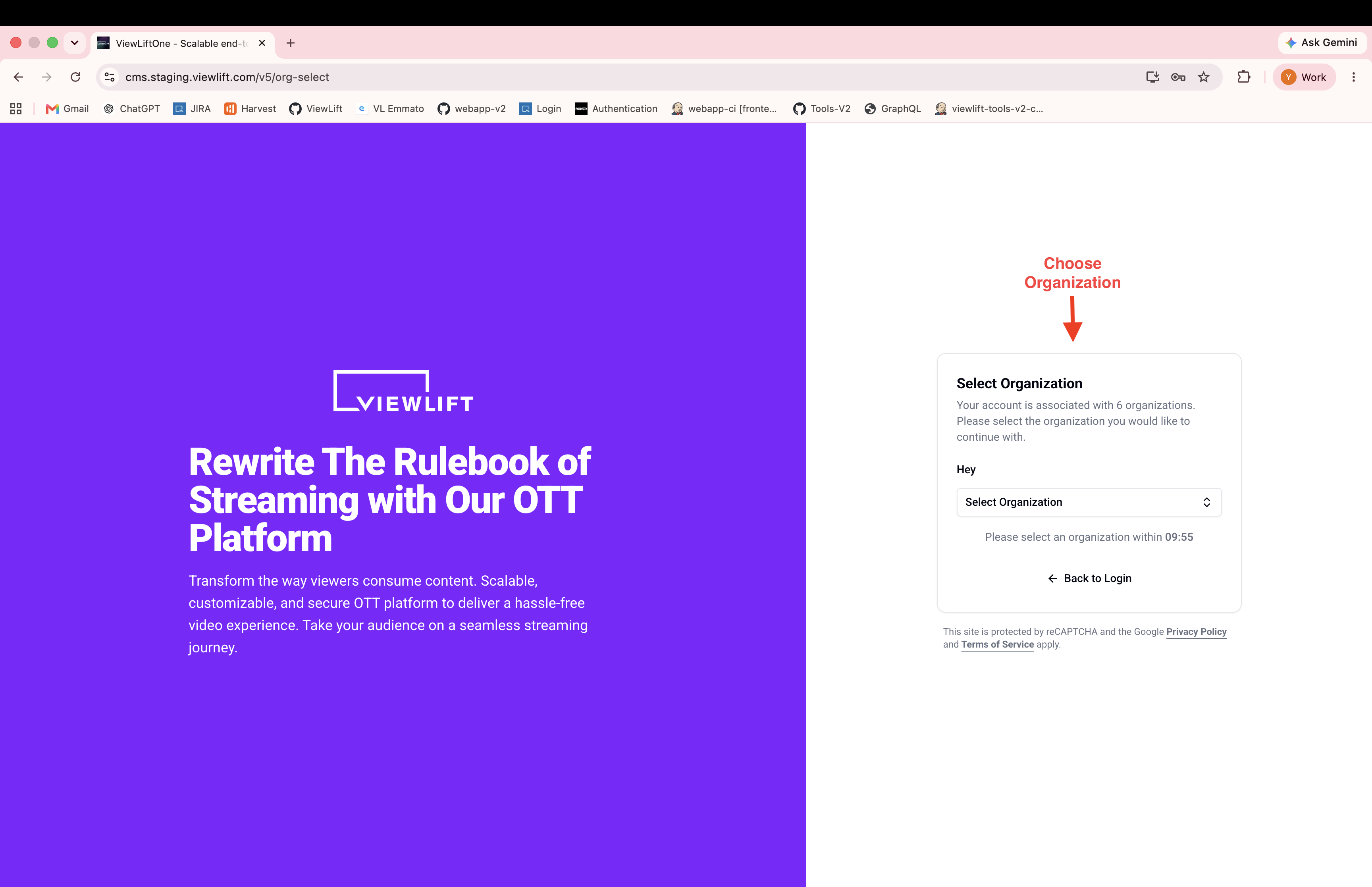
Step 3: You're in
You are redirected to the selected organization's dashboard.
Expected Behavior
- If your account belongs to only one organization, this step is skipped automatically — you go straight to your dashboard.
- If you have multiple organizations, you must pick one before proceeding.
- You can switch organizations later without signing out (see Session and logout).
Edge Cases / Notes
- The organization list shows each organization's name and logo.
- If no organizations are found, you'll see an error. Contact your administrator.
If Something Goes Wrong
- No organizations listed → Your account may not be assigned to any organization. Contact your administrator.
- Wrong organization selected → You can switch organizations from within the platform without signing out.
Related
- Session and logout