Overview
Create a new Harmonic-backed live stream with optional secondary cluster redundancy.
:::tip At a Glance
Who is this for?
Operators and content teams creating Harmonic live channels.
When do I use this?
When you need Harmonic ingest and, if needed, secondary-cluster failover.
What will happen?
A Harmonic live stream is created and opened in its live details view after successful submission.
:::
Prerequisites
- You can open Live Create in the Content module.
- You know your target Harmonic region and ingest protocol.
- If you plan to use existing inputs or sources, those records are available to select.
Steps
Step 1: Open Live Create and choose Harmonic
Open Live Create, stay on the Viewlift live stream service tab, and choose Harmonic as provider.
Step 2: Set Partner, Region, and Protocol
In Partner, Region & Protocol:
- Confirm Provider is Harmonic.
- Select Region.
- Select Protocol:
- RTMP PUSH
- SRT LISTENER
- SRT CALLER
Step 3: Configure Ingest Setup branch
In Ingest Setup:
- If needed, enable Use for Linear Channel.
- Set Ingestion Identifier when your branch requires it.
- Optionally enable Backup Endpoint.
- Choose one primary strategy:
- Use Existing Input (Primary)
- Use Existing Source (Primary)
- Manual SRT Caller fields
Primary strategies are mutually exclusive in the UI. Pick one and complete it fully.
| Branch | Typical inputs shown |
|---|---|
| Existing input path | Primary Main Live Input, optional Primary Backup Live Input |
| Existing source path | Primary Main Source, optional Primary Backup Source |
| Manual SRT Caller path | Primary IP, Primary Port, optional stream and decryption values |
Step 4: Configure Redundancy & Failover (optional)
If you need secondary-cluster resiliency:
- Enable Backup / Secondary Configuration.
- Select Backup Cluster Region.
- Choose one secondary strategy:
- Use Existing Input (Secondary Cluster)
- Use Existing Source (Secondary Cluster)
- If protocol and branch require it, fill manual backup SRT fields.
When secondary is enabled, complete all required secondary selections before creating.
Step 5: Configure Playback, Ads, and Security
In Playback, Ads & Security:
- Enable SSAI if needed.
- Choose Ad Provider.
- If Ad Provider is Media Tailor, select Primary MediaTailor Input.
- If secondary service is enabled, select Secondary MediaTailor Input.
- Enable DRM if needed.
- If DRM is enabled and service type supports it, enable key rotation if required.
Step 6: Configure Recording, Macros, and Schedule
Complete operational settings:
- Recording & Catch-Up: enable Live to VOD and/or DVR (as available for your service mode).
- If DVR is enabled, enter Start-Over Time.
- Configure Macros if needed.
- If service type is LIVE_EVENT, complete Schedule (start time required).
Step 7: Create the live stream
Click Create Live Stream.
If required values are missing in any selected branch, submission is blocked and field-level messages are shown.
Expected Behavior
- Harmonic branch options appear after provider, region, and protocol are selected.
- Existing input and existing source toggles are mutually exclusive for both primary and secondary paths.
- Secondary fields appear only after enabling secondary configuration and selecting backup region.
- LIVE_EVENT shows schedule fields; LIVE mode does not show schedule.
- Some toggles may be disabled depending on your account permissions.
- On success, the app opens the newly created live stream details page.
Flow
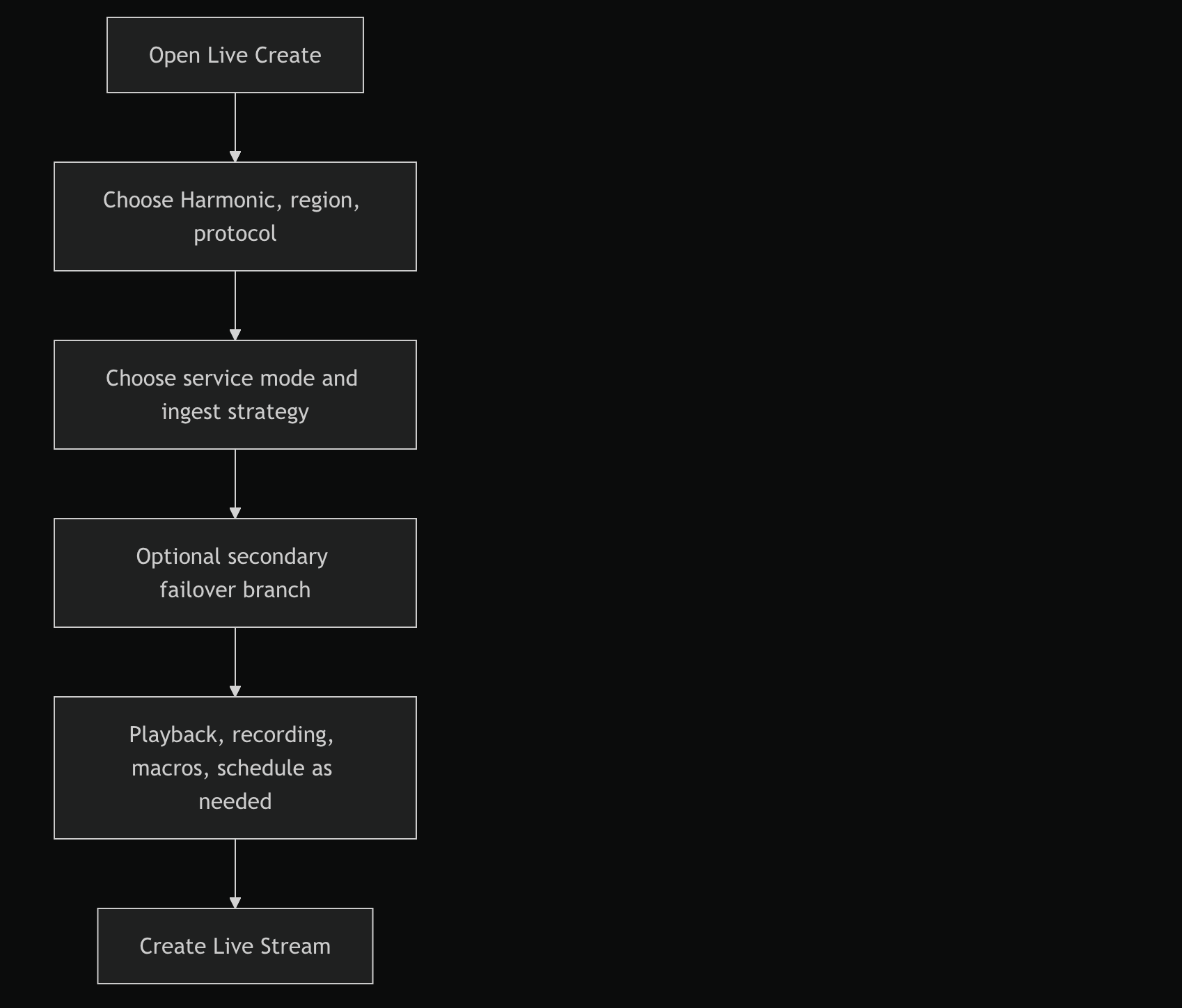
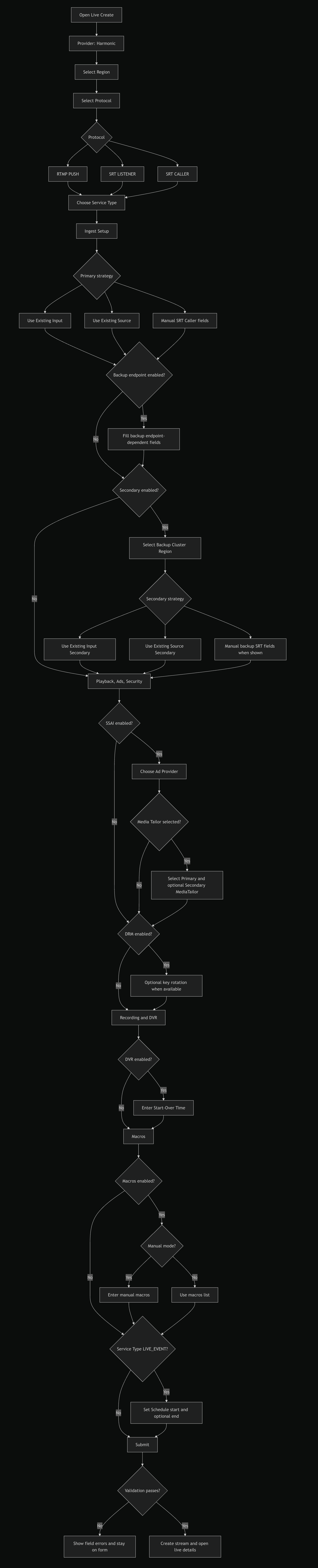
Full UI Branch Map
:::info How to read this map
- Read top to bottom.
- Diamond nodes are decisions that branch the UI.
- Rectangles are screens or input groups you complete.
- Follow one branch at a time based on your selections.
:::
Edge Cases / Notes
- Secondary setup is strict: incomplete backup selections block create.
- For SRT Caller paths, endpoint details are required before submission.
- If Media Tailor is chosen, required MediaTailor selection must be complete for active clusters.
- Schedule end time is optional for LIVE_EVENT, but start time is required.
If Something Goes Wrong
- Secondary branch validation fails: one or more secondary selections are incomplete.
Resolution: complete backup region and all required secondary fields for your chosen path. - SRT Caller validation fails: endpoint or decryption inputs are incomplete.
Resolution: provide required primary values and valid decryption input if used. - Schedule validation fails: LIVE_EVENT start date/time is missing or invalid.
Resolution: provide a valid start time (and adjust end time if used).
Related
- Live Workflow Overview
- AWS Live Create Workflow