Overview
Create a new AWS-backed live stream using the internal live workflow.
:::tip At a Glance
Who is this for?
Operators and content teams setting up a new AWS live channel.
When do I use this?
When you need to create a new live stream and your provider is AWS.
What will happen?
A live stream is created and opened in its live details view after a successful submit.
:::
Prerequisites
- You can open Live Create in the Content module.
- You know which AWS region and ingest protocol to use.
- You have required ingest values ready (for example source URL, stream keys, or flow ARN).
Steps
Step 1: Open Live Create and choose the internal workflow
Open Live Create, stay on the Viewlift live stream service tab, and choose AWS as provider.
Step 2: Set Partner, Region, and latency path
In Partner, Region & Protocol:
- Confirm Provider is AWS.
- Select Region.
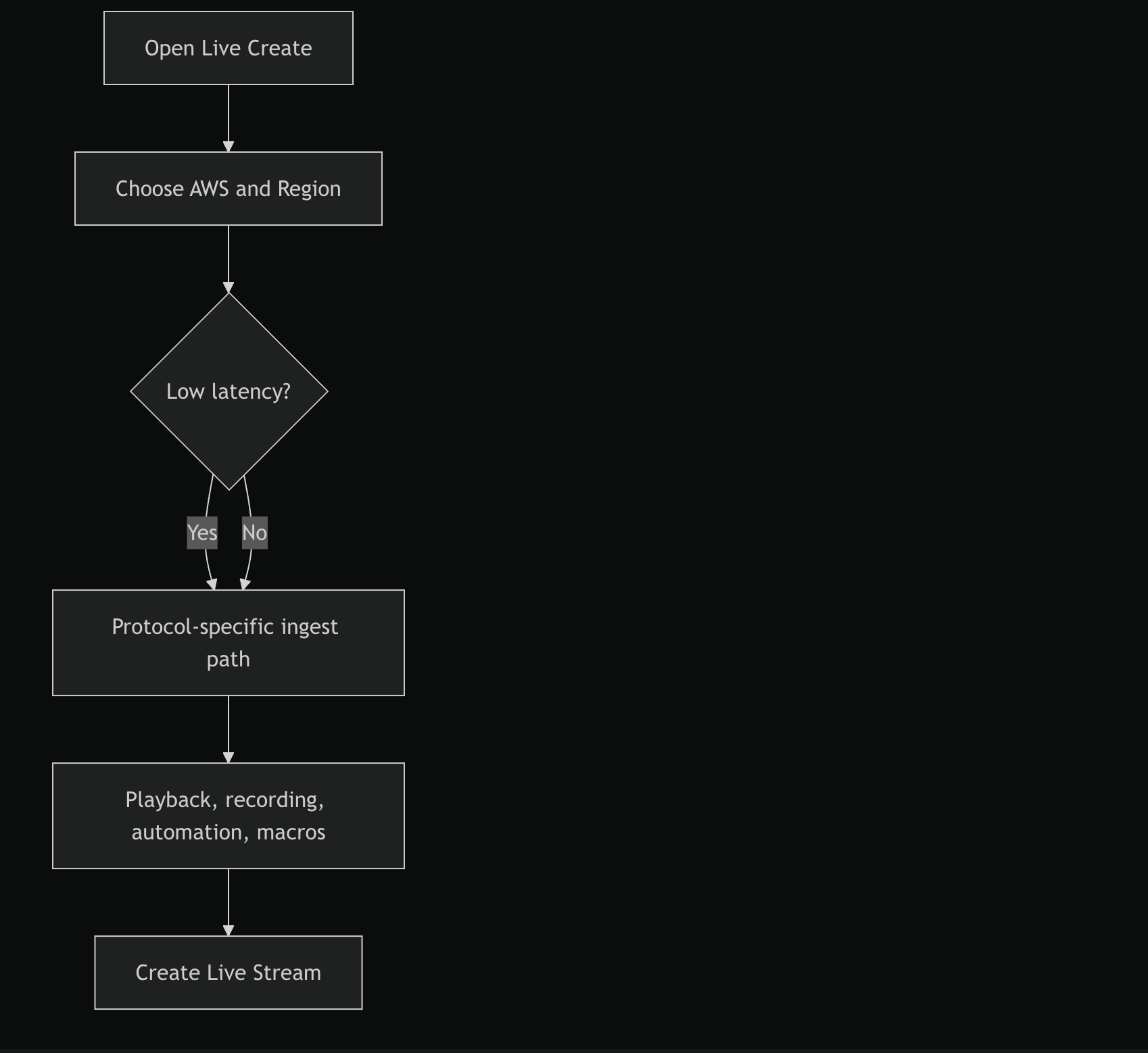
- Choose low latency path:
- Yes: choose a Channel Type and continue on the low-latency path.
- No: select an ingest protocol.
Step 3: Configure Ingest Setup for your protocol
Fill protocol-specific fields in Ingest Setup.
| Protocol | Required core inputs |
|---|---|
| HLS Pull | Primary Source URL |
| RTMP Pull | Primary Source URL |
| RTMP Push | Primary/Secondary key prefix and suffix, plus allowlist IPs as needed |
| RTP Push | Allowlist IPs |
| ZIXI Push | Allowlist IP, optional backup endpoint toggle |
| SRT Listener | Allowlist IP, optional backup endpoint toggle |
| MediaConnect Flow | Primary Flow ARN (Backup Flow ARN optional) |
If backup endpoint is enabled (where available), complete all newly shown backup fields before creating.
Step 4: Configure Playback, Ads, and Security
In Playback, Ads & Security:
- Turn on SSAI Required if ad insertion is needed.
- If SSAI is on, fill SSAI Ad Tag URL (and pre-roll fields if used).
- Configure Slate Settings and Blanking URL for supported protocols.
- Add Caption Settings if needed.
- Turn on DRM if required. If DRM is on, you can also enable clean URL generation.
- Turn on Preview if needed.
Step 5: Configure Recording, Automation, and Macros
Complete optional but common setup:
- Recording & Catch-Up: enable Live to VOD and/or DVR.
- If DVR is enabled, enter Start-Over Time.
- Advanced Automation: enter runtime if your workflow requires it.
- Macros: choose manual query-param entry or list-based macro selection.
Step 6: Create the live stream
Click Create Live Stream.
If any required value is missing or invalid, the form stays open and shows field-level errors. Fix issues and submit again.
Expected Behavior
- Sections become actionable after provider and protocol path are chosen.
- Fields appear and hide based on protocol and toggle choices.
- Turning on Slate Scheduled also turns on SSAI Required.
- Turning off SSAI Required turns off Slate Scheduled.
- Changing provider or protocol can clear branch-specific values, so complete the current branch in one pass.
- On success, the app opens the newly created live stream details page.
Flow
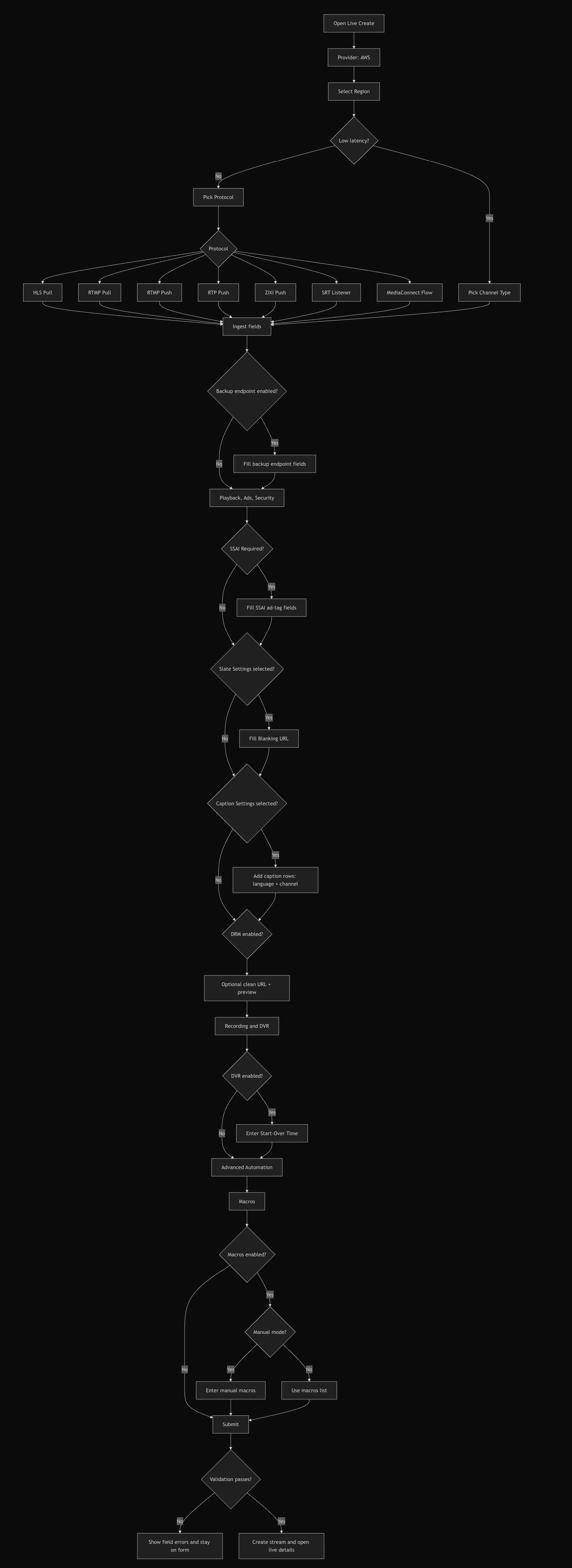
Full UI Branch Map
:::info How to read this map
- Read top to bottom.
- Diamond nodes are decisions that branch the UI.
- Rectangles are screens or input groups you complete.
- Follow one branch at a time based on your selections.
:::
Edge Cases / Notes
- Some fields only appear after enabling related toggles, especially in Playback and SSAI.
- For allowlist fields, invalid IP format blocks submission.
- Caption rows require both language and channel values when caption mode is enabled.
If Something Goes Wrong
- Create is blocked immediately: one or more required fields in the current branch are missing.
Resolution: complete fields shown in the active protocol and toggles. - SSAI setup fails validation: ad tag details are missing.
Resolution: fill SSAI Ad Tag URL and retry. - Slate settings fail validation: blanking URL is missing.
Resolution: add a valid blanking URL when slate mode is enabled.
Related
- Live Workflow Overview
- Harmonic Live Create Workflow