Introduction
A playlist (Video Playlist in Tools) is a curated list of videos that play in sequence. You create the playlist object in ViewLift Tools, attach existing videos in the order you want, then place the playlist on site pages and detail layouts in Template Builder.
This article explains how to add a new playlist, complete its metadata, add videos, publish it, and place it on the site.
Purpose
The purpose of this article is to help you:
- Create a new playlist object in ViewLift Tools
- Fill in the metadata, images, and other settings required to publish
- Add videos and set playback order
- Know how to place the playlist on trays and which Template Page renders it
Scope
This article covers:
- Creating a playlist in ViewLift Tools → Content Management → Video Playlist
- Completing the playlist object (metadata, images, monetization)
- Adding videos on the Video Playlist tab
- Publishing or scheduling the playlist
- The required Template Builder points for trays and the Video Playlist Template Page
It does not cover full Template Builder how-to (that is a separate documentation set), or creating the video files themselves. Create those first with Create a VOD Object. Series, collections, and live streams are separate content types.
Prerequisites
Before you begin, ensure you have:
- Access to ViewLift Tools with permission to create and publish content
- Access to Template Builder
- At least one video already created in Tools if you want to add items now (you can also add videos later)
- A 16:9 thumbnail image (recommended 1920 × 1080 px), already cut to size — Tools does not crop images for you
- Your metadata ready before you start: title, description, tags, and categories
Example used in this article
Throughout the steps below we use one running example — a playlist called Championship Weekend Watchlist. It holds videos such as Championship Final — Match Highlights. Replace the sample values with your own.
Step 1: Open Video Playlist in ViewLift Tools
- Log into ViewLift Tools.
- From the main menu, open Content Management.
- In the content type selector at the top of the list, choose Video Playlist.
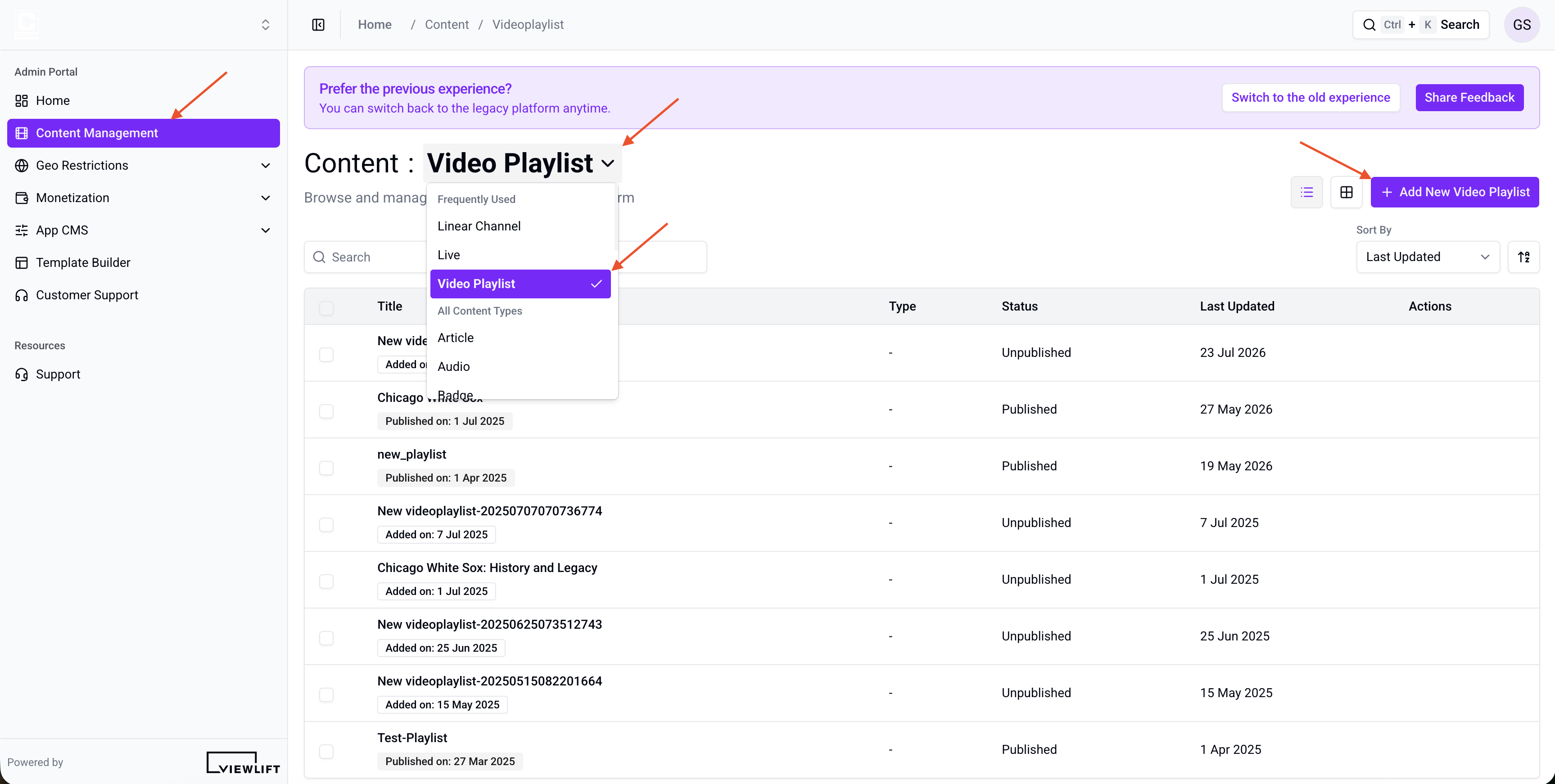
Figure 1. ViewLift Tools → Content Management → Video Playlist. Use the content-type dropdown to select Video Playlist, then click + Add New Video Playlist.
The list shows existing playlist objects. You can search by title, tag, or category.
Step 2: Create a Video Playlist
- On the Video Playlist list, select + Add New Video Playlist in the header. The button is labelled with the content type you selected, so it reads Add New Video Playlist while Video Playlist is active.
- The Create Video Playlist dialog opens.
- Enter a Title (required). Example:
Championship Weekend Watchlist. - Optionally enter a Description. Example:
A sequential watchlist of championship weekend highlights, from the opening round to the final. - Select Create.
Tools creates the playlist as a draft and opens the playlist editor.
Permalink is not set in this dialog. It is generated on the detail page — editorialize it before you publish (see Step 3).
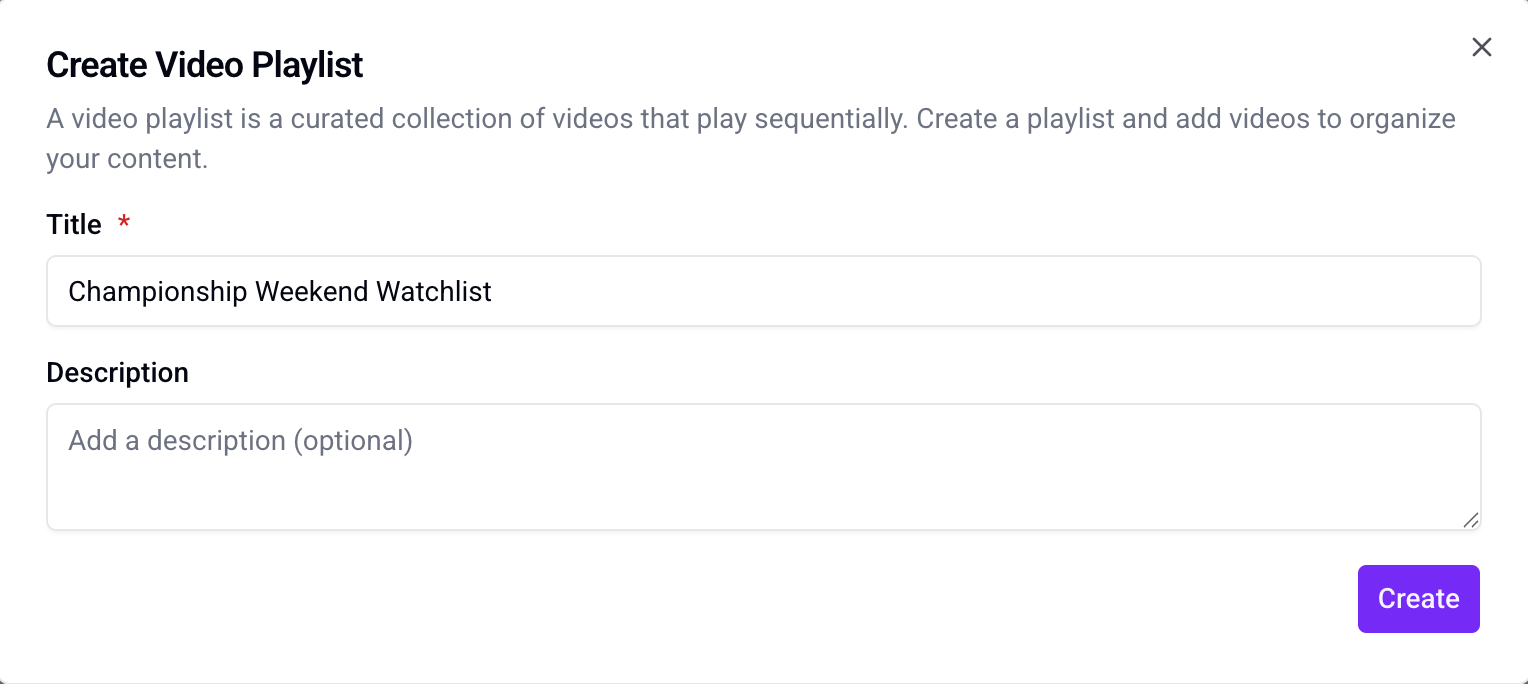
Figure 2. Create Video Playlist dialog. Enter a Title (required) and an optional Description, then select Create.
Step 3: Complete Content Metadata
Open the playlist. The detail page sidebar includes Content Metadata, Manage Images, Monetization, Cast & Crew, Metadata & Macros, and Video Playlist.
Start with Content Metadata.
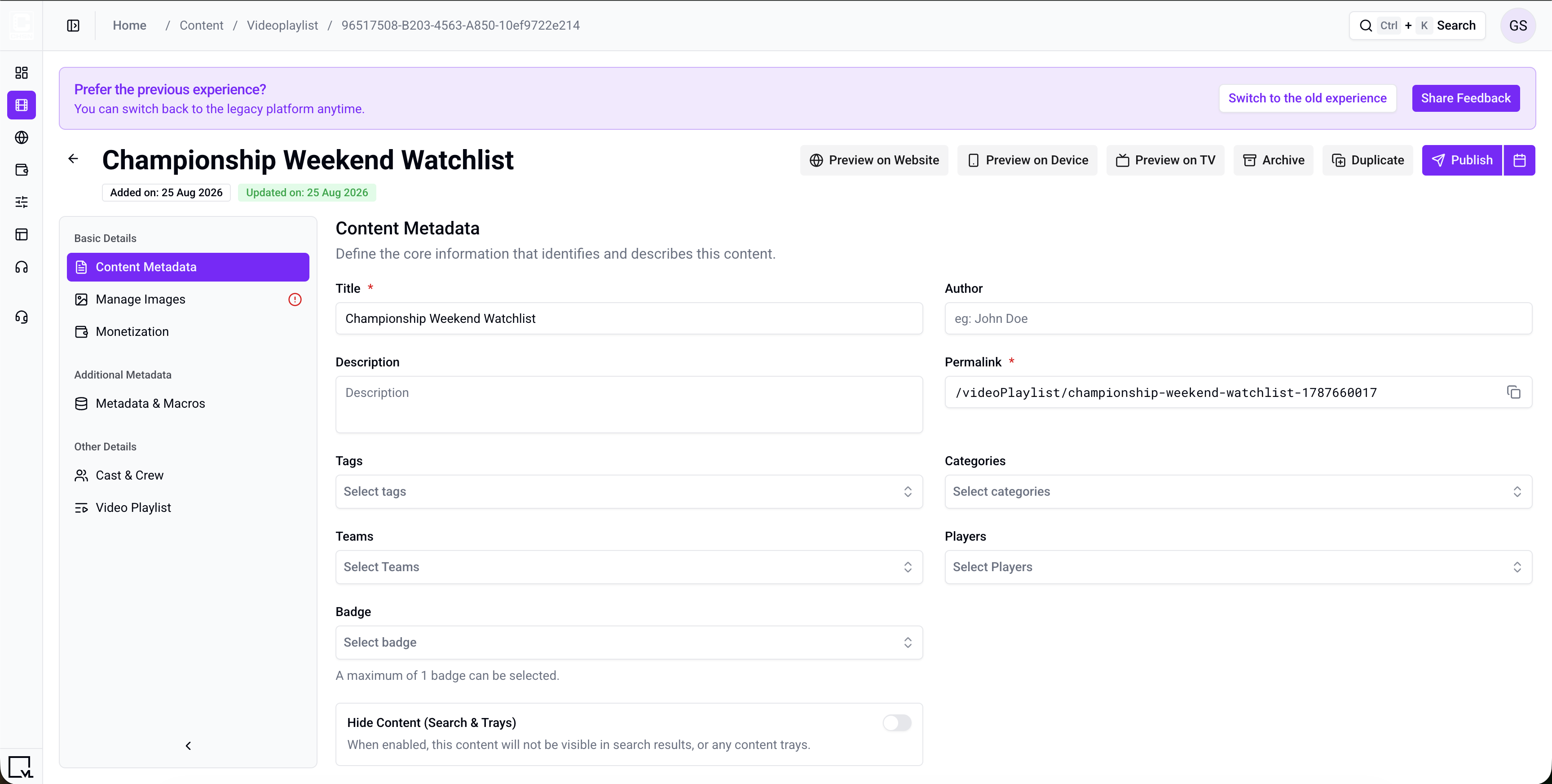
Figure 3. Playlist detail page, Content Metadata. Required fields are Title and Permalink.
| Field | Required | Description | Example |
|---|---|---|---|
| Title | Yes | Customer-facing playlist title. | Championship Weekend Watchlist |
| Permalink | Yes | The URL path for this playlist. See permalink guidelines below. | /championship-weekend-watchlist |
| Description | No | Summary shown on the playlist detail page and in discovery. | Watch championship weekend in order: opening-round highlights, the semi-final, and the final. |
| Author | No | Attribution for the person or team that produced the playlist. | Sports Desk |
| Tags | No | Keywords for search and programmatic trays. Type to choose an existing tag or create a new one. | watchlist, championship, highlights |
| Categories | No | Higher-level grouping used to drive trays and landing pages. | Sports Highlights |
| Teams | No | Links Team objects to the playlist (used mainly by sports services). | City United |
| Players | No | Links Person objects — talent, players, presenters. This is not a video player setting. | Alex Moore |
| Badge | No | One visual badge shown on the thumbnail. A maximum of one badge can be selected. | Featured |
To link a team or a player, that object must already exist in Tools. Playlist objects do not have Parental Rating, Availability & Scheduling, SEO, Geo-Restrictions, or Version History tabs.
Permalink guidelines
Use the same rules as other content types:
-
Start with a slash (
/) -
Lower-case letters only
-
No spaces or special characters except dash (
-) or underscore (_); dashes are preferred -
No leading or trailing whitespace
-
Keep it SEO-friendly (about 59 characters)
-
Remove auto-generated numeric identifiers when you editorialize the path
-
Good:
/championship-weekend-watchlist -
Avoid:
/Weekend Watchlist_FINAL_v3
You can change the permalink later if you need a better URL.
Quick settings
| Setting | What it does |
|---|---|
| Hide Content (Search & Trays) | Keeps the playlist published and playable by direct link, but hides it from search results and from every content tray. Use this for a playlist that should only be reachable from a campaign link. |
Step 4: Manage Images
Open Manage Images.
The 16:9 Landscape image is required to publish. Recommended size: 1920 × 1080 px. Upload images already cropped to the correct aspect ratio. Tools does not crop for you.
| Image slot | Typical use | Recommended size |
|---|---|---|
| 16:9 Landscape (required) | Primary thumbnail on trays, search, and detail | 1920 × 1080 px |
| 1:1 Square | Square grids and some mobile layouts | 1200 × 1200 px |
| 32:9 Ultra-Wide (OTT) | Required if you use the 32:9 carousel | 3840 × 1080 px |
| 3:4 Portrait | Poster-style featured placements | 1200 × 1600 px |
| 9:16 Vertical | Mobile-first experiences | 1080 × 1920 px |
| 4:3 Standard | Legacy and editorial layouts | 1600 × 1200 px |
| 2:3 Portrait | Compact posters and listings | 800 × 1200 px |
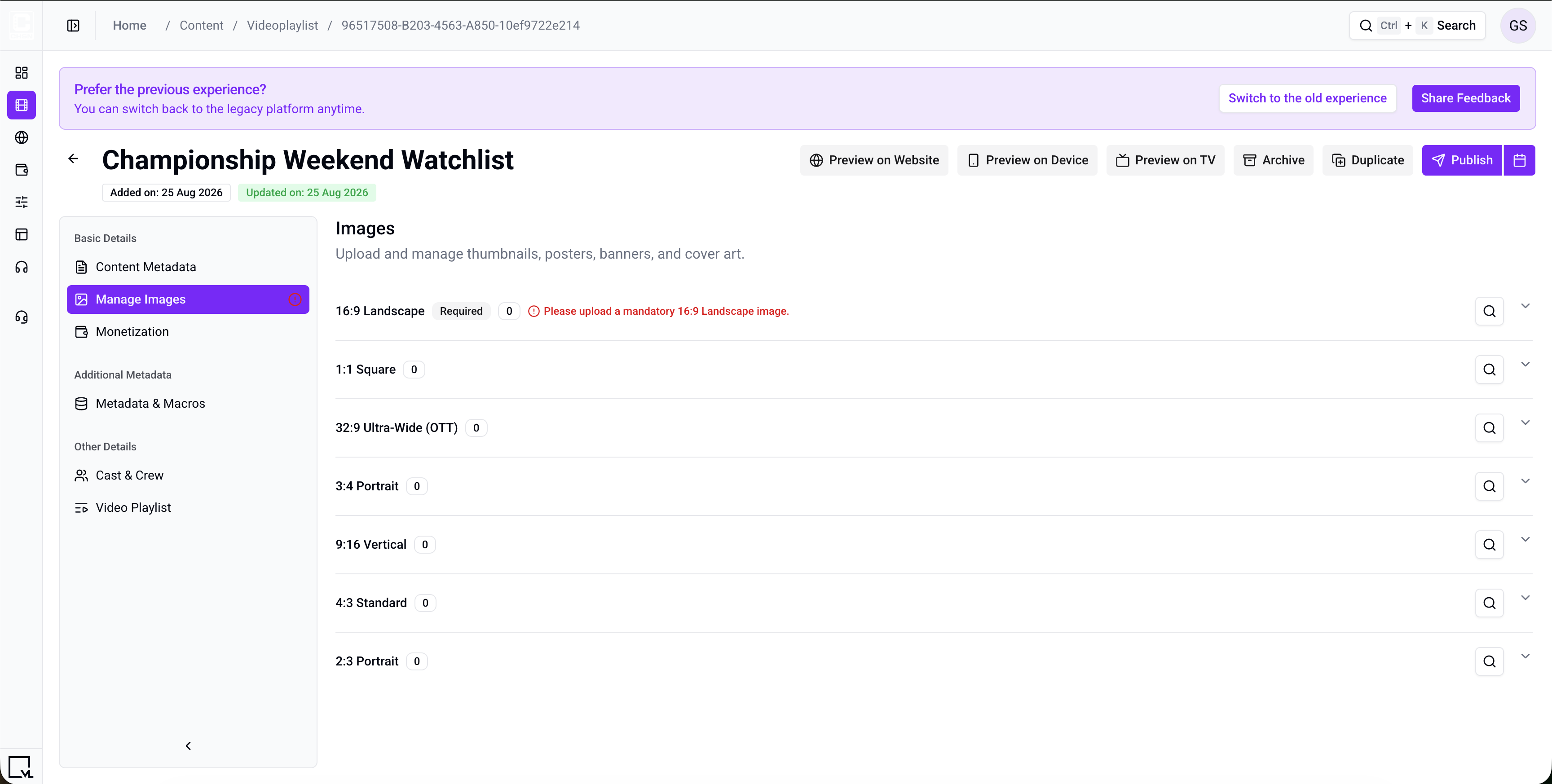
Figure 4. Manage Images. 16:9 Landscape is marked Required. Expand a ratio row to upload a thumbnail already cropped to that ratio. Tools does not crop images.
After you publish the playlist and curate it onto a tray, these images appear on that tray and in search.
Step 5: Add Videos to the Playlist
This is the step that makes a playlist different from a single video. Open Video Playlist.
Items are existing video objects. Create and encode those videos first (Create a VOD Object), then attach them here. A video can appear only once in this playlist. The same video can still be used in other playlists or in a series.
- On the right, use Search videos. Hint text under the search box is Drag videos into the playlist on the left.
- Drag a video into Playlist on the left. Example: drag
Championship Final — Match Highlightsinto the list. - Drag rows in the playlist to set playback order. The header shows the count, for example
3 videos · Drag to reorder. - Use the trash control on a row to remove that video.
Tools saves when you add, reorder, or remove a video. You do not need a separate Save Changes banner on this tab.
Empty state on the left: No videos in playlist — Drag videos from the right panel to add them. Videos already in this playlist are removed from the search list.
You can publish a playlist with no videos yet, but viewers will not have items to play until you add them.
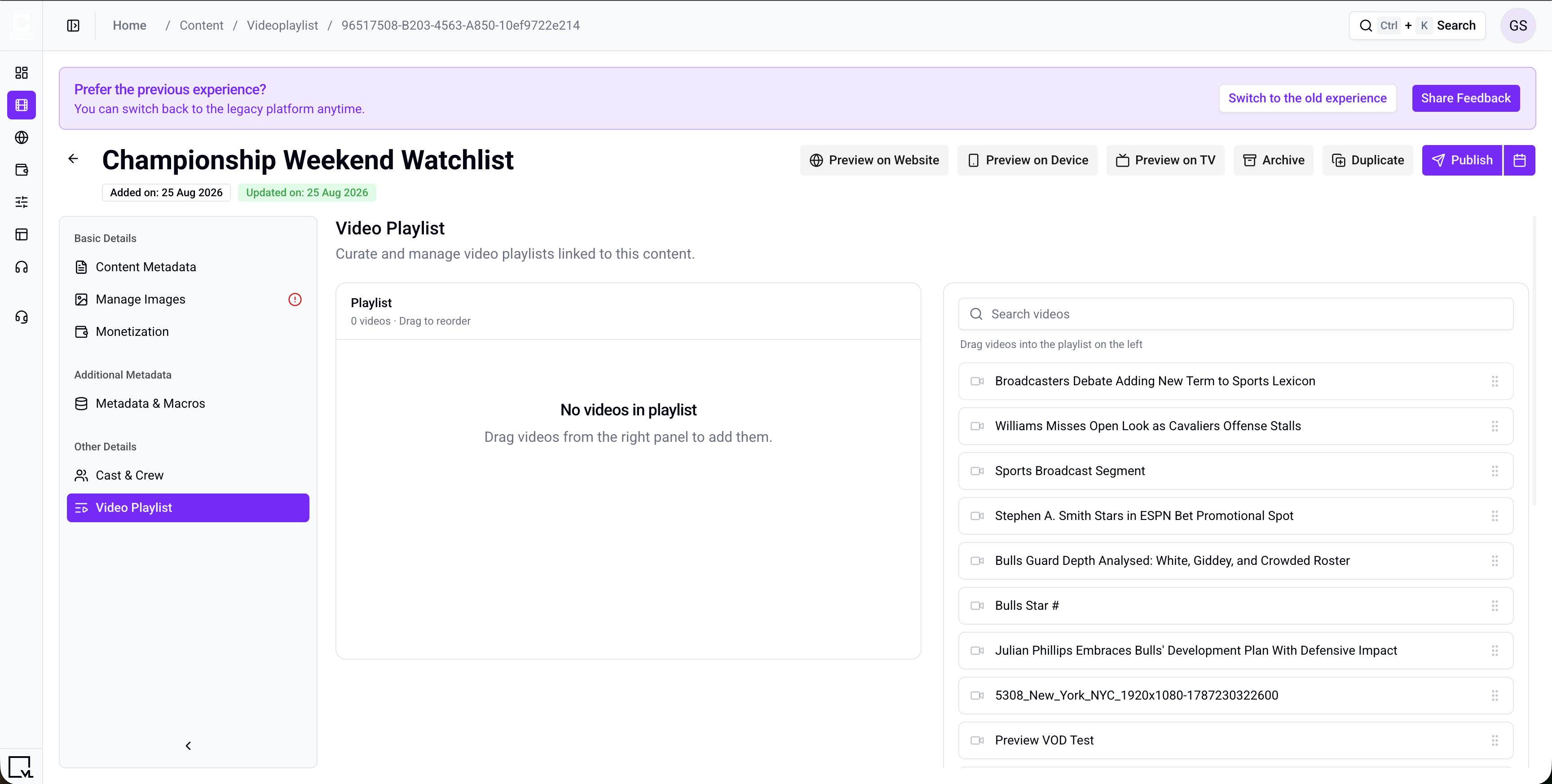
Figure 5. Video Playlist. Search videos on the right, drag them into Playlist on the left, then drag rows to set playback order.
Step 6: Configure Additional Playlist Settings
These sections are optional for many sites. Complete the ones your service uses before you publish.
Monetization
Attach the subscription model, plans, or plan groups that should unlock this playlist. If no model is attached, playback follows your site’s default entitlement rules.
- Select Add Model and choose the monetization model, for example
SVOD. - Under Monetization Plans, select the plans or plan groups that unlock the playlist, for example
Premium Monthly. - Save your selection.
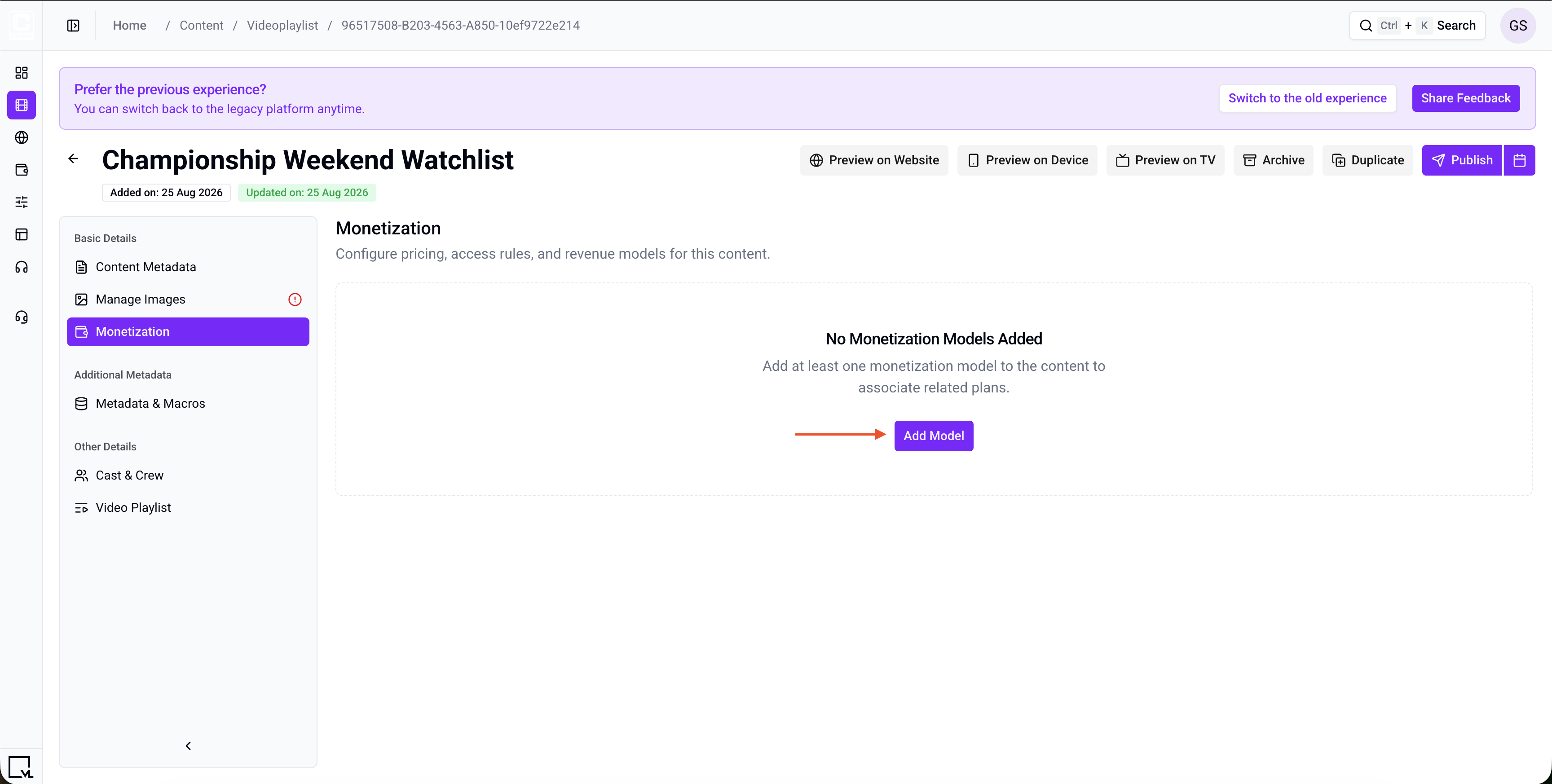
Figure 6.1. Monetization. Select Add Model, then attach the subscription model, plans, or plan groups that should unlock this playlist.
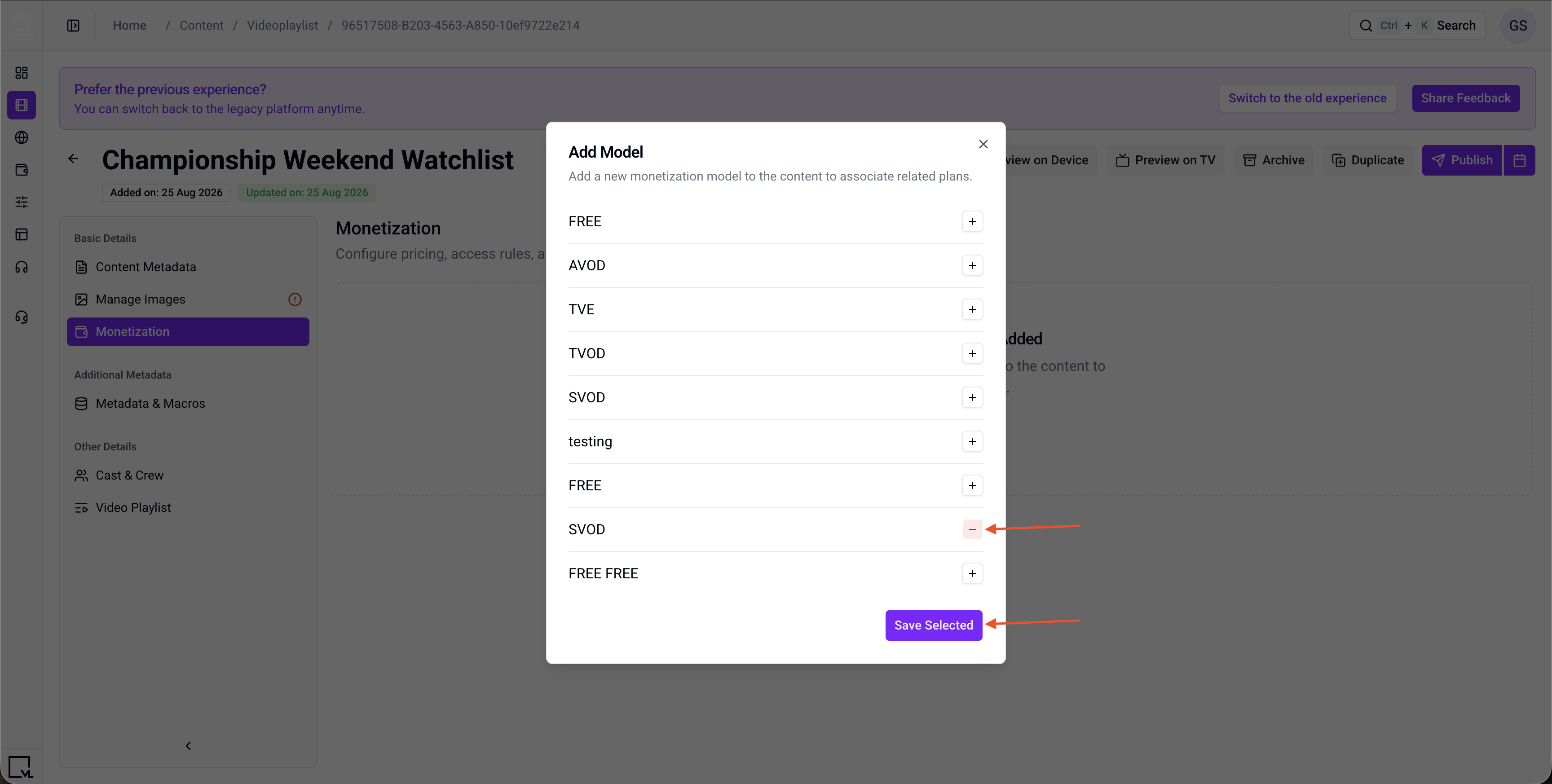
Figure 6.2. Monetization. Select Monetization Model.
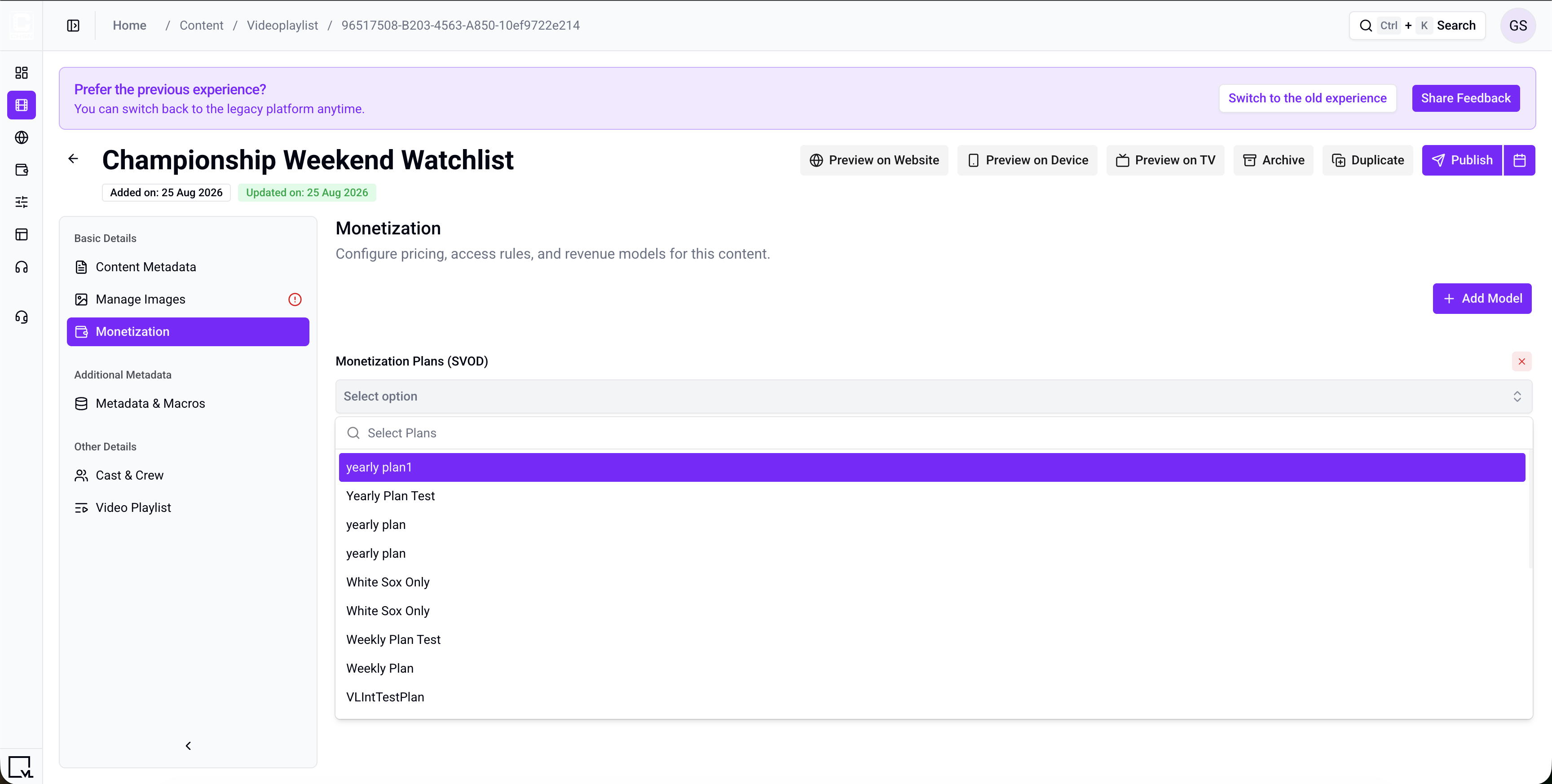
Figure 6.3. Monetization. Select Monetization Plans.
Cast & Crew
Production credits shown on the playlist detail page. The fields are Cast and Director.
Metadata & Macros
Metadata & Macros stores extra key/value pairs that your site or apps can read. Use it for anything the standard fields do not cover.
Example: key sponsor, value Acme Sports. Select Add Metadata to add a row.
Step 7: Publish the Playlist
Required before publish:
- Title
- Permalink
- 16:9 Landscape image
Videos in the playlist are not required to select Publish, but add them before you expect a full watch experience.
- When you are ready, select Publish to go live now.
- Or use Schedule to publish at a later date and time.
- After publish, use Update for further metadata changes, Unpublish to take it down, or Archive to retire it.
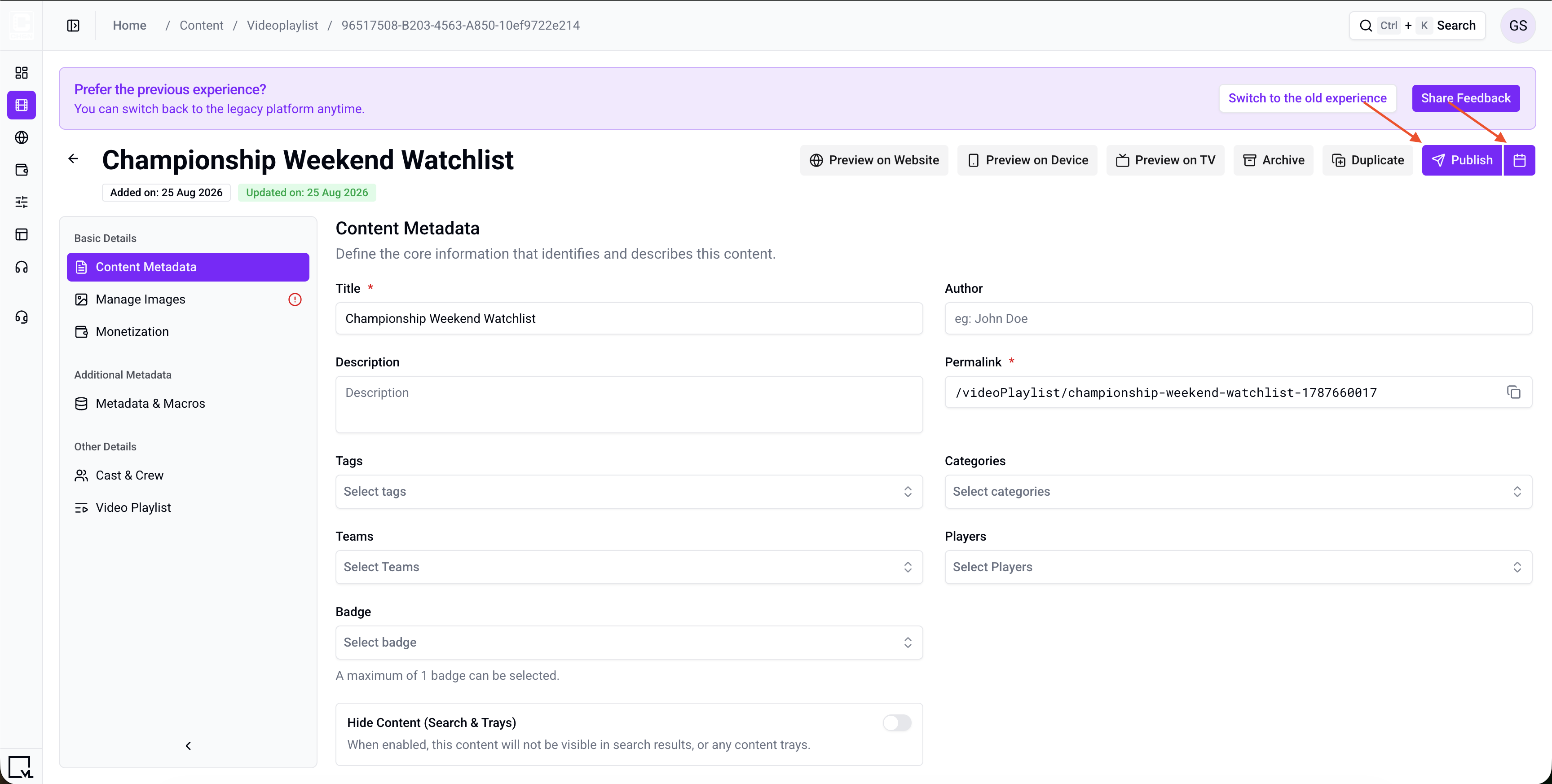
Figure 7. Playlist detail header. Use Publish (or Schedule) to go live. After publish, use Update, Unpublish, or Archive.
The new playlist is now in the CMS library. It does not appear on the website until you curate it onto a page or a user opens its permalink (which uses the Video Playlist Template Page).
Step 8: Curate the Playlist on a Template Builder Page
To show the playlist on Home (or any Modular Page):
- Open AppCMS → Edit Template Builder.
- Open Modular Pages and find the page (for example, Home).
- Add or select a tray module. Typical trays:
- VL HighlightTray
- VL LandscapeTray
- VL Vertical Tray
- Open module settings and set a tray title, for example
Championship Watchlists. - Choose Content Selection:
- Manually Curate — search for the playlist. It appears as Video Playlist. Stack items in the order you want.
- Programmatically Generate — fill the tray from tags or categories. For example, generate from the tag
watchlistand every new playlist with that tag joins the tray automatically.
- Set Content Type to Video Playlist (or Any) if the tray filters by type.
- In Thumbnail Type, choose the ratio that matches the images you uploaded. Template Builder writes these with an asterisk —
16*9,3*4,32*9,9*16,1*1,4*3. - Publish the Template Builder page.
Changes can take about 5–10 minutes to appear on the website because of caching. To verify sooner, use a private window, another browser, or clear cookies and cache.
Clicking the playlist thumbnail takes the user to that playlist’s detail page (the Video Playlist Template Page).
Step 9: Video Playlist Template Page
The layout for an individual playlist is defined by the Video Playlist Template Page.
- In Template Builder, open Template Pages.
- Open Video Playlist Template Page.
- The featured module is VL VideoPlaylist Detail.
- Customize the page in that module:
- Player Config — set the Default Player Provider used for playback.
- Monetisation CTA — set the Primary CTA and Secondary CTA shown to a viewer who is not entitled to the playlist.
- Playlist tray title (default copy is
Playlist), Play All, related tray, fonts, and on-page copy.
- Publish the template.
You can have more than one Video Playlist Template Page, but only one can be set as the default. Playlists use the default template unless a custom template is assigned on the playlist object.
Some sites also list a Playlist Template Page under Template Pages. Use Video Playlist Template Page for the VL VideoPlaylist Detail module.
Troubleshooting
| Problem | What to check |
|---|---|
| There are no videos to drag into the playlist | Playlist items are existing VOD objects. Create and encode the videos first, then return to Video Playlist. |
| A video does not appear in the search list | It is already in this playlist. A video can appear only once here. Remove it from the list first if you need to add it again. The same video can still sit in other playlists. |
| Publish is greyed out or shows an error | A required field is missing. Confirm you have a Title, a Permalink, and a 16:9 Landscape image. |
| The playlist is published but viewers cannot find it | Check Hide Content (Search & Trays) is off, and confirm the playlist is curated onto a tray on a published page. |
| The thumbnail is missing or stretched on a tray | The tray’s Thumbnail Type must match a ratio you actually uploaded in Manage Images. A tray set to 32*9 shows nothing if you only uploaded a 16:9 image. |
Best Practices
- Write titles for viewers, not for files.
Championship Weekend Watchlistworks far better in search and on trays thanplaylist_final_v3. - Create the videos first, then attach them under Video Playlist. The playlist object does not upload video files.
- Set playback order on purpose. The left-hand list is the order viewers will play.
- Tag consistently. Programmatic trays are built from tags and categories, so a misspelled tag means the playlist silently never appears.
- Upload images at the exact ratio. Tools does not crop for you, so a wrongly sized file will look wrong on every device.
FAQs
Q. Can I create a playlist before I have any videos?
Yes. Create the playlist, then drag videos in later. Viewers will not have items to play until videos are attached.
Q. Do I upload video files on the playlist object?
No. Upload and encode files on Videos. The playlist only links those videos.
Q. Can the same video be in two playlists?
Yes. A video can belong to more than one playlist. Inside a single playlist, that video can appear only once.
Q. Can I publish without a 16:9 image?
No. Title, permalink, and a 16:9 Landscape image are required to publish.
Q. Can I duplicate a playlist?
No. Duplicate is not available for video playlists in ViewLift Tools. Create a new playlist and attach the videos under Video Playlist.
Q. Can I edit a playlist after publishing?
Yes. Open the playlist, change what you need, and select Update. You do not have to unpublish first.
Q. I published the playlist but I do not see it on Home.
Publishing adds it to the library. You still need to curate it onto a tray (manually or by tag/category) and publish that Template Builder page. Allow a few minutes for cache.
Q. How do I hide a playlist from trays and search without unpublishing it?
Enable Hide Content (Search & Trays) in Quick Settings on the playlist object.
Q. Is it possible to have two Video Playlist template pages?
Yes, but only one can be set as the default.
Important Information
- Create the playlist object in Tools. Template Builder only places that object on pages and defines the detail layout.
- Playlist items are videos. Create them with Create a VOD Object, then attach them under Video Playlist.
- Tools saves when you add, reorder, or remove videos.
- Upload images at the correct aspect ratio. Tools will not crop them.
- Use the same permalink style as other content:
/lowercase-path-with-dashes. - Tray thumbnail type must match the image ratios you uploaded (especially 32:9 for ultra-wide carousels).
- Cache can delay frontend updates by 5–10 minutes.
Glossary
| Term | Definition |
|---|---|
| Video Playlist | The content type in Tools for a curated list of videos that play in sequence. |
| Playlist item | A video object linked into the playlist. The playlist does not store a second copy of the file. |
| Video Playlist Template Page | The Template Builder page that defines the layout for an individual playlist detail screen. |
| Permalink | The permanent URL path for the playlist, for example /championship-weekend-watchlist. |
| Tray | A horizontal row of content on a page in Template Builder. |
| Entitlement | Whether a given viewer is allowed to play the playlist, based on their subscription plan. |
Contact Support
If you need help beyond this article, contact the ViewLift support team.
- Email: techsupport@viewlift.com
- Phone (US): +1-800-859-0420
- Phone (UK): +44-203-014-8921
Support hours: B2C requests are handled Monday to Friday. B2B support is available 24/7.
After the playlist is published in Tools, users can open it on the site by permalink, or from a tray after you curate it in Template Builder. The detail layout is the Video Playlist Template Page.