On VegaOS (vegaOs / Amazon Fire TV via Kepler), spoken accessibility uses the device VoiceView screen reader. The Smart TV web app sends announcement text to the native Kepler shell, which speaks it through Amazon’s accessibility API.There is no separate in-app accessibility mode.
When VoiceView is on, focus and screen announcements from the app are spoken as the user moves with the remote. Navigation uses spatial (D-pad) focus.
1. How TTS is enabled on VegaOS
| Item | Behavior |
|---|---|
| System setting | Fire TV / Vega VoiceView (screen reader) |
| API Flag | TTS is treated as on for vegaOs (isTTSEnabled = true) |
| Web → native bridge | App calls ReactNativeWebView.postMessage with { type: "announcement", value: "<text>" } |
| Native speech API | Kepler shell calls AccessibilityInfo.announceForAccessibility(value) |
| Privilege | App declares Amazon accessibility privilege in the Kepler manifest |
If the VoiceView is off, focus and remote navigation still work, nothing is spoken.
2. How announcements work
Focus speech
- When a control receives focus, the app can announce a short label (button title, menu item, player control name).
- Special actions (for example like / wishlist) may use a fixed spoken phrase.
Screen / region speech
- Many screens speak an aggregated string of visible text in the focused or loaded region (dialogs, detail pages, trays, login flows).
- Hidden nodes (display: none / visibility: hidden) are skipped.
Utterance behavior
- A new announcement cancels any speech still in progress (speechSynthesis.cancel()), so the latest focused content wins.
- The spoken voice is matched to the app language when a suitable device voice is available, otherwise it falls back to a default English voice.
3. Remote focus and speech
| Control | Behavior |
|---|---|
| Left / Up / Right / Down | Move focus, focused control may speak |
| Enter / Select / OK | Activate the focused control |
| Back | Leave the screen or close an overlay, restored focus may announce again |
Dialogs and overlays keep focus inside while open. On close, focus returns to the prior control when possible.
Vega OS handles media controls and voice-based playback commands through Vega Media Controls (KMC), including commands such as play, pause, seek, and other transport controls. These are separate from VoiceView, which is the accessibility screen reader responsible for announcing focused UI elements.
Visible focus examples
Focused controls use a clear highlight (for example brand-colored background or border on navigation, inverted / filled buttons on player and detail actions).
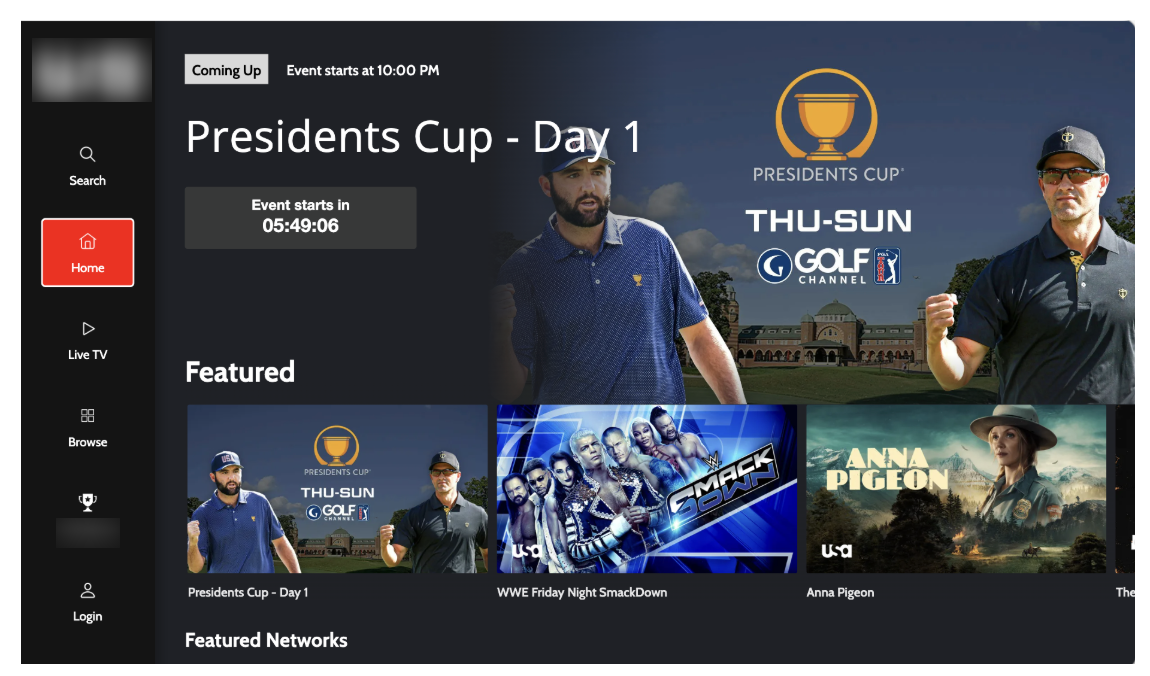
Figure 1. Home screen with spatial focus on the Home menu item (red focus outline). With VoiceView on, the menu title is spoken on focus.
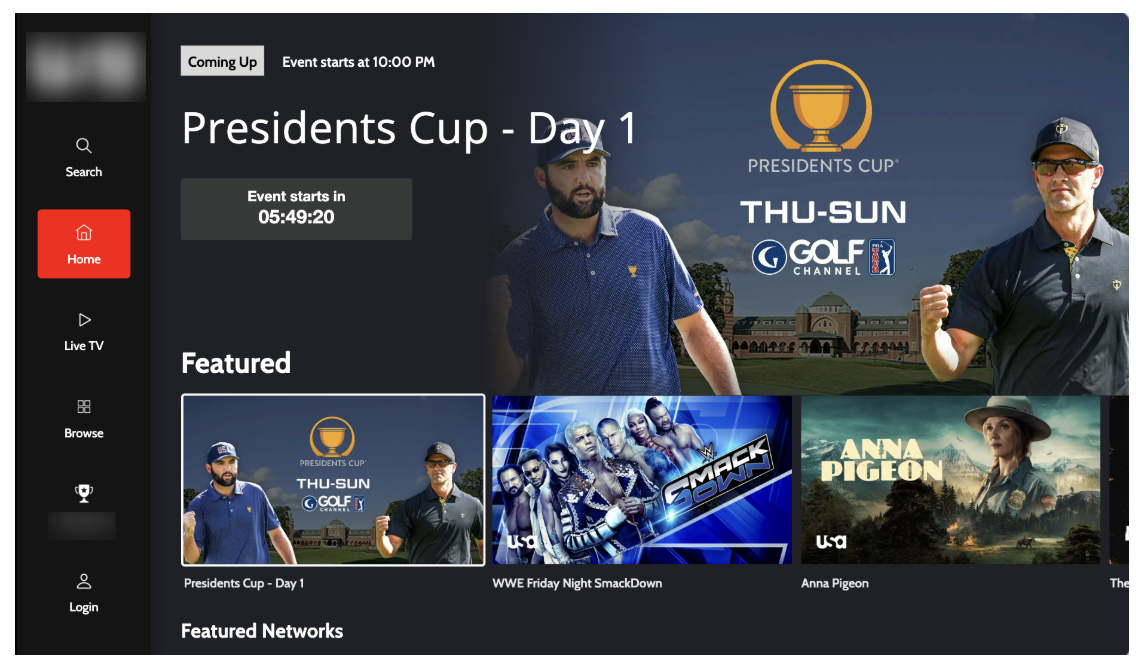
Figure 2. Home / Featured tray: Home remains highlighted in the left navigation, and the selected Featured tile shows a white focus border. Moving focus onto the tile speaks to the tray/tile text.
4. TTS by area (VegaOS)
Navigation
- Main menu / sub-navigation items speak their title on focus.
Home, trays, and carousels
- Tray tiles speak visible tile text on focus.
- Entering a row often includes the tray title plus tile text.
- Schedule / live tray variants and featured carousel items follow the same pattern.
Search
- Result items can speak the content title on focus.
Schedule and program guide
- Schedule / EPG tiles speak aggregated visible text on focus.
- Date selection and related controls can be announced after focus or load.
Video and show detail
- Detail screens can announce visible page content after load.
- Primary actions (play, watchlist, and similar) speak their labels on focus.
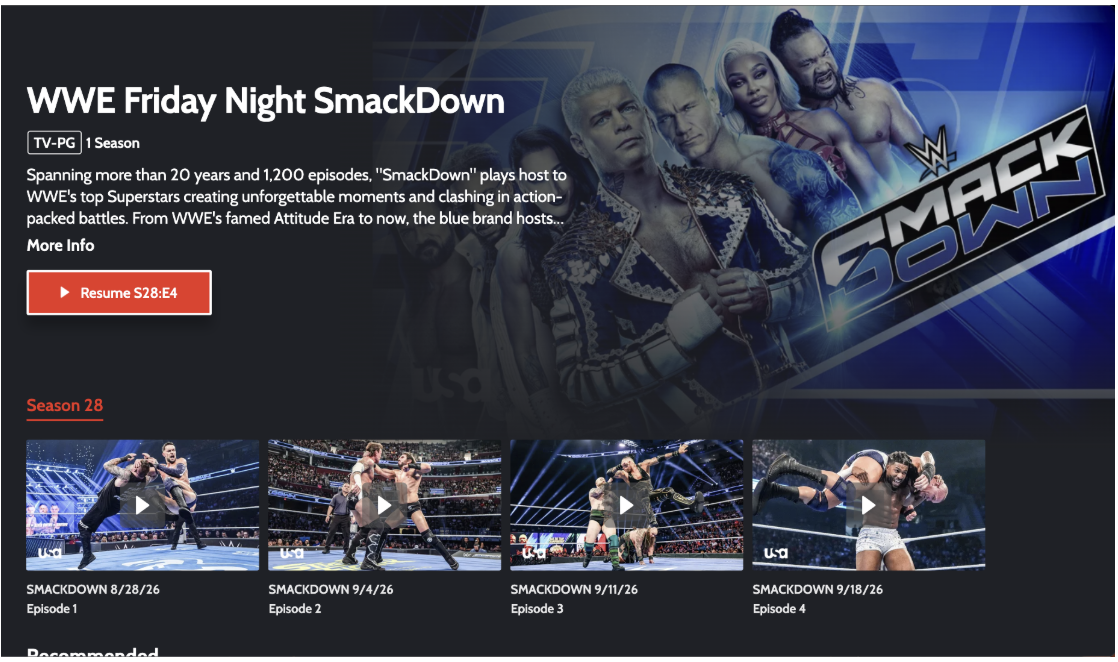
Figure 3. Series / show detail page (WWE Friday Night SmackDown) with season selector and episode row. Focusable actions such as Resume, More Info, season tabs, and episode tiles speak their labels when VoiceView is on.
Account, auth, and checkout
- Login, OTP, device activation / pairing, TVE provider flows, billing, personalisation, language / location, watch history, and library screens use focus speech and / or full-region text announcement where implemented.
- Checkout plan options and confirmation / legal dialogs announce visible content.
Modals and consent
- Alert, monetization, and privacy / cookie preference dialogs announce visible dialog text shortly after opening.
- Keep focus inside while open.
- May re-announce the previously focused control after close.
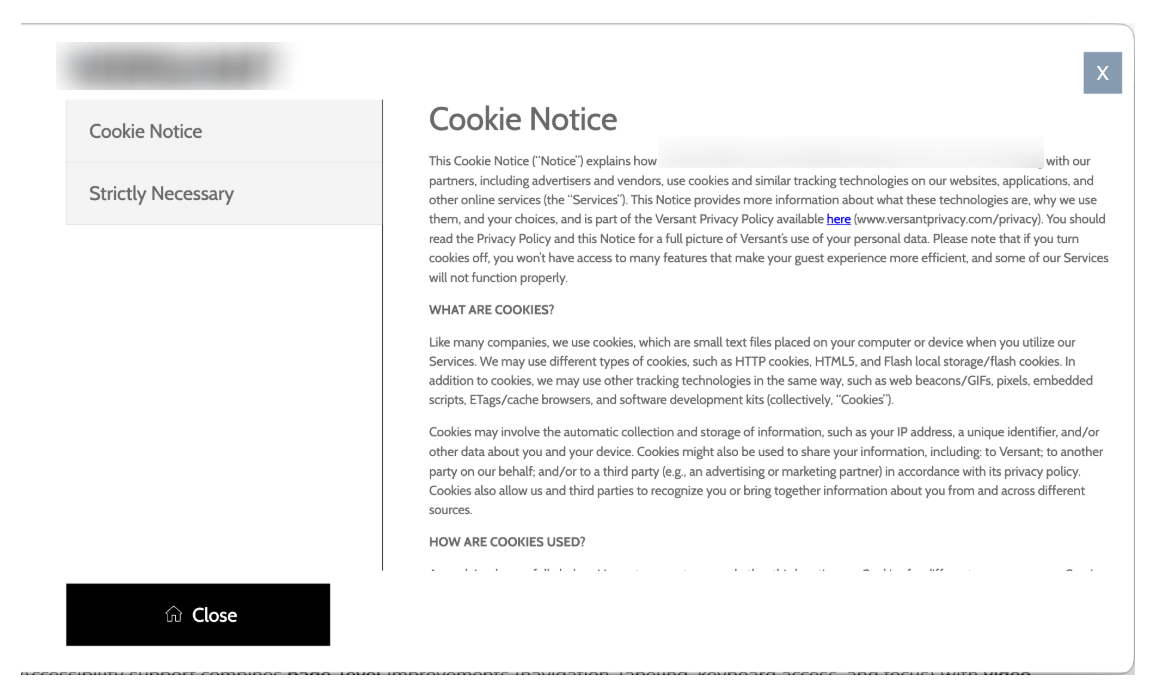
Figure 4. Cookie / privacy preference dialog (Cookie Notice) with sidebar categories and Close action. On open, visible dialog text can be announced, focus stays inside the overlay.
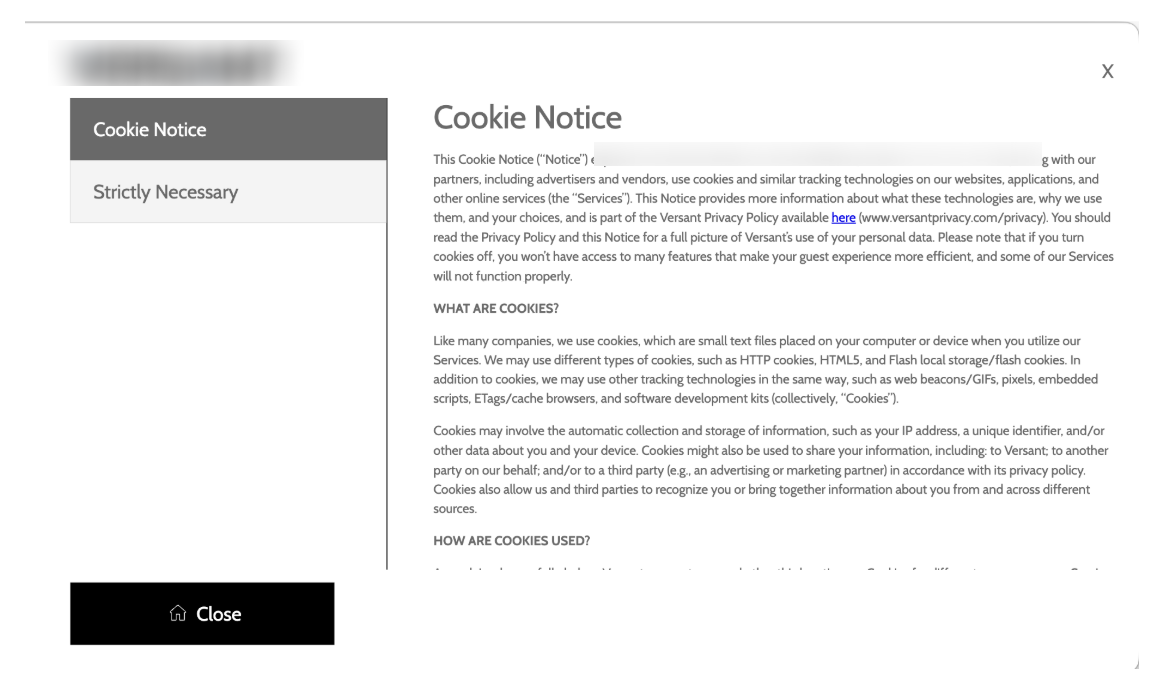
Figure 5. Cookie Notice sidebar item in a selected / focused state (high-contrast highlight). Remote focus moves between categories, Close, and dismiss (X).
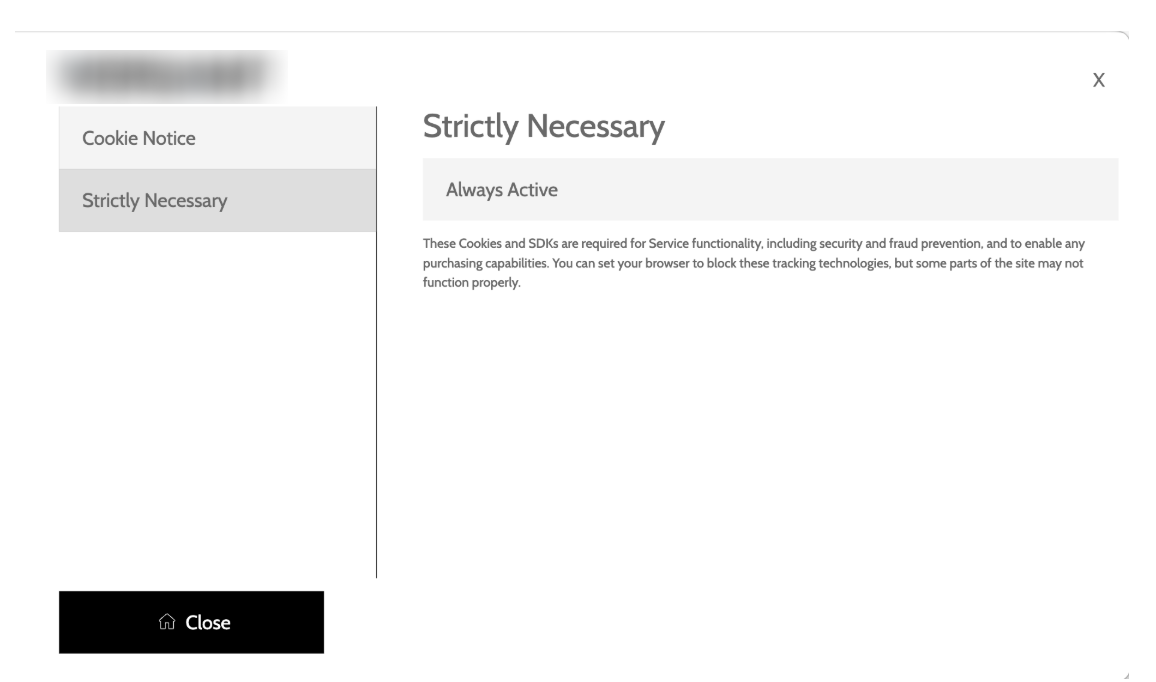
Figure 6. Strictly Necessary cookie category selected, showing Always Active status and description text available for region speech.
Video player UI
- Player control buttons speak their title on focus when VoiceView is on.
- Caption, audio, and quality option lists speak option labels on focus when those panels are open.
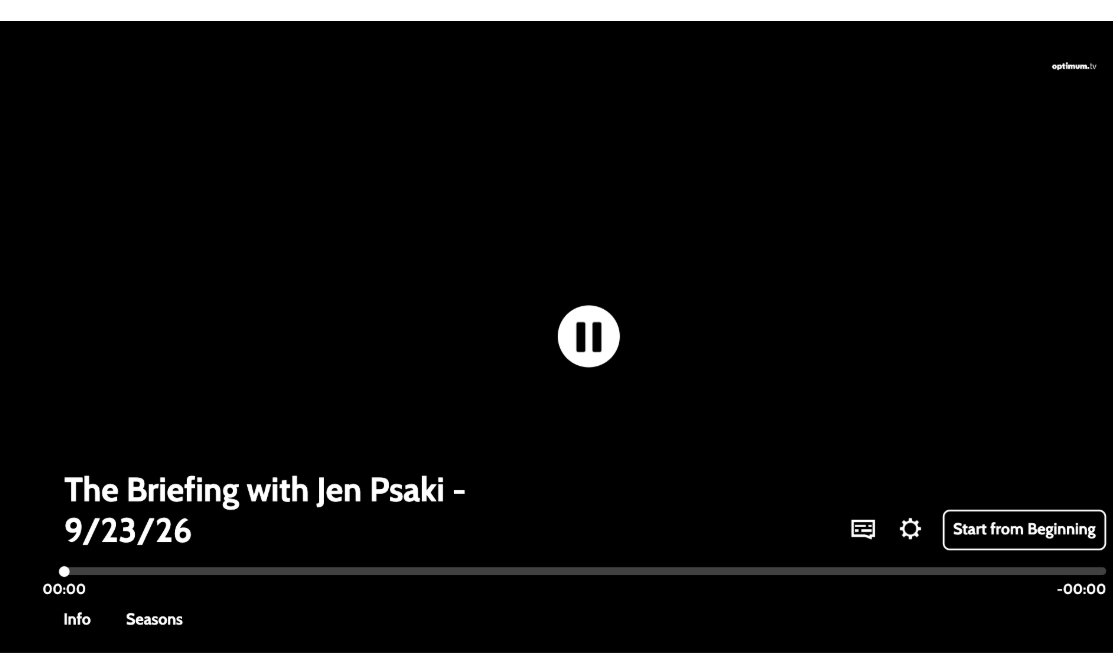
Figure 7. Video player chrome with title, progress, Info / Seasons, captions, settings, and Start from Beginning. Controls are remote-focusable for TTS.
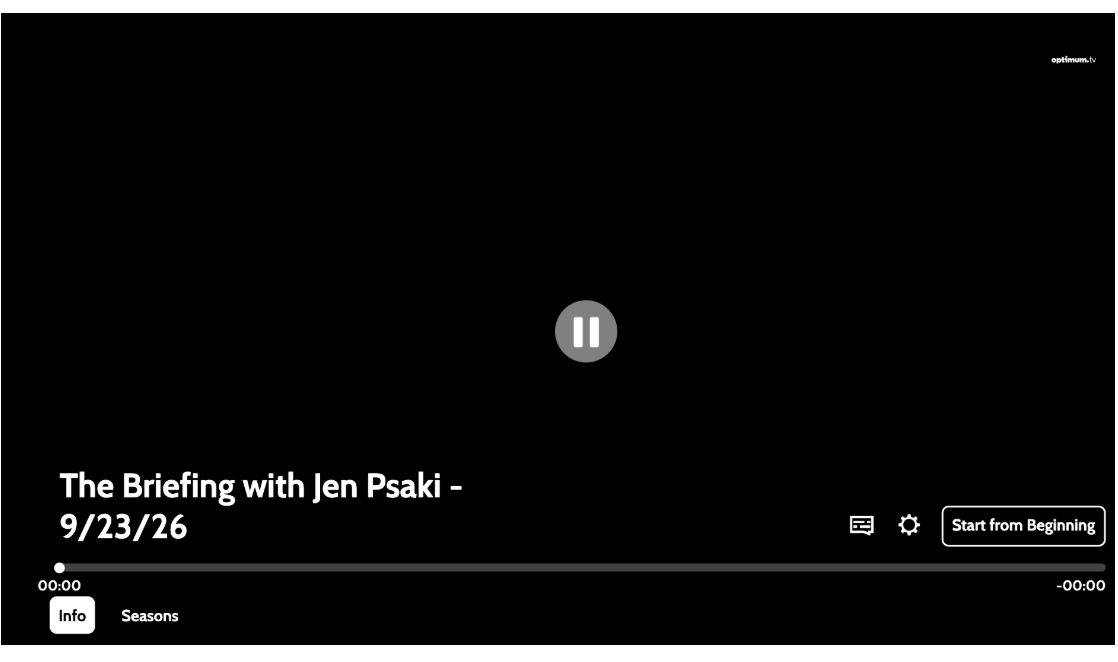
Figure 8. Player with visible focus on the Info control (filled / inverted button). VoiceView speaks of the focused control label.
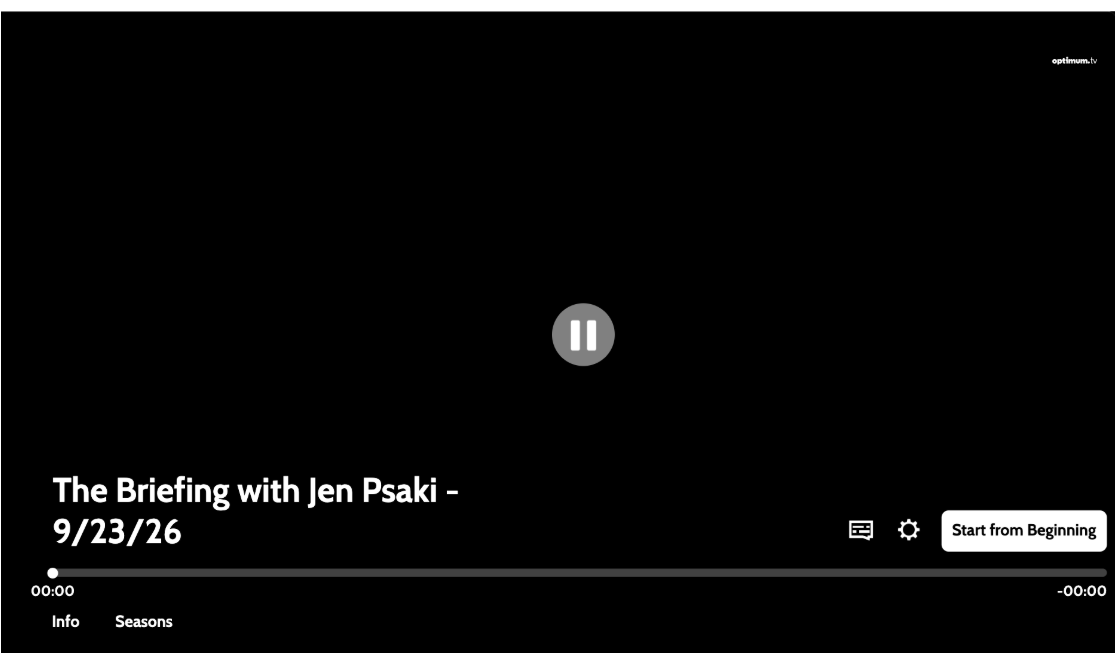
Figure 9. Player with visible focus on Start from Beginning. Captions and settings icons remain focusable targets for spoken labels.
5. User setup (VegaOS)
- Open Settings on the Fire TV / Vega device → Accessibility → VoiceView.
- Turn VoiceView On.
- You should hear “VoiceView Ready” or a similar confirmation.
- Launch or return to the app — VoiceView should announce focused UI elements as you navigate.
6. Summary
- VoiceView gated — speech is audible only when the Fire TV / Vega system VoiceView setting is enabled.
- Native announcements — Kepler AccessibilityInfo.announceForAccessibility handles accessibility announcements.
- Web → native bridge — postMessage with type: "announcement" sends announcement requests from web to native.
- Focus-driven — D-pad focus determines which UI element or content is announced.
- No in-app TTS toggle — uses the system VoiceView setting while maintaining the same browse, account, and player coverage as other TTS platforms.
- Always attempts announcements — the app sends accessibility announcements on Vega, but they are audible only when VoiceView is enabled.