
Your Roku apps are enabled for deep linking to your content on Roku. Here is how you test and make it work:
-
Install the app from the Store.
-
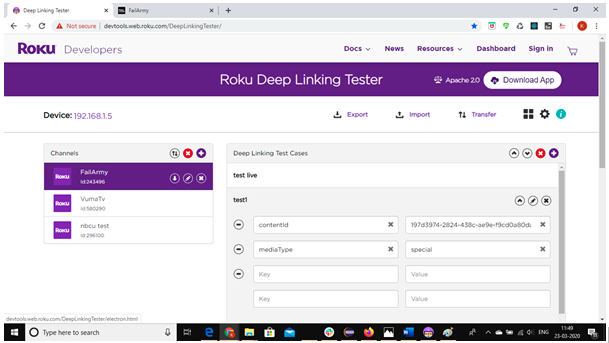
Download and install “DeepLinkingTester” tool from below link:-
http://devtools.web.roku.com/DeepLinkingTester/
-
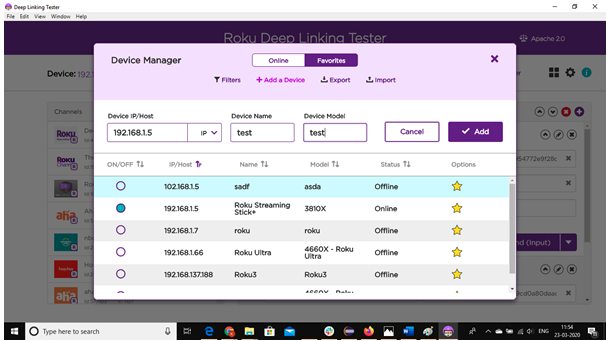
After installing the app, Add your device to the Tool. [Enter Device IP, Device Name, Modal and click on Add]
-
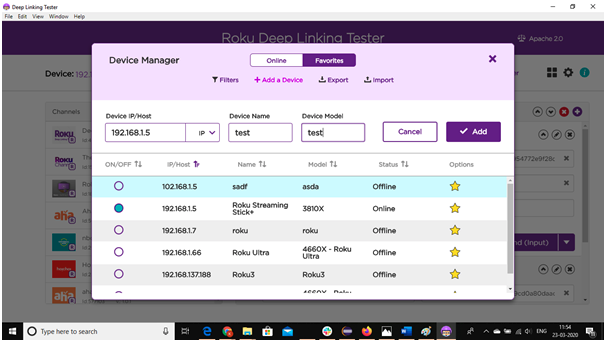
After add the device Select your device from bottom as per SS mentioned below>>[Device should show online and after that close the device window]
-
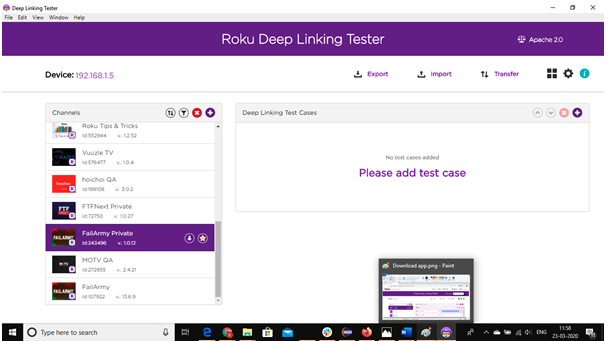
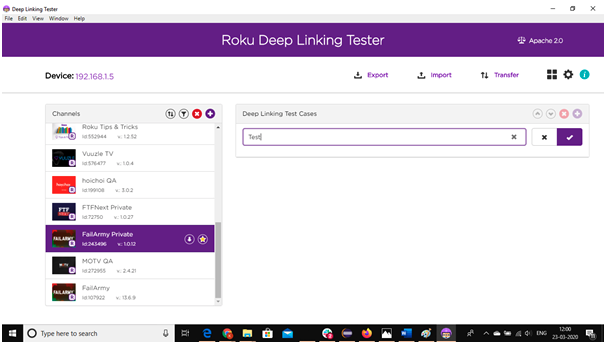
Now All apps installed to the device will show as per ss attached below: - [Select your app and click on Please add test case.]
-
Enter the test name and save it.
-
As per app we can test deep link for 2 type of videos Live and VOD.
-
Live video deep link: -
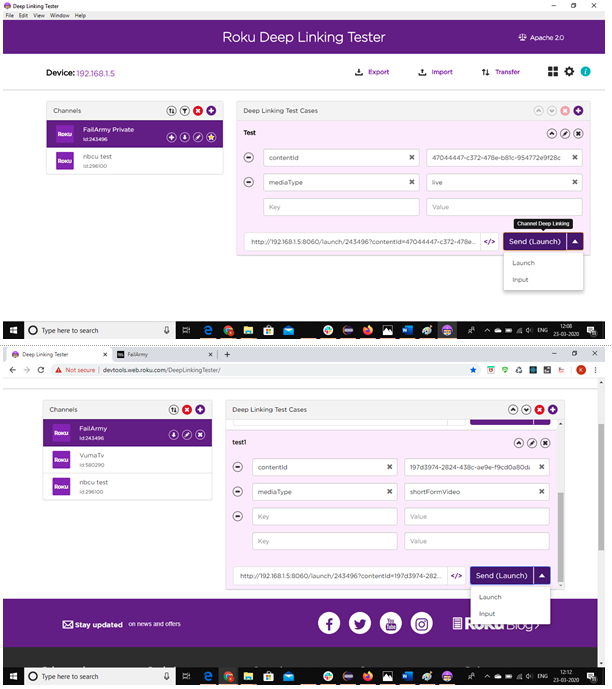
contentId: - 47044447-c372-478e-b81c-954772e9f28c [We can get Content id from CMS Content tab]
mediaType: - live -
VOD Deep link: -
contentId: - 197d3974-2824-438c-ae9e-f9cd0a80daac [We can get Content id from CMS Content tab]
mediaType: - shortFormVideo
Two types of deep link we have as per Roku : -
- Launch: - Used when App is not open.
- Input: - Used when App is already open.
Selected video should play after use of any type of deep link.
Ref:- https://developer.roku.com/docs/developer-program/certification/certification-testing.md#5-deep-linking