Overview
Create, update, and remove zipcode groups used for location-based content access rules.
:::tip At a Glance
Who is this for?
Content managers and admins who control location-level access behavior.
When do I use this?
When you need to manage allow/deny zipcode sets for content restrictions.
What will happen?
Zipcode groups are saved to the list and can be edited or removed later.
:::
Prerequisites
::: warning Permissions
Requires Content write permission to create, edit, or delete zipcode groups.
:::
Steps
Step 1: Open Zipcode Groups
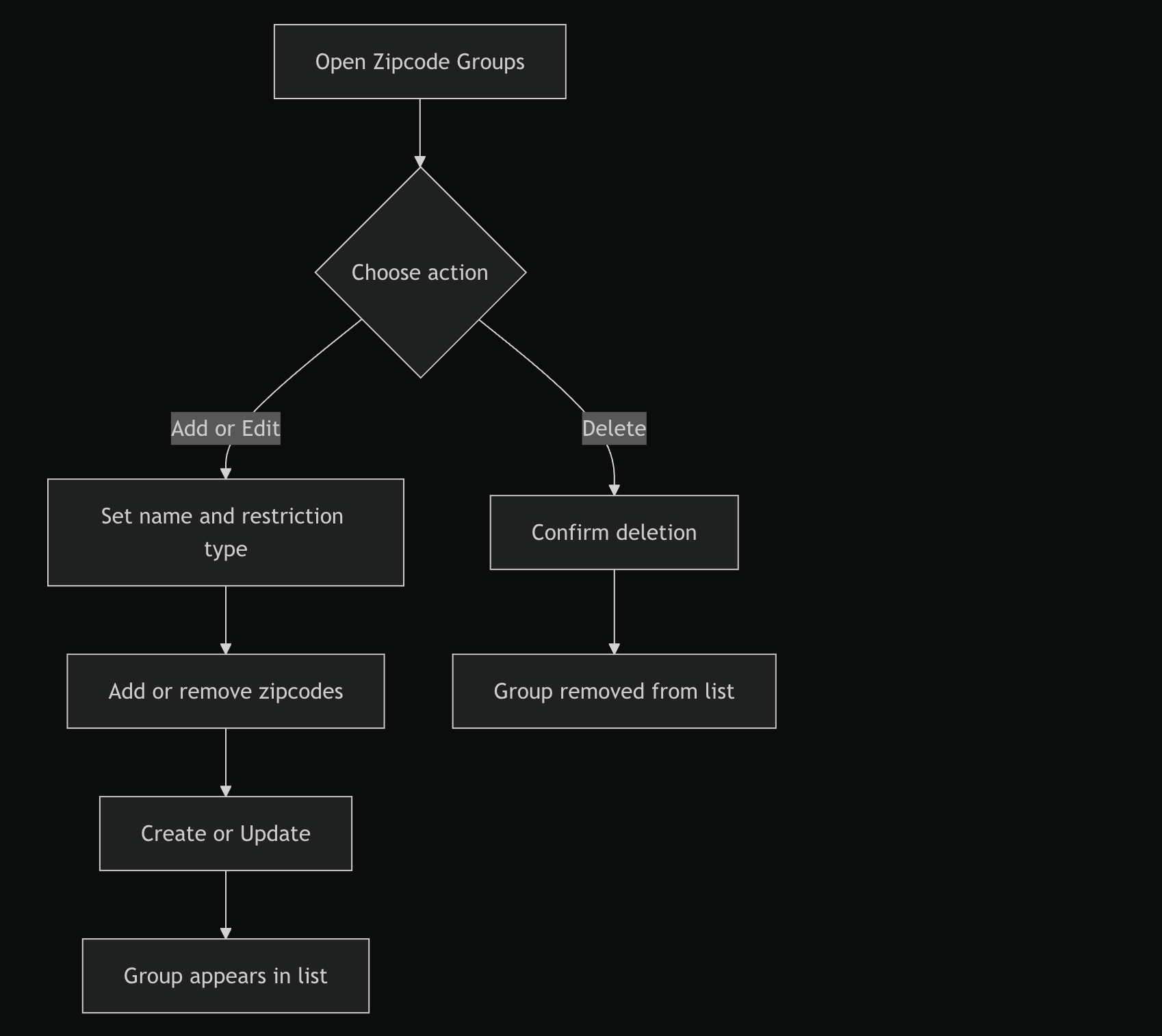
Go to Content, then open Zipcode Groups.
.png)
.png)
Step 2: Start Add, Edit, or Delete
- Click Add New to create a group.
- Use row actions and click Edit to update a group.
- Click the delete icon in a row to remove a group.
Step 3: Configure Group Basics
Set:
- Zipcode Group Name
- Restriction Type (Allow or Deny)
Step 4: Add Zipcodes
- Paste one zipcode or a comma-separated list.
- Press Enter or use Add All to insert multiple zipcodes.
- Remove individual zipcodes from the chip list as needed.
Step 5: Save or Confirm Deletion
- Click Create or Update to save changes.
- For deletion, confirm in the confirmation dialog.
Expected Behavior
- New and updated groups appear in the table.
- Deleted groups are removed from the list after confirmation.
- The table shows status, added time, and zipcode previews.
- Pagination controls appear when result count exceeds one page.
Flow
Edge Cases / Notes
- At least one zipcode is required to save.
- Duplicate zipcodes are ignored during multi-add.
- Use search in the dialog to filter large zipcode sets while editing.
Related
- Licenses overview
- Country Groups overview