Overview
Create or update license groups so you can apply consistent access rules across content.
:::tip At a Glance
Who is this for?
Content managers and admins responsible for access and rights setup.
When do I use this?
When you need to add a new license group or adjust an existing one.
What will happen?
The license group is saved and appears in the licenses list.
:::
Prerequisites
::: warning Permissions
Requires Content write permission to add or edit licenses.
:::
- Create required country groups first if you want to attach regional rules.
Steps
Step 1: Open Licenses
Go to Content, then open Licenses.
.png)
.png)
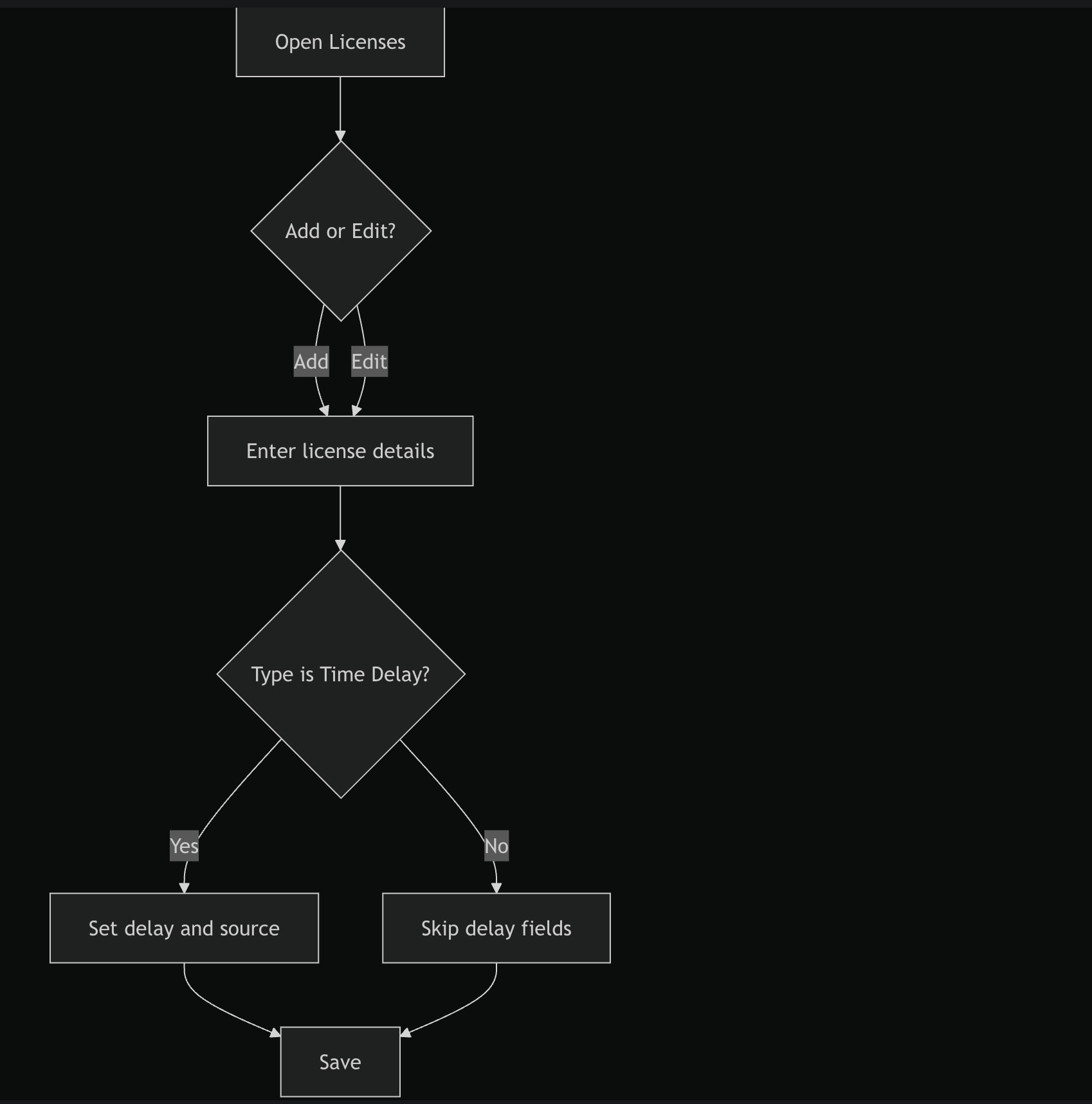
Step 2: Start Add or Edit
- To create a new license, click Add New.
- To change an existing license, open the row actions menu and click Edit.
Step 3: Enter Basic License Details
Fill in License Name and Type.
If you select Time Delay, also provide:
- Delay (in days)
- From (for example, Air Date or Season Air Date)
Step 4: Configure Access Rules
- Set Exclude License if the group should be excluded from use.
- Select one or more Country Groups.
Step 5: Save
Click Save (or Update in edit mode).
Expected Behavior
- The dialog closes after a successful save.
- The list updates with the new or updated license.
- Delay shows as a readable value in the list when applicable.
- If no license exists yet, the empty-state message remains visible until one is created.
Flow
Edge Cases / Notes
- This page supports create and edit actions. Remove/delete is not available here.
- If Country Groups are missing, create them first from Country Groups.
Related
- Country Groups overview
- Manage country groups