Overview
Create or update country groups so regional sets can be reused in content and license rules.
:::tip At a Glance
Who is this for?
Content managers and admins responsible for regional availability rules.
When do I use this?
When you need to define a new group of countries or update an existing group.
What will happen?
The country group is saved and available for selection in related workflows.
:::
Prerequisites
::: warning Permissions
Requires Content write permission to add or edit country groups.
:::
Steps
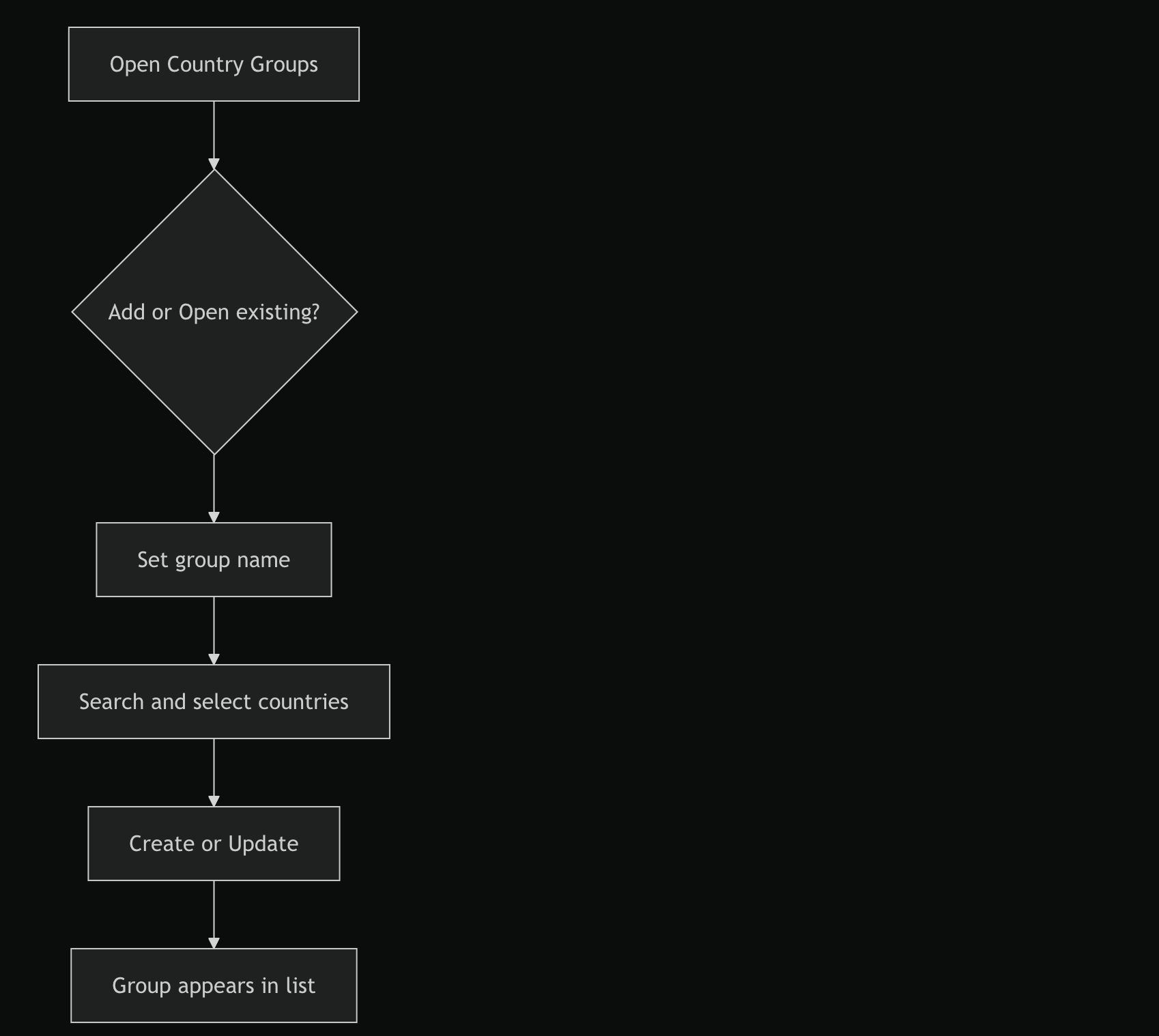
Step 1: Open Country Groups
Go to Content, then open Country Groups.
.png)
.png)
Step 2: Start Add or Edit
- To create a group, click Add New.
- To update a group, click Open on the card.
Step 3: Set Group Name
Enter a clear, reusable group name.
Step 4: Select Countries
- Use the search box to filter country names.
- Toggle countries on to include them in the group.
Step 5: Save
Click Create or Update.
Expected Behavior
- The dialog closes after a successful save.
- The card list reflects the latest group name and selected-country count.
- Existing groups remain available for future updates.
Flow
Edge Cases / Notes
- At least one country must be selected before saving.
- Country groups are designed to be reused in other content workflows.
Related
- Licenses overview
- Manage licenses