Chapters
Documentation for editors reviewing AI-generated chapters on live streams.
Overview
When a live stream runs, the system automatically monitors it and generates chapters — short highlight segments with an AI-generated title, summary, tags, and thumbnail. As an editor, your job is to review each chapter and decide what happens to it:
| Action | Effect |
|---|---|
| Publish | Goes live, visible to viewers |
| Suppress | Hidden, without flagging it as wrong |
| Reject | Marked invalid, with a required reason |
You can also edit the title, description, thumbnail, and exact clip boundaries before publishing.
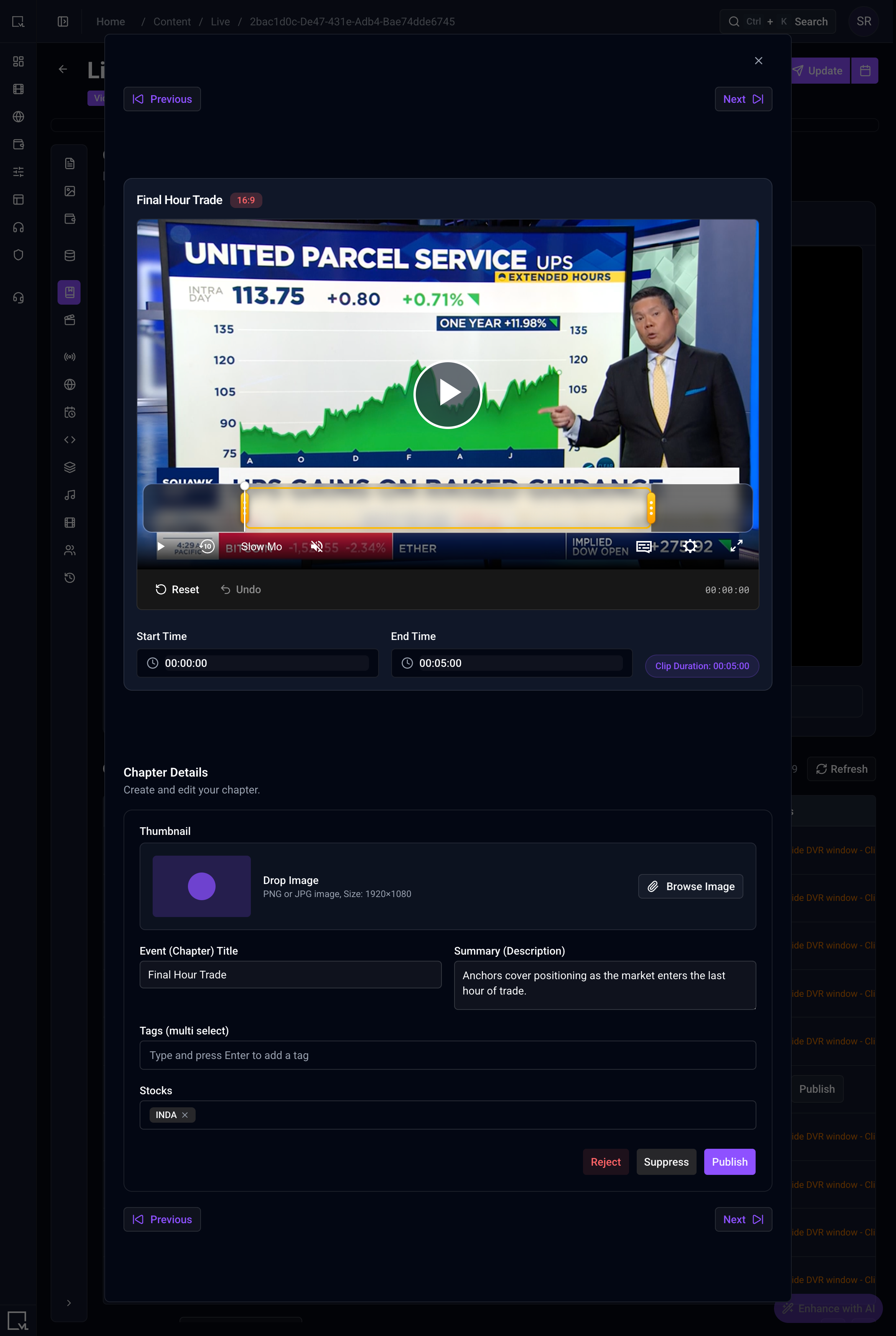
Chapters tab in a Live content item
Where to Find This in the CMS
Navigation path:
CMS → Content Management → Live → [Select a Live content item] → Chapters (sidebar tab)
- Log in to the CMS and go to the Content Management section from the main navigation.
- Open the specific Live content item you want to review (search or filter by content type = Live).
- Once inside the content item's detail page, look at the left-hand sidebar — you'll see tabs such as Details, Programs, and Chapters.
- Click Chapters to open the review screen described in this guide.
📍 Note: The Chapters tab only appears for content items whose type is Live. If you don't see it, confirm you've opened a live stream item and not a VOD or series episode.
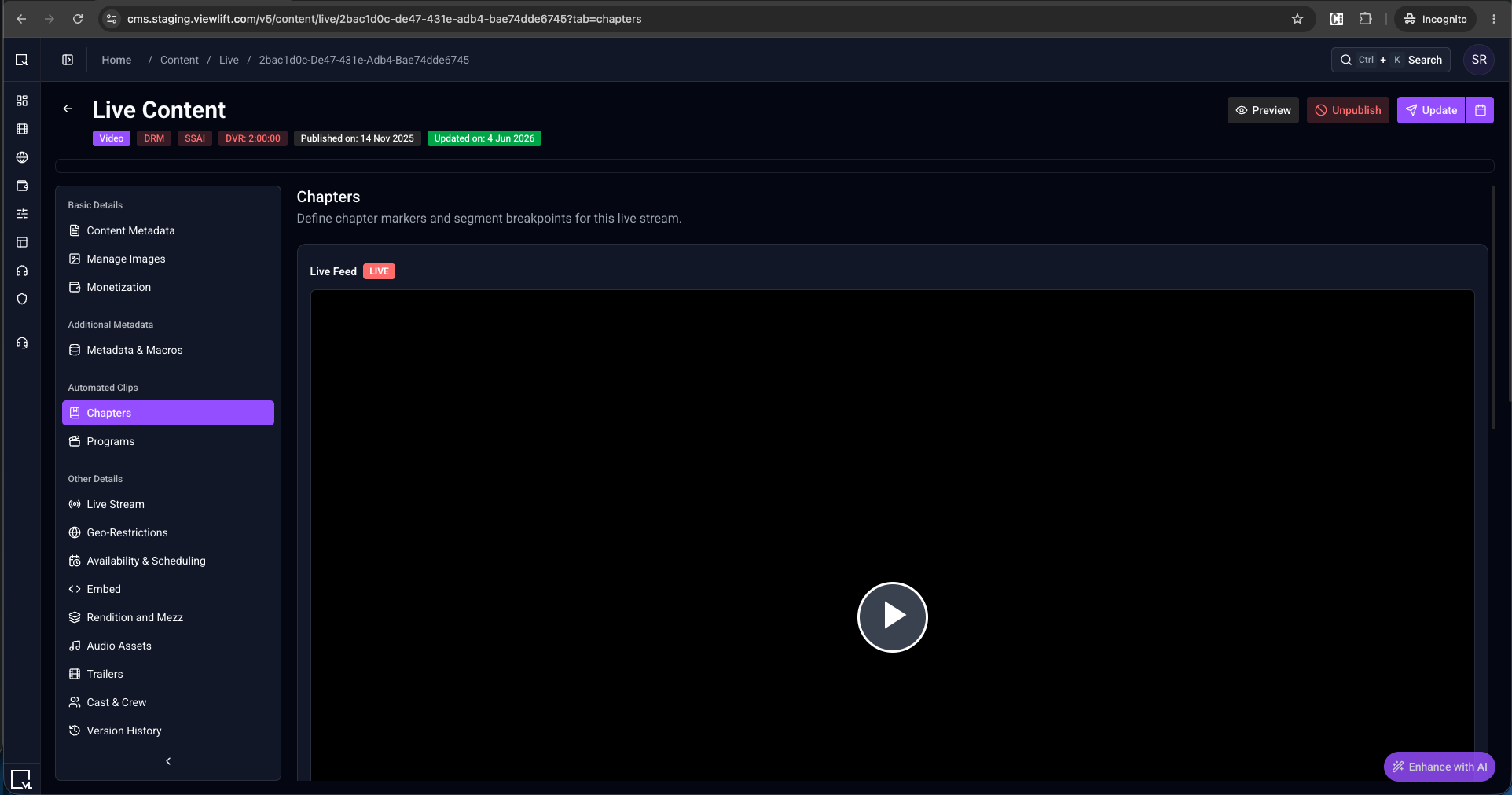
Chapters review screen
What is a Chapter?
A chapter is not a separate video file — it's a marker for a moment inside a live stream (e.g. a highlight or scene change).
Each chapter includes:
- Title and summary describing the moment
- Thumbnail image
- Tags, and (where relevant) stock tickers mentioned in the segment
- Start and end points within the stream
Every chapter starts as Unpublished. Nothing is shown to viewers until you set a status.
Note: This is a review step, not a creation tool. There's no way to manually add a new chapter — they're all generated automatically from the stream.
Finding Your Chapters
- Open the live stream's content page.
- Click Chapters in the sidebar.
This tab only appears on Live content — not on VOD or series episodes, since chapters are specific to an ongoing stream.
On this page:
- The live player, with coloured dots on the seek bar marking chapters that have already occurred, plus a legend for the colours (published / suppressed / rejected).
- Chapters not yet reviewed won't show a dot until you act on them.
- Below the player: a chapter list with a search box and a Refresh button.
⚠️ Warning: The list does not auto-update — click Refresh to see newly created chapters.
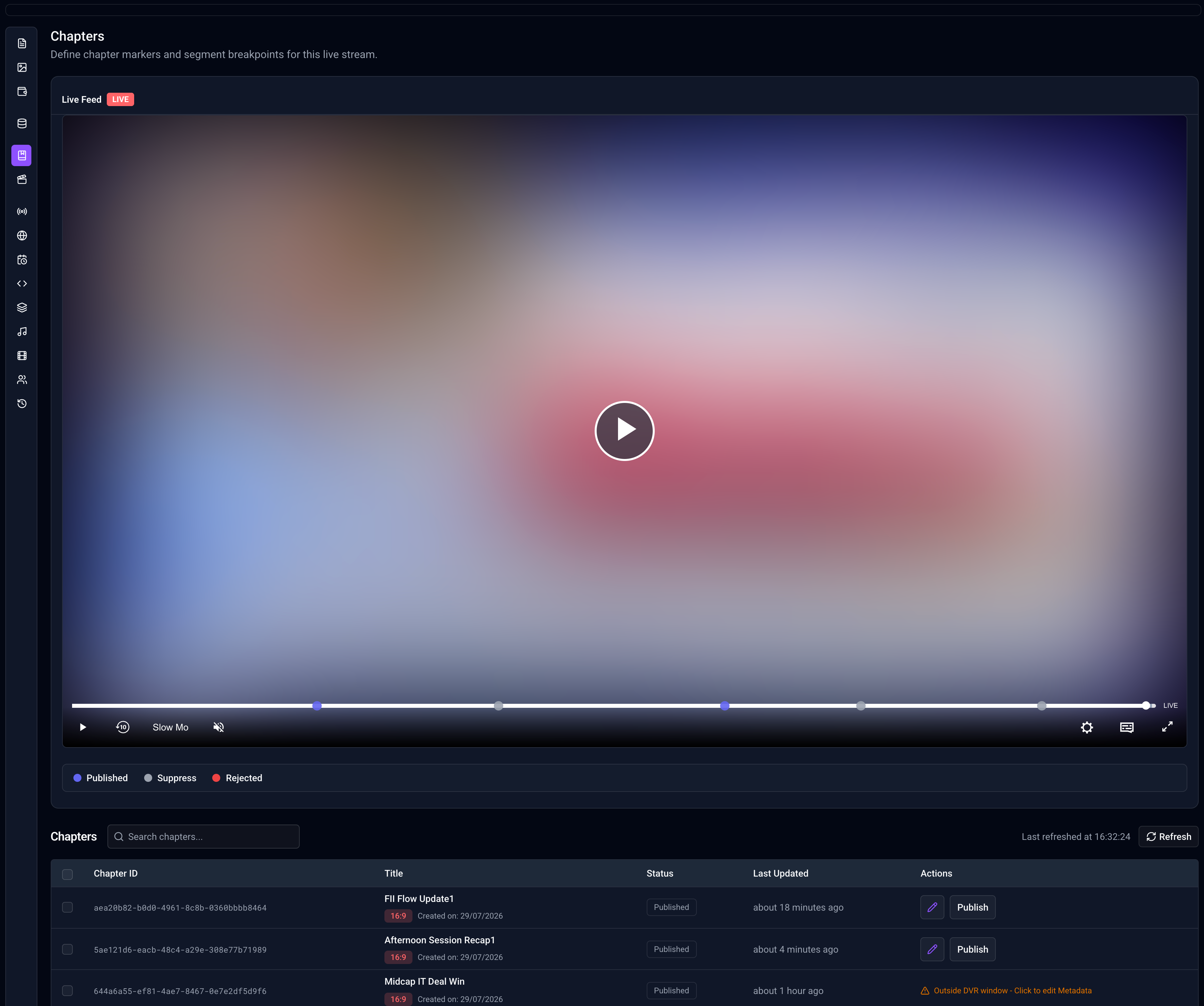
Reviewing a Chapter
Click a chapter in the list (or its dot on the player) to open the detail view. This includes:
- A preview player dedicated to that chapter, which loops the clip for review.
- Previous / Next buttons to move through chapters sequentially without closing the window.
When preview isn't available
Live streams only retain a rolling window of recent footage (typically the last several hours). If a chapter is too old:
- Playback won't be available.
- You can still edit the title, summary, and other written details.
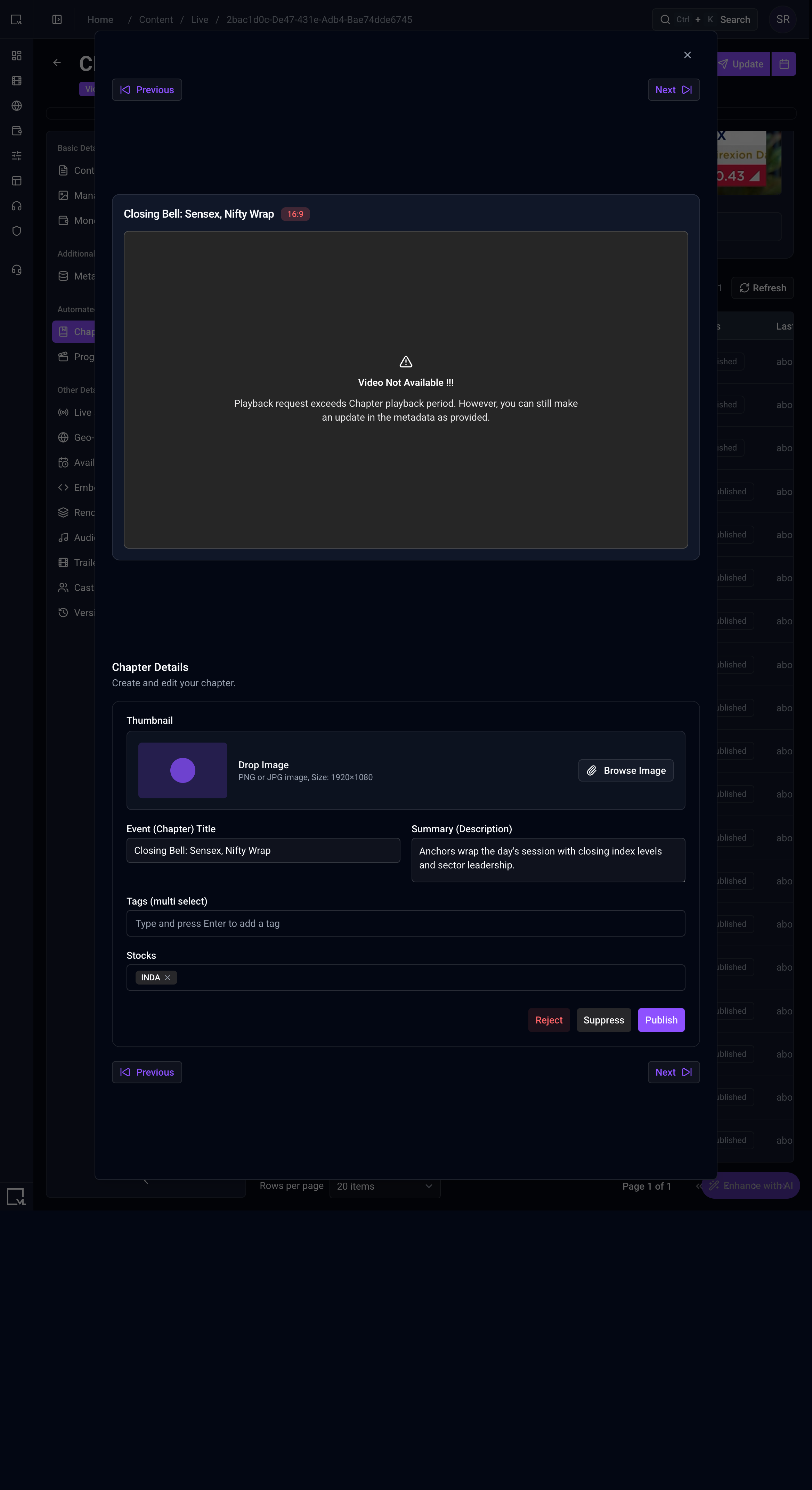
Chapter list at page limit 20
Trimming Start/End Points
Below the preview player is a trim tool for correcting AI timing errors:
- Drag the start or end handle to a new position.
- Arrow keys nudge the edges frame by frame.
- Type an exact time directly into the start/end fields.
- Reset discards all changes; Undo steps back one change at a time.
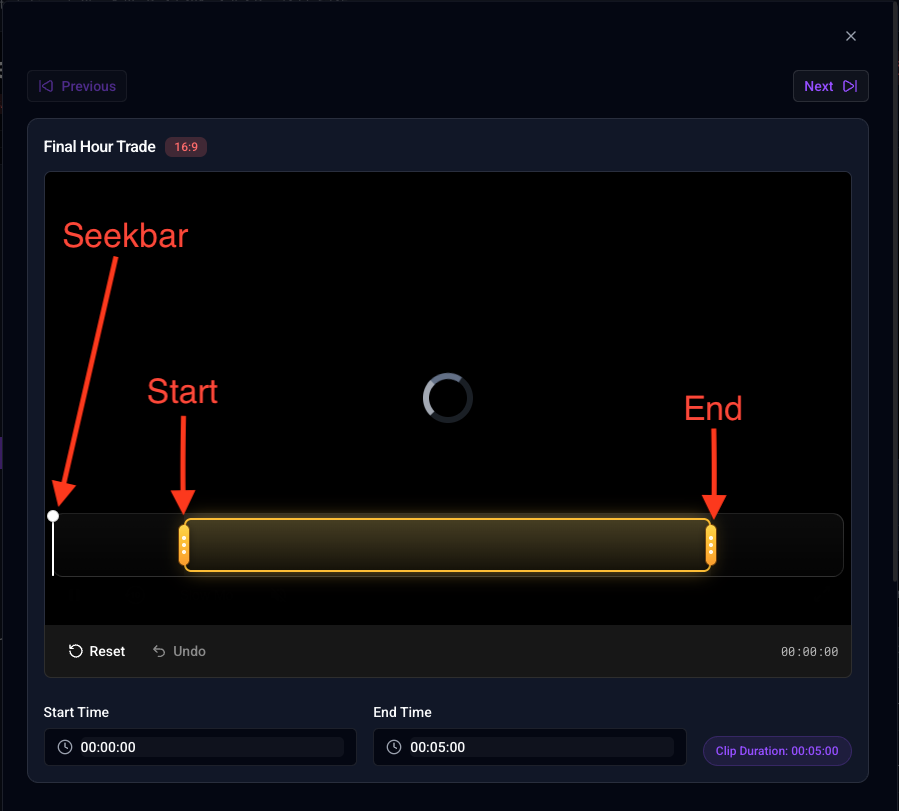
Trim tool
If the footage has aged out of the preview window, the trim tool is unavailable — only written details can be edited.
Editing Chapter Details
| Field | Description |
|---|---|
| Thumbnail | Click Browse Image to upload your own, or Capture Frame to grab the current preview frame. (Capture Frame is unavailable on DRM-protected streams.) |
| Event (Chapter) Title | The headline viewers will see. |
| Summary (Description) | A sentence or two describing the moment. |
| Tags | Type a word, press Enter to add. Add as many as needed. |
| Stocks | Add relevant tickers the same way (e.g. PLTR, SLV, CBRE). |
AI fills these in as a starting point — you can rewrite any field before publishing.
Publish / Suppress / Reject
Once you've finished reviewing, use the action buttons at the bottom of the window:
- Publish — Saves your changes and makes the chapter live on the stream's player.
- Suppress — Hides the chapter without marking it incorrect. Use for chapters that are technically fine but shouldn't show right now.
- Reject — For chapters that are clearly wrong or shouldn't exist. Requires typing a reason; the confirm button stays disabled until a reason is entered.
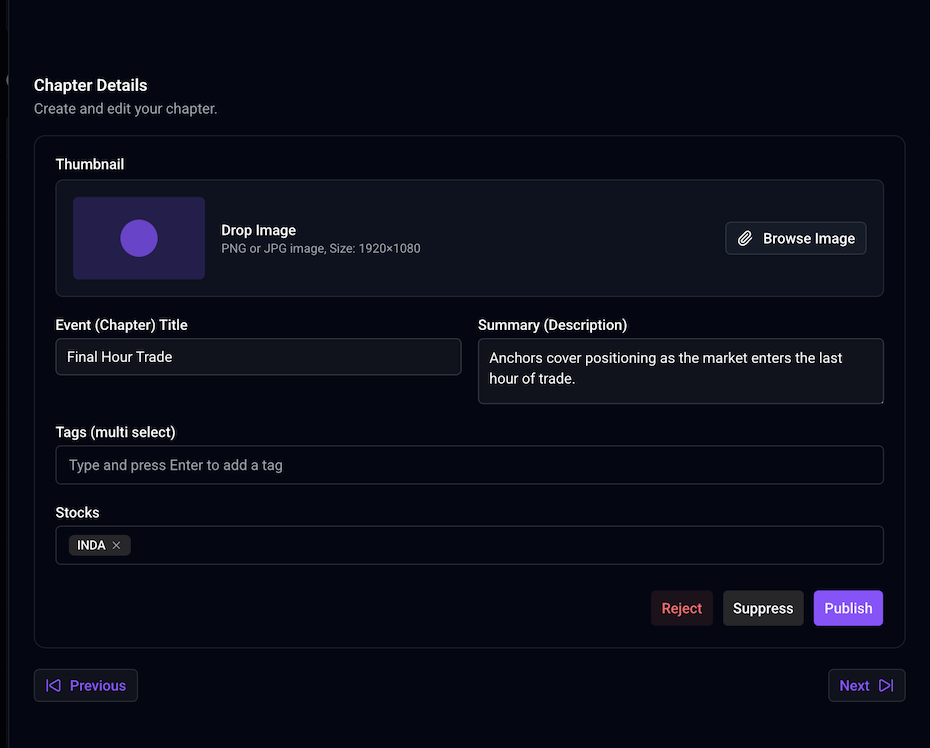
Publish / Suppress / Reject actions
⚠️ Warning: All three actions save immediately — there is no draft state. Only click when you're sure.
Bulk Actions
To process multiple chapters at once:
- Tick the checkboxes next to the relevant rows in the list.
- A bar appears with Publish All, Suppress All, or Reject All.
- Bulk rejection still requires a reason.
ℹ️ Note: Bulk actions only change status. They do not modify titles, thumbnails, or clip timing.
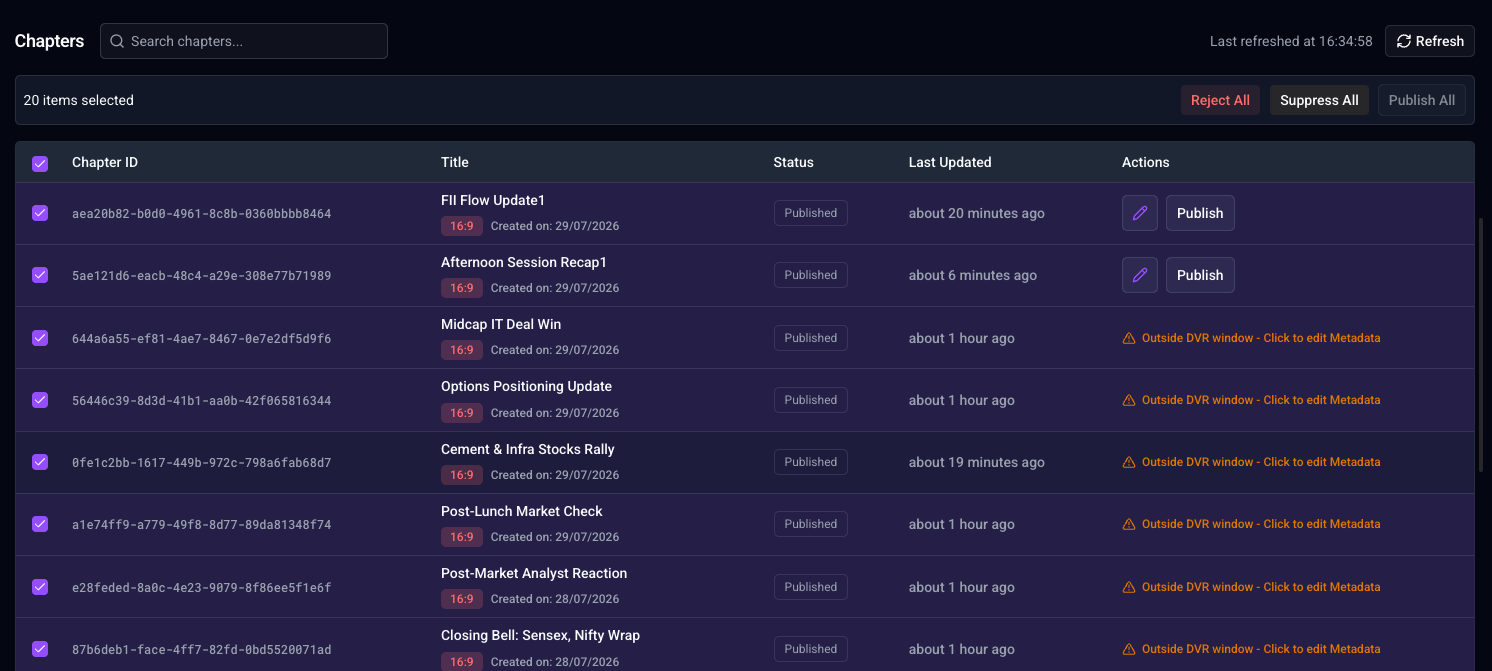
Good to Know
- A chapter only gets a marker on the live player after it has finished happening — no dot appears for something still in progress.
- Old footage eventually becomes unplayable for trim/preview as the stream's rolling buffer advances, but written details remain editable at any time.
- Dragging the trim start earlier than the stream's actual start will block publishing until corrected.
- A newly uploaded thumbnail may occasionally fail to persist after publishing (known issue) — if this happens, try re-uploading.
- Chapters and Programs are separate lists — actions on one never affect the other, even though both originate from the same stream.
Troubleshooting
A chapter's row shows a warning instead of an Edit/Publish button.
The footage has aged out of the stream's playback window. Open the chapter anyway — you can still edit title, summary, tags, and thumbnail; the clip itself just can't be trimmed or previewed.
The "Yes, Reject" button won't let me click it.
Type a reason in the box first — rejection always requires an explanation.
Publish gives me an error about the start time.
Your trimmed start point is earlier than the stream's actual start. Drag the start handle forward (or type a later time) and try again.
I don't see a chapter I know was just created.
The list doesn't refresh automatically — click Refresh to pull the latest chapters.