Overview
Initiate a subscription cancellation or restore a previously cancelled subscription to active status.
:::tip At a Glance
Who is this for?
Support agents processing cancellation requests or reversing accidental cancellations.
When do I use this?
When a customer wants to cancel their subscription, or when a cancelled/suspended subscription needs to be restored.
What will happen?
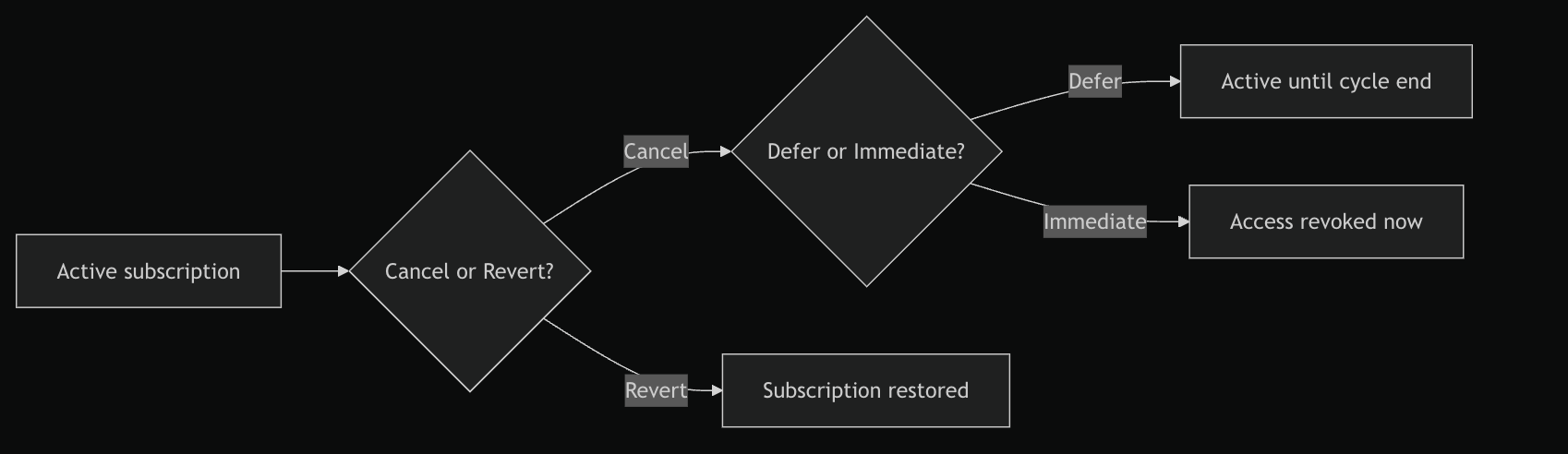
Cancel: The subscription is terminated either immediately or at the end of the current billing cycle. Revert: The subscription is restored to active status.
:::
Prerequisites
- A support session must be active for the customer
- For cancellation: the subscription must be in an active or deferred-cancellation state
- For revert: the subscription must be cancelled or suspended
Steps
Cancellation
Step 1: Open the Initiate Cancellation action
From the Subscriptions tab, click Initiate Cancellation.
.png)
Step 2: Choose the cancellation type
| Option | Effect |
|---|---|
| DEFER | Subscription stays active until end of current cycle, then cancels |
| CANCEL | Immediate cancellation — customer loses access right away |
.png)
If the subscription is already in a deferred-cancellation state, only the CANCEL (immediate) option is available.
Step 3: Enter a reason
Type the reason for cancellation in the required textarea.
Step 4: Confirm
Click Confirm to process the cancellation.
Revert
Step 1: Open the Revert Plan action
From the Subscriptions tab, click Revert Plan. This option only appears when the subscription is cancelled or suspended.
Step 2: Confirm
The system handles the revert differently depending on the payment gateway (e.g., Razorpay uses a separate flow).
Click Confirm to restore the subscription.
Expected Behavior
- Deferred cancellation: The customer retains access until the billing cycle ends. The status changes to "Deferred Cancellation".
- Immediate cancellation: Access is revoked immediately. The status changes to "Cancelled".
- Revert: The status returns to "Active" and access is restored.
- Subscription data refreshes automatically after each action.
- An audit log entry is created for each action.
Flow
If Something Goes Wrong
- Cancel button not showing? → The subscription may be VIP, TVE, or iOS managed. Check the subscription details.
- Only CANCEL (no DEFER) option? → The subscription is already in deferred cancellation. Immediate is the only remaining option.
- Revert failed? → The payment handler may not support revert, or there may be a billing issue upstream.
Related
- Manage subscriptions
- Deactivate an account
- View audit logs