Accessibility support in the Fire TV experience is always enabled. There is no separate accessibility mode.
This guide walks through the app screen by screen, matching how focus moves with a TV remote (and VoiceView). In the screenshots:
- Red fill on a side-nav item = that destination is selected / current page
- Green outline = the control that currently has focus
How focus works on TV
| Indicator | Meaning |
|---|---|
| Red background on side-nav item | Current page / selected destination |
| Green outline | Remote / accessibility focus on that control |
| Select / OK | Activate the focused control |
| D-pad | Move focus between side nav, hero, trays, and page content |
| Back | Leave overlays (player settings, etc.) or return |
Side-nav items also expose accessible names with selected state and position (for example Home, selected, item 2 of N).
1. Side navigation (item by item)
The left rail is the primary way to move between destinations: Search, Home, Live TV, Browse, USA Sports, Login, and Settings (plus CMS / partner items such as Hotwire).
1.1 Home selected / focused
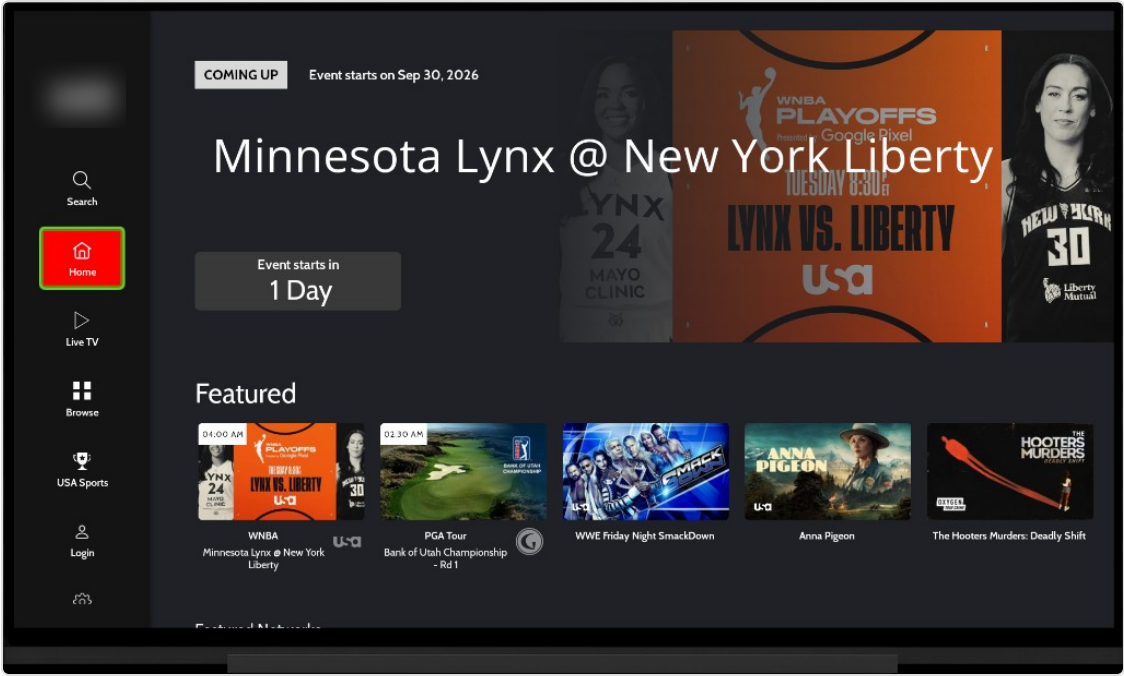
Figure 1. Side navigation — Home highlighted. Home content (Coming Up hero + Featured) is visible on the right.
1.2 Live TV focused
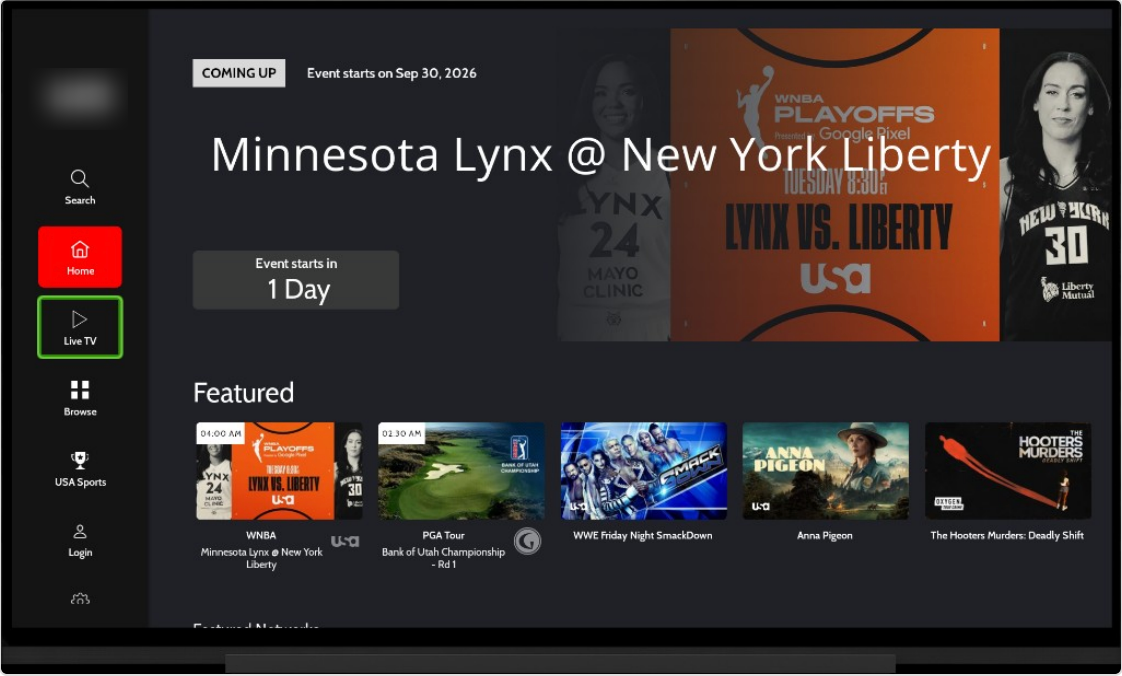
Figure 2. Side navigation — focus outline on Live TV (Home still shows as the previous content context).
1.3 Browse focused
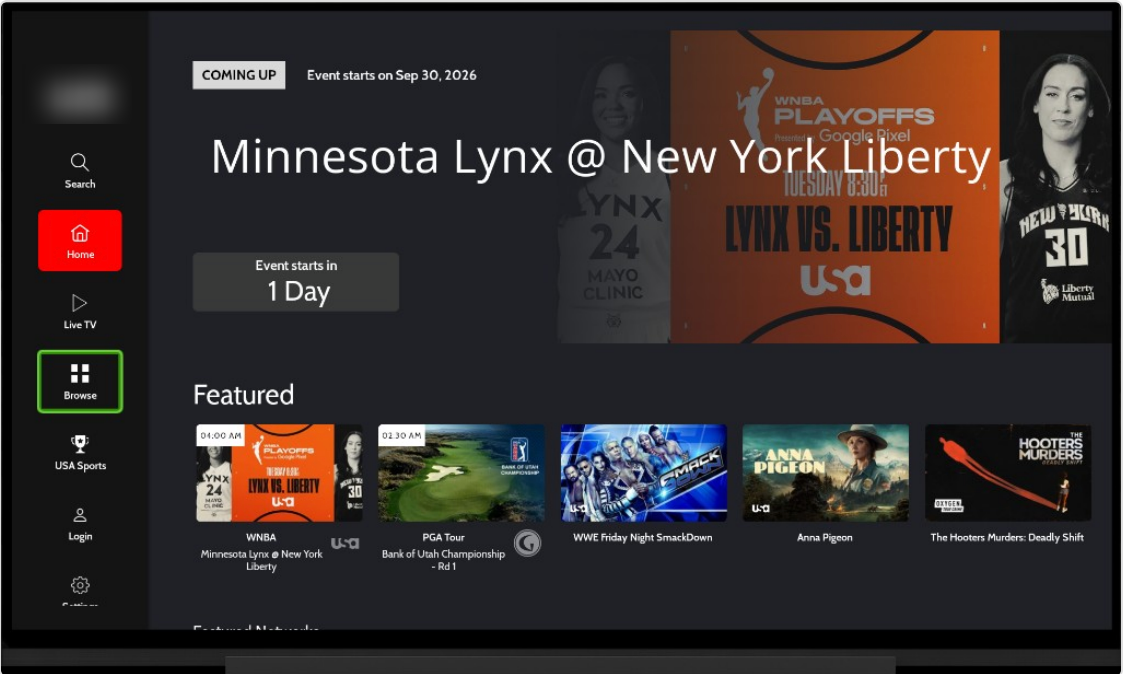
Figure 3. Side navigation — focus outline on Browse.
1.4 USA Sports focused
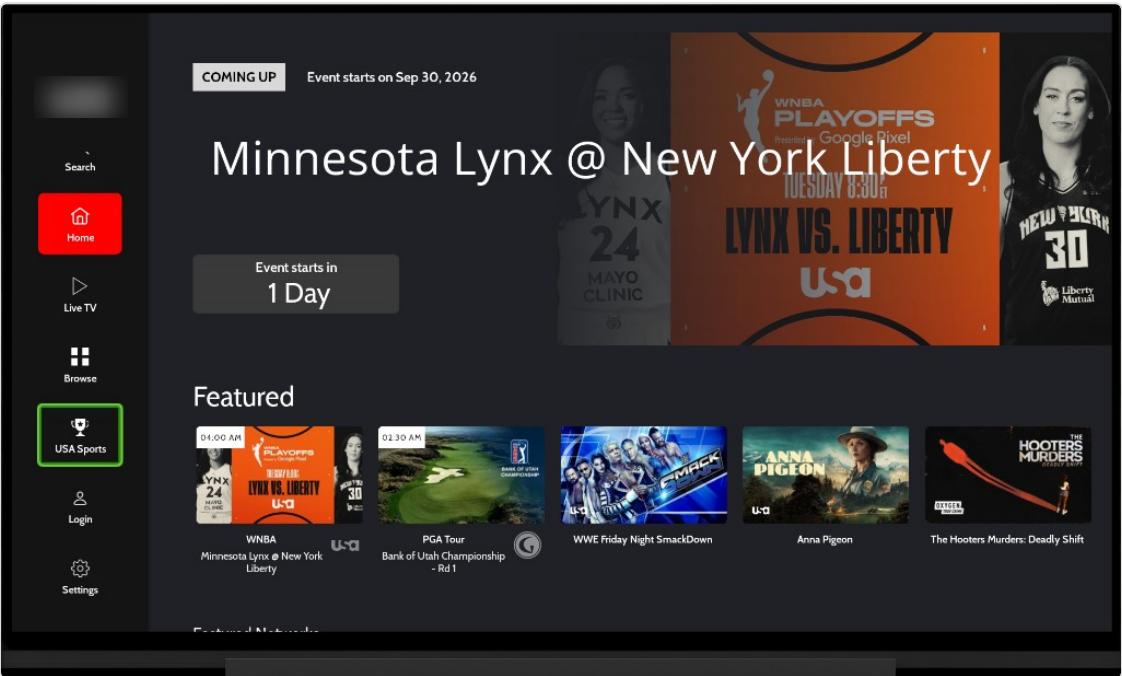
Figure 4. Side navigation — focus outline on USA Sports.
2. Home page (focus tour)
Home shows a Coming Up hero, a Featured tray, and further trays (for example Featured Networks). The following captures walk focus through Home one control at a time.
2.1 Home overview
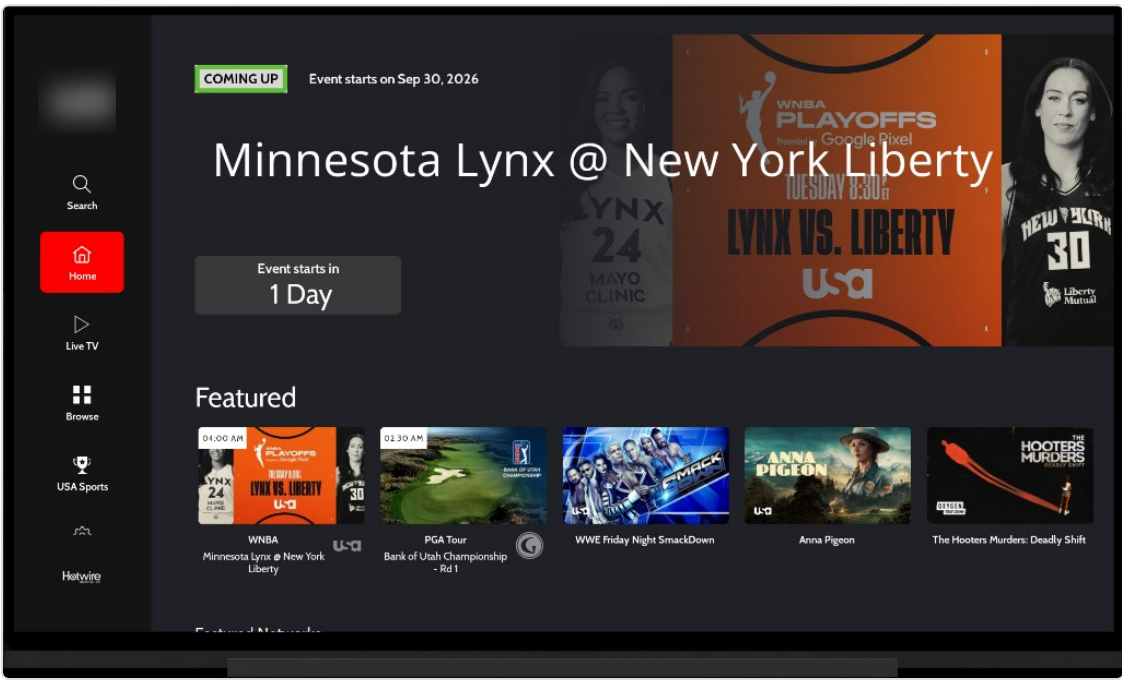
Figure 5. Home overview — Home selected in the side nav; Coming Up hero (Minnesota Lynx @ New York Liberty) and Featured tray.
2.2 Focus on hero title
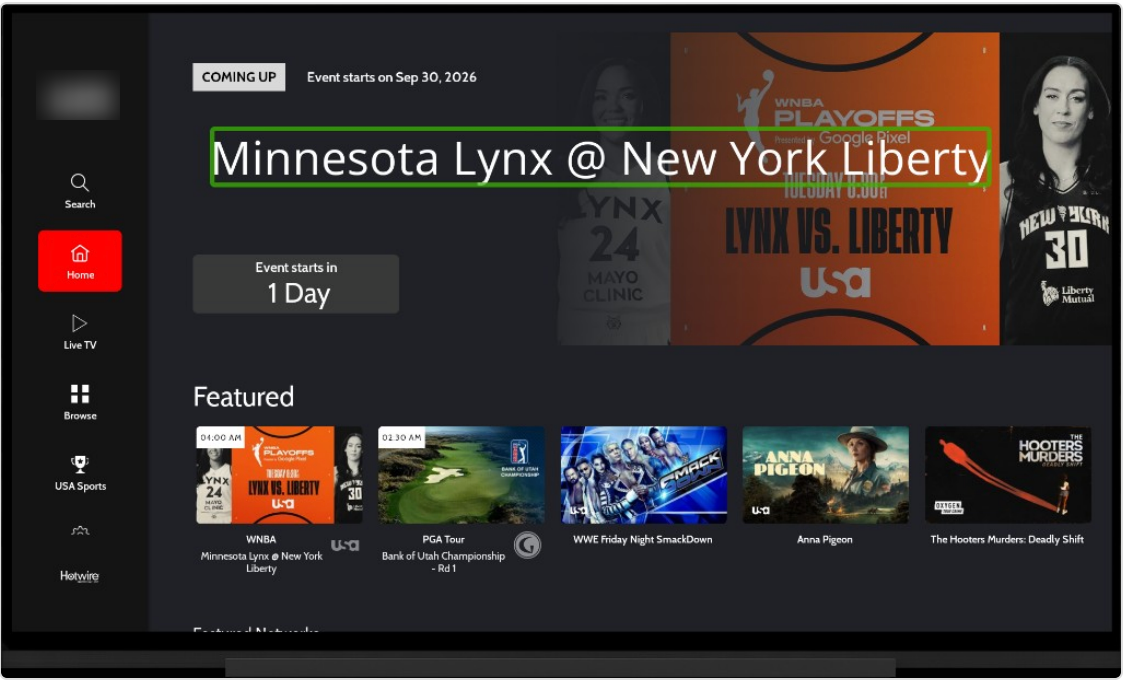
Figure 6. Home — green focus on the hero event title.
2.3 Focus on Featured heading
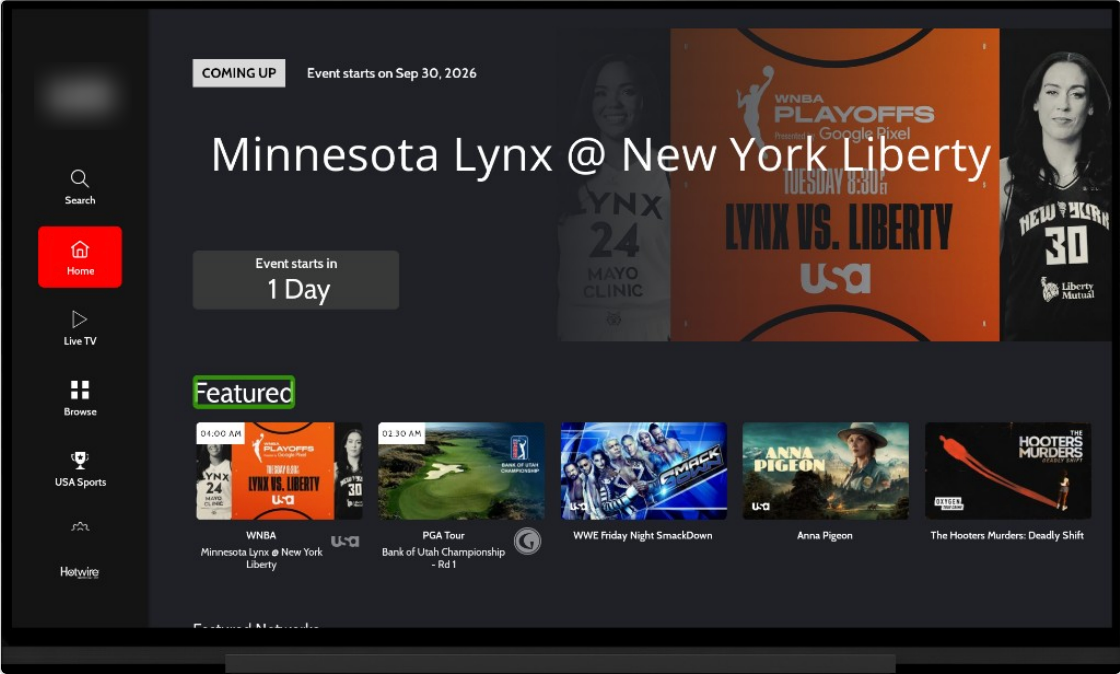
Figure 7. Home — green focus on the Featured section heading.
2.4 Focus on Featured tile (WNBA)
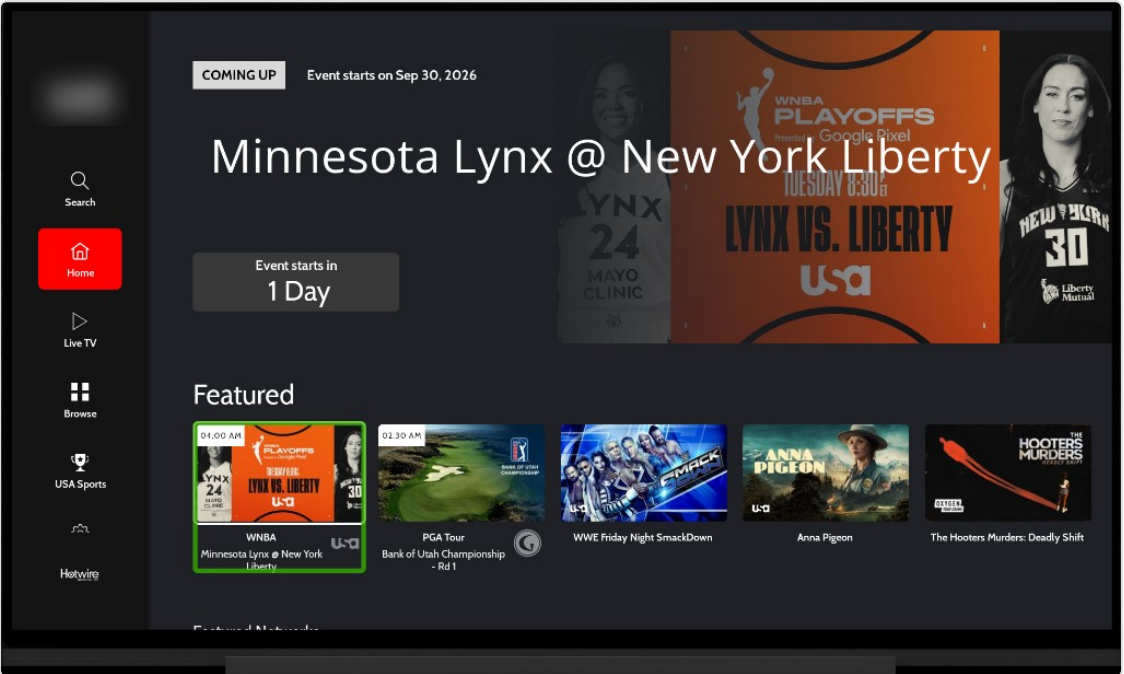
Figure 8. Home — green focus on the first Featured tile (WNBA Minnesota Lynx @ New York Liberty).
2.5 Focus on Featured tile (PGA) / alternate hero
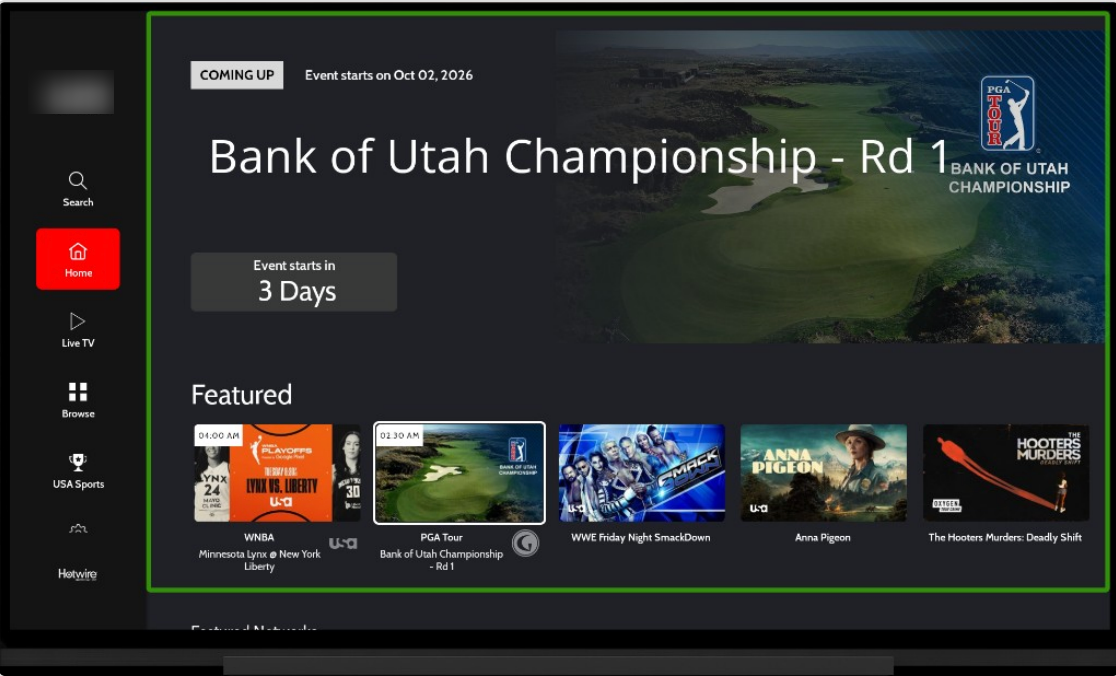
Figure 9. Home — Coming Up hero for Bank of Utah Championship; Featured tray with PGA tile selected.
Home accessibility notes
- Hero metadata (Coming Up, start date, countdown) is on-screen text for assistive technology.
- Tray headings and tiles are focusable; tiles expose title, time, and branding where shown.
- Decorative tray art is not announced separately when the parent tile already has a full name.
3. Search
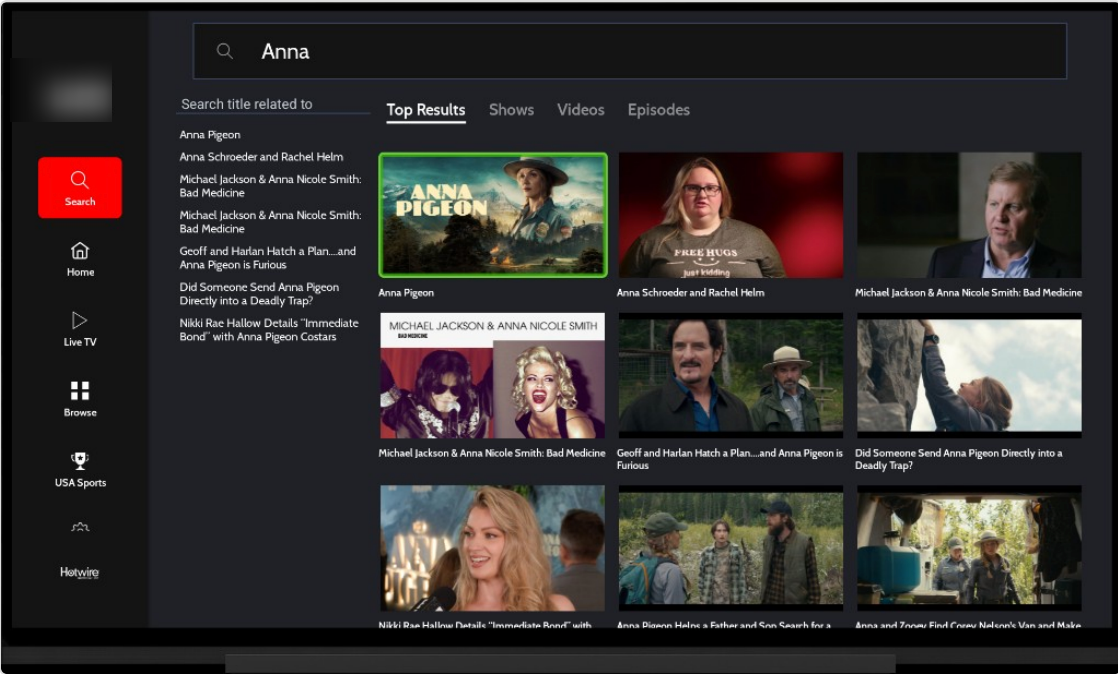
Figure 10. Search — query Anna; Search selected in the side nav; Top Results filter selected; green focus on result tile Anna Pigeon; related title suggestions on the left.
Search accessibility notes
- Search field, related titles, and filters (Top Results, Shows, Videos, Episodes) are labeled.
- Filters show selected vs unselected state.
- Result tiles are remote-activable; focus outline marks the current result.
4. Live TV (player + program guide)
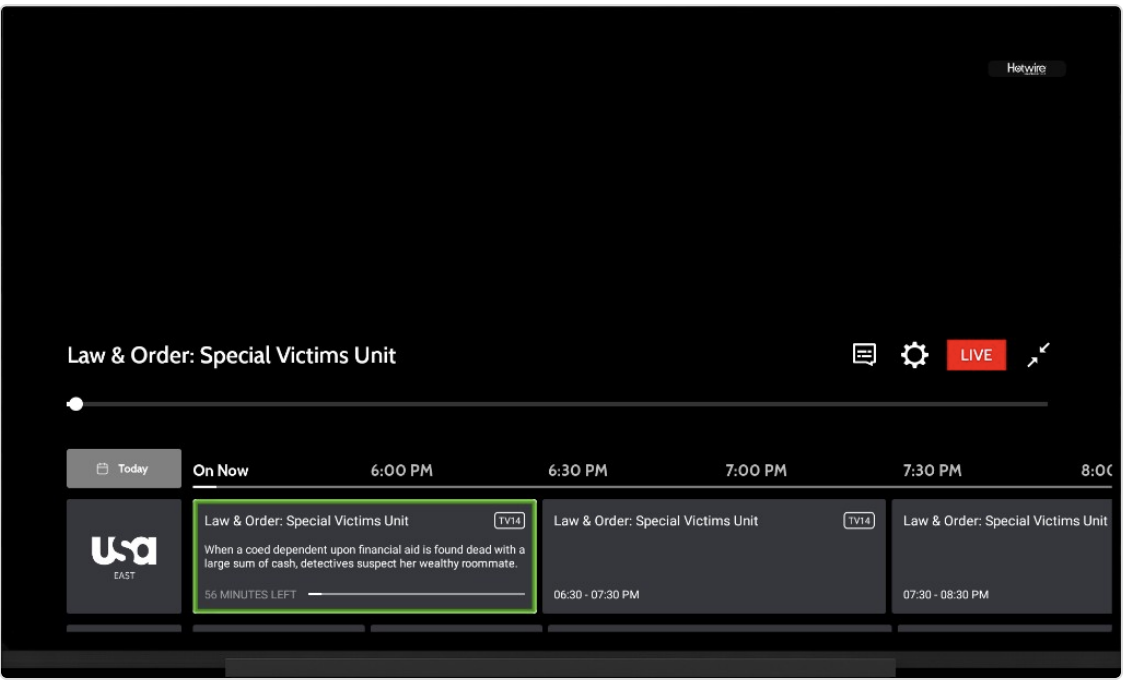
Figure 11. Live TV — player chrome (title, captions, Settings, LIVE, expand) plus on-now guide: Today, channel USA EAST, and green focus on the current program cell (Law & Order: Special Victims Unit) with rating, description, and minutes left.
Live TV accessibility notes
- Captions / Settings / LIVE / expand controls are reachable in the chrome.
- Guide Today control, channel logo, and program cells are focusable.
- Focused program cells expose title, rating, description, and remaining time.
5. Browse
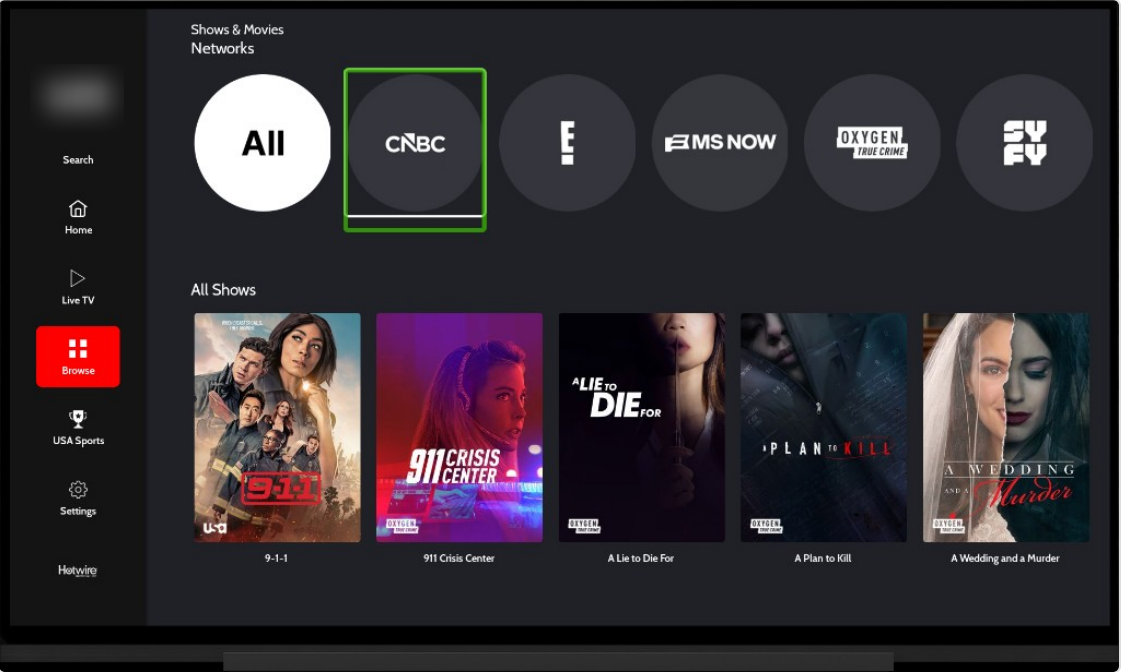
Figure 12. Browse — Browse selected in the side nav; Shows & Movies / Networks and All Shows; green focus on the CNBC network chip.
Browse accessibility notes
- Network chips (All, CNBC, E!, and others) are buttons named by network.
- Show posters under All Shows are focusable tiles with titles.
6. USA Sports
6.1 Page with Live & Upcoming heading focused
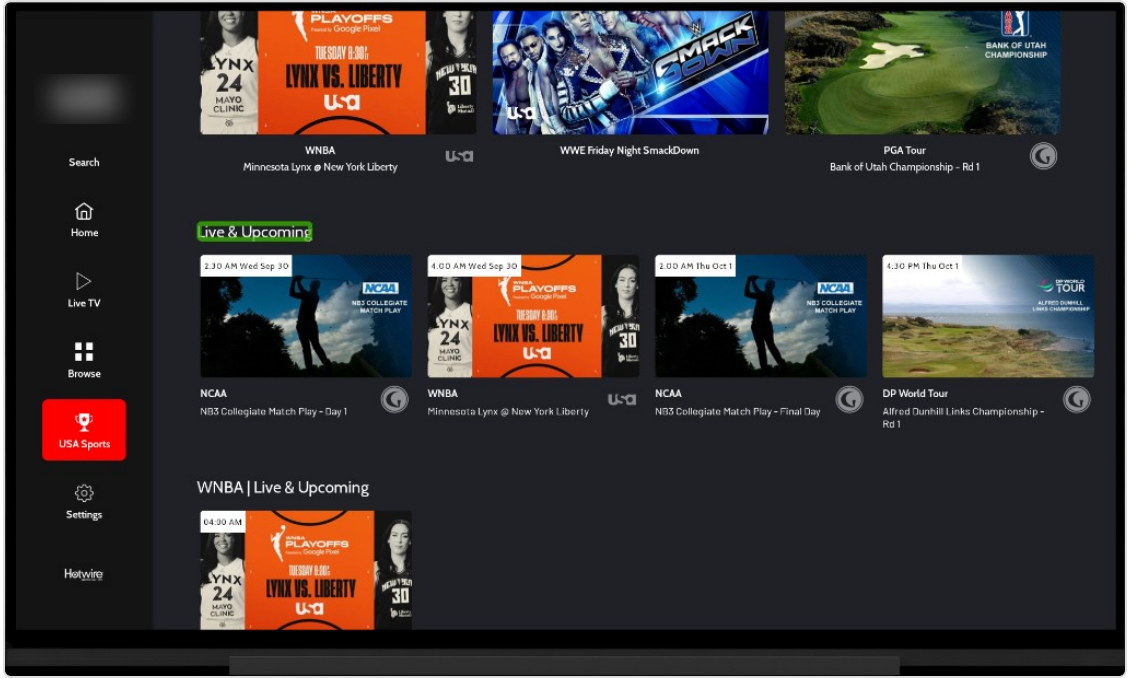
Figure 13. USA Sports — USA Sports selected; green focus on the Live & Upcoming heading; featured sports and schedule trays below.
6.2 Focus on a Live & Upcoming tile
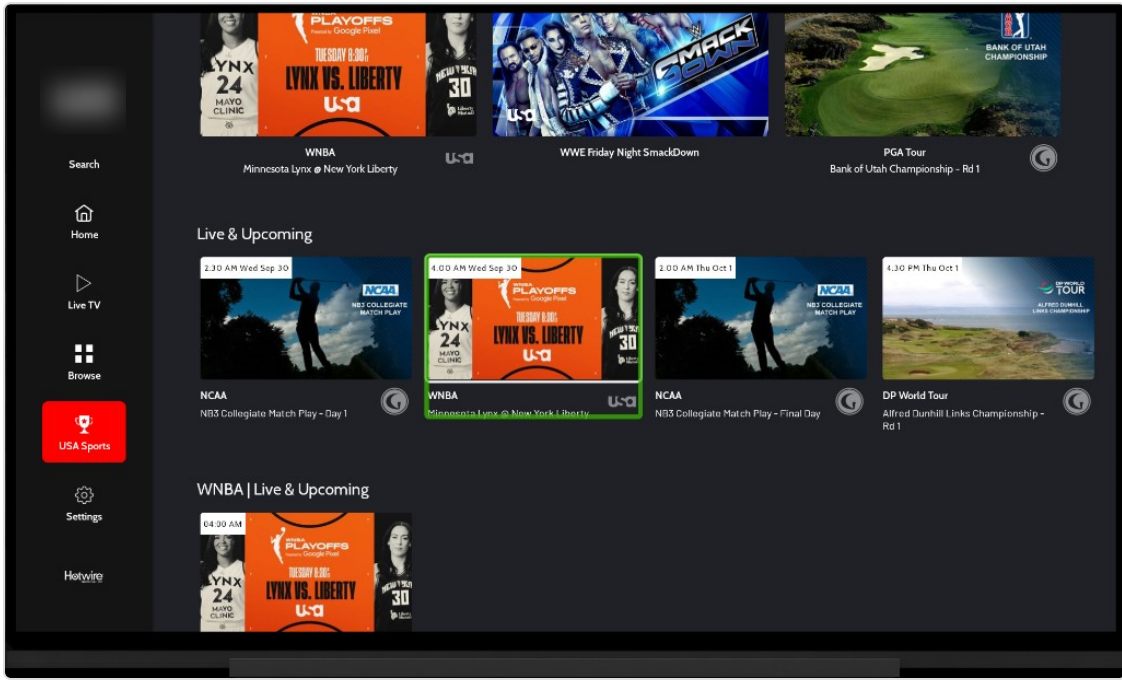
Figure 14. USA Sports — green focus on a Live & Upcoming tile (Minnesota Lynx @ New York Liberty).
USA Sports accessibility notes
- Featured sports and Live & Upcoming tiles expose event title, league, and air time.
- Focus outline identifies the current schedule tile.
7. Video / show detail
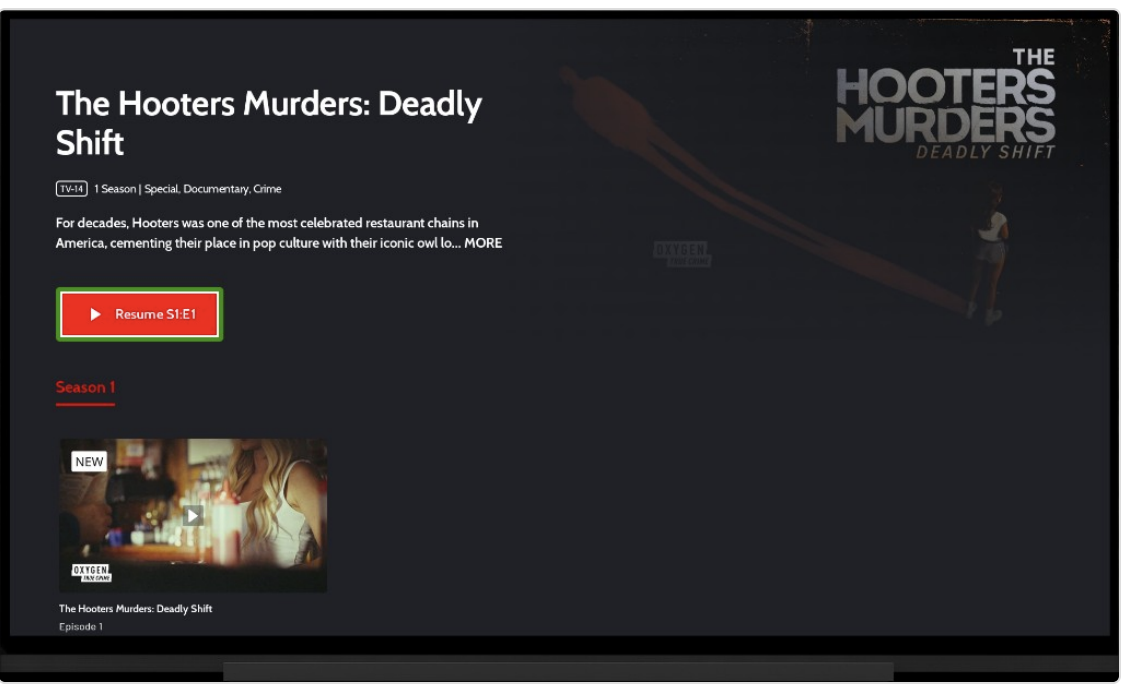
Figure 15. Video detail — title, rating, seasons/genres, description; green focus on Resume S1:E1; Season 1 and Episode 1 tile.
Detail accessibility notes
- Title, metadata, and description are available as labeled text.
- Primary CTA (Resume / Play) is a clear focusable button.
- Season header and episode tiles (including NEW badge) are remote-operable.
8. Video player (VOD)
8.1 Player controls
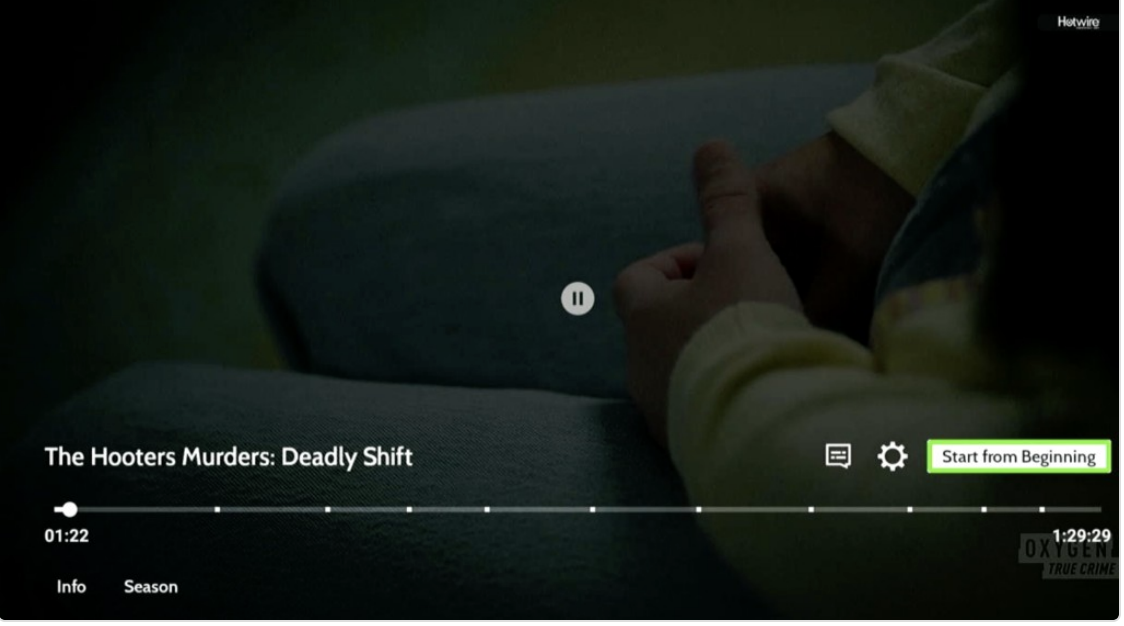
Figure 16. Player — title, Pause, scrubber / time, Info, Season, captions, Settings; green focus on Start from Beginning.
8.2 Player Settings overlay
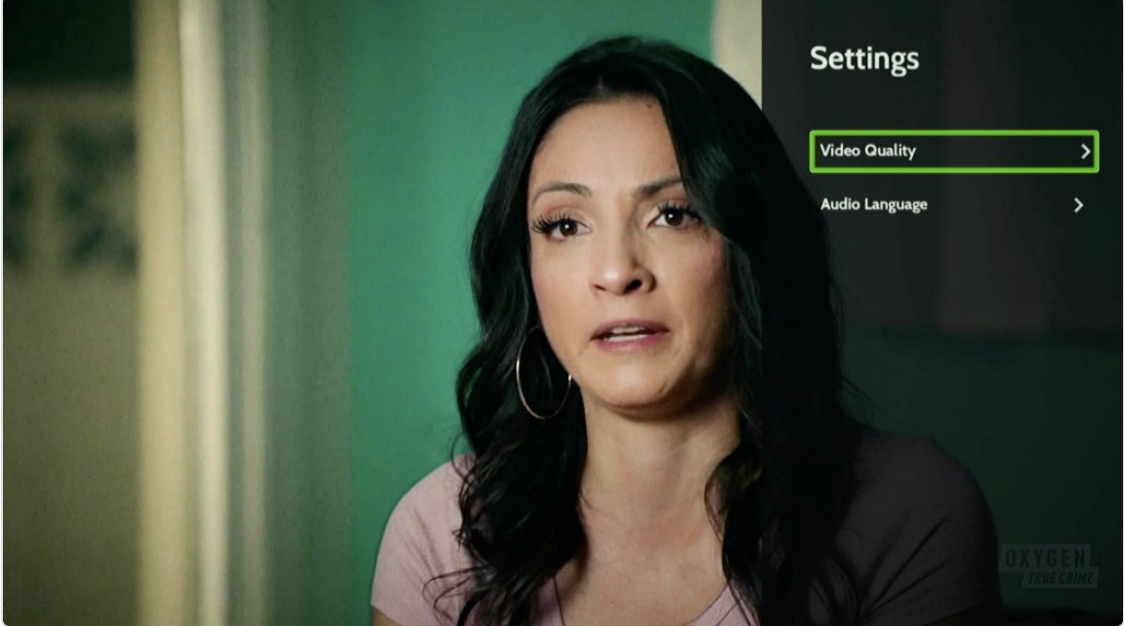
Figure 17. Player Settings overlay — Video Quality focused; Audio Language listed below.
Player accessibility notes
| Control | Behavior |
|---|---|
| Pause / Play | Center control; label tracks state |
| Scrubber / time | Position and duration (for example 01:22 of 1:29:29) |
| Info / Season | Open info or season / episodes |
| Captions | Closed captions entry point |
| Settings | Opens Video Quality / Audio Language |
| Start from Beginning | Restart from the start |
| LIVE (live only) | Live status badge |
9. Settings
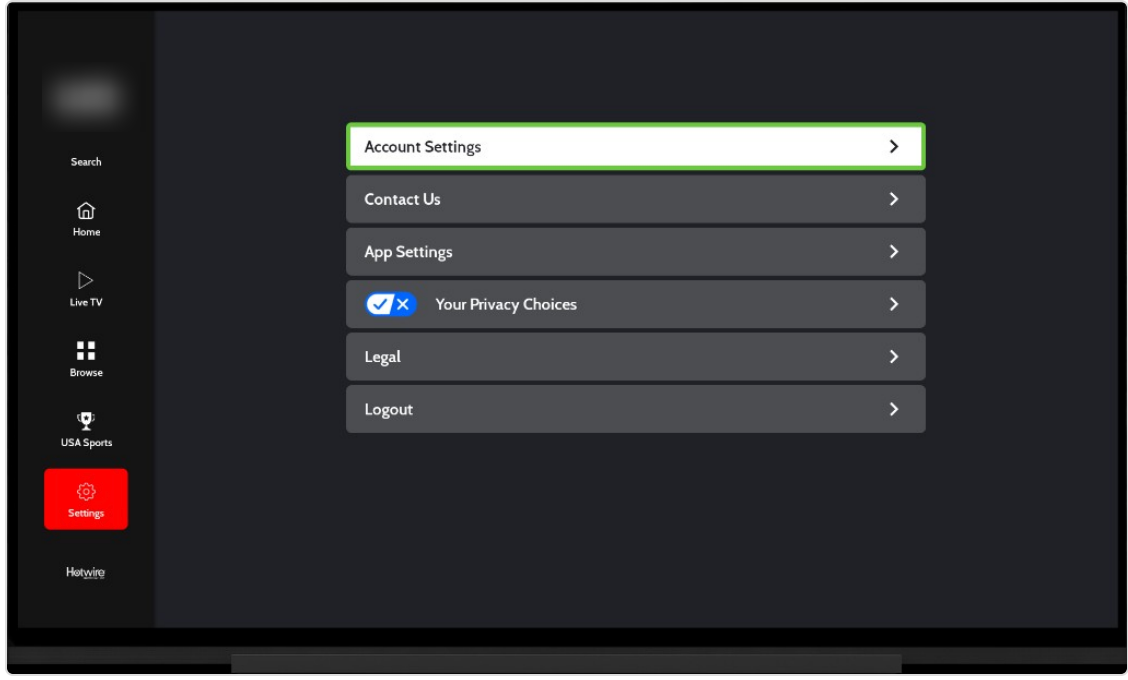
Figure 18. Settings — Settings selected in the side nav; green focus on Account Settings; also Contact Us, App Settings, Your Privacy Choices, Legal, Logout.
Settings accessibility notes
- Each row is a labeled, focusable button.
- Selected side-nav state and in-page focus outline stay distinct (red vs green).
10. Login / Activate Device
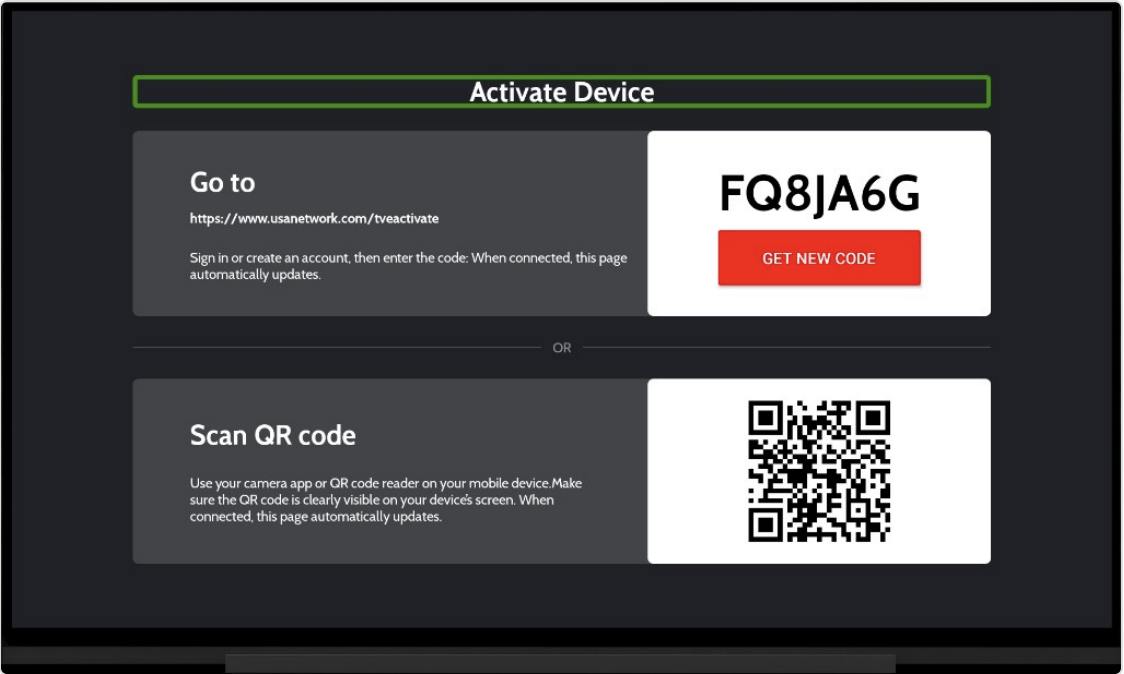
Figure 19. Activate Device (login / account linking) — title focused; URL + code path with GET NEW CODE; OR scan QR code path.
Login accessibility notes
- Screen title Activate Device is labeled for assistive technology.
- Activation URL, one-time code, GET NEW CODE, and QR instructions are on-screen and remote-reachable.
- Two clear paths: enter code on the web, or scan the QR code on a phone.
Coverage checklist
| Screen | Side-nav selected | Focus tour / key controls | Captions / live |
|---|---|---|---|
| Side navigation | Home, Live TV, Browse, USA Sports (shown) | Item-by-item focus | — |
| Home | Home | Hero title → Featured heading → Featured tiles | — |
| Search | Search | Query, filters, result tile | — |
| Live TV | Live TV | Chrome + EPG cell | LIVE + captions |
| Browse | Browse | Network chip + posters | — |
| USA Sports | USA Sports | Heading + schedule tile | — |
| Video detail | — | Resume CTA, season, episode | — |
| Player | — | Controls + Settings overlay | Captions |
| Settings | Settings | Account Settings row | — |
| Login / Activate | Login path | Title, code, QR | — |
Testing notes
Verify with VoiceView (Fire TV screen reader), plus D-pad only:
- Move through every side-nav item; confirm selected vs focused announcements
- On Home, move focus: hero → Featured heading → each Featured tile
- Search, Browse, USA Sports, Settings pages load with clear focus
- Open Live TV guide and move across program cells
- Open a show detail → Resume → player controls → Settings → Back
- Open Activate Device and confirm code / QR paths are reachable
Out of scope
- Mobile phone / tablet and Apple platforms (see companion ADA guides)
- Formal legal / WCAG certification claims
- System VoiceView prompts outside app chrome
Closing note
This Fire TV accessibility guide is organized the same way users move: side navigation first, then each page with focus called out one control at a time, then detail, player, settings, and login. Clear selected (red) and focused (green) states, labeled controls, and operable live / VOD chrome keep browse, search, live TV, and playback usable with a remote and with VoiceView.